
"Outlook Repair" saved my life
Wow!!!!!
Several of my Outlook PST files were corrupted and Microsoft left me without any solution. The repair
Our DataNumen Outlook Repair is the ultimate solution for recovering Outlook data and reducing file corruption loss.
Our cutting-edge Outlook repair & recovery technology guarantees:
– Recovery of ALL Outlook items with ALL properties
– Support for multiple OS, devices, and file types
– Highest recovery rate
Note:





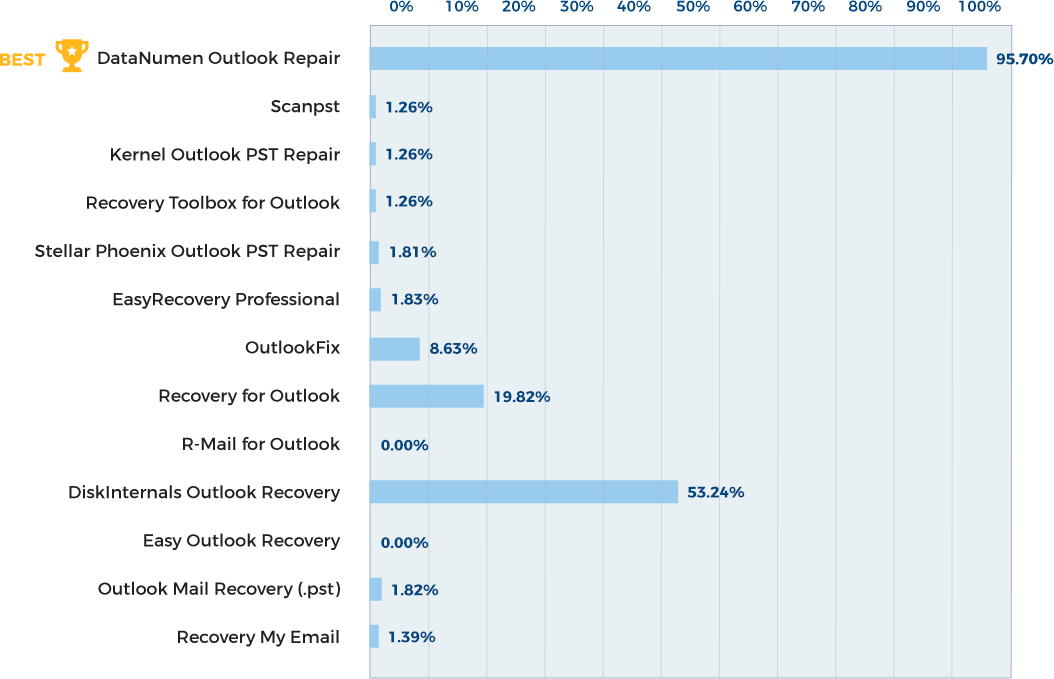
DataNumen Outlook Repair vs. Inbox Repair tool (scanpst.exe), Stellar Repair For Outlook, Recovery Toolbox for Outlook, etc.
Learn more about how DataNumen Outlook Repair smokes the competition

"Outlook Repair" saved my life
Wow!!!!!
Several of my Outlook PST files were corrupted and Microsoft left me without any solution. The repair
"Outlook Repair" saved my life
Wow!!!!!
Several of my Outlook PST files were corrupted and Microsoft left me without any solution. The repair tool integrated in Outlook was capable of nothing (really nothing).
The price I paid for the DataNumen tool is an investment I won't regret. I saved about 5000 emails with very few really lost messages (and without having to be an IT expert).
A pity they didn't think to develop an operating system...
Anne D.
Retired IT professional with 15 years’ experience
Brussels, Belgium
September 19, 2026
About myself:
My name is Roberto, I am a computer forensics professional working independently since 2008. I
About myself:
My name is Roberto, I am a computer forensics professional working independently since 2008. I live in Chile, close to Colina in the Región Metropolitana.
As a forensic investigator working for many many different customers and for the sake of their privacy, I maintain a low profile with no web site and a typical gmail email account.
About my use of DataNumen products:
I choose Outlook Repair and Exchange Recovery from DataNumen as the best tools to fit a step in the process of doing forensics analyses of emails.
In practice when dealing with dozens of PST or OST files, it is not uncommon to stumble into files that had a certain degree of internal
corruption, and of course they also hold deleted emails that should be recovered for the analysis to be as complete as possible. So now, whenever I have to process those kinds of email files, the first mandatory step is to run them through DataNumen software to get a "fixed" set. Very nice that DataNumen can do batch processing. Load all files once and run. In a high performance machine with 32GB Ram and 2x 2TB of M.2 storage, this can require from one to three days non stop, depending on the case. Too bad DataNumen software does not use all machine cores to speed up things, but now they placed this idea into their request list. Once done, I create a forensic image with the fixed files, and then proceed to digest that image with X-Ways Forensics, my forensic tool of choice.
Roberto
rpetitpas (at) gmail.com
Colina, Chile
March 8, 2024
You guys have been great – really appreciate all the work and effort. Has paid off as file seems to work perfectly now. Very impressive
You guys have been great – really appreciate all the work and effort. Has paid off as file seems to work perfectly now. Very impressive customer service and tech support.
Many many thanks,
David
AKL Research & Development Ltd
United Kingdom
September 27, 2022
Suddenly my Microsoft Outlook cannot start. Your app repair Outlook file with a very simple click. Really amazing!
Siva Tamboli
India
March 15, 2022
Outlook got fouled up, right after a Windows update my Email program Outlook stopped working. I used datanumen product to rearrange the email
Outlook got fouled up, right after a Windows update my Email program Outlook stopped working. I used datanumen product to rearrange the email folders properly and it worked. All I had to do was run the program to fix the data, changed the data file name and run Outlook. Presto it worked. Many thanks
Craig
Self-employed
November 20, 2020
I'm impressed with the ease of use and the quick recovery of the file. Altough all, I don't need it anymore, so I unistalled it after two file
I'm impressed with the ease of use and the quick recovery of the file. Altough all, I don't need it anymore, so I unistalled it after two file recoveries.
Thanks a lot.
Víctor Ramón R. G.
Home Work
Leioa, Bizkaia, Spain
September 30, 2020
Thank you for the product for small people with gigantic problem.
I used your Outlook repair.
Lucy Gold
Retired Scientist
Paris, France
September 21, 2020
Perfect, awesome.
If only other people were this efficient.
Congratulations.
Nilson Ghelardi
Texas, USA
September 1st, 2020
I had to send a message to thanking your company for this great Datanumen Outlook repair product!
I was using another program to sync my outlook
I had to send a message to thanking your company for this great Datanumen Outlook repair product!
I was using another program to sync my outlook (Companion Link) and my phone and the program malfunctioned and wiped my newer data on my computer with the older data from my phone. I didn't have a backup of the outlook file and I was so frustrated to lose very important updates to notes. I spent pretty much all of a couple days thinking and figuring out a way to fix this through every method possible (previous versions, other recovery software, other online tips) and it seemed impossible, but luckily found the Datanumen product and was able to repair/recover the lost notes! With being a small business and going through some of life's difficult times I was extremely down, sad, angry when I thought my outlook data was overwritten by that error and frustrated with no way to get it back and was extremely pleased to find this Datanumen program and have it work to restore my data, it's amazing and the software was intuitive and easy to use. This is such a great company and just wanted to let everyone know they make a difference in peoples lives for the better!!!
Thank you so much again.
Alan Rudy
Freedom Real
Los Angeles, CA, USA
July 17th, 2020
magic software
Fixed another file of mine the Microsoft classified as "corrupt". Million thank yous.
Cavan McDonald
Retired
St. Albans. UK
July 9th, 2020
Sheer magic - fixed a file the scanpst.exe could not even recognise as an Outlook Mailbox. Grateful thanks for a terrific product.
Cavan McDonald
United Kingdom
June 2nd, 2020
I would like to offer my thanks to DataNumen inc. for your help and your software that really did its job and allowed a not very experienced person
I would like to offer my thanks to DataNumen inc. for your help and your software that really did its job and allowed a not very experienced person to recover his Outlook 2007 PST files.
Great Product!
Pete M.
Retired
Calgary, AB, Canada
May 8th, 2020
Your tool was instrumental in recovering all my wife’s email. Thank you so much to you and your entire team for providing this lifesaving and easy
Your tool was instrumental in recovering all my wife’s email. Thank you so much to you and your entire team for providing this lifesaving and easy to use tool!!
Ken Mantey
Retired GE Lighting
Chesterland, OH, USA
August 8th, 2019
Thank you very much for you generous assistance and I appreciate your quick responses. I would definitely recommend your product.
Tony V
May 31, 2019
Hello guys
This message serves as a BIG THANK YOU for your brilliant Outlook repair tool. My customer had been experiencing multiple power outages
Hello guys
This message serves as a BIG THANK YOU for your brilliant Outlook repair tool. My customer had been experiencing multiple power outages which caused Outlook pst to become corrupt. Scanpst came up with error referring to disk problems. I googled this error and luckily stumbled upon your product. I installed and ran the tool which took over 2 hours to complete. The end result was a perfectly working Outlook which was much faster than before! My customer is over the moon as it is a business account relying heavily on email.
Thank you for a great product, I will definitely be recommending it to all my IT colleagues. For your information, the environment is as follows:
Desktop pc (older model IBM) with dual-core cpu, 4Gb ram, Windows 7 professional and Outlook 2007. PST is approx. 4.5Gb.
Please keep up the great work.
Kind regards
Steve
IT Professional
Durban, South Africa
February 18, 2019
Remerciements.
Facile et Efficace
Abdellatif FAJR
General Manager
Business Applications
Casablanca Morocco
December 10, 2019
A very big thank you.
MS Office upgrade crashed my computer and I had to delete and reinstall. In the process Outlook did not accept the old .ost
A very big thank you.
MS Office upgrade crashed my computer and I had to delete and reinstall. In the process Outlook did not accept the old .ost file and I lost all my emails stored in sub-folders (local computer only). This is a failure on behalf of Outlook, not to re- create the sub-folders on the server. After 6 hours of panic, I found your site and downloaded the software, less than 30 minutes later all was good again.All emails safe and accessible.
THANK YOU.
Eric Engelbrecht
Auckland, New Zealand
February 18, 2019
G'day DataNumen
I downloaded your outlook repair software because of constant error messages about my outlook.pst file having not closed properly
G'day DataNumen
I downloaded your outlook repair software because of constant error messages about my outlook.pst file having not closed properly on last use. You software worked perfectly. My pst file grew from 1.9gb to 2.45gm with 'lost data' that had been recovered and thoughtfully placed into two 'recovered' folders (not just dumped in the in box) for me to browse. It took less than 10 minutes for a complete recovery and scan of the recovered mail items.
Again I say thank you for providing such good software that does what it says it does with no limitations for private use. I highly recommend this tool for all computer users tool box.
Peter Jones
Home computer user
Adelaide, Australia
June 27, 2019
A really great piece of software that is super thorough and and delves deep to find deleted and lost emails. I managed to recover an eminence amount
A really great piece of software that is super thorough and and delves deep to find deleted and lost emails. I managed to recover an eminence amount of information that no other software that I used could. I really appreciated being able to use this application privately at no cost.
Thanks Datanumen!
Ant Lee
Auckland, New Zealand
August 23, 2019
This software is extremely good. I am really thankful to you for providing such an important tool (DataNumen Outlook Repair v 1.2 full version) for
This software is extremely good. I am really thankful to you for providing such an important tool (DataNumen Outlook Repair v 1.2 full version) for public use. Let me know if you could provide the tools some thing beyond this.
Mohammed Meeran
DATEL Systems & Software FZ LLC
Dubai. U.A.E.
It finished up beautifully.
Ryan Foote
Nexus IT Consultants
Park City, Utah, USA
Thanks for the input. I figured out what to do in the meantime. Recovered almost all of my lost email. Thanks for a good product...
Best regards,
Justin Moss
Applications Engineer
Metton America, Inc.
Houston, TX, USA
Hello,
I received the DVDRom with the zipped pst-file. I have been able to extract it and all is working well again.I wish to thank you for the
Hello,
I received the DVDRom with the zipped pst-file. I have been able to extract it and all is working well again.I wish to thank you for the kind an splendid support and all the help you have given me. If it wasn't for you and AOR I probably wouldn't have recovered the data in the file.Kind regards,
Robin De Roeck
Woonst BVBA
Geraardsbergen, Belgium
Thank You very much for your help - I really appreciate it.
An employee in Procter & Gamble
USA
Hi, thankyou for responding. I have managed to sort it out myself since the first email, so sorry to have bothered you. BTW, love the product.
Murrat
Australia
Hello,
Its it possible to specify the location and name of each file in the Batch Repair tab? This is already possible in the Repair tab, when
Hello,
Its it possible to specify the location and name of each file in the Batch Repair tab? This is already possible in the Repair tab, when only processing one file, but it would be really usefull if it were possible to edit the output file details in batch repair.
Great product by the way! AOR has recovered most of the items from a very important 6GB PST file. My previous attempts with SCANPST had only recovered 500mb!
Kind regards,
Mark Humphrey
Network Manager
CB Richard Ellis Ltd
Toronto, Canada
Time ago I buy Datanumen Outlook Repair and I am happy with it, using it form time to time. Now I need to recover deleted emails from a bunch of NSF
Time ago I buy Datanumen Outlook Repair and I am happy with it, using it form time to time. Now I need to recover deleted emails from a bunch of NSF Lotus Notes file. I thought you might have a good product but alas you dont have anything for Lotus Notes. Well, since you do things right, why not a Datanumen NSF Repair? Best regards, Roberto
Roberto Petitpas
rpetitpas@gmail.com
Thanks Alan, Repair worked almost perfect ... I did´t expect that well. Thanks so much. Helmut
Helmut Demmelhuber Demmelhuber Consulting
Tübingen, Germany
Sep 13th, 2018
Thanks so much for you support --- it worked by just creating a new profile.
Again Thanks,
Owner of CARisma
Houston, TX, USA
May 23rd, 2018
I just wanted to say Thank You for the software.
My Outlook data file appears to be mostly fixed.
I needed to inspect and delete a ton of entries
I just wanted to say Thank You for the software.
My Outlook data file appears to be mostly fixed.
I needed to inspect and delete a ton of entries but, I think, I recovered most of my data.
I will never know what I have lost permanently!
Ahmed Qadeer
Naperville, IL, USA
Dec 4th, 2018
Expensive but it did everything promised including the attachments
So how much is that worth? Highly recommended!
Brock Croome Architect
North Vancouver, BC, Canada
Nov. 1st, 2015
Advanced Outlook Repair completely repaired a 19GB Outlook 2007 .pst with multiple folders from over 15 years. It became corrupted after a hard
Advanced Outlook Repair completely repaired a 19GB Outlook 2007 .pst with multiple folders from over 15 years. It became corrupted after a hard shutdown, and would not open, even in safe mode. I heard about your tool from "chcw" on ExpertsExchange.com and from the repair percentages comparison table between tools on the Datanumen.site. I had made a copy of the .pst, and tried with no luck with the Microsoft scanpst.exe. 3rd party tools had helped years ago with Outlook Express conversion so I looked online. Advanced Outlook Repair was the only one getting affirmative positive reviews for complicated cases, and they showed examples of such, so I found a coupon and bought it. The first pass said the original file was held open by another source (even though rebooted). I next tried it against the copy, and within minutes (about 20%), my Outlook popped open - with complete up to date folders and emails. It scared me because I thought I had touched something and shut it. A few minutes later, that
Joanne Ashland
Houston, TX, USA
Nov. 1st, 2015
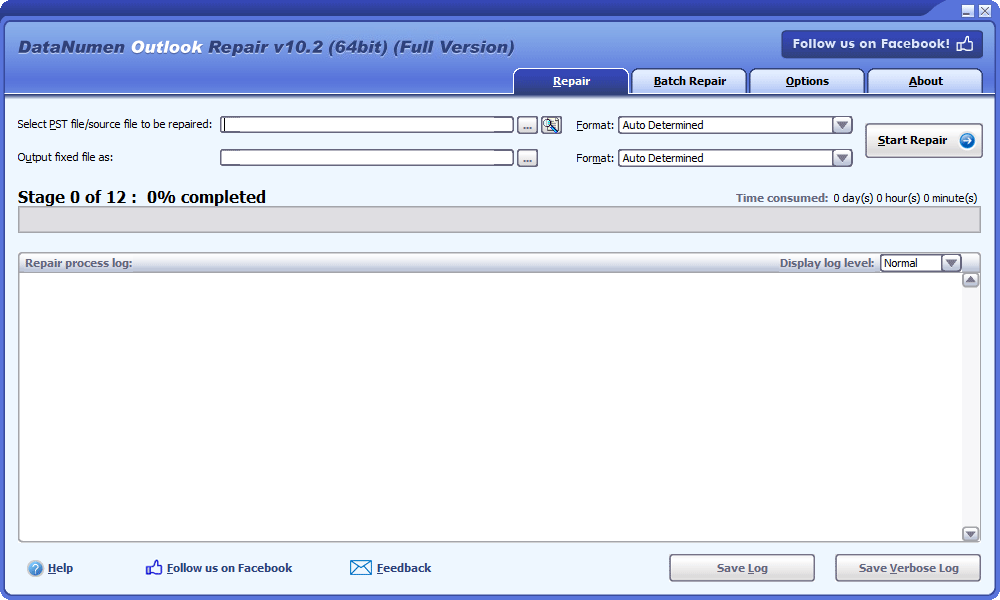
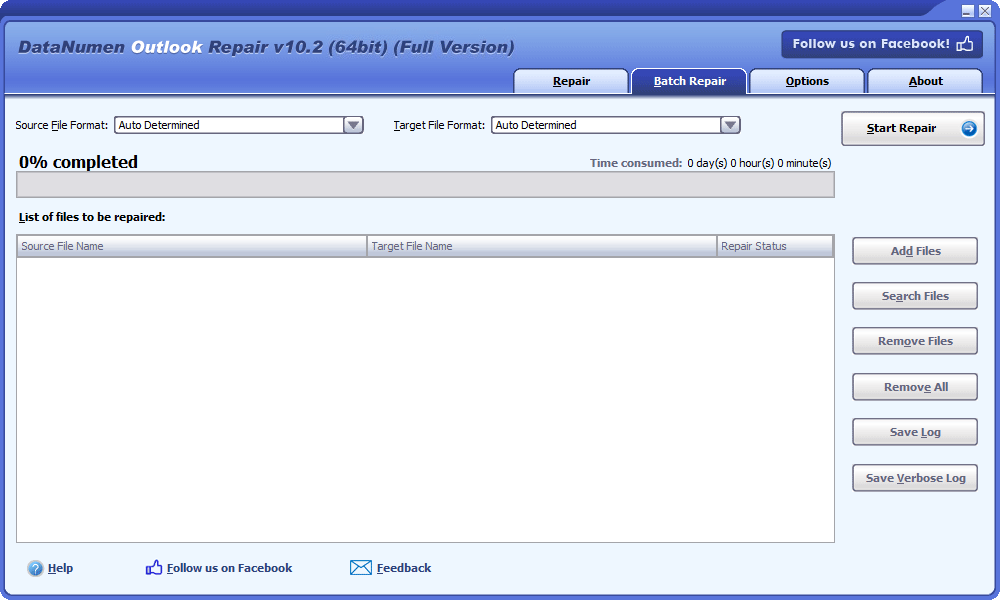
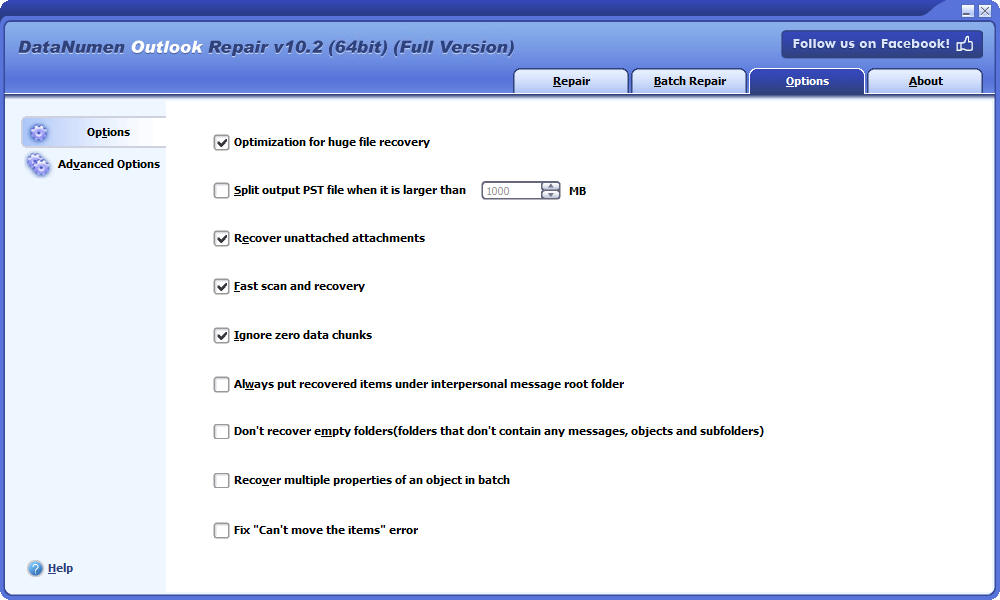

Start DataNumen Outlook Repair.
Note: Make sure you shut down Microsoft Outlook before you start. Also, close other applications that could access the PST file.
Choose the corrupt or damaged Outlook PST file that you would like to repair:

To choose the file, input its name directly, or use the  button to locate the file. You can also use the
  button to search for the file.
Specify the version of Outlook for the PST file in question if you are aware of it. You can use the combo box  to do this. There are a number of available formats such as Outlook 2013-2019/Office 365 PST file. You can also choose “Auto Determined” for the format. If you do this, DataNumen Outlook Repair will analyze the source file to see what the file format is, which takes more time.
DataNumen Outlook Repair automatically saves the recovered data into a brand-new PST file xxxx_fixed.pst, where xxxx represents the name of the source PST file. For example, Outlook_fixed.pst would be the fixed file name if Outlook is the name of your source file. However, you can rename the fixed file if you would like to:

You can directly enter the file name or use the button to choose the file by browsing.
You have the option to choose the format of the fixed PST file in the combo box which is next to the edit box. There are two possible formats for you to select: Outlook 97-2002 and Outlook 2003-2019/Office 365. DataNumen Outlook Repair will choose a file format compatible with the Outlook version on the local computer automatically if you leave the format as “Auto Determined.”
Click the  button. After that, DataNumen Outlook Repair will start repairing your source file using its sophisticated algorithms and show a progress bar:

Once the repair process is complete, you will see a message that looks like this if it was successful:
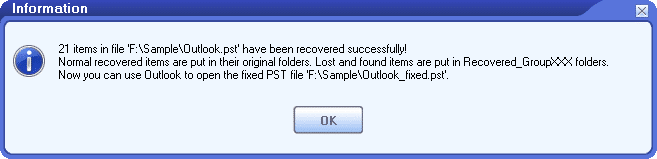
Hit “OK” and you should be able to open the fixed file with MS Outlook or other email clients that are compatible with the file.
The entire hierarchy for the file will be rebuilt for the fixed file so that emails and other objects will be placed in their original folders. Lost & found objects will be put in folders named Recovered_Groupxxx.
| Version | 10.2 (Version History) |
| Release Date | April 15th, 2025 |
| Bitness | 32-bit, 64-bit |
| Supported File Types | PST, OST |
| Supported Outlook Versions | Outlook 97–2021; Outlook for Office 365; Microsoft 365 |
| Recoverable Objects | Email messages, attachments, embedded objects, folders, posts, calendar items, appointments, meeting requests, contacts, distribution lists, tasks, task requests, journals, and notes |
| Deleted Data Recovery | Deleted email messages and other objects |
| Password-Protected Files | Supported |
| Oversized Files | Supported |
| Split Output Files | Supported |
| File Format Conversion | Supported |
| Disk Image File Recovery | Supported |
| Temporary File Recovery | Supported |
| Supported Languages | 95 languages |
| Operating System | Windows |
| Processor | Intel or equivalent (x86, x64) |
| Memory | 64 MB minimum (4 GB recommended) |
| Disk Space | 37 MB |
PST(Personal Storage Table) file is also called Personal Folders File. It is a kind of Outlook data file. Outlook uses it to store Outlook email messages and other mailbox items for pop3 email accounts, such as Outlook.com or hotmail.com. Our Outlook recovery tool is mainly designed to repair corrupt PST data files.
PST files have two variants, i.e., Unicode format and ANSI format. Our tool supports both formats. And can convert between these two formats when necessary. ANSI format has 2GB size limit. So Outlook 2003 and higher versions all use Unicode format. We also recommend you to convert all existing PST files to Unicode format, unless you are still using Outlook versions lower than 2003.
OST file(Offline Storage Table) is also called Offline Folders File. It is another kind of Outlook data file. Microsoft Outlook uses it to store data for email accounts other than pop3, such as accounts on Microsoft Exchange servers.
Yes, our Outlook recovery software can repair OST files. You can also use DataNumen Exchange Recovery to do the task, as DataNumen Exchange Recovery is mainly designed for OST file data recovery. It can also convert OST to PST files when the Exchange server crashes or is unavailable.
There are many reasons that will lead to PST file corruption, such as power failure, hard disk failure, viruses, oversized PST files(too large PST files, file larger than the size limitation, etc.), abnormal closing(you do not close Outlook properly), etc. We have collected a list of the common reasons. For oversized PST files, you can enable the AutoArchive configuration to prevent such an issue.
We also recommend you to have our Outlook data recovery tool on hand. Thus whenever you encounter a corrupted PST file, you can use our PST file repair tool to recover file data for you.
Currently, our app supports Microsoft Outlook 97, Outlook 98, Outlook 2000, Outlook 2002, Outlook 2003, Outlook 2007, Outlook 2010, Outlook 2013, Outlook 2016, Outlook 2019, and Outlook 365.
Our app supports Windows 95/98/ME/NT/2000/XP/Vista/7/8/8.1/10/11 and Windows Server 2003/2008/2012/2016/2019.
You can see a complete competitive comparison of our product with other similar MS Outlook PST repair apps in the market. Based on the comparison, our product has the best recovery rate and the most comprehensive functions.
There are two methods to uninstall DataNumen Outlook Repair.
We’re sorry, but we do not yet offer an online repair service.
Many possibilities may make you fail to open the Outlook app. Therefore, we recommend you diagnose the problem with some troubleshooting methods to determine the reason.
If the problem comes from the corruption of the Outlook PST file, then our Outlook PST repair tool will be able to fix it. Microsoft also provides a built-in Inbox Repair Tool(scanpst.exe), but it only works for very few cases.
If the problem comes from the installation of your Outlook app, then you can repair Office or Office 365 via the following troubleshooting steps:
If the problem comes from your Outlook profile, then you can repair it via the following steps:
If the problem comes from the Add-ins, then you can turn off them temporarily, as follows:
You can also use Windows Update to update your Outlook to the latest version, which may be able to fix Outlook problem.
You can use Microsoft Support and Recovery Assistant to diagnose your Outlook problem.
If all the above solutions do not work, you can use the “System Restore” feature in the Windows operating system to restore your system to an earlier workable state. Note in Windows 10, this feature is disabled by default. You must enable it manually beforehand.
If you have backed up your Outlook PST file in the past, you can also try to restore the backup PST file. This method is faster than method 7, since you only need to restore Outlook PST file, not the whole system.
Note: We have tested the above solutions with Outlook 2010, Outlook 2013, Outlook 2016, Outlook 2019, and Outlook 365.
By default, our Outlook PST repair software will be installed in the following directory in a 64bit Windows system:
C:\Program Files (x86)\DataNumen\DataNumen Outlook Repair\
or in the following directory in a 32bit Windows system:
C:\Program Files\DataNumen\DataNumen Outlook Repair\
Yes, the latest version of DataNumen Outlook Repair fully supports 32bit and 64bit versions of Windows 10 and 11.
In general, Microsoft support will suggest you use the built-in Outlook PST repair tool, i.e., Inbox Repair Tool(scanpst.exe), to scan and repair corrupt PST files. If that does not work, they will also use our DataNumen Outlook Repair to repair Outlook PST files.
Sorry but currently, Outlook for Mac is not supported yet, as it uses a different file format .OLM(Outlook for Mac) to store data.
Our file recovery tool will use a very complex algorithm to analyze every byte of the PST data file. So the repair time depends on many factors. Below are some of them:
There are several methods to recover deleted emails and other items:
After you delete your email, try to press Ctrl + Z do undelete the email. You can also use this method to recover deleted items.
If your PST file has a Deleted Items folder. After you delete your email, you can try to find it in that folder and restore it back.
If your PST file does not have a Deleted Items folder, then check if it has a Trash folder, you can try to recover deleted items from that folder as well.
If the above methods fail, you can try to use the Recover Deleted Items command to recover your items, as below:
If you cannot see the Recover Deleted Items option, then your account does not support such a function.
If all the above methods fail, then you can use our tool to recover the deleted emails.
Sorry but that is not possible. If you start a repair process, the only option is to stop it. Later if you want to re-repair the same Outlook file, you need to start over and initiate the repair process from the beginning.
Yes, MS Outlook has a free built-in Inbox Repair Tool(scanpst.exe) which can be used to repair Personal Folders files(PST) with minor corruptions.
For different versions and bitness of Outlook and Windows, the locations for scanpst.exe are also quite different. You can utilize the following table to find the directories of scanpst.exe:
| Install Type | 32bit Windows | 64bit Windows | |
| Office 365/Windows 365(32bit) | Click to Run | C:\Program Files\Microsoft Office\root\Office16 | C:\Program Files (x86)\Microsoft Office\root\Office16 |
| Office 365/Windows 365(64bit) | Click to Run | N/A | C:\Program Files\Microsoft Office\root\Office16 |
| Outlook 2016/2019(32bit) | Normal | C:\Program Files\Microsoft Office\Office16 | C:\Program Files (x86)\Microsoft Office\Office16 |
| Outlook 2016/2019(64bit) | Normal | N/A | C:\Program Files\Microsoft Office\Office16 |
| Outlook 2016/2019(32bit) | Click to Run | C:\Program Files\Microsoft Office\root\Office16 | C:\Program Files (x86)\Microsoft Office\root\Office16 |
| Outlook 2016/2019(64bit) | Click to Run | N/A | C:\Program Files\Microsoft Office\root\Office16 |
| Outlook 2013(32bit) | Normal | C:\Program Files\Microsoft Office\Office15 | C:\Program Files (x86)\Microsoft Office\Office15 |
| Outlook 2013(64bit) | Normal | N/A | C:\Program Files\Microsoft Office\Office15 |
| Outlook 2013(32bit) | Click to Run | C:\Program Files\Microsoft Office\root\Office15 | C:\Program Files (x86)\Microsoft Office\root\Office15 |
| Outlook 2013(64bit) | Click to Run | N/A | C:\Program Files\Microsoft Office\root\Office15 |
| Outlook 2010(32bit) | Normal | C:\Program Files\Microsoft Office\Office14 | C:\Program Files (x86)\Microsoft Office\Office14 |
| Outlook 2010(64bit) | Normal | N/A | C:\Program Files\Microsoft Office\Office14 |
| Outlook 2010(32bit) | Click to Run | C:\Program Files\Microsoft Office\root\Office14 | C:\Program Files (x86)\Microsoft Office\root\Office14 |
| Outlook 2010(64bit) | Click to Run | N/A | C:\Program Files\Microsoft Office\root\Office14 |
| Outlook 2007(32bit) | Normal | C:\Program Files\Microsoft Office\Office12 | C:\Program Files (x86)\Microsoft Office\Office12 |
This looks a bit complex. So a better way is just to search for “scanpst.exe” on your local computer. As long as you have installed Outlook, you will be able to find it.
After finding the scanpst.exe, double-click to start it and fix Outlook files.
However, Inbox Repair Tool(scanpst.exe) only works for very few cases. More specifically, it can only repair PST files with minor corruptions. For badly damaged PST files, it will crash, stop working, or just report an error that it fails to repair the file. In such cases, you need to use our Outlook PST repair tool instead.
For corrupt Offline Storage File(OST), Microsoft has a scanost.exe tool to repair OST files.
Yes, we recommend you to close all applications, including Microsoft Outlook application, other Office apps, such as PowerPoint, etc. before using our PST file repair tool to repair Outlook files and recover Outlook emails.
Yes, we recommend you to create an email account, even if you do not send/receive any emails with it.
You can do as follows:
We also recommend you to check the following default locations for PST files:
C:\Users\%username%\AppData\Local\Microsoft\Outlook\
C:\Users\%username%\Documents\Outlook Files\
For Windows XP and older versions, you can check the following locations:
C:\Documents and Settings\%username%\Local Settings\Application Data\Microsoft\Outlook\
C:\Documents and Settings\%username%\My Documents\Outlook Files\
Please do as follows:
You can also find a detailed guide on how to repair Outlook data files with our software by visiting the DataNumen Outlook Repair homepage, then clicking the “How to Recover” tab. There is a step-by-step guide and a video tutorial.
Yes, we do. You can do as follows to repair corrupt PST files created by Outlook for Android:
Yes, all email clients compatible with PST format can open the fixed PST file generated by our Outlook repair tool. For example, you can import the PST file to your Exchange server.
Note our PST recovery tool can output PST files in two formats, i.e., Outlook 97 – 2002 and Outlook 2003 – 2021/Office 365. You need to set the file format based on the version of Outlook that will be used to open the file. If you will use the Outlook on your local computer to open the PST file, then our tool will set the output format automatically.
.DBX file format is used by Outlook Express, which has been retried for 16 years. So, our tool does not support to output data in .DBX format.
.MBOX format is a Unix file format to store a collection of email messages. We do not support to output file in .MBOX format directly, but you can use Mozilla Thunderbird to convert the fixed PST file to .mbox format.
Our Outlook recovery software does not support such a feature. But you can do that manually, as follows:
Our Outlook PST repair software does not support to do so automatically. But you can do that manually, as below:
You can do as follows:
You can do as follows:
Both versions use the same PST recovery engine. But the demo version will replace the message body with a demo text. To obtain the actual recovered contents, you need to use the full version to re-repair the corrupt PST file.
Yes, our Outlook recovery tool can repair PST files as large as 16777216 TB. And our Outlook data recovery tool can split the large file into small parts.
Note different versions of Outlook have different size limitations on the PST file, please refer to this article for solutions.
Yes, other than fixing PST file corruptions, our PST file repair tool can also recover deleted items, including folders, Outlook emails and other mailbox items.
Yes, our file recovery tool will try to remove duplicate email messages during the PST data recovery process. But sometimes, you may still find some duplicate emails in the Recovered_Groupxxx folders. This is normal.
No. Our PST recovery tool will NOT change the source corrupt PST file. It will create a new PST file containing the recovered data.
Yes, even if you forget the password, we can still recover data from the encrypted PST file.
The procedure depends on the type of your Outlook account:
Yes, if you have received Outlook.com emails to a PST file on your local computer, then you can recover emails, including deleted emails from the PST file via our tool.
However, for those emails that have not received to the local PST file, then you need to login Outlook.com and check if there is an online email recovery function available.
By default, all the emails will be restored back to their original folders. If you cannot find a wanted email in its original folder, you can use the search function in Outlook to look for the email with its subject, sender, or other criteria. Sometimes our tool may put the email in another folder, or the Recovered_Group### folder.
You should always open the fixed PST file, instead of importing it.
Outlook as an “Import and Export Wizard”, which can import emails in PST file. However, the import process will overwrite existing emails with the same subjects. So it is dangerous. Especially when you are trying to import emails from a fixed PST file generated by the demo version, since the subjects of these emails are demo texts, not the really recovered contents.
There are two kinds of Outlook passwords:
Recover lost Outlook data, including emails and other objects from raw disks or drives
Details
Recover messages and other items from orphaned or damaged Microsoft Exchange offline storage files (.ost)
Details
Recover emails from corrupt Outlook Express dbx and mbx files.
Details
Repair and recover corrupt Microsoft Word documents (.doc and .docx files).
Details
Repair and recover corrupt or damaged Microsoft Excel xls, xlw and xlsx files.
Details
Repair and recover corrupt Microsoft Access databases (.mdb and .accdb files).
Details DataNumen Outlook Repair