
How often do we get dates in spreadsheets supplied to us as 12.26.2016, or 26/12/2016 (UK format), only to be told the date is invalid or there’s no month 26? This article explores fixing dates with VBA, using TRIM, LEFT, RIGHT and MID functions.
The article assumes the reader has the Developer ribbon displayed and is familiar with the VBA Editor. If not, please Google “Excel Developer Tab” or “Excel Code Window”.
The xlsm in this exercise can be downloaded here.
Not Our Problem!
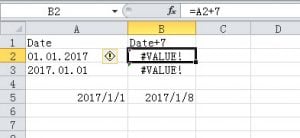 The best place to solve a problem is at source. However, no amount of persuasion can convince the payroll department in this case that 12.26.1994 is not a valid date (unless so configured in the computer’s Control Panel for some Eastern European countries).
In fact we can prove it is not machine-readable. For example, adding 7 days to a date:
"=01.01.2017 + 7" = #VALUE.

"=2017.01.01 + 7" = #VALUE.
whereas…
"=2017-01-01 + 7" = 2017/01/08.
Let us assume they suggest it is not their problem.
Date Formats
The first thing we have to ascertain is whether the date is in USA or International format.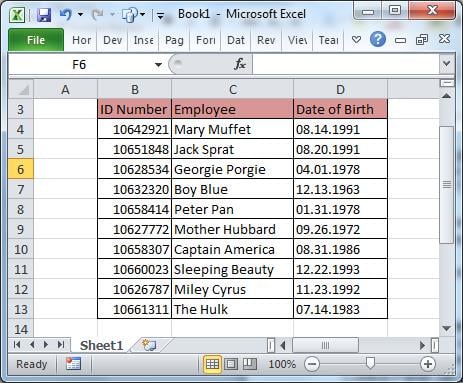
Our example makes it clear we are looking at USA usage, i.e. MDY rather than international format DMY.
Once we have established the source, we need to change the data formats so that Excel can make sense of them, whether internationally or in the USA.
The best way to do this is to change the date to yyyymmdd, a format that needs no qualification.
The Process
We will cycle through each row in the document, calling a function to “correct” the date according to source country. Once the date is corrected, we will calculate the Employee’s age.
The Code
Copy the following code into a new module:
Option Explicit

Sub Main()
    Dim strNewFormat As String
    Dim strDate As String
    Sheets("Main").Range("B4").Select

    'Cycle through the sheet rows, using IDNumber as an anchor
    'to prevent a premature halt caused by a blank date of birth
    Do While ActiveCell > ""
        If ActiveCell.Offset(0, 2) > "" Then
            strDate = ActiveCell.Offset(0, 2)

            'Remove leading or trailing spaces
            strDate = Trim(strDate)

            'Call the function
            strNewFormat = ReformatDate(strDate, "USA")

            'Write the result from the function ReformatDate to a new column
            ActiveCell.Offset(0, 3) = strNewFormat

            'Determine age by subtracting the previous column from today's date
            ActiveCell.Offset(0, 4) = "=(NOW()-RC[-1])/365.25"

            'Convert to intger, thus lopping off decimal places
            ActiveCell.Offset(0, 4) = Int(ActiveCell.Offset(0, 4))
        End If
        Range("B" & ActiveCell.Row + 1).Select
    Loop
End Sub

Function ReformatDate(sDate As String, sSource As String)
    Dim yyyy, mm, dd As String
    yyyy = Right(sDate, 4)
    If sSource = "USA" Then
        mm = Left(sDate, 2)
        dd = Mid(sDate, 4, 2)
    Else
        mm = Mid(sDate, 4, 2)
        dd = Left(sDate, 2)
    End If
    ReformatDate = yyyy & "-" & mm & "-" & dd
End Function
Add a button to your form, and assign it to Sub Main.
Caveat
Before adding too much complex code to your module, be advised that Excel is not always stable in major application development, and often unable to recover the damaged code itself. The result could be the corruption of your only copy since the corruption happens in the “Save”.
Back up frequently and have the use of a tool to fix Excel file corruption.
Author Introduction:
Felix Hooker is a data recovery expert in DataNumen, Inc., which is the world leader in data recovery technologies, including repair rar file corruption and sql recovery software products. For more information visit www.datanumen.com