
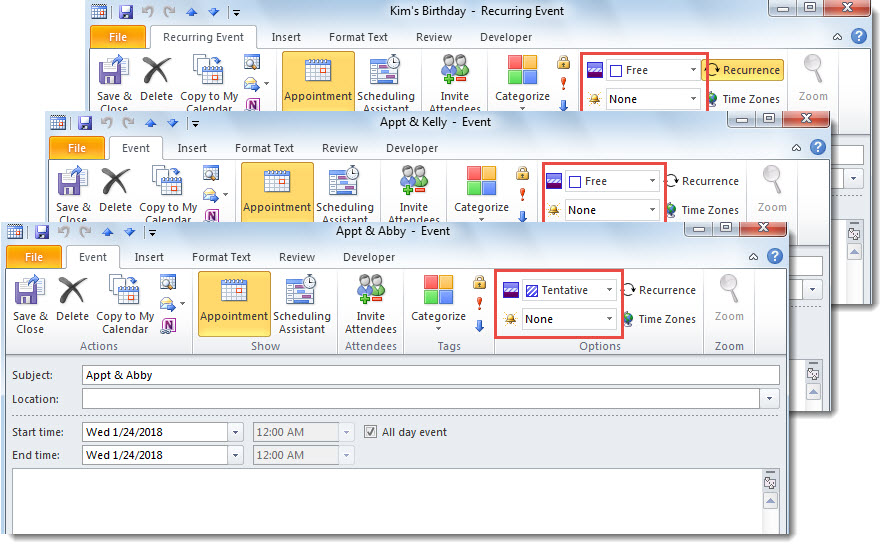
For the calendar items which are shown as “Free” or “Tentative”, you may want to remove their reminders. Now, in this article, we will introduce 2 methods which can let you get it in bulk.
Perhaps you’ve configured a default reminder time for all calendar items. In this case, no matter busy, out-of-office, free or tentative items, they will always have a reminder enabled. However, usually, the free and tentative items actually do not require reminders. Hence, you want to batch remove reminders from such items. So, here we will teach you 2 means to realize it in one go.
Method 1: Batch Remove in One Calendar Manually
- First off, open a calendar.
- Then, shift to “View” tab and click “Change View” > “List”.
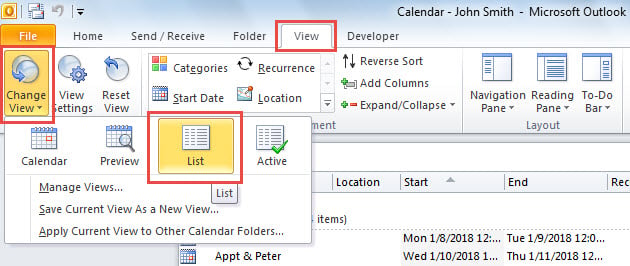
- Next, click “View Settings” button.
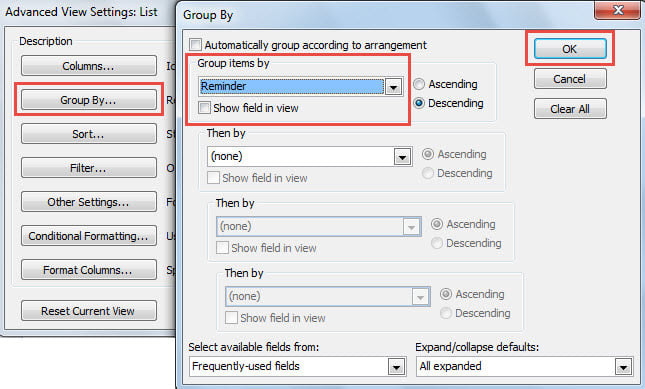
- In the popup dialog box, hit “Group By” button.
- After that, in another new dialog, select “Reminder” in “Group items by” and click “OK”.

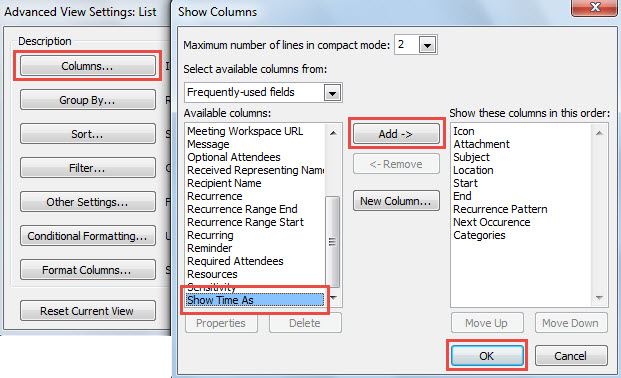
- Later, click “Columns” button.
- In the “Show Columns” dialog, add “Show Time As” column and hit “OK”.

- Subsequently, click “OK” to save the view settings.
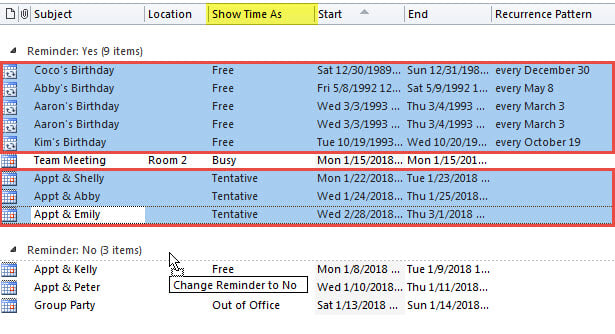
- In calendar item list, find and select all the free/tentative items in “Reminder: Yes” group.
- Finally, drag and drop them to the “Reminder: No” group.

Method 2: Batch Remove in All Calendars with VBA
- In the first place, press “Alt + F11” to trigger VBA editor.
- Then, copy the VBA code below into a module.
Sub RemoveReminders_TentativeCalendarItems()
    Dim objStore As Outlook.Store
    Dim objFolder As Outlook.Folder

    For Each objStore In Application.Session.Stores
        'Process all Calendar folders
        For Each objFolder In objStore.GetRootFolder.Folders
            If objFolder.DefaultItemType = olAppointmentItem Then
               Call ProcessFolders(objFolder)
            End If
        Next
    Next
End Sub

Sub ProcessFolders(ByVal objCalendar As Outlook.Folder)
    Dim i As Long
    Dim objAppointment As Outlook.AppointmentItem
    Dim objSubCalendar As Outlook.Folder

    'Remove Reminders from Free/Tentative Calendar Items
    For i = objCalendar.Items.Count To 1 Step -1
        Set objAppointment = objCalendar.Items(i)
        If objAppointment.BusyStatus = olFree Or objAppointment.BusyStatus = olTentative Then
           If objAppointment.ReminderSet = True Then
              objAppointment.ReminderSet = False
              objAppointment.Save
           End If
        End If
    Next

    'Process Subfolders Recursively
    If objCalendar.Folders.Count > 0 Then
       For Each objSubCalendar In objCalendar.Folders
           Call ProcessFolders(objSubCalendar)
       Next
    End If
End Sub
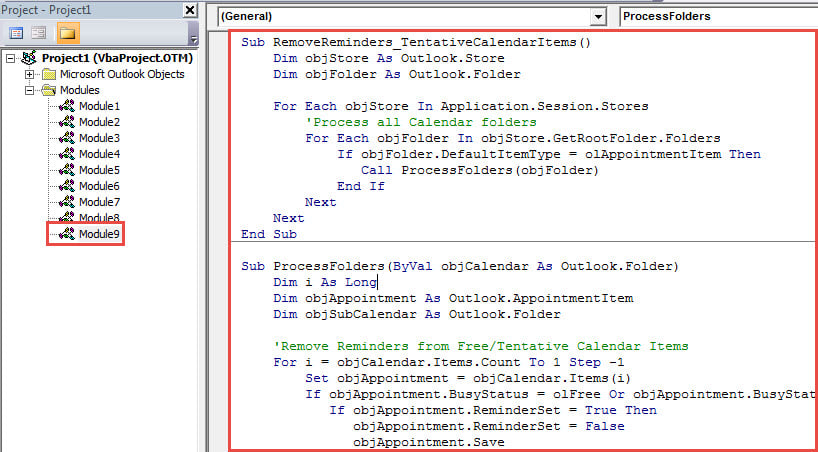
- Afterwards, move cursor into the first subroutine.
- Finally, press “F5” key.
- At once, all the reminders of free or tentative calendar items will be removed.

Cope with Disturbing Outlook Troubles
It’s pretty common to encounter miscellaneous problems in Outlook, such as PST file damage, virus infection, accidental item deletion, etc. In order to tackle them in time and effectively, it’s advisable to keep a reliable PST repair tool in vicinity, like DataNumen Outlook Repair. It can save you from annoying Outlook data loss.
Author Introduction:
Shirley Zhang is a data recovery expert in DataNumen, Inc., which is the world leader in data recovery technologies, including repair mdf and outlook repair software products. For more information visit www.datanumen.com