
If you would like to merge all the items from multiple Outlook folders and insure no duplicate, you can use the method introduced in this article. It is using VBA code to help you accomplish it like a cork.
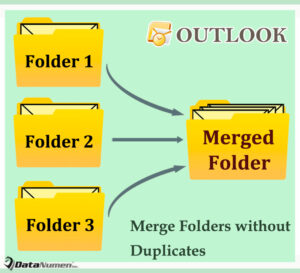
At times, you may wish to merge items from several Outlook folders, like merging all the contacts of several Outlook Contacts folders. In this situation, if there are some duplicated contacts among these folders, you must hope that the duplicates can be removed automatically during merging. Under this circumstance, you can make use of the following VBA code to realize it with effortless ease.
Merge Items from Multiple Folders without Duplicates
- To start with, launch your Outlook application.
- Then, you ought to access the Outlook VBA editor by pressing “Alt + F11” key button in the Outlook main screen.
- Next, in the “Microsoft Visual Basic for Applications” window, you need to open a module that is not being used.
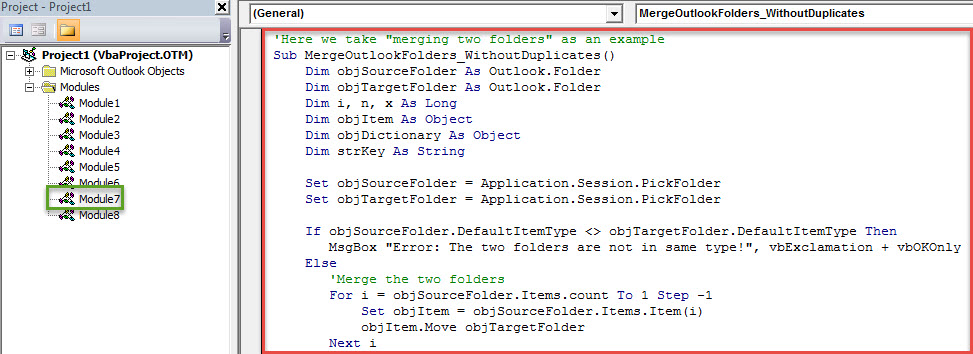
- After that, you should copy the following VBA code into this module.
'Here we take "merging two folders" as an example
Sub MergeOutlookFolders_WithoutDuplicates()
    Dim objSourceFolder As Outlook.Folder
    Dim objTargetFolder As Outlook.Folder
    Dim i, n, x As Long
    Dim objItem As Object
    Dim objDictionary As Object
    Dim strKey As String

    Set objSourceFolder = Application.Session.PickFolder
    Set objTargetFolder = Application.Session.PickFolder

    If objSourceFolder.DefaultItemType <> objTargetFolder.DefaultItemType Then
       MsgBox "Error: The two folders are not in same type!", vbExclamation + vbOKOnly
    Else
       'Merge the two folders
       For i = objSourceFolder.Items.count To 1 Step -1
           Set objItem = objSourceFolder.Items.Item(i)
           objItem.Move objTargetFolder
       Next i

       Set objDictionary = CreateObject("scripting.dictionary")

       'Remove the duplicates
       x = 0
       For n = objTargetFolder.Items.count To 1 Step -1
           Set objItem = objTargetFolder.Items.Item(n)

           Select Case objItem.Class
                  Case olMail
                       strKey = objItem.Subject & "," & objItem.Body & "," & objItem.SentOn
                  Case olAppointment
                       strKey = objItem.Subject & "," & objItem.Start & "," & objItem.Duration & "," & objItem.Location & "," & objItem.Body
                  Case olContact
                       strKey = objItem.FullName & "," & objItem.Email1Address & "," & objItem.Email2Address & "," & objItem.Email3Address
                  Case olTask
                       strKey = objItem.Subject & "," & objItem.StartDate & "," & objItem.DueDate & "," & objItem.Body
           End Select

           strKey = Replace(strKey, ", ", Chr(32))

           If objDictionary.Exists(strKey) = True Then
              objItem.Delete
              x = x + 1
           Else
              objDictionary.Add strKey, True
           End If
      Next n

      'Prompt you of the count of removed duplicates
      If x <> 0 Then
         MsgBox x & " duplicates removed when merging!", vbInformation + vbOKOnly
      End If
    End If
End Sub
- Later you need to check out your Outlook macro settings, ensuring macro is enabled.
- Finally you can have a try.
- Firstly, back to the new module window.
- Next press F5 key button to trigger this macro.
- Then you need to select the two folders to be merged. The first one is the source one, and the second one is the target one.
- After that, Outlook will begin to move all the items from the source folder to the target one. Also, in the meantime, duplicates will be auto removed.
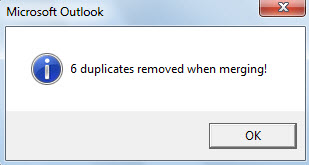
- Ultimately, you may receive a message prompting the count of removed duplicates, like the screenshot below:

Tiny Errors Can Lead to Great Crashes
Despite loaded with quantities of excellent functions, Outlook is still susceptible to errors and corruption. Perhaps you have encountered various Outlook issues. Many users are inclined to ignore the random errors. However, it is the tiny error that triggers serious Outlook crashes, which will jeopardize the Outlook file. Thus, you shouldn’t disregard any small errors. Instead, you should eliminate them as soon as possible. Furthermore, you’d better keep an apt PST repair tool, such as DataNumen Outlook Repair. Via its high recovery rate, this utility has shouldered over its peers.
Author Introduction:
Shirley Zhang is a data recovery expert in DataNumen, Inc., which is the world leader in data recovery technologies, including corrupted sql and outlook repair software products. For more information visit www.datanumen.com