
Maybe you have stored multiple Outlook emails in .msg format in a Windows folder. And later, you want to extract the attachments from these files, you can use the way shared in this article.
It is pretty easy to extract attachments from the emails in your Outlook. But what about the emails that have been exported as .msg files in a Windows folder? In general, you have to firstly open these .msg files in your Outlook and then save attachments from them one by one. Perhaps you will feel it too cumbersome. So, thereinafter, we will teach you another much quicker solution.
Extract Attachments from All Outlook Message Files in a Windows Folder
- To begin with, start your Outlook application and run VBA editor.
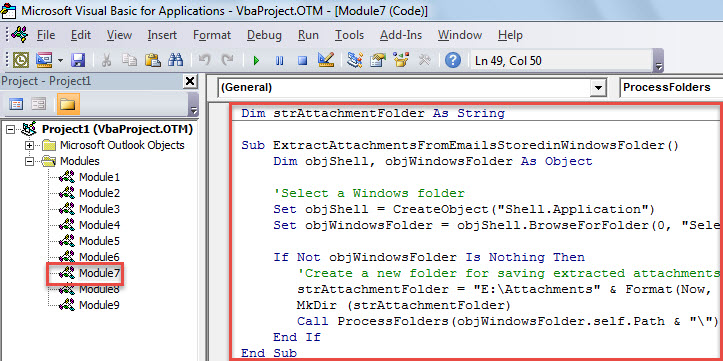
- Then, in the “Microsoft Visual Basic for Applications” window, copy the VBA code below into an unused module.
Dim strAttachmentFolder As String

Sub ExtractAttachmentsFromEmailsStoredinWindowsFolder()
    Dim objShell, objWindowsFolder As Object

    'Select a Windows folder
    Set objShell = CreateObject("Shell.Application")
    Set objWindowsFolder = objShell.BrowseForFolder(0, "Select a Windows Folder:", 0, "")

    If Not objWindowsFolder Is Nothing Then
       'Create a new folder for saving extracted attachments
       strAttachmentFolder = "E:\Attachments-" & Format(Now, "MMDDHHMMSS") & "\"
       MkDir (strAttachmentFolder)
       Call ProcessFolders(objWindowsFolder.self.Path & "\")
       MsgBox "Completed!", vbInformation + vbOKOnly
    End If
End Sub

Sub ProcessFolders(strFolderPath As String)
    Dim objFileSystem As Object
    Dim objFolder As Object
    Dim objFiles As Object
    Dim objFile As Object
    Dim objItem As Object
    Dim i As Long
    Dim objSubFolder As Object

    Set objFileSystem = CreateObject("Scripting.FileSystemObject")
    Set objFolder = objFileSystem.GetFolder(strFolderPath)
    Set objFiles = objFolder.Files

    For Each objFile In objFiles
        If objFileSystem.GetExtensionName(objFile) = "msg" Then
           'Open the Outlook emails stored in Windows folder
           Set objItem = Session.OpenSharedItem(objFile.Path)

           If TypeName(objItem) = "MailItem" Then
              If objItem.Attachments.Count > 0 Then
                 'Extract attachments
                 For i = objItem.Attachments.Count To 1 Step -1
                     objItem.Attachments(i).SaveAsFile strAttachmentFolder & objItem.Attachments(i).FileName
                 Next
              End If
           End If
        End If
    Next

    'Process all subfolders recursively
    If objFolder.SubFolders.Count > 0 Then
       For Each objSubFolder In objFolder.SubFolders
           If ((objSubFolder.Attributes And 2) = 0) And ((objSubFolder.Attributes And 4) = 0) Then
              Call ProcessFolders(objSubFolder.Path)
           End If
       Next
    End If
End Sub
- Subsequently, move cursor into the first subroutine and hit “F5” key button.
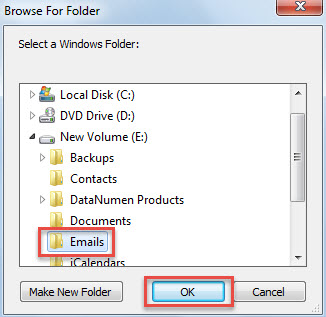
- Afterwards, you’d be required to choose the source Windows folder in popup dialog box.

- After click “OK”, macro will continue to work.
- When it finishes, you will receive the “Completed” message.
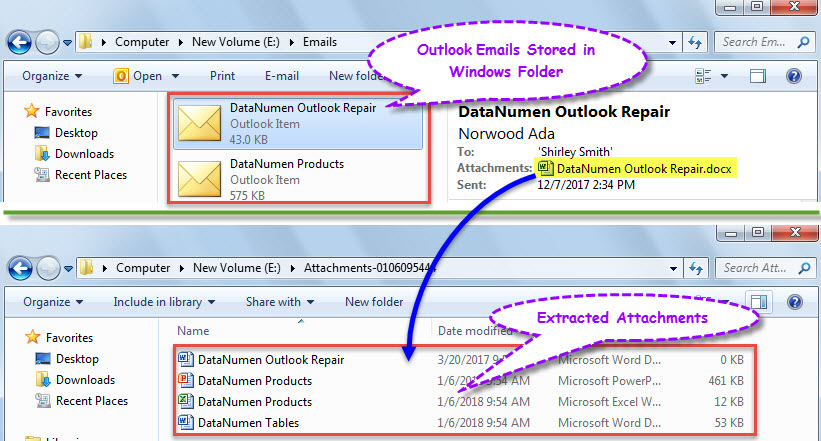
- Now, you can get access to the predefined local folder for saving extracted attachments.

Settle Outlook Problems Efficiently
Since Outlook is admittedly error prone, you have to keep cautious while dealing with Outlook objects, such as never trusting in the files or links embedded in the unknown emails and so on. Otherwise, your Outlook file can get corrupt readily. Under that circumstance, even the internal fix tool will not be a lot of help. What you can resort to is only an experienced external utility, like DataNumen Outlook Repair. It can fix PST file with effortless ease.
Author Introduction:
Shirley Zhang is a data recovery expert in DataNumen, Inc., which is the world leader in data recovery technologies, including corrupted sql and outlook repair software products. For more information visit www.datanumen.com