
If you want to get a report about the count of items in each Outlook folder, you can use the method introduced in this article. It will quickly do the counting and export the results into an Excel file.
In my previous article – “How to Quickly Get the Total Count of Items in a Folder and All Its Subfolders via Outlook VBA”, you can learn a method using VBA to get the count of items in a folder. However, by that means, if you want to count the items in all folders, you have to select each folder and run the macro one by one. It’s a bit tedious. Therefore, we will teach you another method, which will export the count to an Excel file.
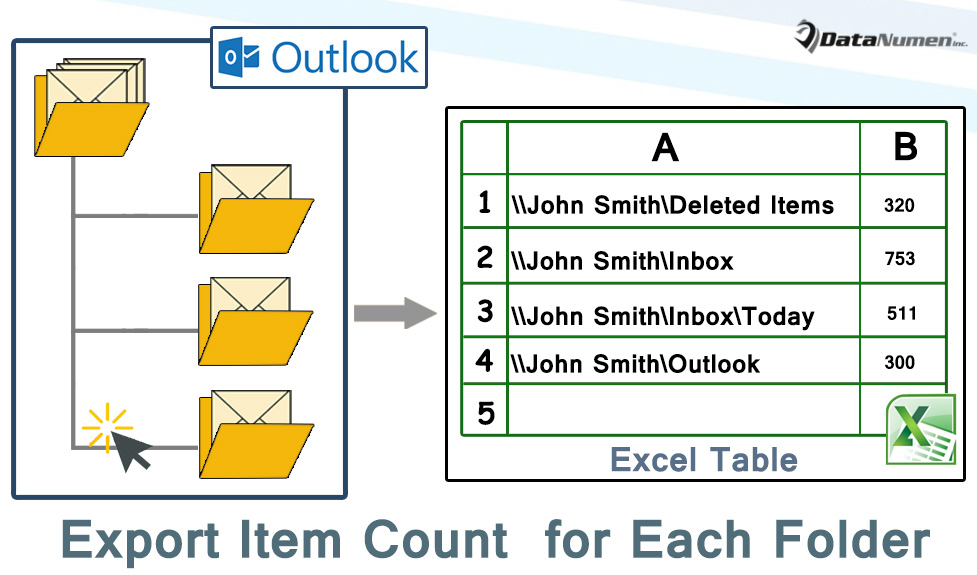
Export the Total Count of Items in Each Outlook Folder to Excel
- At the outset, launch your Outlook program.
- Then press “Alt + F11” key buttons in the main Outlook window.
- Next you’ll get into the “Microsoft Visual Basic for Applications” window, in which you need to open a module that is not in use.
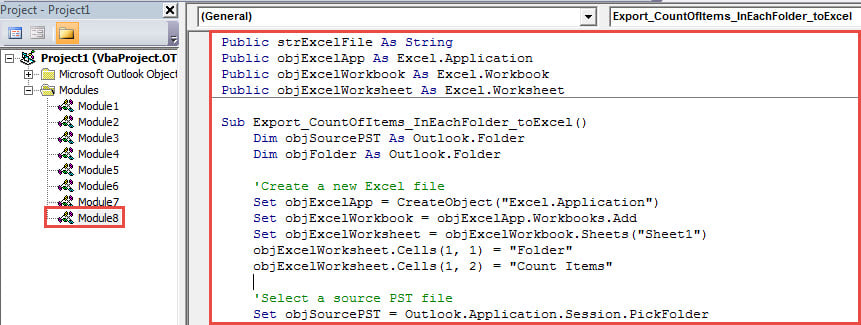
- Subsequently, copy and paste the following VBA code into this module.
Public strExcelFile As String
Public objExcelApp As Excel.Application
Public objExcelWorkbook As Excel.Workbook
Public objExcelWorksheet As Excel.Worksheet

Sub Export_CountOfItems_InEachFolder_toExcel()
    Dim objSourcePST As Outlook.Folder
    Dim objFolder As Outlook.Folder

    'Create a new Excel file
    Set objExcelApp = CreateObject("Excel.Application")
    Set objExcelWorkbook = objExcelApp.Workbooks.Add
    Set objExcelWorksheet = objExcelWorkbook.Sheets("Sheet1")
    objExcelWorksheet.Cells(1, 1) = "Folder"
    objExcelWorksheet.Cells(1, 2) = "Count Items"

    'Select a source PST file
    Set objSourcePST = Outlook.Application.Session.PickFolder

    For Each objFolder In objSourcePST.folders
        Call ProcessFolders(objFolder)
    Next

    'Fit the columns from A to B
    objExcelWorksheet.Columns("A:B").AutoFit

    strExcelFile = "E:\Outlook\" & objSourcePST.Name & " Folder Items Count (" & Format(Now, "yyyy-mm-dd hh-mm-ss") & ").xlsx"
    objExcelWorkbook.Close True, strExcelFile

    MsgBox "Complete!", vbExclamation
End Sub

Sub ProcessFolders(ByVal objCurrentFolder As Outlook.Folder)
    Dim objItem As Object
    Dim lCurrentFolderItemCount As Long
    Dim nLastRow As Integer

    lCurrentFolderItemCount = objCurrentFolder.Items.Count

    nLastRow = objExcelWorksheet.Range("A" & objExcelWorksheet.Rows.Count).End(xlUp).Row + 1

    'Add the values into the columns
    objExcelWorksheet.Range("A" & nLastRow) = objCurrentFolder.FolderPath
    objExcelWorksheet.Range("B" & nLastRow) = lCurrentFolderItemCount

    If objCurrentFolder.folders.Count > 0 Then
       For Each objSubfolder In objCurrentFolder.folders
           Call ProcessFolders(objSubfolder)
       Next
    End If
End Sub
- After that, you need to change your Outlook macro security level to low.
- Then you can back to the newly added macro and press F5 key button to run this macro.
- Next you need to select a source PST file and hit “OK”.
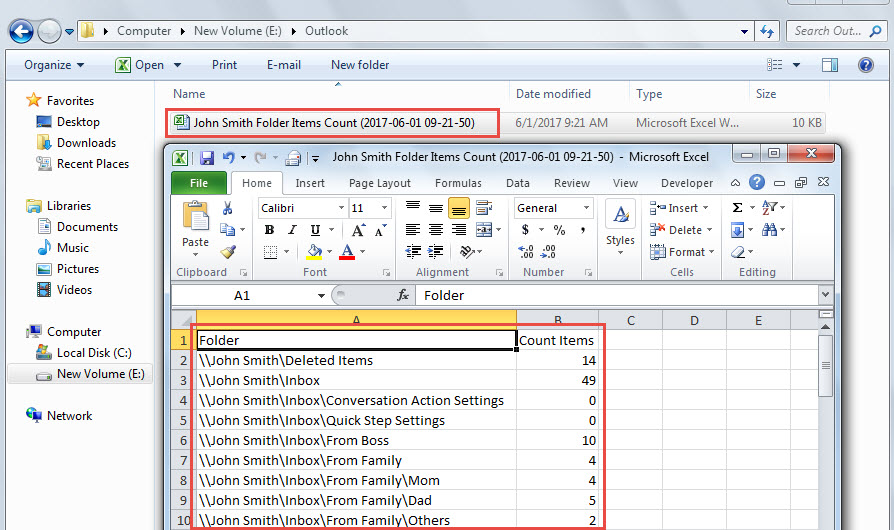
- After the macro finishes, you can go to the predefined local folder to find the new Excel file, which will look like the following screenshot:

Settle down Annoying PST Errors
Perhaps you have come across various issues during using Outlook. To deal with the small issues, you can simply resort to the inbox repair tool. Nevertheless, if the problems are so serious that they have been beyond what the inbuilt tool can do, you have to use a more powerful tool, like DataNumen Outlook Repair.
Author Introduction:
Shirley Zhang is a data recovery expert in DataNumen, Inc., which is the world leader in data recovery technologies, including mdf repair and outlook repair software products. For more information visit www.datanumen.com