
If you want to export part of an Outlook email, instead of the entire email, as a PDF file, you can read this article. Here we’ll guide you to achieve it with a VBA code.
From my previous articles – “How to Save an Outlook Email as a PDF File” and “How to Quickly Export Multiple Outlook Emails as a Single PDF File”, you could learn ways to export the entire email as PDF file. Nevertheless, at times, what you want is to export the part of an email as a PDF file. At that point, you can use the following VBA code to realize it. If you totally don’t know how to use VBA, you can refer to the article – “How to Run VBA Code in Your Outlook” meanwhile.
Export Part of an Email as a PDF File
- For a start, launch your Outlook program.
- Then, access Outlook VBA editor via “Alt + F11” key shortcuts.
- Next, in this new window, open an unused module.
- Subsequently, copy and paste the following VBA code into this module.
Sub ExportSelectionAsPDF()
    Dim objMail As Outlook.MailItem
    Dim objMailDocument As Word.Document
    Dim objDocSelection As Word.Selection
    Dim objWordApp As Word.Application
    Dim objTempDocument As Word.Document
    Dim strPDF As String

    'Get the currently opened email
    Set objMail = Outlook.Application.ActiveInspector.CurrentItem

    If Not objMail Is Nothing Then
       'Copy the current selection
       Set objMailDocument = objMail.GetInspector.WordEditor
       Set objDocSelection = objMailDocument.Application.Selection
       objDocSelection.Copy

       'Paste the selection into a new Word document
       Set objWordApp = CreateObject("Word.Application")
       Set objTempDocument = objWordApp.Documents.Add
       objWordApp.Visible = True
       objTempDocument.Activate
       objWordApp.Selection.EndKey wdStory
       objWordApp.Selection.PasteAndFormat wdPasteDefault

       'Export the document as a PDF file
       'Change the path as per your needs
       strPDF = "E:\" & objMail.Subject & " (Selection).pdf"
       objTempDocument.ExportAsFixedFormat strPDF, wdExportFormatPDF

       objTempDocument.Close False
       objWordApp.Quit
    End If
End Sub
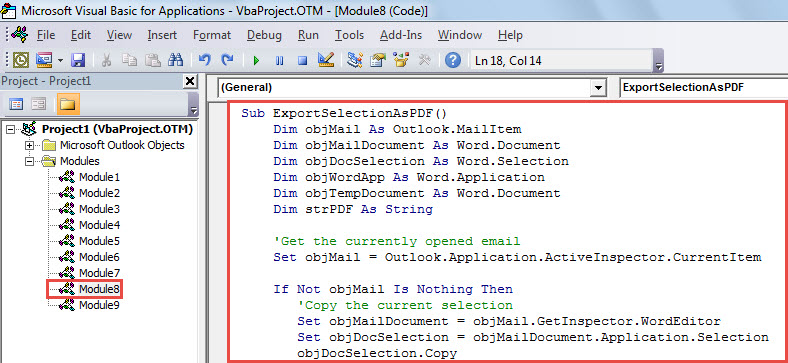
- After that, you should add the new macro to Quick Access Toolbar of message window.
- Finally, you can take a shot:
- At first, open an email.
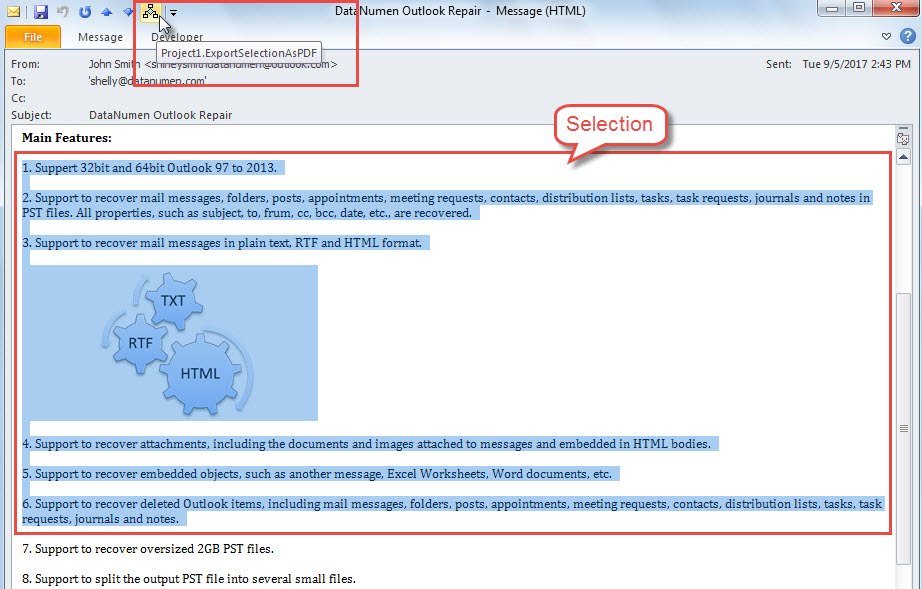
- Then, select the contents which you want to export.
- Next, click the macro button in Quick Access Toolbar.

- At once, the macro will run.
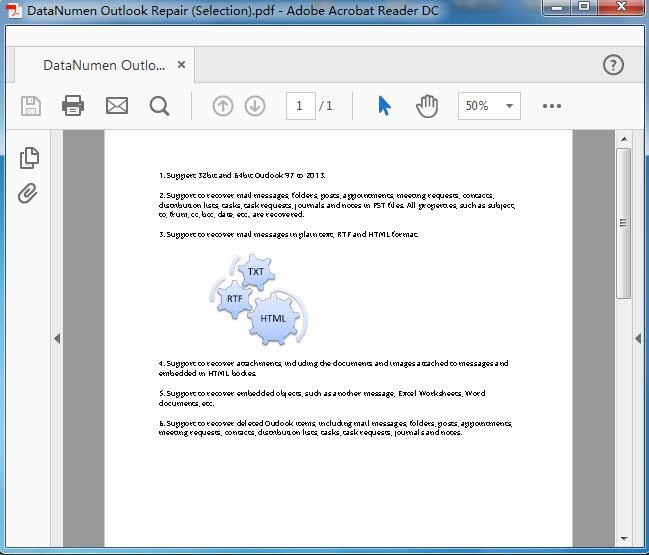
- When macro finishes, you can head to the predefined local folder, where you will see a new PDF file.
- Open it, and you will see that it looks like the following screenshot:

Effective Measures after Outlook Damage
Despite boasting of numerous excellent functions, Outlook still can’t be immune from damage. Actually, it’s prone to corruption due to various factors, like viruses, malware, software faults, and hardware problems and so on. In this scenario, it is essential to take actions to rescue the damaged Outlook data, including launching Scanpst to repair file, checking most recent backups and taking aid of a powerful reliable PST fix tool, such as DataNumen Outlook Repair.
Author Introduction:
Shirley Zhang is a data recovery expert in DataNumen, Inc., which is the world leader in data recovery technologies, including repair mdf and outlook repair software products. For more information visit www.datanumen.com