
Maybe you have more than one email account configured in your Outlook and each mailbox has different color categories. If you want to export the color category lists of all mailboxes to Excel, you can utilize the approach introduced in this article.
For instance, you want to share your color categories with someone else or you want to compare the color categories of different mailboxes. In this scenario, you will hope to export the color category lists of your mailboxes. Here, we will teach you to get it via VBA code. About how to use VBA, you can refer to – “How to Run VBA Code in Your Outlook“.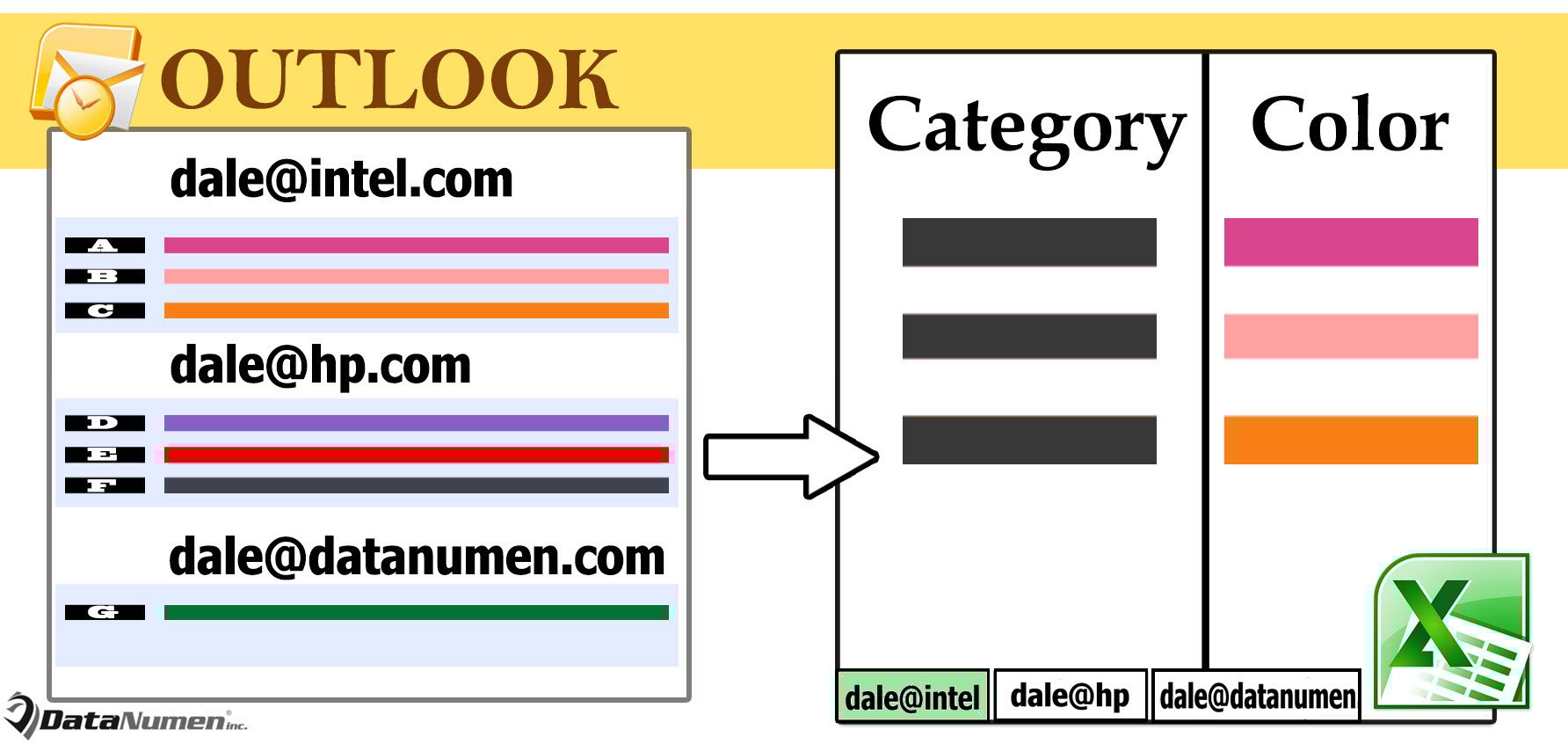
Export Color Category Lists of All Outlook Mailboxes to Excel
- To begin with, access Outlook VBA editor via “Alt + F11”.
- Then, in the new window, enable “MS Excel Object Library” with reference to the article – “How to Add an Object Library Reference in VBA“.
- Next, put the following VBA code into a module.
Sub ExportAllColorCategories()
    Dim objExcelApp As Excel.Application
    Dim objExcelWorkbook As Excel.Workbook
    Dim objExcelWorksheet As Excel.Worksheet
    Dim objStores As Outlook.Stores
    Dim objStore As Outlook.Store
    Dim objCategories As Outlook.Categories
    Dim objCategory As Outlook.Category
    Dim nLastRow As Integer

    Set objExcelApp = CreateObject("Excel.Application")
    Set objExcelWorkbook = objExcelApp.Workbooks.Add
    objExcelApp.Visible = True

    Set objStores = Outlook.Application.Session.Stores

    For i = objStores.Count To 1 Step -1
        Set objStore = objStores.Item(i)
        Set objExcelWorksheet = objExcelWorkbook.Sheets(i)

        With objExcelWorksheet
             .Cells(1, 1) = "Category"
             .Cells(1, 1).Font.Size = 12
             .Cells(1, 1).Font.Bold = True
             .Cells(1, 2) = "Color"
             .Cells(1, 2).Font.Size = 12
             .Cells(1, 2).Font.Bold = True
       End With

       Set objCategories = objStore.Categories

       For Each objCategory In objCategories
           nLastRow = objExcelWorksheet.Range("A" & objExcelWorksheet.Rows.Count).End(xlUp).Row + 1
           With objExcelWorksheet
                .Cells(nLastRow, 1) = objCategory.Name
                .Cells(nLastRow, 2) = GetColor(objCategory.Color)
                .Cells(nLastRow, 2).Interior.Color = GetRGB(objCategory.Color)
           End With
       Next

       objExcelWorksheet.Name = objStore.DisplayName
       objExcelWorksheet.Columns("A:B").AutoFit
    Next
End Sub

Function GetColor(Color) As String
    Select Case Color
           Case -1
                GetColor = "No Color"
           Case 15
                GetColor = "Black"
           Case 8
                GetColor = "Blue"
           Case 23
                GetColor = "Dark Blue"
           Case 20
                GetColor = "Dark Green"
           Case 25
                GetColor = "Dark Maroon"
           Case 22
                GetColor = "Dark Olive"
           Case 17
                GetColor = "Dark Orange"
           Case 18
                GetColor = "Dark Peach"
           Case 24
                GetColor = "Dark Purple"
           Case 16
                GetColor = "Dark Red"
           Case 12
                GetColor = "Dark Steel"
           Case 21
                GetColor = "Dark Teal"
           Case 19
                GetColor = "Dark Yellow"
           Case 13
                GetColor = "Gray"
           Case 5
                GetColor = "Green"
           Case 10
                GetColor = "Maroon"
           Case 7
                GetColor = "Olive"
           Case 2
                GetColor = "Orange"
           Case 3
                GetColor = "Peach"
           Case 9
                GetColor = "Purple"
           Case 1
                GetColor = "Red"
           Case 11
                GetColor = "Steel"
           Case 6
                GetColor = "Teal"
           Case 4
                GetColor = "Yellow"
           Case Else
                GetColor = "Unknown"
    End Select
End Function

Function GetRGB(Color) As Long
    Select Case Color
           Case -1
                GetRGB = RGB(255, 255, 255)
           Case 15
                GetRGB = RGB(0, 0, 0)
           Case 8
                GetRGB = RGB(115, 155, 203)
           Case 23
                GetRGB = RGB(42, 99, 168)
           Case 20
                GetRGB = RGB(0, 126, 0)
           Case 25
                GetRGB = RGB(126, 0, 126)
           Case 22
                GetRGB = RGB(138, 172, 70)
           Case 17
                GetRGB = RGB(226, 107, 10)
           Case 18
                GetRGB = RGB(151, 120, 7)
           Case 24
                GetRGB = RGB(103, 66, 130)
           Case 16
                GetRGB = RGB(192, 0, 0)
           Case 12
                GetRGB = RGB(82, 110, 144)
           Case 21
                GetRGB = RGB(49, 147, 98)
           Case 19
                GetRGB = RGB(180, 176, 0)
           Case 13
                GetRGB = RGB(224, 224, 244)
           Case 5
                GetRGB = RGB(0, 176, 80)
           Case 10
                GetRGB = RGB(216, 136, 176)
           Case 7
                GetRGB = RGB(181, 205, 133)
           Case 2
                GetRGB = RGB(249, 176, 115)
           Case 3
                GetRGB = RGB(255, 218, 185)
           Case 9
                GetRGB = RGB(171, 153, 195)
           Case 1
                GetRGB = RGB(255, 113, 113)
           Case 11
                GetRGB = RGB(204, 216, 218)
           Case 6
                GetRGB = RGB(123, 211, 167)
           Case 4
                GetRGB = RGB(255, 255, 0)
           Case Else
                GetRGB = RGB(255, 255, 255)
     End Select
End Function
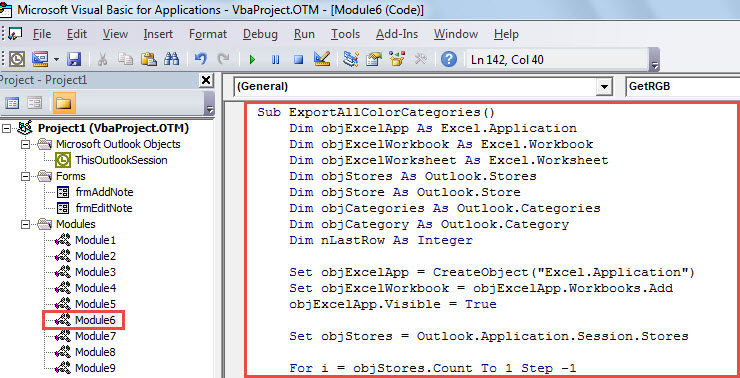
- Eventually, click into “ExportAllColorCategories” subroutine and press “F5”.
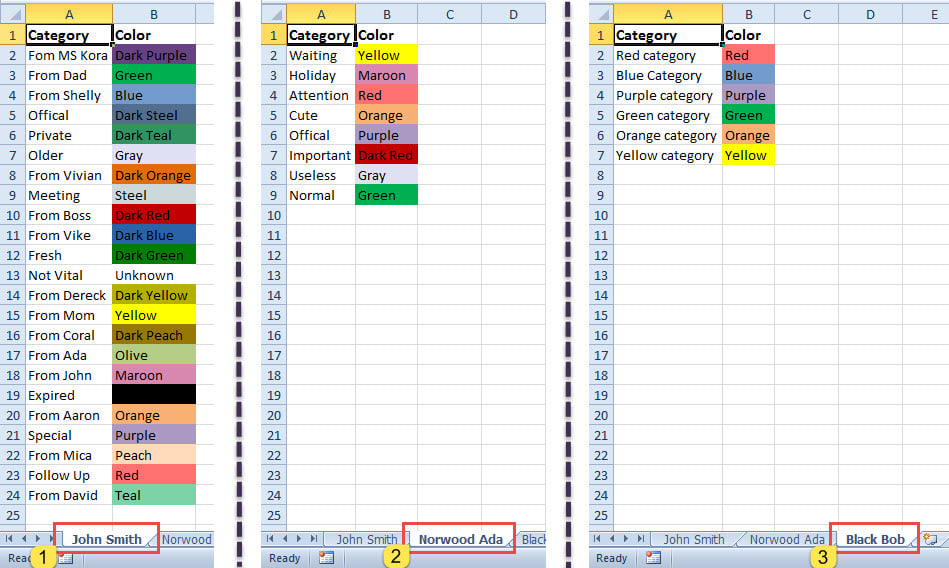
- When macro finishes, a new Excel workbook will appear, looking like the following screenshot.

Keep Your Outlook Items Organized
Outlook provides users with color category, which is aimed to organize items. It has been utilized by a great amount of users. Aside from organising files well, as a matter of fact, it is also suggested to keep your Outlook files in small size. Large PST file is prone to corruption. In case of PST damage, you have no choice but to attempt difficult PST repair via a potent tool, say DataNumen Outlook Repair.
Author Introduction:
Shirley Zhang is a data recovery expert in DataNumen, Inc., which is the world leader in data recovery technologies, including recover mdf and outlook repair software products. For more information visit www.datanumen.com