
If you want to extract the specific slides of a PowerPoint presentation to a separate new presentation and attach it to an Outlook email, you can utilize the way shared in this article.
Instead of attaching an entire PowerPoint presentation to an email, if you want to attach the specific slides of the presentation, in general, you need to first copy the specific slides to a new presentation. It is too troublesome. Therefore, here we’ll show you a method which can realize it in one go.

Attach the Specific Slides of a PowerPoint Presentation to an Email
- First off, open the specific PowerPoint presentation.
- Then, in the PowerPoint application window, press “Alt + F11” keys to access VBA editor.
- Next, in the new window, create a new module by hitting “Insert” > “Module”.
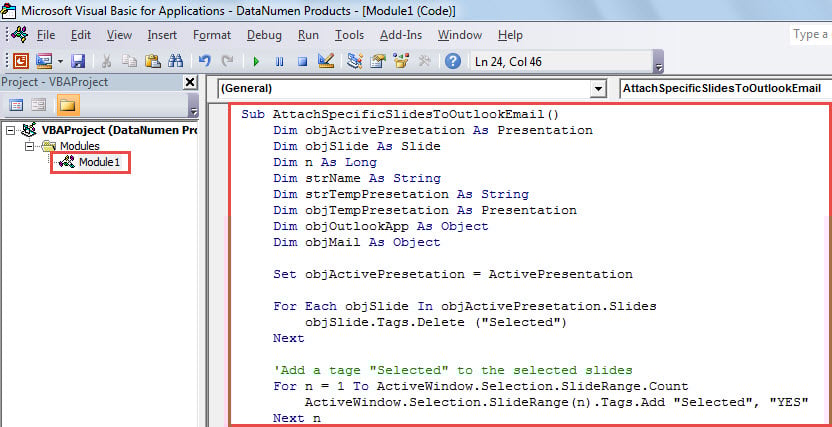
- Subsequently, copy and paste the following VBA code into this module.
Sub AttachSpecificSlidesToOutlookEmail()
    Dim objActivePresetation As Presentation
    Dim objSlide As Slide
    Dim n As Long
    Dim strName As String
    Dim strTempPresetation As String
    Dim objTempPresetation As Presentation
    Dim objOutlookApp As Object
    Dim objMail As Object

    Set objActivePresetation = ActivePresentation

    For Each objSlide In objActivePresetation.Slides
        objSlide.Tags.Delete ("Selected")
    Next

    'Add a tag "Selected" to the selected slides
    For n = 1 To ActiveWindow.Selection.SlideRange.Count
        ActiveWindow.Selection.SlideRange(n).Tags.Add "Selected", "YES"
    Next n

    strName = objActivePresetation.Name
    strName = Left(strName, InStrRev(strName, ".") - 1)
    strTempPresetation = Environ("TEMP") & "\" & strName & ".pptx"

    'Copy the active presentation to a temp presentation
    objActivePresetation.SaveCopyAs strTempPresetation
    Set objTempPresetation = Presentations.Open(strTempPresetation)

    'Remove the untagged slides
    For n = objTempPresetation.Slides.Count To 1 Step -1
        If objTempPresetation.Slides(n).Tags("Selected") <> "YES" Then
           objTempPresetation.Slides(n).Delete
        End If
    Next n

    objTempPresetation.Save
    objTempPresetation.Close

    'Attach the temp presentation to a new email
    Set objOutlookApp = CreateObject("Outlook.Application")
    Set objMail = objOutlookApp.CreateItem(olMailItem)

    'Change the email details as per your needs
    With objMail
         .To = "test@datanumen.com"
         .Subject = strName
         .Body = "Dear," & vbCr & vbCr & vbTab & "Specific slides are extracted and attached."
         .Attachments.Add strTempPresetation
         .Display
    End With
End Sub
- After that, you can close the current window.
- Later, go to “File” > “Options” > “Quick Access Toolbar” to add the new macro to Quick Access Toolbar.
- Finally, you can try this macro.
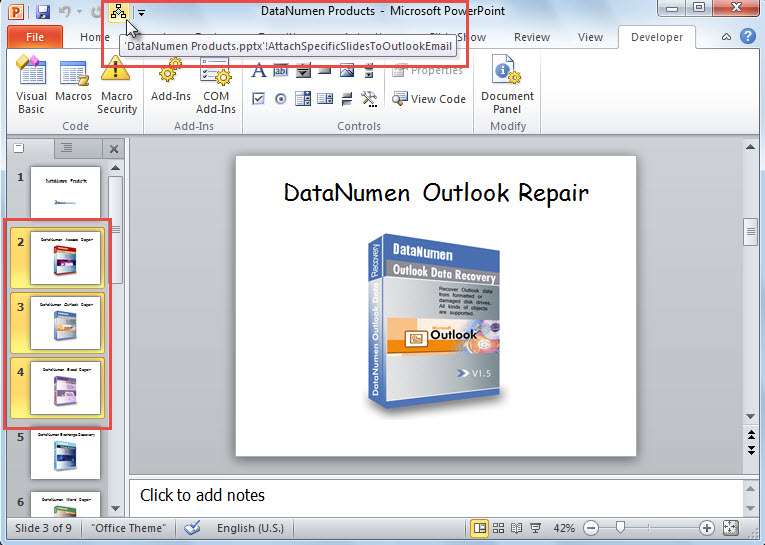
- For a start, select the specific slides which you want to extract.
- Then, click the macro button in Quick Access Toolbar.

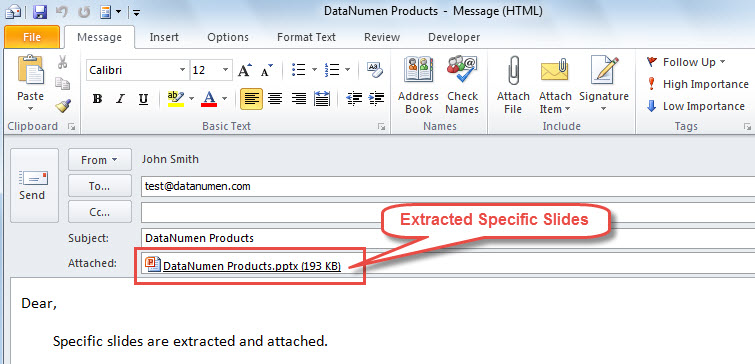
- At once, an Outlook email will show up, in which there is a PowerPoint presentation that is extracted from the source presentation.

Utilize a Effective Recovery Tool
As we all know, Outlook is endowed with a built-in repair utility – Scanpst. Yet, it can simply cope with small glitches in Outlook. If what you are confronted with is serious damage, it will not make effects. At that point, you have no choice but to recur to another powerful and trusty repair tool, like DataNumen Outlook Repair. With it, you’ll be capable of rescuing your corrupted Outlook file.
Author Introduction:
Shirley Zhang is a data recovery expert in DataNumen, Inc., which is the world leader in data recovery technologies, including corrupted mdf and outlook repair software products. For more information visit www.datanumen.com