
This article will teach you an easy method to print out the list of all the appointments which are shown as “Busy” and scheduled in a specific date range.
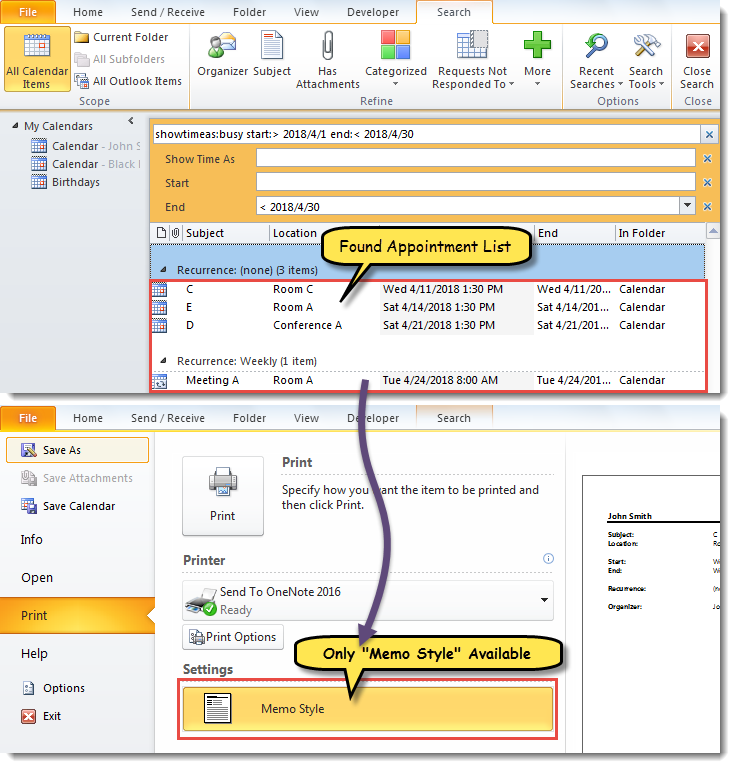
It’s quite easy to loop through all the calendars to find all busy appointments in a specific date range. You can just set search scope to “All Calendar Items”. Then, search appointments with “Show Time As” equal “Busy” and within the specific start date and end date. But, in this way, when intending to print out the found appointments and going to “File” > “Print”, you can see that there is only “Memo Style” available. It means that you cannot print the found appointments in list. So, if you want to print the list of such appointments, you can use the following way.
Print the List of All Busy Appointments in a Specific Date Range
- At the very outset, launch Outlook VBA editor via “Alt + F11”.
- Then, in the popup “Microsoft Visual Basic for Applications” window, add the reference to “MS Excel Object Library” with accordance to “How to Add an Object Library Reference in VBA“.
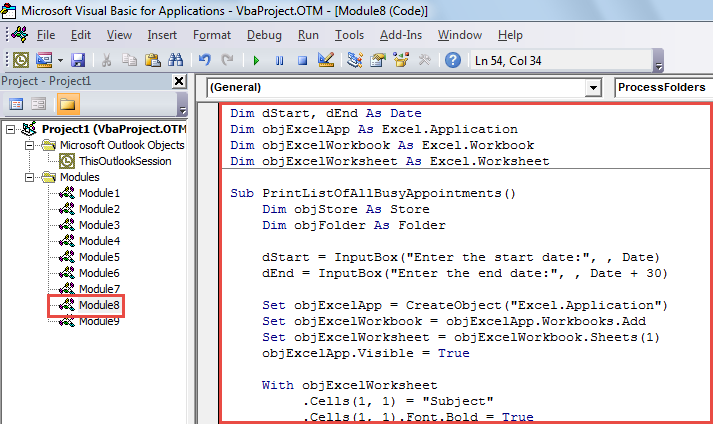
- After that, put the following VBA code in a module.
Dim dStart, dEnd As Date
Dim objExcelApp As Excel.Application
Dim objExcelWorkbook As Excel.Workbook
Dim objExcelWorksheet As Excel.Worksheet

Sub PrintListOfAllBusyAppointments()
    Dim objStore As Store
    Dim objFolder As Folder

    dStart = InputBox("Enter the start date:", , Date)
    dEnd = InputBox("Enter the end date:", , Date + 30)

    Set objExcelApp = CreateObject("Excel.Application")
    Set objExcelWorkbook = objExcelApp.Workbooks.Add
    Set objExcelWorksheet = objExcelWorkbook.Sheets(1)
    objExcelApp.Visible = True

    With objExcelWorksheet
         .Cells(1, 1) = "Subject"
         .Cells(1, 1).Font.Bold = True
         .Cells(1, 2) = "Location"
         .Cells(1, 2).Font.Bold = True
         .Cells(1, 3) = "Start"
         .Cells(1, 3).Font.Bold = True
         .Cells(1, 4) = "End"
         .Cells(1, 4).Font.Bold = True
         .Cells(1, 5) = "In Folder"
         .Cells(1, 5).Font.Bold = True
    End With

    For Each objStore In Application.Session.Stores
        For Each objFolder In objStore.GetRootFolder.Folders
            If objFolder.DefaultItemType = olAppointmentItem Then
               Call ProcessFolders(objFolder)
            End If
        Next
    Next

    objExcelWorksheet.Columns("A:E").AutoFit
    objExcelWorksheet.PrintOut
    objExcelWorkbook.Close False
    objExcelApp.Quit
End Sub

Sub ProcessFolders(ByVal objCurFolder As Folder)
    Dim strFilter As String
    Dim objItems As Outlook.Items
    Dim objRestrictedItems As Outlook.Items
    Dim objAppointment As AppointmentItem
    Dim nLastRow As Integer
    Dim objSubFolder As Folder

    Set objItems = objCurFolder.Items
    objItems.IncludeRecurrences = True
    objItems.Sort "[Start]"

    'Get the appointments in the specific date range
    strFilter = "[Start] >= " & Chr(34) & dStart & " 00:00 AM" & Chr(34) & " AND [End] <= " & Chr(34) & dEnd & " 11:59 PM" & Chr(34)
    Set objRestrictedItems = objItems.Restrict(strFilter)

    For Each objAppointment In objRestrictedItems
        If objAppointment.BusyStatus = olBusy Then
           nLastRow = objExcelWorksheet.Range("A" & objExcelWorksheet.Rows.Count).End(xlUp).Row + 1

           With objExcelWorksheet
                .Range("A" & nLastRow) = objAppointment.Subject
                .Range("B" & nLastRow) = objAppointment.Location
                .Range("C" & nLastRow) = objAppointment.Start
                .Range("D" & nLastRow) = objAppointment.End
                .Range("E" & nLastRow) = objCurFolder.FolderPath
           End With
        End If
    Next

    'Process all subfolders recursively
    If objCurFolder.Folders.Count > 0 Then
       For Each objSubFolder In objCurFolder.Folders
           Call ProcessFolders(objSubFolder)
       Next
    End If
End Sub
- Later, click into the first subroutine and press “F5” key button.
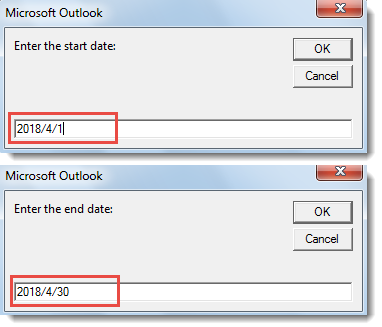
- Next, you’d be required to specify the date range for searching appointments.

- Subsequently, click “OK” to continue the macro.
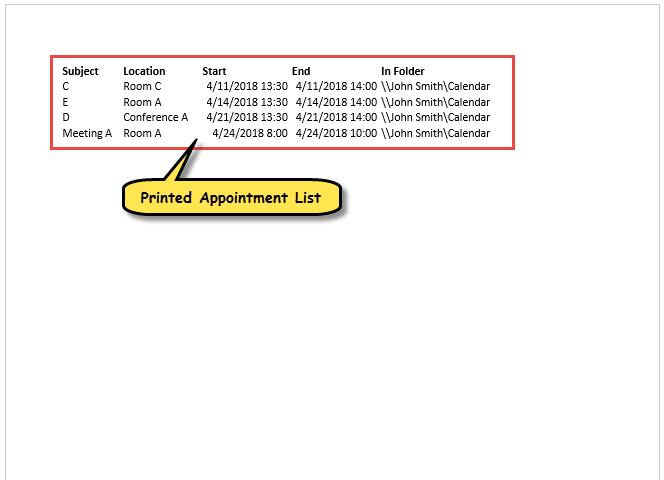
- Finally, when macro finishes, the list of busy appointments in the predefined date range in all calendar folders will be printed, as shown in the screenshot below.

Tackle Disturbing Outlook Corruption
If your Outlook is always closed in an improper manner, you may encounter a lot of issues later. Among them, Outlook file being corrupted is the worst one. If you don’t want to lose your data, you need to use a PST fix tool, like DataNumen Outlook Repair. It is able to get back maximum data from damaged Outlook file.
Author Introduction:
Shirley Zhang is a data recovery expert in DataNumen, Inc., which is the world leader in data recovery technologies, including sql fix and outlook repair software products. For more information visit www.datanumen.com