
It is easy to attach a Word document as a PDF file to an Outlook email. Yet, if you’d like to attach multiple Word documents as PDF files to an email, you can read this article. Here we will show you a method to batch get it.
To attach a Word document as PDF file to an Outlook email, you can firstly open the Word document and go to “File” menu. Then, you can switch to “Save & Send” tab, on which there is a “Send as PDF” button, like the following screenshot.
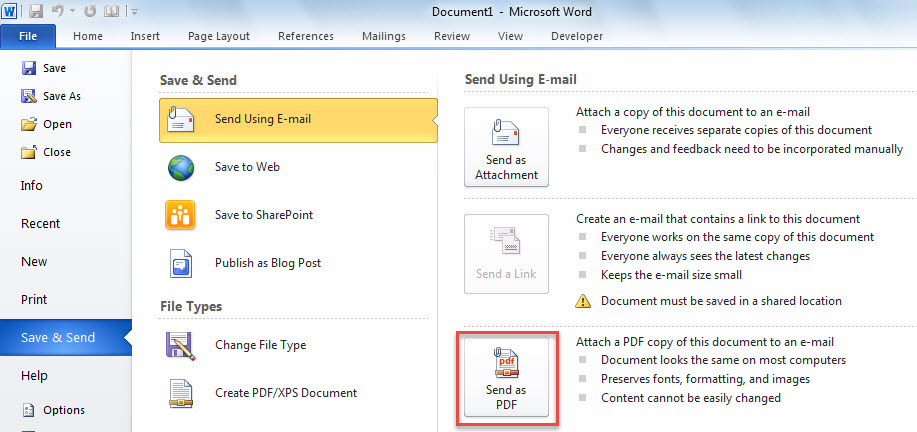
Thus, it is quite simple to attach a Word document as PDF to an email. But, if you would like to convert and attach multiple Word documents as PDF files to a mail, you are better off using the following way. It can let you accomplish it in bulk.
Batch Convert & Attach Multiple Word Documents as PDF Files to an Email
- For a start, gather the Word documents that you want in the same Windows folder.
- Then, launch Outlook program.
- Next, copy the following code into an unused project or module.
Dim objMail As Outlook.MailItem

Sub BatchAttachMultipleWordDocumentsAsPDFToEmail()
    Dim objShell As Object
    Dim objWindowsFolder As Object
    Dim strWindowsFolder As String

    Set objMail = Outlook.Application.CreateItem(olMailItem)

    'Select the specific Windows folder
    Set objShell = CreateObject("Shell.Application")
    Set objWindowsFolder = objShell.BrowseForFolder(0, "Select a Windows folder:", 0, "")

    If Not objWindowsFolder Is Nothing Then
       strWindowsFolder = objWindowsFolder.self.Path & "\"

       Call ProcessFolders(strWindowsFolder)

       objMail.Display
    End If
End Sub

Sub ProcessFolders(strPath As String)
    Dim objFileSystem As Object
    Dim objFolder As Object
    Dim objFile As Object
    Dim objWordApp As Word.Application
    Dim objWordDocument As Word.Document
    Dim strDocumentName As String
    Dim strPDF As String

    Set objFileSystem = CreateObject("Scripting.FileSystemObject")
    Set objFolder = objFileSystem.GetFolder(strPath)

    For Each objFile In objFolder.Files
        strFileExtension = objFileSystem.GetExtensionName(objFile)
        If LCase(strFileExtension) = "doc" Or LCase(strFileExtension) = "docx" Then
           Set objWordApp = CreateObject("Word.Application")
           Set objWordDocument = objWordApp.Documents.Open(objFile.Path)

           'Convert document to pdf
           strDocumentName = Left(objWordDocument.Name, (Len(objWordDocument.Name) - Len(strFileExtension)) - 1)
           strPDF = strPath & strDocumentName & ".pdf"
           objWordDocument.ExportAsFixedFormat strPDF, wdExportFormatPDF

           objWordDocument.Close False

           'Attach the pdf to email
           objMail.Attachments.Add strPDF

           Kill strPDF
        End If
    Next

    'Process all folders and subfolders
    If objFolder.SubFolders.Count > 0 Then
       For Each objSubfolder In objFolder.SubFolders
           If ((objSubfolder.Attributes And 2) = 0) And ((objSubfolder.Attributes And 4) = 0) Then
              ProcessFolders (objSubfolder.Path)
           End If
       Next
    End If
End Sub
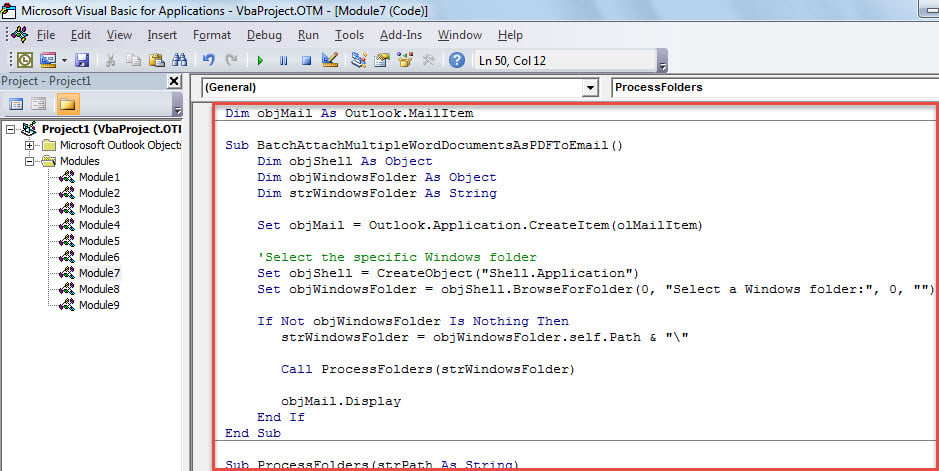
- After that, move cursor into the first subroutine.
- Subsequently, press “F5” to run this macro right away.
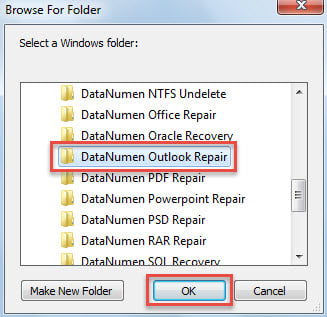
- In the popup small dialog box, select the Windows folder where the source Word documents are stored.

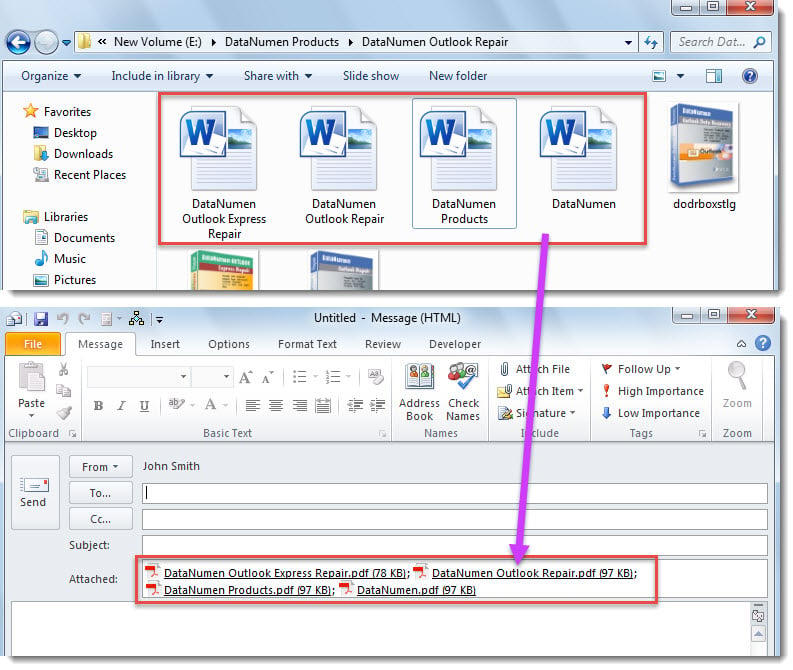
- At once, a new email will be created, in which you can see the attached PDF files, like the following screenshost.

Plagued by Outlook Troubles
Are you disturbed by miscellaneous Outlook problems? For instance, Outlook is frequent stuck in “not responding” state or Outlook PST file becomes inaccessible, etc. In general, you can first try inbox repair tool, Scanpst, to fix PST issues. Yet, at times, the problems may be beyond what the inbuilt tool can do. Therefore, you’d better keep a more potent external utility in vicinity, such as DataNumen Outlook Repair.
Author Introduction:
Shirley Zhang is a data recovery expert in DataNumen, Inc., which is the world leader in data recovery technologies, including sql repair and outlook repair software products. For more information visit www.datanumen.com