
For most users, the appointments scheduled on weekend are usually private. Hence, they want Outlook to automatically mark and show such appointments as private. In this article, we will make this come true with a bit of scripting.
So as to distinguish between the business and private appointments more easily, Outlook permits users to mark appointments as private. In this way, you will find it pretty convenient and easy to print calendar without private appointments. In this situation, you may wish your Outlook to auto recognize and mark specific appointments as private. For instance, generally, the appointments on weekend are private, thus you want to let Outlook auto mark them as private. Thereinafter, we will guide you achieve it.
Auto Mark Weekend Appointments as Private
- At first, launch Outlook VBA editor according to “How to Run VBA Code in Your Outlook“.
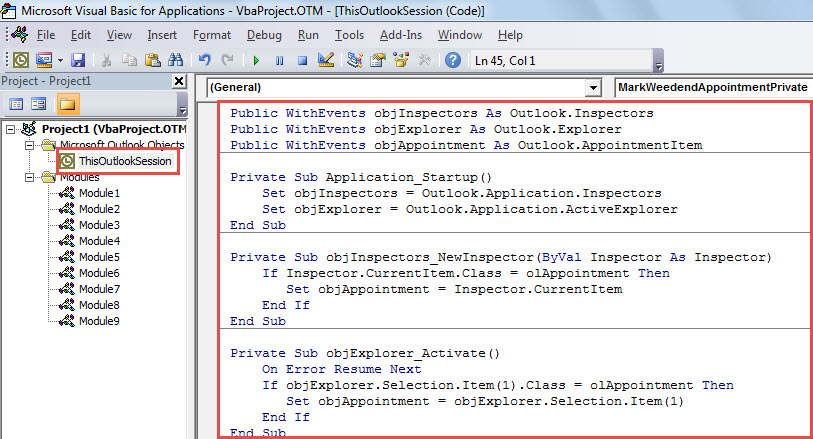
- Then, in “Microsoft Visual Basic for Applications” window, put the following code into the “ThisOutlookSession” project.
Public WithEvents objInspectors As Outlook.Inspectors
Public WithEvents objExplorer As Outlook.Explorer
Public WithEvents objAppointment As Outlook.AppointmentItem

Private Sub Application_Startup()
    Set objInspectors = Outlook.Application.Inspectors
    Set objExplorer = Outlook.Application.ActiveExplorer
End Sub

Private Sub objInspectors_NewInspector(ByVal Inspector As Inspector)
    If Inspector.CurrentItem.Class = olAppointment Then
       Set objAppointment = Inspector.CurrentItem
    End If
End Sub

Private Sub objExplorer_Activate()
    On Error Resume Next
    If objExplorer.Selection.Item(1).Class = olAppointment Then
       Set objAppointment = objExplorer.Selection.Item(1)
    End If
End Sub

Private Sub objAppointment_Open(Cancel As Boolean)
    Call MarkWeedendAppointmentPrivate(objAppointment)
End Sub

Private Sub objAppointment_PropertyChange(ByVal Name As String)
    If Name = "Start" Or Name = "End" Then
       Call MarkWeedendAppointmentPrivate(objAppointment)
    End If
End Sub

Private Sub MarkWeedendAppointmentPrivate(ByVal objAppointment As Outlook.AppointmentItem)
    Dim dStartDate As Date

    dStartDate = Format(objAppointment.Start, "Short Date")

    'If the appointment start falls on weekend
    Select Case Weekday(dStartDate)
           Case 7, 1
                'Mark it private
                objAppointment.Sensitivity = olPrivate
    End Select
End Sub
- After that, restart Outlook to activate the macro.
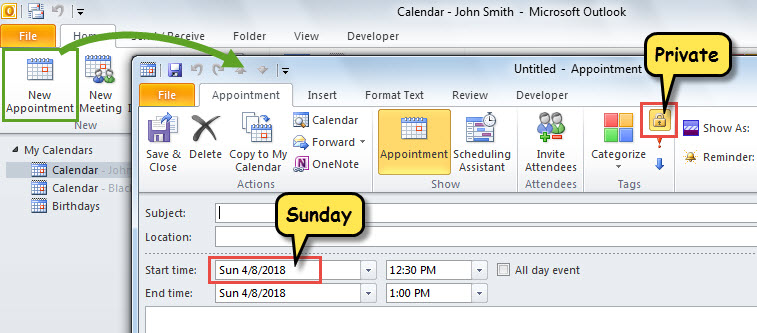
- From now on, every time when you create a new appointment or change an existing appointment to the weekend, Outlook will auto mark it as private.

Solve Annoying Outlook Problems
It is possible that you have encountered some issues when dealing with Outlook, such as unexpected application freezing, popup error messages and so on. When suffering them, you would be worried. Please calm down! Panic will help nothing, but make case worsen. In the first place, you can check if you can access the PST file as usual. If so, you have to repair the PST file, which can be accomplished via the inbox repair tool or a more powerful external tool, like DataNumen Outlook Repair.
Author Introduction:
Shirley Zhang is a data recovery expert in DataNumen, Inc., which is the world leader in data recovery technologies, including mdf repair and outlook repair software products. For more information visit www.datanumen.com