
This article will teach you a quick trick using VBA to let Outlook auto prompt you whether to send a notification email when you haven’t received the reply of a specific email within a specific time.
At times, for the vitally important emails, you will definitely look forward to its replies. In other words, you must hope that the recipient can reply to you as soon as possible. Otherwise, as long as you haven’t yet received the reply within your expected time, you will send a follow-up notification email to the recipient again. Therefore, in response to this requirement, here we will introduce a method that use VBA to make Outlook to auto warn and prompt you in such a case. Read on to get the elaborate steps and codes.
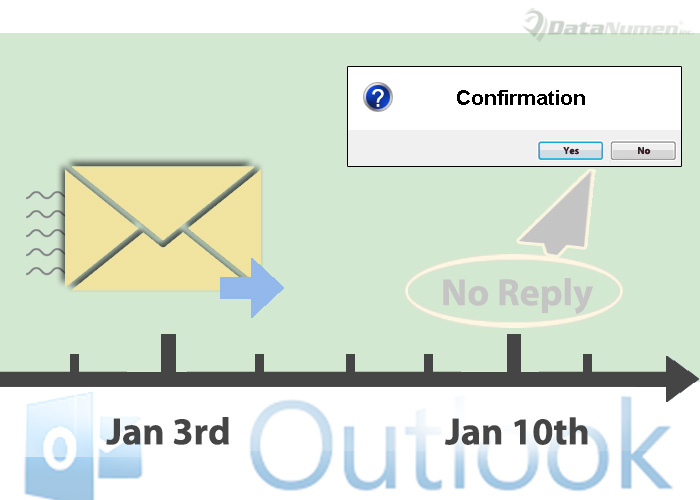
Get a Notification If Not Receiving the Reply of a Specific Email within Expected Time
- At the very outset, start your Outlook.
- Then you need to set a specific reminder time to the specific email.
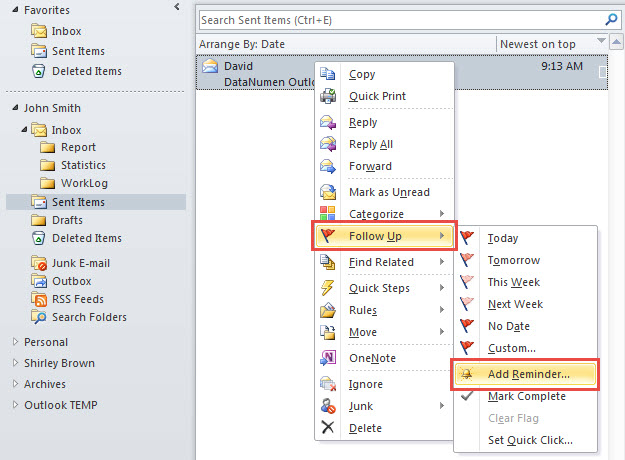
- Firstly, right click on the specific email.
- Then select “Follow Up” > “Add Reminder”.

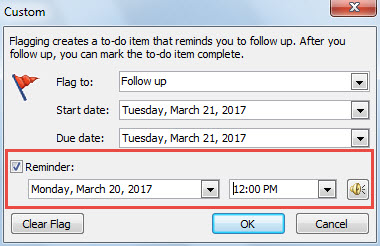
- In the dialog box, you can set the reminder time same as the specific time within which you want to receive its reply.

- After that, press “Alt + F11” key buttons to access Outlook VBA editor.
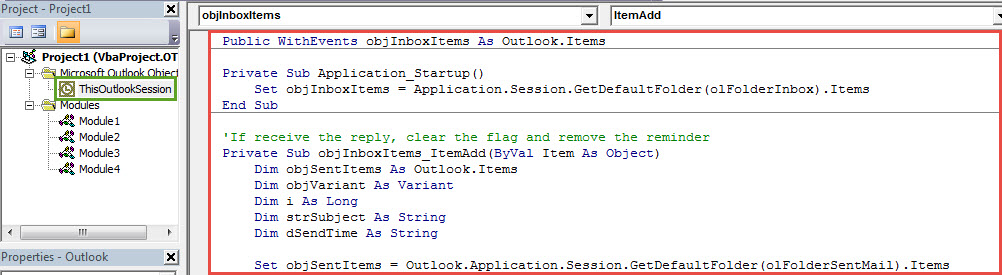
- Next in the new window, open the “ThisOutlookSession” project and copy the following codes into it.
Public WithEvents objInboxItems As Outlook.Items

Private Sub Application_Startup()
    Set objInboxItems = Application.Session.GetDefaultFolder(olFolderInbox).Items
End Sub

'If receive the reply, clear the flag and remove the reminder
Private Sub objInboxItems_ItemAdd(ByVal Item As Object)
    Dim objSentItems As Outlook.Items
    Dim objVariant As Variant
    Dim i As Long
    Dim strSubject As String
    Dim dSendTime As String

    Set objSentItems = Outlook.Application.Session.GetDefaultFolder(olFolderSentMail).Items

    If Item.Class = olMail Then
       For i = 1 To objSentItems.Count
           If objSentItems.Item(i).Class = olMail Then
              Set objVariant = objSentItems.Item(i)
              strSubject = LCase(objVariant.Subject)
              dSendTime = objVariant.SentOn

              If LCase(Item.Subject) = "re: " & strSubject Or InStr(LCase(Item.Subject), strSubject) > 0 Then
                 If Item.SentOn > dSendTime Then
                    With objVariant
                         .ClearTaskFlag
                         .ReminderSet = False
                         .Save
                    End With
                 End If
              End If
           End If
       Next i
    End If
End Sub

'Get a prompt asking if to send a notification email
Private Sub Application_Reminder(ByVal Item As Object)
    Dim strPrompt As String
    Dim nResponse As Integer
    Dim objFollowUpMail As Outlook.MailItem

    'You can change the subject as per your real case
    If (Item.Class = olMail) And (LCase(Item.Subject) = "datanumen outlook repair") Then
       strPrompt = "You haven't yet recieved the reply of " & Chr(34) & Item.Subject & Chr(34) & " within your expected time. Do you want to send a follow-up notification email?"
       nResponse = MsgBox(strPrompt, vbYesNo + vbQuestion, "Confirm to Send a Follow-Up Notification Email")
       If nResponse = vbYes Then
          Set objFollowUpMail = Application.CreateItem(olMailItem)
          With objFollowUpMail
               .To = Item.Recipients.Item(1).Address
               .Subject = "Follow Up: " & Chr(34) & Item.Subject & Chr(34)
               .Body = "Please respond to my email " & Chr(34) & Item.Subject & Chr(34) & "as soon as possible"
               .attachments.Add Item
               .Display
          End With
       End If
    End If
End Sub
- Subsequently, sign this code.
- Later change Outlook macro setting to permit the digitally signed macros.
- Eventually restart Outlook to activate the new macro. From now on, Outlook will work as the followings:
- If you have received the reply of the specific email before its reminder pops up, Outlook will auto clear the flag and disable the reminder.
- If you haven’t received the reply when its reminder fires, Outlook will ask you if to send a follow-up notification email. If you select “Yes”, the email will be sent out. If select “No”, the prompt will disappear at once.
Settle Annoying Outlook Issues
As Outlook is error prone, in order to prevent Outlook corruption, you had better not only rely on inbox tool, Scanpst.exe. You should prepare another potent and reputable repair tool, such as DataNumen Outlook Repair, which can dispose of the annoying issues which Scanpst.exe cannot settle.
Author Introduction:
Shirley Zhang is a data recovery expert in DataNumen, Inc., which is the world leader in data recovery technologies, including sql corruption and outlook repair software products. For more information visit www.datanumen.com