
Teachers always have tons of task to complete. They have to prepare notes for tomorrow’s class, track student’s performance, prepare reports for top management and many more. Let’s make the mark entry an easy task for them.
Download Now
If you want to start to use the software as soon as possible, then you can:
Otherwise, if you want to DIY, you can read the contents below.
Let’s Prepare the GUI
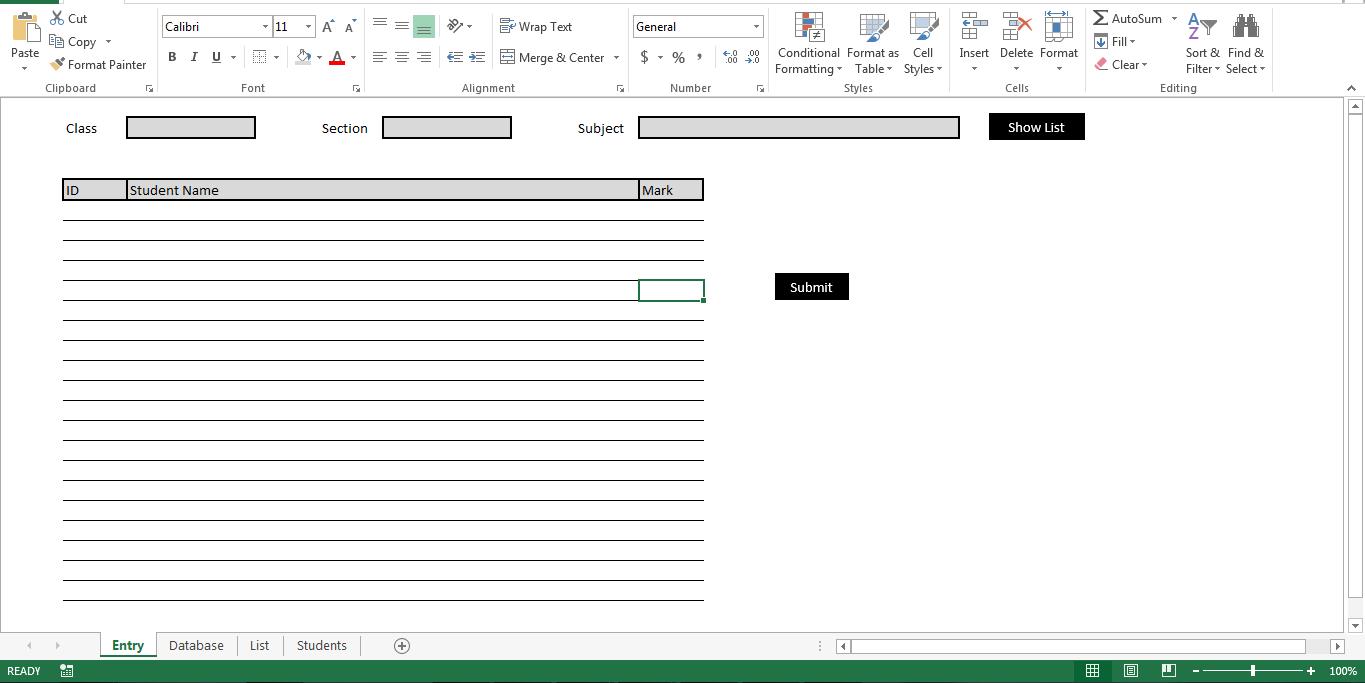
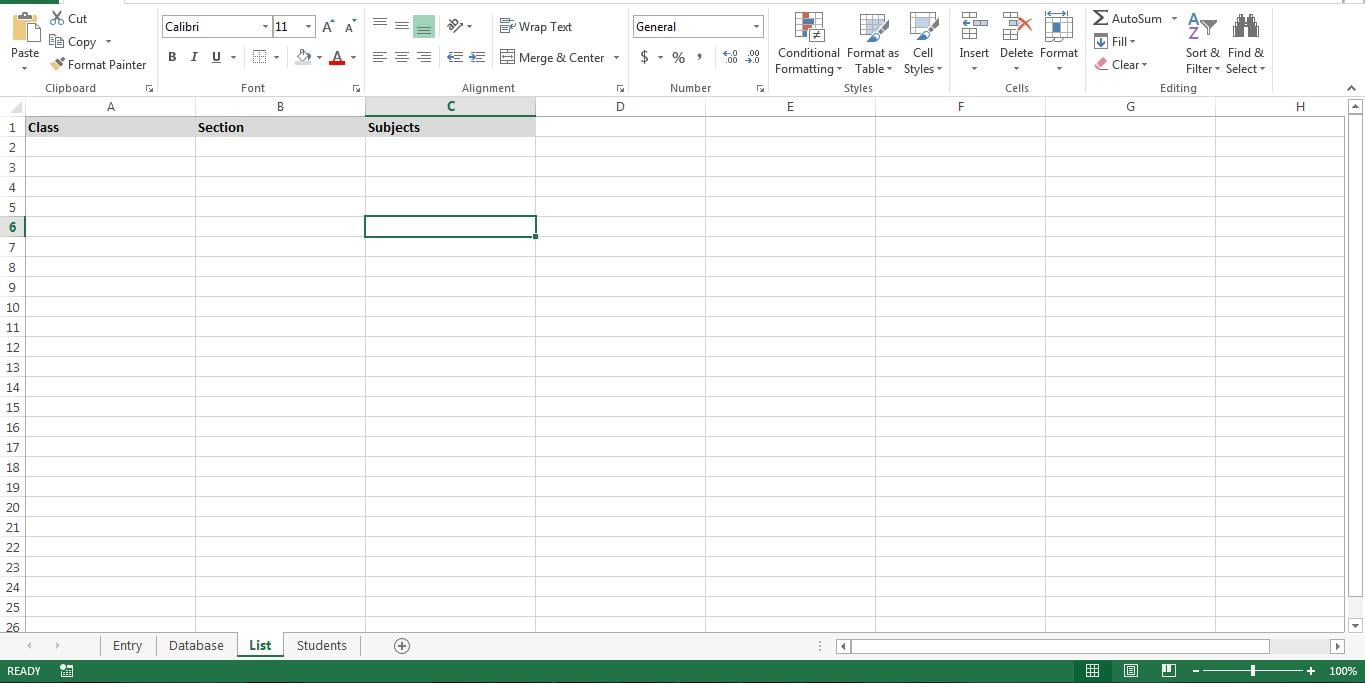
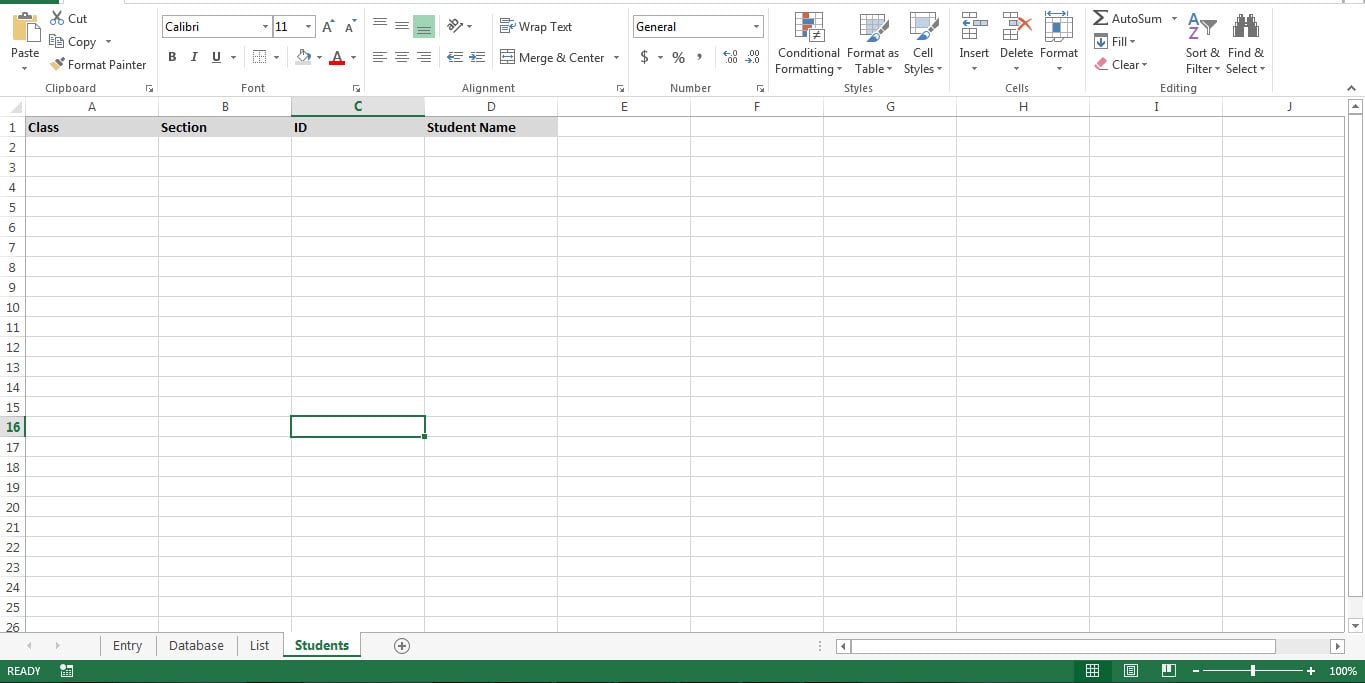
As shown in these images, prepare the tool with necessary sheets.
| Sheet Name | Description |
| Entry | This is the GUI for mark entry. |
| Database | This sheet acts as database and holds students’ marks |
| List | This sheet has data that will be used to create dropdowns. |
| Students | This sheet is the maps various students to their respective classes. |
From the VBA project window, rename sheets as shown here.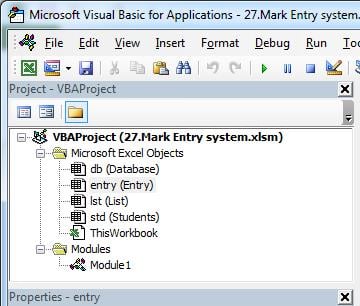
Let’s make it functional
Copy the macro to a new module and attach macros to their respective buttons.
| Macro | Attach to Button | Description |
| Class_dropdown | – | This macro creates the drop down for “Class” |
| Section_dropdown | – | This macro creates the drop down for “Section” |
| Subject_dropdown | – | This macro creates the drop down for “Subject” |
| Show_List | Show List | This macro shows Students from the Selected Class and Section |
| Add_To_Database | Submit | This macro upload mark entries into the database sheet. |
Sub Class_dropdown()
    Dim lr As Long
    Dim r As Long
    lr = lst.Range("A" & Rows.Count).End(xlUp).Row
    Dim prodlist As String
    For r = 2 To lr
        If prodlist = "" Then
            prodlist = lst.Range("A" & r).Value
        Else
            prodlist = prodlist & "," & lst.Range("A" & r).Value
        End If
        Next r
        With entry.Range("C2:D2").Validation
            .Delete
            .Add Type:=xlValidateList, AlertStyle:=xlValidAlertStop, Operator:= _
            xlBetween, Formula1:=prodlist
            .IgnoreBlank = True
            .InCellDropdown = True
            .InputTitle = ""
            .ErrorTitle = ""
            .InputMessage = ""
            .ErrorMessage = ""
            .ShowInput = True
            .ShowError = True
        End With
End Sub

Sub Section_dropdown()
    Dim lr As Long
    Dim r As Long
    lr = lst.Range("B" & Rows.Count).End(xlUp).Row
    Dim prodlist As String
    For r = 2 To lr
        If prodlist = "" Then
            prodlist = lst.Range("B" & r).Value
        Else
            prodlist = prodlist & "," & lst.Range("B" & r).Value
        End If
        Next r
        With entry.Range("G2:H2").Validation
            .Delete
            .Add Type:=xlValidateList, AlertStyle:=xlValidAlertStop, Operator:= _
            xlBetween, Formula1:=prodlist
            .IgnoreBlank = True
            .InCellDropdown = True
            .InputTitle = ""
            .ErrorTitle = ""
            .InputMessage = ""
            .ErrorMessage = ""
            .ShowInput = True
            .ShowError = True
        End With
End Sub

Sub Subject_dropdown()
    Dim lr As Long
    Dim r As Long
    lr = lst.Range("C" & Rows.Count).End(xlUp).Row
    Dim prodlist As String
    For r = 2 To lr
        If prodlist = "" Then
            prodlist = lst.Range("C" & r).Value
        Else
            prodlist = prodlist & "," & lst.Range("C" & r).Value
        End If
        Next r
        With entry.Range("K2:O2").Validation
            .Delete
            .Add Type:=xlValidateList, AlertStyle:=xlValidAlertStop, Operator:= _
            xlBetween, Formula1:=prodlist
            .IgnoreBlank = True
            .InCellDropdown = True
            .InputTitle = ""
            .ErrorTitle = ""
            .InputMessage = ""
            .ErrorMessage = ""
            .ShowInput = True
            .ShowError = True
        End With
End Sub

Sub Show_List()
    Dim r As Long
    Dim lr As Long
    Dim e As Long
    e = 5
    lr = std.Range("A" & Rows.Count).End(xlUp).Row
    For r = 2 To lr
        If std.Range("A" & r).Value = entry.Range("C2").Value And std.Range("B" & r).Value = entry.Range("G2").Value Then
            e = e + 1
            entry.Range("B" & e).Value = std.Range("C" & r).Value
            entry.Range("C" & e).Value = std.Range("D" & r).Value
        End If
        Next r
End Sub

Sub Add_To_Database()
    Dim r As Long
    Dim lr As Long
    Dim e As Long
    e = 5
    lr = entry.Range("B" & Rows.Count).End(xlUp).Row
    For r = 6 To lr
        Dim lrind As Long
        lrind = db.Range("B" & Rows.Count).End(xlUp).Row + 1
        db.Range("A" & lrind).Value = entry.Range("C2").Value
        db.Range("B" & lrind).Value = entry.Range("G2").Value
        db.Range("C" & lrind).Value = entry.Range("K2").Value
        db.Range("D" & lrind).Value = entry.Range("C" & r).Value
        db.Range("E" & lrind).Value = entry.Range("K" & r).Value
        Next r
End Sub
Tweak it
This script lets you create a very basic mark entry system. However, you can tweak it and create analytical reports using data from the sheet “Database”. It is a good practice to create a backup for the database sheet. This will help you to recover a corrupt xlsx sheet.
Author Introduction:
Nick Vipond is a data recovery expert in DataNumen, Inc., which is the world leader in data recovery technologies, including corrupt word and outlook recovery software products. For more information visit www.datanumen.com.