
Outlook will not auto fit the inserted pictures with the texts in the email body. Thus, if you think that some embedded pictures are too large or small, you may desire to resize them. This article will teach you a method to resize them in bulk.
In Outlook, when you insert a picture into the body of an email, if it’s too large, you will absolutely have to scale it until it fits the body. Under this circumstance, if there are multiple pictures in this email, resizing one by one manually is surely not a good idea. Now, thereinafter, we will share you a much quicker method that can batch resize all pictures in an Outlook email.
Batch Resize All Pictures in an Email
- At the very beginning, you need to launch your Outlook application.
- Then, in the displaying Outlook main window, you ought to press “Alt + F11” key buttons.
- At once, you will enter the “Microsoft Visual Basic for Applications’ window.
- Now, you have to access a module that is not in use or just insert a new one.
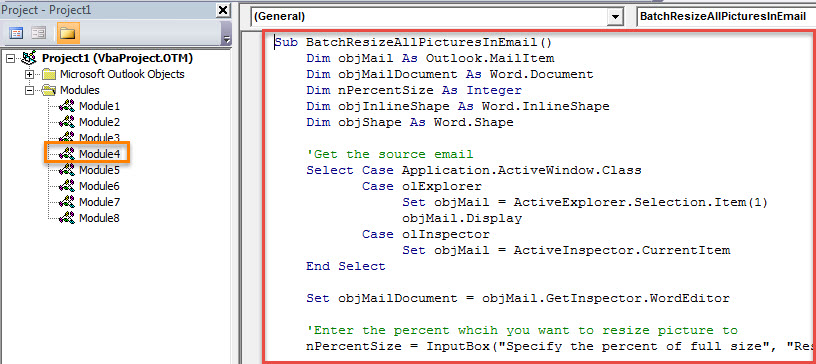
- Next, you should copy and paste the following VBA code into this module.
Sub BatchResizeAllPicturesInEmail()
    Dim objMail As Outlook.MailItem
    Dim objMailDocument As Word.Document
    Dim nPercentSize As Integer
    Dim objInlineShape As Word.InlineShape
    Dim objShape As Word.Shape

    'Get the source email
    Select Case Application.ActiveWindow.Class
           Case olExplorer
                Set objMail = ActiveExplorer.Selection.Item(1)
                objMail.Display
           Case olInspector
                Set objMail = ActiveInspector.CurrentItem
    End Select

    Set objMailDocument = objMail.GetInspector.WordEditor

    'Enter the percent whcih you want to resize picture to
    nPercentSize = InputBox("Specify the percent of full size", "Resize Picture", 50)

    'Resize all the pictures in this email
    For Each objInlineShape In objMailDocument.InlineShapes
        objInlineShape.ScaleHeight = nPercentSize
        objInlineShape.ScaleWidth = nPercentSize
    Next

    For Each objShape In objMailDocument.Shapes
        objShape.ScaleHeight PercentSize / 100, msoCTrue
        objShape.ScaleWidth PercentSize / 100, msoCTrue
    Next
End Sub
- Later, you can hit the “X” icon in the upper right corner to exit this window.
- Subsequently, you’d better add this new VBA project to Quick Access Toolbar of Message window for future convenience. You can achieve it in the “Outlook Options”.
- Eventually, you can have a shot:
- First off, create and compose an email as usual.
- Then, insert multiple pictures into this email.
- Next, click the macro button in Quick Access Toolbar.
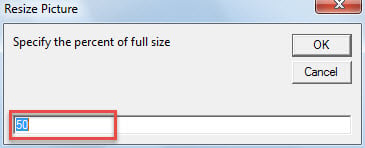
- At once, you will be required to enter a percent of the full size, which you want to resize the pictures to.

- After you hit “OK”, all the pictures will be resized.
Get Hold of a Qualified Repair Tool
Since Outlook is prone to corruption, it is prudent to keep a reputable and potent external repair tool, like DataNumen Outlook Repair. Usually, as soon as meeting up with Outlook damage, you could firstly recur to the inbox repair tool. But, if it fails too, the external fix utility will come in handy and can rescue your data in time.
Author Introduction:
Shirley Zhang is a data recovery expert in DataNumen, Inc., which is the world leader in data recovery technologies, including recover sql and outlook repair software products. For more information visit www.datanumen.com