
At times, you may hope to remove all email addresses with a specific domain from your contacts. In this situation, you must be unwilling to do that one by one. Thus, this post will teach you a far smarter method.
For instance, a company changes its name. Meanwhile, the company domain also gets altered. However, in Outlook, you have stored many contacts in this company, whose email addresses are with the old domain. Of course, these email addresses are no longer valid. Hence, under this circumstance, if you would like to remove these email addresses in one go, you can use the following way.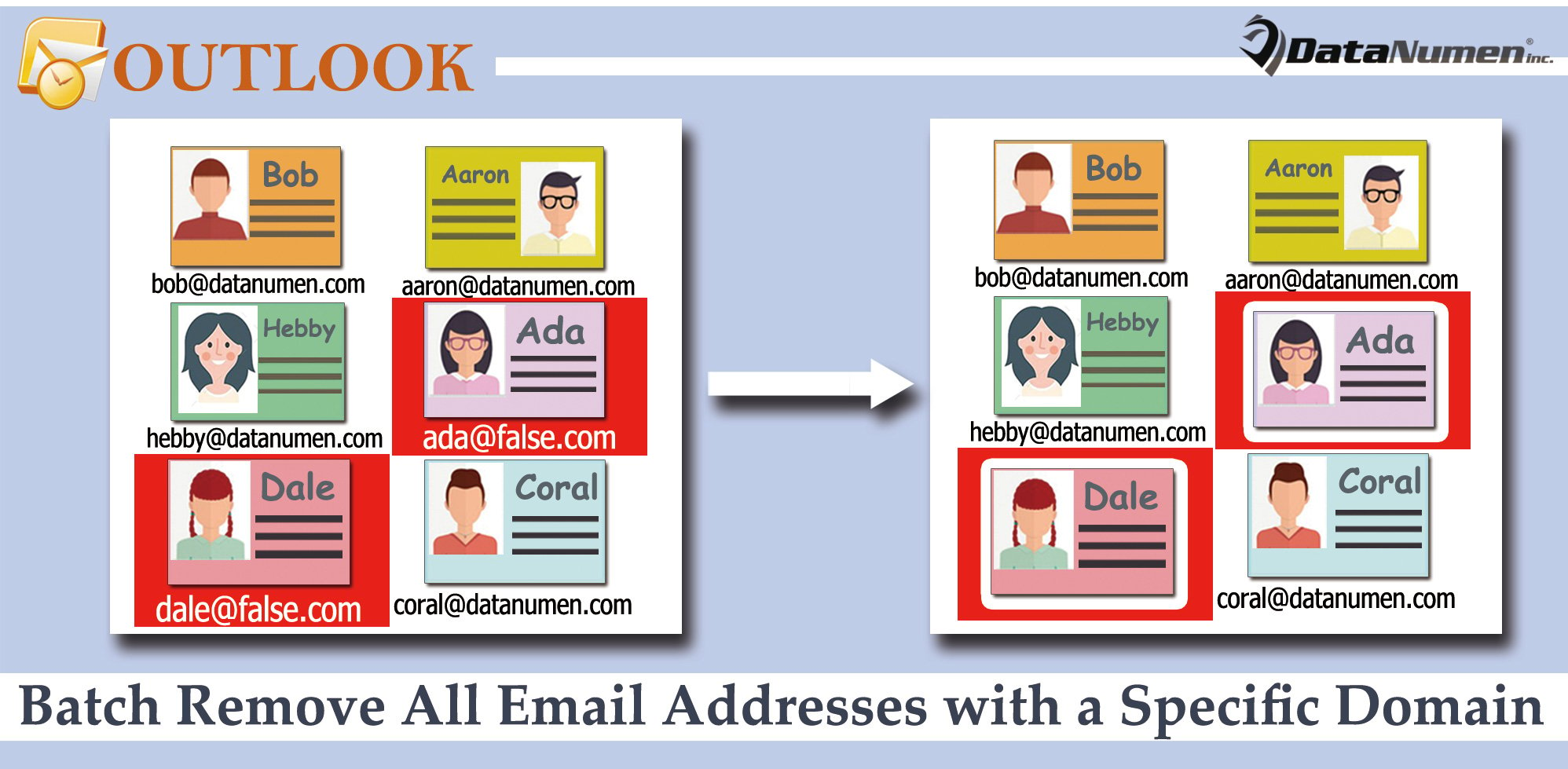
Batch Remove All Email Addresses with a Specific Domain from Contacts
- For a start, access Outlook VBA editor by key shortcut – “Alt + F11”.
- Then, in the new window, place the following VBA code in an empty module.
Dim strDomain As String

Sub BatchRemoveAllEmailAddressesInSpecificDomain()
    Dim objStore As Store
    Dim objFolder As Folder
    Dim lTotalCount As Long

    'Input the specific domain
    strDomain = InputBox("Enter the specific domain:", , "@false.com")

    If Len(strDomain) <> 0 Then
       lTotalCount = 0
       'Process all Contact folders in your Outlook
       For Each objStore In Application.Session.Stores
           For Each objFolder In objStore.GetRootFolder.Folders
               If objFolder.DefaultItemType = olContactItem Then
                  Call ProcessContactFolders(objFolder, lTotalCount)
               End If
           Next
       Next

       'Prompt you
       MsgBox lTotalCount & " email addresses in " & strDomain & " are removed!", vbInformation + vbOKOnly
    End If
End Sub

Sub ProcessContactFolders(ByVal objCurrentFolder As Folder, ByRef lCount As Long)
    Dim objContacts As Items
    Dim i As Long
    Dim objContact As ContactItem

    Set objContacts = objCurrentFolder.Items

    For i = objContacts.Count To 1 Step -1
        If TypeName(objContacts(i)) = "ContactItem" Then
           Set objContact = objContacts(i)

           'Check 3 email addresses of each contact
           If InStr(objContact.Email1Address, strDomain) > 0 Then
              lCount = lCount + 1
              objContact.Email1Address = ""
              objContact.Email1DisplayName = ""
           ElseIf InStr(objContact.Email2Address, strDomain) > 0 Then
              lCount = lCount + 1
              objContact.Email2Address = ""
              objContact.Email2DisplayName = ""
           ElseIf InStr(objContact.Email3Address, strDomain) > 0 Then
              lCount = lCount + 1
              objContact.Email3Address = ""
              objContact.Email3DisplayName = ""
           End If

           objContact.Save
        End If
     Next

     If objCurrentFolder.Folders.Count > 0 Then
        For Each objSubfolder In objCurrentFolder.Folders
            Call ProcessContactFolders(objSubfolder, lCount)
        Next
     End If
End Sub
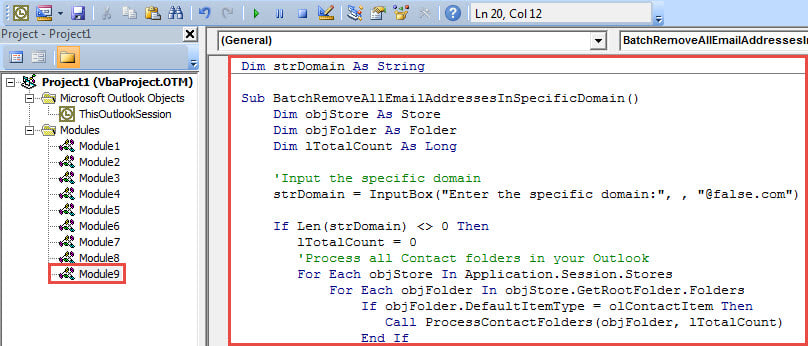
- After that, put cursor in “BatchRemoveAllEmailAddressesInSpecificDomain” subroutine.
- Finally, click “F5” key button to trigger this macro.
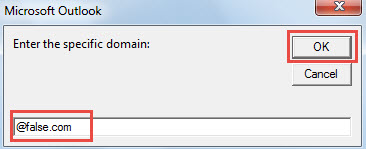
- Subsequently, enter the specific domain the popup dialog box.

- After click “OK”, macro will run.
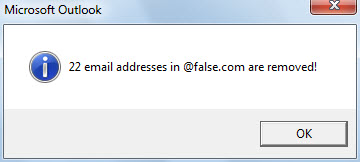
- When it finishes, you will get a message about the results.

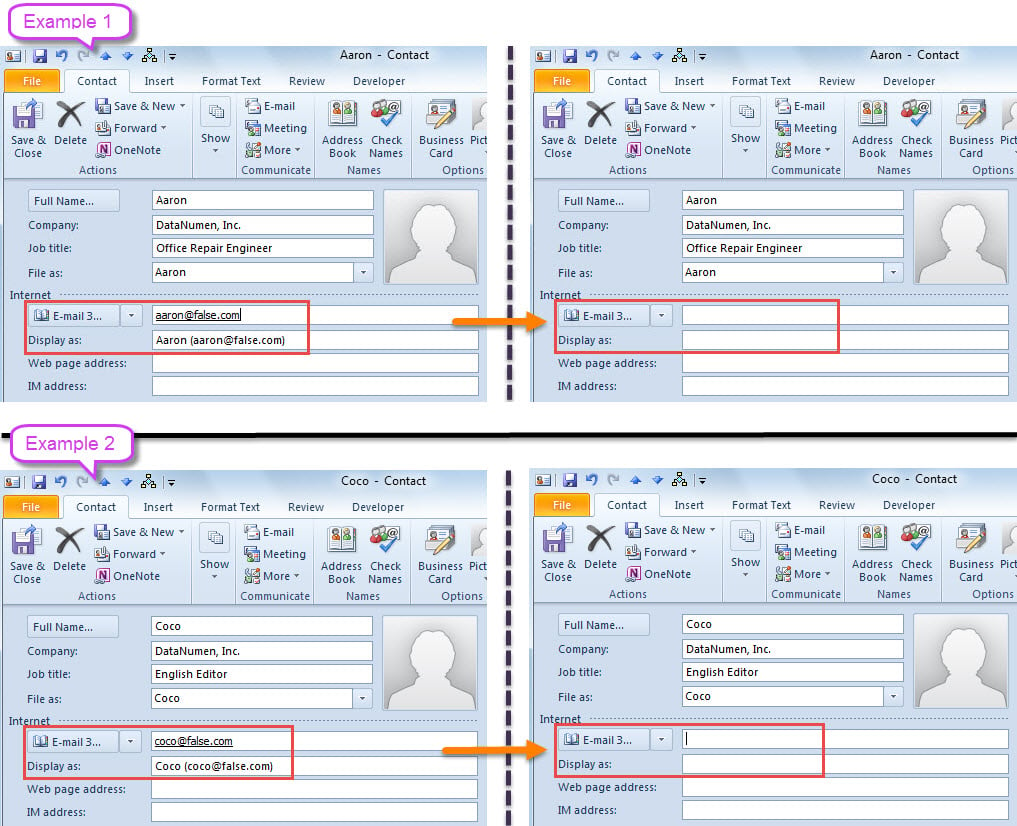
- Now, you can check the contacts. All the email addresses with the specific domain must have disappeared.

Preserve Your Outlook File
With more and more risks surrounding your Outlook, it is increasingly difficult to safeguard your valuable Outlook data. For instance, not only should you persist in regular data backups, but also you have to watch out for your operations. It is not wise to readily trust in any emails from unknown senders. Otherwise, if it carries virus, your Outlook file will be infected. At that time, you have to attempt Outlook repair via a remarkable fix tool, such as DataNumen Outlook Repair.
Author Introduction:
Shirley Zhang is a data recovery expert in DataNumen, Inc., which is the world leader in data recovery technologies, including recover Sql Server and outlook repair software products. For more information visit www.datanumen.com