
Perhaps you have a folder under which there are numerous subfolders. If you would like to reorganize the emails in them, such as quickly moving all emails from these subfolders to a specific folder, you can use the way shared in this article.
At times, you may need to batch move the emails from all subfolders of one folder to another folder for some reasons, like you want to re-classify emails, so these subfolders aren’t useful any longer. In this case, processing these subfolders one by one is quite troublesome. Therefore, here we will introduce you another way.

Batch Move Emails from All Subfolders of One Folder to Another Folder
- At the very outset, start your Outlook program.
- Then, in the main Outlook screen, tap on the “Alt + F11” key buttons, which will bring you to VBA editor.
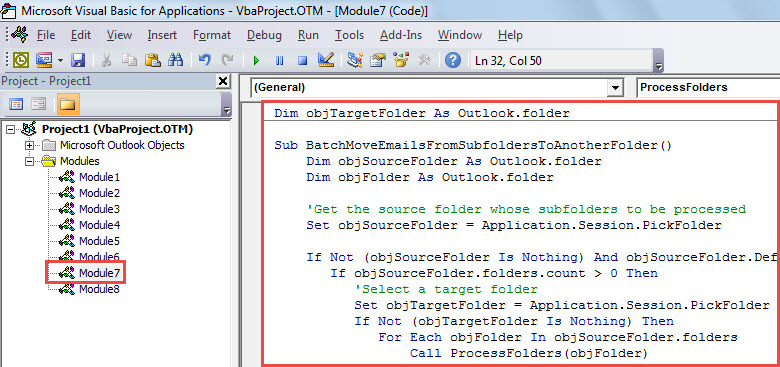
- Next, in the new “Microsoft Visual Basic for Applications” window, you need to open a module which is not in use.
- Subsequently, copy and paste the following VBA code into this module.
Dim objTargetFolder As Outlook.folder

Sub BatchMoveEmailsFromSubfoldersToAnotherFolder()
    Dim objSourceFolder As Outlook.folder
    Dim objFolder As Outlook.folder

    'Get the source folder whose subfolders to be processed
    Set objSourceFolder = Application.Session.PickFolder

    If Not (objSourceFolder Is Nothing) And objSourceFolder.DefaultItemType = olMailItem Then
       If objSourceFolder.folders.count > 0 Then
          'Select a target folder
          Set objTargetFolder = Application.Session.PickFolder
          If Not (objTargetFolder Is Nothing) Then
             For Each objFolder In objSourceFolder.folders
                 Call ProcessFolders(objFolder)
             Next
             MsgBox "Move Completed!", vbExclamation
          End If
       Else
          MsgBox "No subfolders!", vbExclamation
       End If
    End If
End Sub

Sub ProcessFolders(ByVal objFolder As Outlook.folder)
    Dim i As Long
    Dim objSubfolder As Outlook.folder

    For i = objFolder.Items.count To 1 Step -1
        'Move emails to the target folder
        If objFolder.Items(i).Class = olMail Then
           objFolder.Items(i).Move objTargetFolder
        End If
    Next

    'Process subfolders recursively
    If objFolder.folders.count > 0 Then
       For Each objSubfolder In objFolder.folders
           Call ProcessFolders(objSubfolder)
       Next
    End If
End Sub
- After that, you can run this macro.
- First off, in this macro window, press “F5” key button.
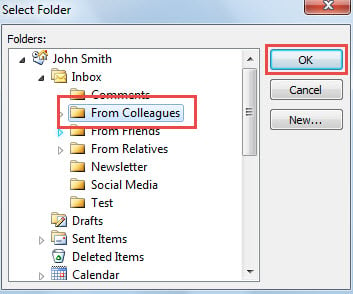
- Then, you will be required to choose a source folder whose subfolders to be processed.

- After that, you need to specify the destination folder which you want to move emails to.
- Subsequently, this macro will start working. When it completes, you’ll get a message prompting “Complete”.
- Ultimately, you can access the target folder. You’ll see that all the emails of the subfolders under the source folder have been over there.
Restore Compromised Outlook Data
Despite boasting of numerous features, like other email clients, Outlook still can’t escape from corruption either. With more and more data stored, Outlook will be increasingly prone to errors and damage. Hence, you need to keep a potent repair tool handy, like DataNumen Outlook Repair. It’s especially designed to fix Outlook issues. Thereby, it can scan and restore damaged Outlook file with effortless ease.
Author Introduction:
Shirley Zhang is a data recovery expert in DataNumen, Inc., which is the world leader in data recovery technologies, including mdf recovery and outlook repair software products. For more information visit www.datKanumen.com