
Many users long for a method, which can enable them to expand all contact groups in “To” field in bulk when composing an Outlook email. Therefore, in this post, we’ll share you such an approach.
Usually, to expand a contact group in “To” field, you can click the “+” icon in front of the group name. However, by this means, if there are many contact groups in “To” field and if you want to expand all of them, it is a bit tedious. Thus, here we’ll share you a way to quickly expand all groups in “To” field simply via a click.
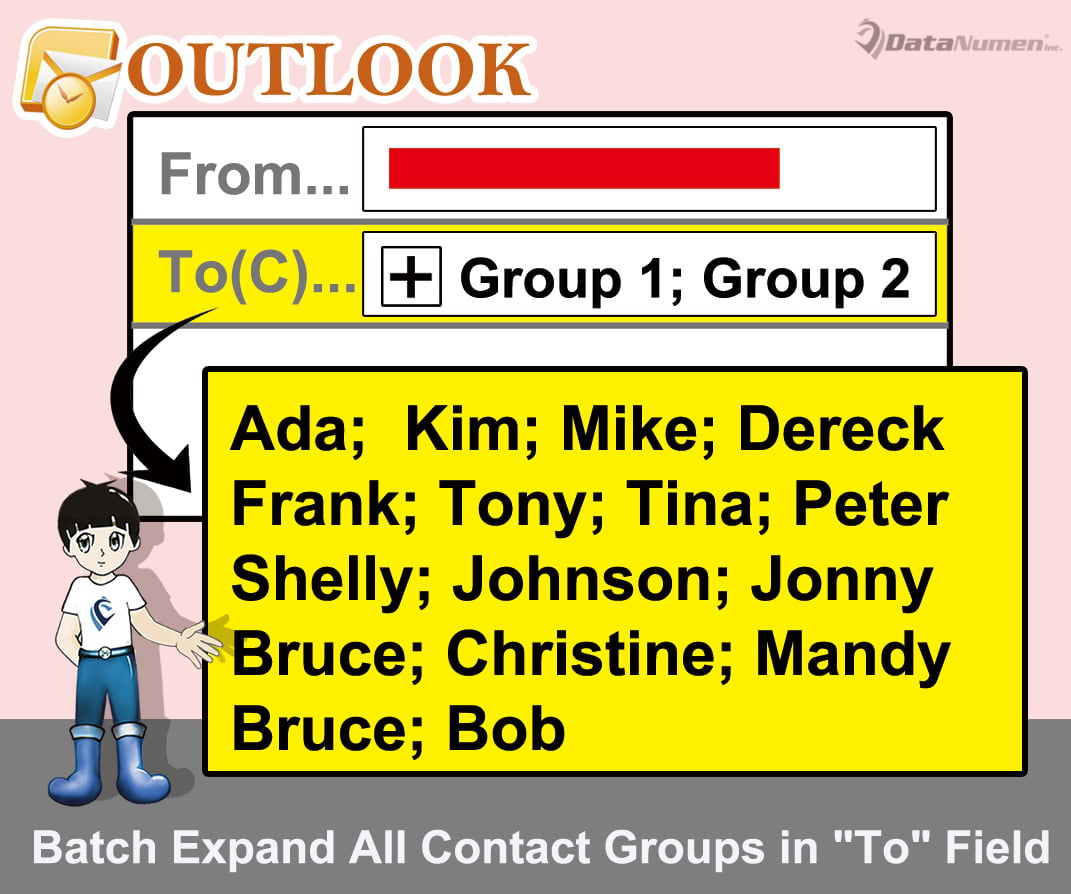
Batch Expand All Contact Groups in “To” Field
- In the first place, launch your Outlook program.
- Then in the main Outlook window, press “Alt + F11” key buttons.
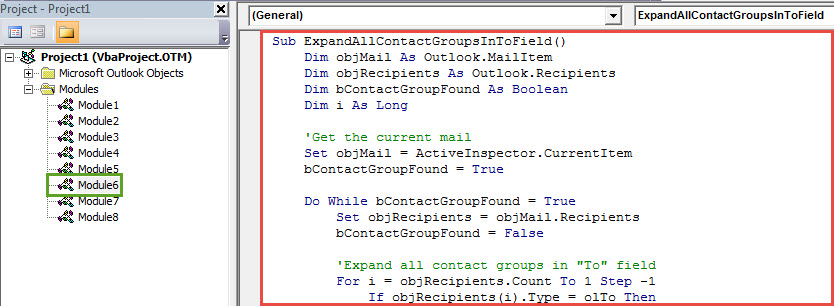
- Next you will get into the VBA editor screen, in which you ought to access an unused module or simply insert a new one.
- Subsequently, copy the following VBA code into this module.
Sub ExpandAllContactGroupsInToField()
    Dim objMail As Outlook.MailItem
    Dim objRecipients As Outlook.Recipients
    Dim bContactGroupFound As Boolean
    Dim i As Long

    'Get the current mail
    Set objMail = ActiveInspector.CurrentItem
    bContactGroupFound = True

    Do While bContactGroupFound = True
       Set objRecipients = objMail.Recipients
       bContactGroupFound = False

       'Expand all contact groups in "To" field
       For i = objRecipients.Count To 1 Step -1
           If objRecipients(i).Type = olTo Then
              If objRecipients(i).AddressEntry.DisplayType <> olUser Then
                 For n = 1 To objRecipients(i).AddressEntry.Members.Count
                     If objRecipients(i).AddressEntry.Members.Item(n).DisplayType = olUser Then
                        objMail.Recipients.Add (objRecipients(i).AddressEntry.Members.Item(n).Address)
                     Else
                        objMail.Recipients.Add (objRecipients(i).AddressEntry.Members.Item(n).Name)
                        bContactGroupFound = True
                     End If
                 Next
                 objRecipients(i).Delete
              End If
          End If
      Next i
      objRecipients.ResolveAll
    Loop
End Sub
- After that, you can exit the current window just by clicking the cross icon in the upper right corner.
- Later you need to add this VBA project to the Quick Access Toolbar of Message window.
- First off, create a new mail.
- Then click on the down arrow in the upper left corner.
- Next choose “More Commands”.
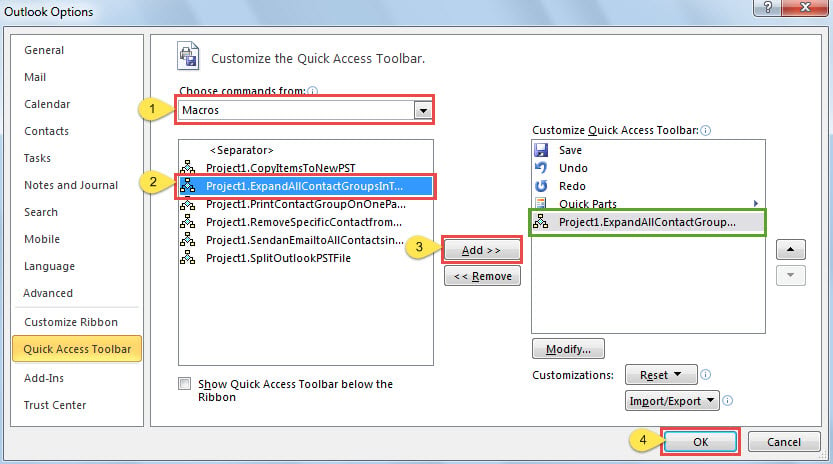
- In the new dialog box, you can take the steps shown in the image below to complete adding macro to Quick Access Toolbar.

- Finally, you can take a shot:
- To start with, create and compose a new email as normal.
- Then add several contact groups in the “To” field.
- After that, you can click the macro button in Quick Access Toolbar.

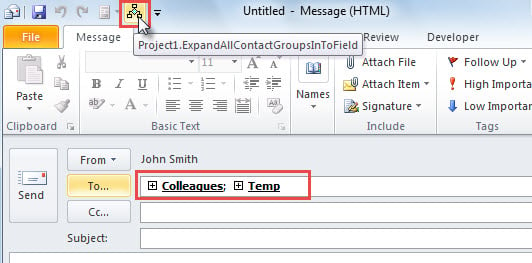
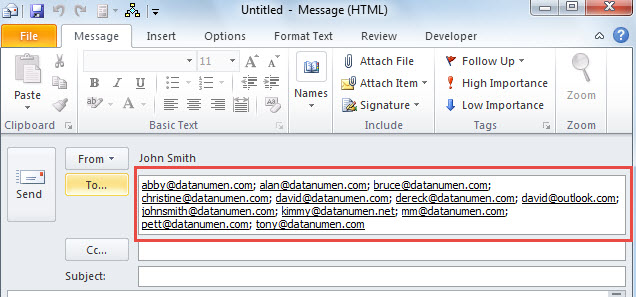
- At once, all the contact groups will be expanded, like the following image:

Rescue Your Outlook Data Timely
Generally, as soon as confronted with any problems in your Outlook, inbox repair tool will occur to your mind in the first place. However, more often than not, it’ll not make any effects. At such times, it is recommended to recur to a more potent and trustworthy utility, such as DataNumen Outlook Repair. It can fix PST file in an instant, irrespective of how extremely your PST file is damaged.
Author Introduction:
Shirley Zhang is a data recovery expert in DataNumen, Inc., which is the world leader in data recovery technologies, including recover sql and outlook repair software products. For more information visit www.datanumen.com