
It is very common to see people saving confidential data in Excel workbooks. When these workbooks have to be shared with other colleagues or friends, manual deletion is the only option available. However, with this article, you will learn how to quickly delete confidential columns or unwanted columns from multiple workbooks.
Download Now
If you want to start to use the software as soon as possible, then you can:
Otherwise, if you want to DIY, you can read the contents below.
Let’s Prepare the GUI
As shown in the image, rename the Sheet 1 as “ControlPanel”. Using shapes, we would add Buttons on this sheet to make it appear as GUI (Graphical User Interface) for this tool. We need three fields on this GUI. Field1 is to display the workbook that is selected by the user. Field 2 is to display columns from the selected workbook as drop down. Field 3 is a list of columns that should be removed from the workbook.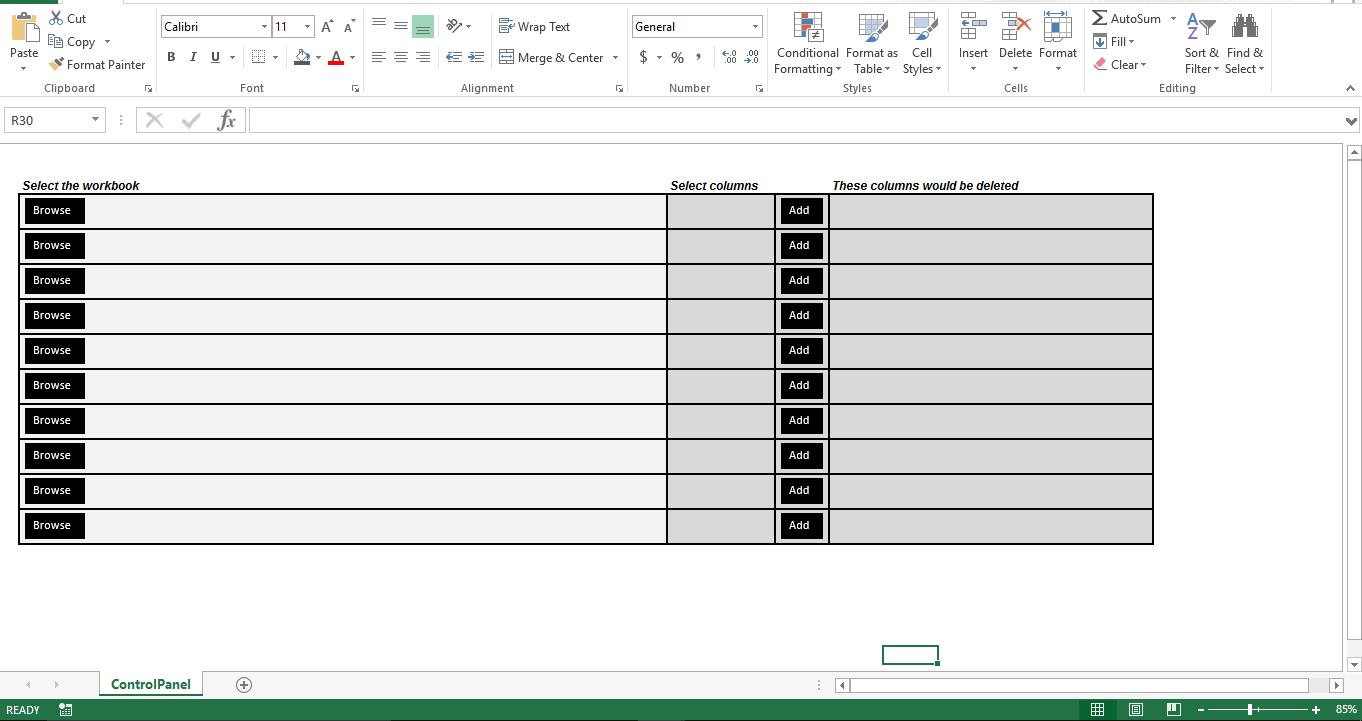
How does it work?
 The procedure p_fpick would allow the user to browse and select Excel files. As soon as an Excel file is selected, the script would read column names from the Sheet1 and these names are displayed as drop down. The procedure “Add_Column” will allow the user to add the selected column name from the drop down to add to the list of columns that has to be deleted. The final procedure “Delete_Columns” would open the workbook that was listed under the field “Select the workbook” and would remove all selected columns. After deletion, the workbook would be saved and closed.
Sub P_fpick()
    Dim v_fd As Office.FileDialog
    Set v_fd = Application.FileDialog(msoFileDialogFilePicker)
    With v_fd
        .AllowMultiSelect = False
        .Title = "Please select the Excel workbook"
        .Filters.Clear
        .Filters.Add "Excel", "*.xls*"
        If .Show = True Then
            cp.Range("B4").Value = .SelectedItems(1)
        End If
    End With

    Dim wb As Workbook
    Dim ab As Workbook

    Set ab = ThisWorkbook
    Set wb = Workbooks.Open(cp.Range("B4").Value)

    Dim v_sheets As String
    v_sheets = ""

    Dim lc As Long
    lc = wb.Sheets(1).Range("AZ1").End(xlToLeft).Column
    Dim c As Long
    For c = 1 To lc
        If v_sheets = "" Then
            v_sheets = wb.Sheets(1).Cells(1, c).Value
        Else
            v_sheets = v_sheets & "," & wb.Sheets(1).Cells(1, c).Value
        End If
    Next

    wb.Close False
    ab.Activate

    With ab.Sheets(1).Range("N4:O5").Validation
        .Delete
        .Add Type:=xlValidateList, AlertStyle:=xlValidAlertStop, Operator:= _
        xlBetween, Formula1:=v_sheets
        .IgnoreBlank = True
        .InCellDropdown = True
        .InputTitle = ""
        .ErrorTitle = ""
        .InputMessage = ""
        .ErrorMessage = ""
        .ShowInput = True
        .ShowError = True
    End With

End Sub

Sub Add_Column()
    If Range("Q4").Value = "" Then
        Range("Q4").Value = Range("N4").Value
    Else
        Range("Q4").Value = Range("Q4").Value & "," & Range("N4").Value
    End If
End Sub

Sub Delete_Columns()
    Dim v_sheets() As String
    Dim ab As Workbook
    Dim wb As Workbook
    Set ab = ThisWorkbook
    Set wb = Workbooks.Open(Sheets(1).Range("B4").Text)
    Dim lc As Long
    lc = wb.Sheets(1).Range("AZ1").End(xlToLeft).Column
    Dim c As Long

    v_sheets = Split(ab.Sheets(1).Range("Q4").Text, ",")
    Dim intcount As Long
    For intcount = LBound(v_sheets) To UBound(v_sheets)
        For c = 1 To lc
            If wb.Sheets(1).Cells(1, c).Value = v_sheets(intcount) Then
                wb.Sheets(1).Columns(c).Delete Shift:=xlToLeft
            End If
        Next c
    Next intcount
    wb.Close True
    ab.Activate
End Sub
Tweak it
As of now, this script handles only one workbook. But using the last used row method, you can make the macro handle several workbooks in a batch mode. However, the script cannot open a corrupt Excel workbook.
Author Introduction:
Nick Vipond is a data recovery expert in DataNumen, Inc., which is the world leader in data recovery technologies, including word recovery and outlook recovery software products. For more information visit www.datanumen.com.