
A user might want to save emails on hard drive in order to view them independently of Outlook or to share with someone else. In this article, we will introduce how to do that automatically via VBA.
Export Emails from Outlook
 Not every internet user uses Outlook as an Email client and may be using an alternate one. There may also be a situation where an email needs to be shared with someone, without sending over the actual email. Also for documentation and scrutiny purposes, emails are often presented as evidence. For such scenarios, Outlook offers a method to export an email independently as a .msg or .html file. The following VBA script saves every incoming email automatically to a predefined location on hard drive without user intervention in html format. Once saved, the Email can be viewed in any Internet browser without the need of an email client.
Outlook VBA Script
Below is the complete Outlook VBA script:
Private WithEvents Items As Outlook.Items

Private Count As Integer

Private Sub Application_Startup()
         Dim objApp As Outlook.Application
         Dim objNameSpace As Outlook.NameSpace

         '        Get the items in the Inbox folder
         Set objApp = Outlook.Application
         Set objNameSpace = objApp.GetNamespace("MAPI")
         Set Items = objNameSpace.GetDefaultFolder(olFolderInbox).Items
         '        Initialize count
         Count = 1
End Sub

Private Sub Items_ItemAdd(ByVal objItem As Object)
         On Error GoTo ShowError

         Dim objMail As Outlook.MailItem

         '        Check if the item is a mail. If yes, then save it as a HTML file and update Count
         If TypeName(objItem) = "MailItem" Then
                   Set objMail = objItem
                   objMail.SaveAs "C:\MyEmails\MyEmail" & CStr(Count), olHTML
                   Count = Count + 1
         End If

         Exit Sub

ShowError:
         MsgBox Err.Number & " - " & Err.Description
End Sub
How to Run the Script
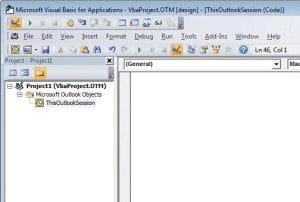 Press Alt + F11 to open the Outlook VBA editor and paste the above code in “ThisOutlookSession”. Prior to running this script, make sure that the folder “C:\MyEmails” exists and the user has write permission to it. Moreover, it is important to know that prior to running this script, Microsoft Outlook XX Object library should be added to the project references from “Tools” menus, where XX is the library version.
Understand the Script
In the script, “Items_ItemAdd” routine will be triggered on every incoming item to the Inbox folder. “TypeName” function is there to further ensure that the routine continues only if the item is an email and not any other types of Outlook object. If you drag an email from any other folder, say “Sent Items” to the inbox, the routine shall still work and do the job. It is important to be aware that “Items_ItemAdd” shall only trigger, if an email is added to the main Inbox folder. If there are nested folders within the main Inbox folder, the code will not work if an email is added to any of those. In order to make it work for any other folders, “Items_ItemAdd” should be hooked up to that particular folder in the “Application_Startup” routine. In the above script, olHTML format can be replaced with olMSG, olRTF, olDoc or olTxt formats. The default naming format for each email to be saved is “MyEmail##”, where ## is the count starting from 1 and incrementally going up. For example, the twelfth incoming email after running this script shall be saved as “MyEmail12”.
Data Recovery after Outlook failure
It is not a very uncommon scenario for Outlook to break up and users end up losing a great deal of data. Recovering from such situations can be a very tough and time consuming task. To make your life easy in such cases, you can use an Outlook data recovery tool for an efficient and bug free recovery.
Author Introduction:
Mary Underwood is a data recovery expert in DataNumen, Inc., which is the world leader in data recovery technologies, including dwg recovery and rar recovery software products. For more information visit www.datanumen.com