
If you wish Outlook to automatically open the attachments of incoming emails from a specific sender, you can read this article. Here we will guide you how to achieve it.
For instance, your boss often emails you with several important file attachments. So as to react to your boss as soon as possible, you need to open the attachments when you receive them. In this scenario, you may long for a smarter method to let Outlook auto open the incoming email attachments from your boss. Now, we will show you such a method.
Auto Open Attachments of Incoming Emails from a Specific Sender
- To start with, launch Outlook application.
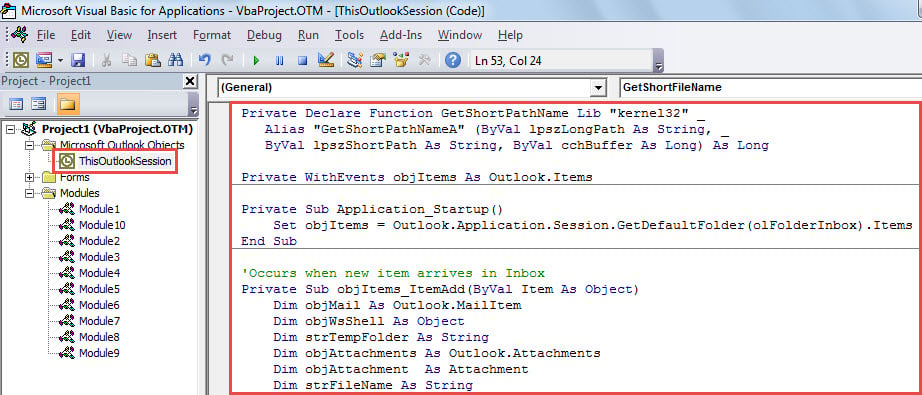
- Then, access VBA editor via shortcut – “Alt + F11”
- Next, put the following VBA code into “ThisOutlookSession” project.
Private Declare Function GetShortPathName Lib "kernel32" _
 Alias "GetShortPathNameA" (ByVal lpszLongPath As String, _
 ByVal lpszShortPath As String, ByVal cchBuffer As Long) As Long

Private WithEvents objItems As Outlook.Items

Private Sub Application_Startup()
    Set objItems = Outlook.Application.Session.GetDefaultFolder(olFolderInbox).Items
End Sub

'Occurs when new item arrives in Inbox
Private Sub objItems_ItemAdd(ByVal Item As Object)
    Dim objMail As Outlook.MailItem
    Dim objWsShell As Object
    Dim strTempFolder As String
    Dim objAttachments As Outlook.Attachments
    Dim objAttachment As Attachment
    Dim strFileName As String

    If Item.Class = olMail Then
       Set objMail = Item
       'Change sender email address
       If objMail.SenderEmailAddress = "boss@datanumen.com" Then
          Set objWShell = CreateObject("WScript.Shell")
          strTempFolder = Environ("Temp") & "\"

          Set objWsShell = CreateObject("WScript.Shell")
          Set objAttachments = objMail.Attachments
          If objAttachments.Count > 0 Then
             For Each objAttachment In objAttachments
                 strFileName = objAttachment.DisplayName
                 On Error Resume Next
                 Kill strTempFolder & strFileName
                 On Error GoTo 0

                 'Save the attachment
                 objAttachment.SaveAsFile strTempFolder & strFileName

                 'Open the attachment
                 strFileName = GetShortFileName(strTempFolder & strFileName)
                 On Error Resume Next
                 objWsShell.Run strFileName
             Next
          End If
        End If
    End If
End Sub

Function GetShortFileName(ByVal FullPath As String) As String
    Dim lAns As Long
    Dim sAns As String
    Dim iLen As Integer

    On Error Resume Next

    If Dir(FullPath) <> "" Then
       sAns = Space(255)
       lAns = GetShortPathName(FullPath, sAns, 255)
       GetShortFileName = Left(sAns, lAns)
    End If
End Function
- Subsequently, close the VBA editor.
- Eventually, restart your Outlook application to activate the new macro.
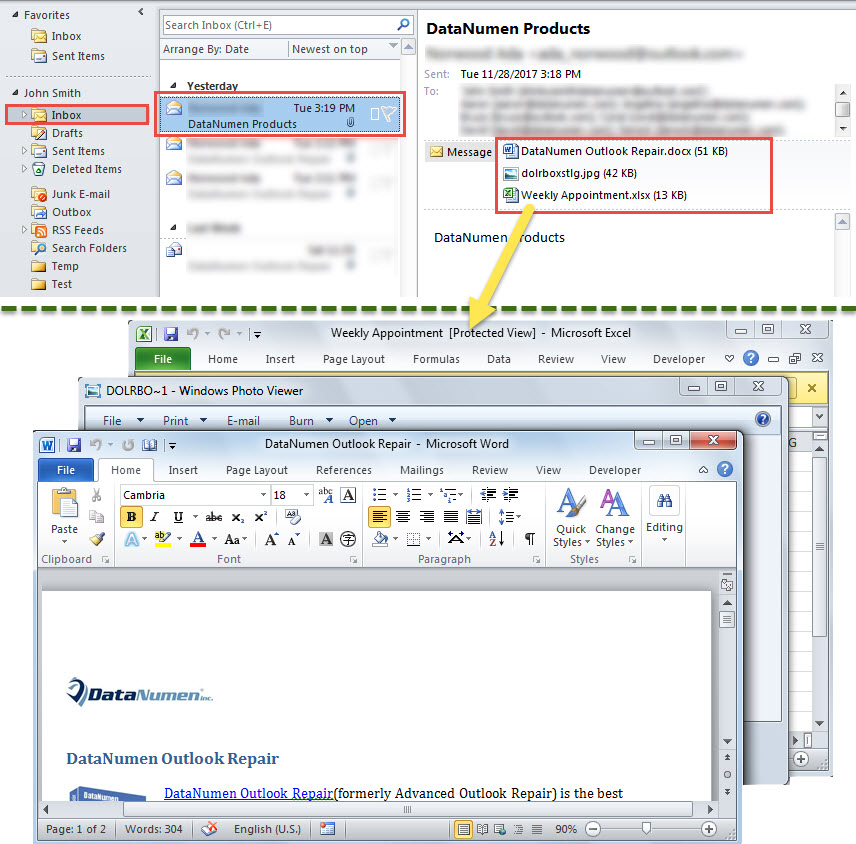
- From now on, every time when a new mail from the specific sender arrives in your inbox, Outlook will automatically open the attachments in this mail.

Apply Inbox Repair Tool
When your Outlook data file is corrupted, what would you do then? Actually, first off, you can make use of the inbuilt Outlook fix tool – Scanpst. It is able to resolve some tiny problems involved with your Outlook. Provided that this utility fails, it is high time to resort to a much more experienced and reliable external tool, such as DataNumen Outlook Repair.
Author Introduction:
Shirley Zhang is a data recovery expert in DataNumen, Inc., which is the world leader in data recovery technologies, including corrupted mdf and outlook repair software products. For more information visit www.datanumen.com