
In this article, we are glad to show you with 4 methods to extract multiple tables from one Word document to another.
Table is the most used mean we use to hold tabular information. It arranges data in rows and columns, presenting readers a clear view of all information. A long document can contain many tables, so there is the need to export them to a new document for various purposes.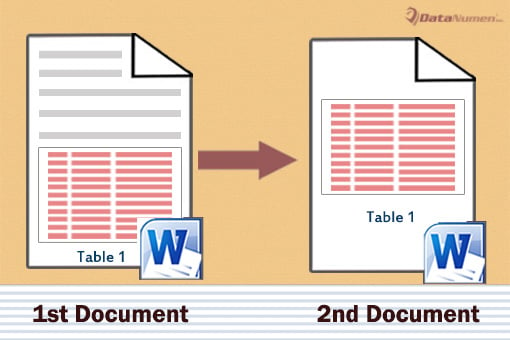
Here are our 4 approaches.
Method 1: Batch Export All Tables from One Document to Another
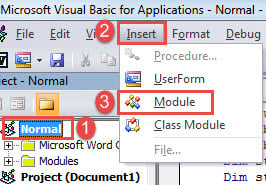
- First and foremost, press “Alt+ F11” to trigger the VBA editor in Word.
- Then click “Normal” project and the “Insert” tab next.
- Choose “Module” on the drop-down menu.

- And double click to open the module and bring out the editing space on the right side.
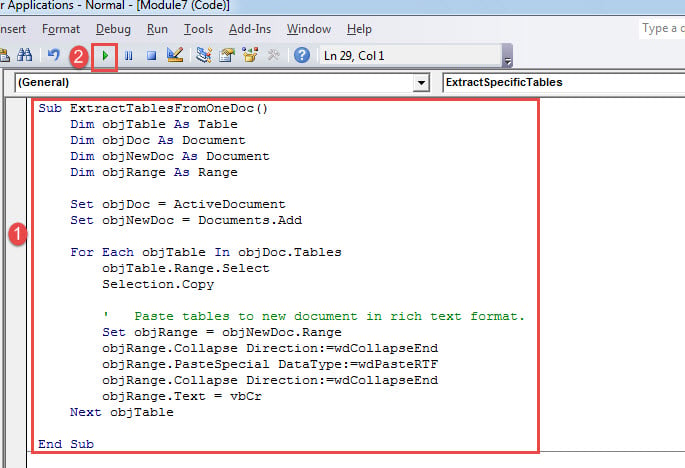
- Now copy and paste the following macro there:
Sub ExtractTablesFromOneDoc()
  Dim objTable As Table
  Dim objDoc As Document
  Dim objNewDoc As Document
  Dim objRange As Range

  Set objDoc = ActiveDocument
  Set objNewDoc = Documents.Add

  For Each objTable In objDoc.Tables
    objTable.Range.Select
    Selection.Copy

    '  Paste tables to new document in rich text format.
    Set objRange = objNewDoc.Range
    objRange.Collapse Direction:=wdCollapseEnd
    objRange.PasteSpecial DataType:=wdPasteRTF
    objRange.Collapse Direction:=wdCollapseEnd
    objRange.Text = vbCr
  Next objTable

End Sub
- Finally, click “Run”.

This macro will extract both tables and their captions as well.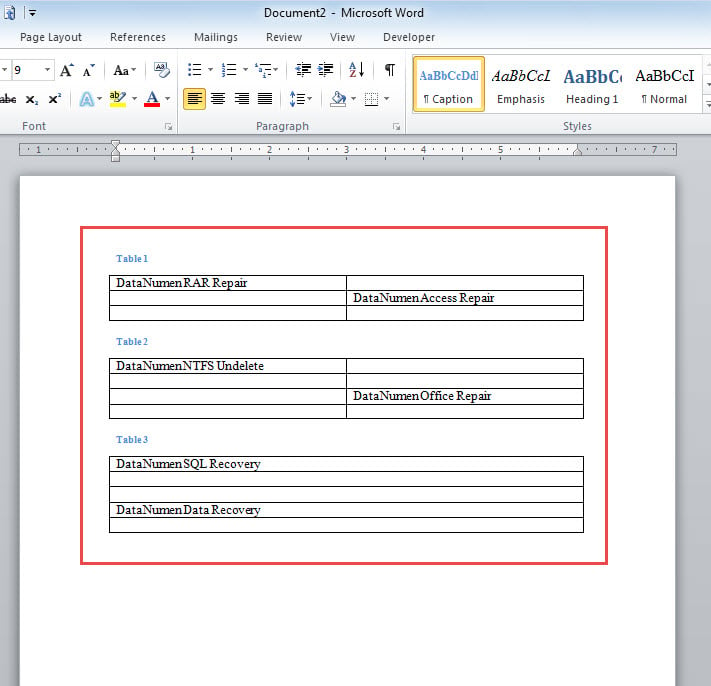
Method 2: Extract a Specific Table from a Document
Now, in case there are many tables in your document, but you need to send one particular table to someone. Then the following macro will do you a lot help.
- First, install and run macro following steps in method 1.
- Second, replace that macro with this one:
Sub ExtractSpecificTables()
  Dim objTable As Table
  Dim objDoc As Document
  Dim objNewDoc As Document
  Dim objRange As Range
  Dim strTable As String

  strTable = InputBox("Enter the table number: ")
  Set objDoc = ActiveDocument
  Set objNewDoc = Documents.Add

  objDoc.Tables(strTable).Range.Select
  Selection.Copy

  Set objRange = objNewDoc.Range
  objRange.Collapse Direction:=wdCollapseEnd
  objRange.PasteSpecial DataType:=wdPasteRTF

End Sub
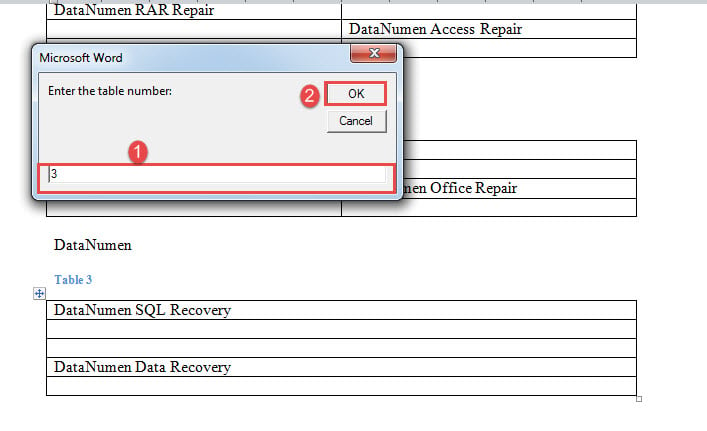
- Now there will be an input box popping up.
- Enter a table number and click “OK”.

Method 3: Batch Extract All Tables from Multiple Documents
- To start with, arrange all files in one folder.
- Then install and run a macro with exact above instructions.
- Replace macro with this one:
Sub ExtractTablesFromMultiDocs()
  Dim objTable As Table
  Dim objDoc As Document, objNewDoc As Document
  Dim objRange As Range
  Dim strFile As String, strFolder As String

  '  Initialization
  strFolder = InputBox("Enter folder address here: ")
  strFile = Dir(strFolder & "\" & "*.docx", vbNormal)

  Set objNewDoc = Documents.Add

  '  Process each file in the folder.
  While strFile <> ""
    Set objDoc = Documents.Open(FileName:=strFolder & "\" & strFile)
    Set objDoc = ActiveDocument

    For Each objTable In objDoc.Tables
      objTable.Range.Select
      Selection.Copy

      Set objRange = objNewDoc.Range
      objRange.Collapse Direction:=wdCollapseEnd
      objRange.PasteSpecial DataType:=wdPasteRTF
      objRange.Collapse Direction:=wdCollapseEnd
      objRange.Text = vbCr
    Next objTable

    objDoc.Save
    objDoc.Close
    strFile = Dir()
  Wend

End Sub
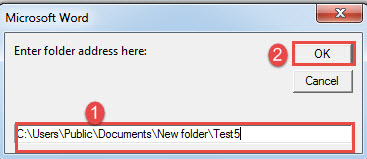
- Now in the prompting box, enter the folder address where you store your documents and click “OK”.

Method 4: Copy Tables out Manually
However, if you don’t feel comfortable with VBA, you are fine to do the job manually as long as there are a limited number of tables.
- Firstly, click the plus sign at upper-left corner to select target table.
- Then press “Ctrl+ C” to copy it.
- Next open a new document.
- And press “Ctrl+ V” to paste the table in new document.
- Remember to save the new document.
Handle with Document Problems
As long as we keep using Word, there will always be Word damage. However, fear no more. It’s not an unfixable problem anymore. With a qualified recovering tool, you have a high chance to retrieve all your valuable data.
Author Introduction:
Vera Chen is a data recovery expert in DataNumen, Inc., which is the world leader in data recovery technologies, including corrupt xlsx and pdf repair software products. For more information visit www.datanumen.com