
In this post, we are delighted to show you 2 ways to quickly go to a specific paragraph in your Word document.
There is the “Go To” function in Word, with which we can quickly jump to a specific page, section, bookmark, etc. But it’s such a pity that the built-in feature cannot take us to a designated paragraph in a click. That being said, we feel obligated to present you some workarounds.
Method 1: Go to a Specific Paragraph in a Document without Paragraph Numbers
- First and foremost, press “Alt+ F11” to invoke the VBA editor in Word.
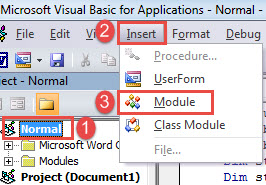
- Then click “Normal” in the left column.
- Next click “Insert” and choose “Module” on its drop-down menu.

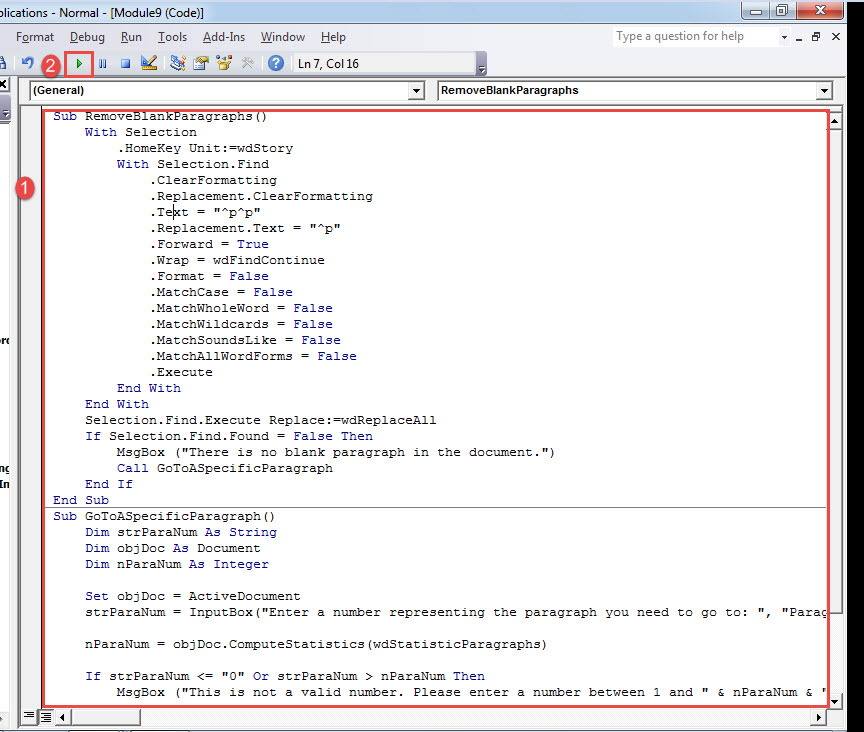
- Now double click on the new module to open it. Paste the following codes there:
Sub RemoveBlankParagraphs()
  With Selection
    .HomeKey Unit:=wdStory
    With Selection.Find
      .ClearFormatting
      .Replacement.ClearFormatting
      .Text = "^p^p"
      .Replacement.Text = "^p"
      .Forward = True
      .Wrap = wdFindContinue
      .Format = False
      .MatchCase = False
      .MatchWholeWord = False
      .MatchWildcards = False
      .MatchSoundsLike = False
      .MatchAllWordForms = False
      .Execute
    End With
  End With
  Selection.Find.Execute Replace:=wdReplaceAll
  If Selection.Find.Found = False Then
    MsgBox ("There is no blank paragraph in the document.")
    Call GoToASpecificParagraph
  End If
End Sub

Sub GoToASpecificParagraph()
  Dim strParaNum As String
  Dim objDoc As Document
  Dim nParaNum As Integer

  Set objDoc = ActiveDocument
  strParaNum = InputBox("Enter a number representing the paragraph you need to go to: ", "Paragraph Number")

  nParaNum = objDoc.ComputeStatistics(wdStatisticParagraphs)

  If strParaNum <= "0" Or strParaNum > nParaNum Then
    MsgBox ("This is not a valid number. Please enter a number between 1 and " & nParaNum & ".")
  End If

  objDoc.Paragraphs(strParaNum).Range.Select

End Sub
- Click “Run”.

- Run the macro several times until you get the following message box.

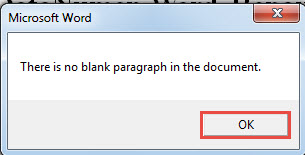
Then click “OK”. The reason we click the “Run” button multiple times is to remove all blank paragraphs in document. By default, Word considers them as normal paragraph. So the final result may not be the exact paragraph we want to go to.
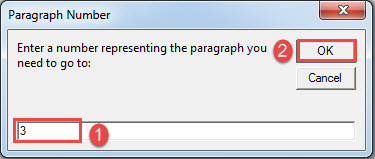
- Then in the next box open, enter a number, representing the paragraph you need to visit.
- And click “OK”.

You will see the target paragraph is in selection.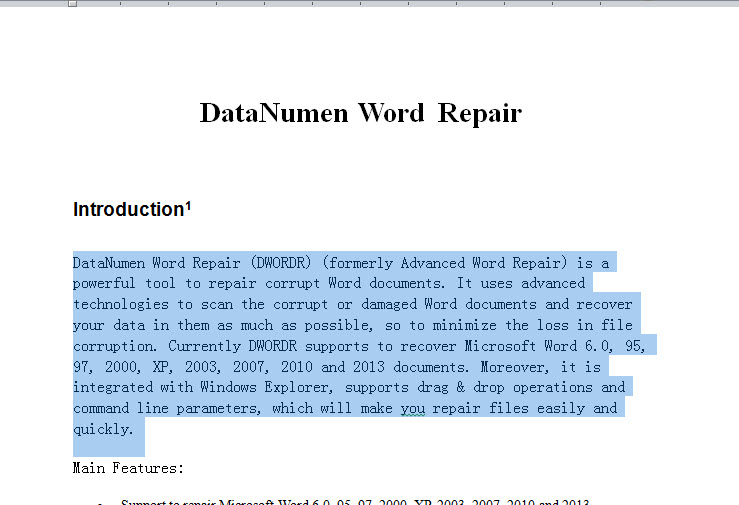
Method 2: Go to a Specific Paragraph in a Document with Paragraph Numbers
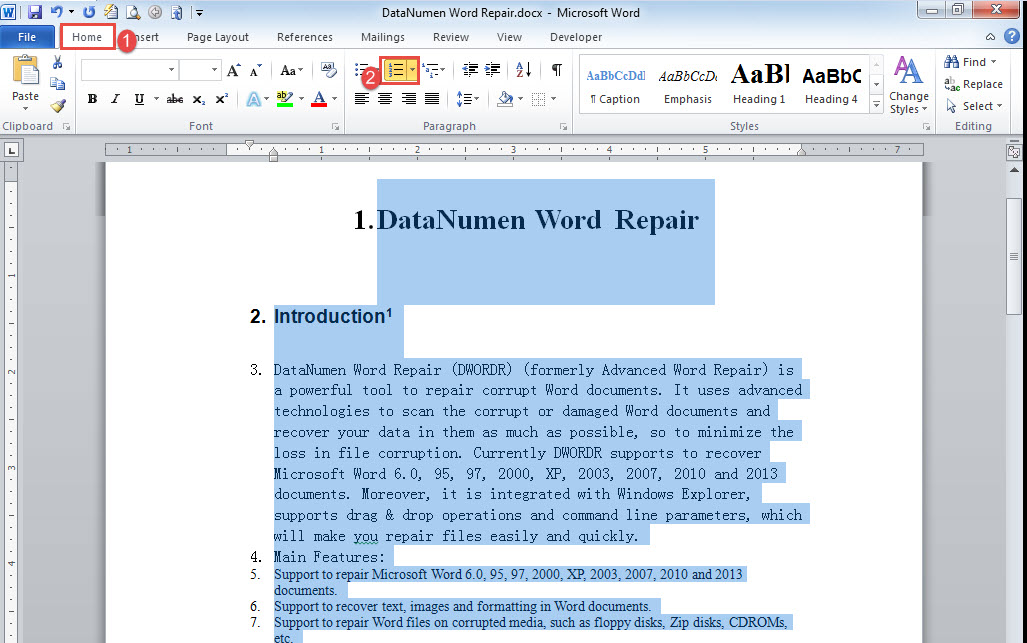
- Firstly, press “Ctrl+ A” to select all texts in document.
- Then click “Numbering” under “Home” tab.

- Next follow the same steps in method 1 to install and run a macro.
- Only this time replace the macro with the bellowing one:
Sub GoTOParaInDocWithParaNum()
  Dim strParaNum As String
  Dim objPara As Paragraph
  Dim objDoc As Document
  Dim nParaNum As Integer

  Set objDoc = ActiveDocument

  strParaNum = InputBox("Enter a paragraph number following with a period:", "Paragraph Number")

  nParaNum = objDoc.ComputeStatistics(wdStatisticParagraphs)

  If strParaNum <= "0" Or strParaNum > nParaNum Then
    MsgBox ("This is not a valid number. Please enter a number between 1 and " & nParaNum & ".")
  End If

  For Each objPara In objDoc.Paragraphs
    If strParaNum = objPara.Range.ListFormat.ListString Then
      objPara.Range.Select
    End If
  Next
End Sub
- Next click “Run” or hit “F5”.
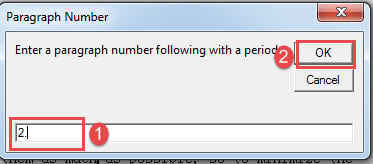
- In the box open, enter a paragraph number following with a period in the text box.
- Click “OK” to proceed.

Similarly, the target paragraph shall be in selection by now.
Repair Damaged Documents
Once you find your document corrupt, you couldn’t not press your luck in the hope that it will be back the next time you open it. Instead, you must seize time to obtain a preeminent tool for doc damage repair, for every minute counts in the process of repairing.
Author Introduction:
Vera Chen is a data recovery expert in DataNumen, Inc., which is the world leader in data recovery technologies, including fix xlsx and pdf repair software products. For more information visit www.datanumen.com