
By default, you can only run a rule in one folder at a time. In this article, we’ll teach you how to utilize a piece of VBA code to run a specific rule in all mail folders.
Outlook permits users to run rule manually. You can just access “Rules and Alerts” dialog box and hit “Run Rules Now” button. In the subsequent dialog box, select a specific rule and choose a folder in which you desire to run this rule. But, if you would like to quickly run a rule in all mail folders, you can use the following VBA code.

Quickly Run a Specific Rule in All Mail Folders
- In the first place, start your Outlook program.
- Then in the main Outlook window, press “Alt + F11” key buttons.
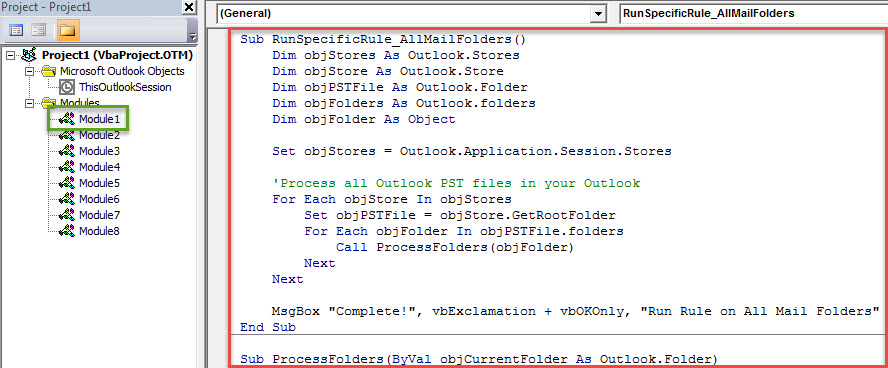
- Next in the emerging “Microsoft Visual Basic for Applications” window, you should open a not-in-use module.
- Subsequently, copy the VBA code below into this module window. Plus, you should change some lines based on your own case, such as the rule name.
Sub RunSpecificRule_AllMailFolders()
    Dim objStores As Outlook.Stores
    Dim objStore As Outlook.Store
    Dim objPSTFile As Outlook.Folder
    Dim objFolders As Outlook.folders
    Dim objFolder As Object

    Set objStores = Outlook.Application.Session.Stores

    'Process all Outlook PST files in your Outlook
    For Each objStore In objStores
        Set objPSTFile = objStore.GetRootFolder
        For Each objFolder In objPSTFile.folders
            Call ProcessFolders(objFolder)
        Next
    Next

    MsgBox "Complete!", vbExclamation + vbOKOnly, "Run Rule "
End Sub

Sub ProcessFolders(ByVal objCurrentFolder As Outlook.Folder)
    Dim objRules As Outlook.Rules
    Dim objRule As Outlook.Rule
    Dim objSubfolder As Outlook.Folder

    Set objRules = Outlook.Application.Session.DefaultStore.GetRules
    'Change the rule name as per your actual case
    Set objRule = objRules.Item("Move Mails to Temp")

    On Error Resume Next
    'Only work on non-empty Mail folder
    If objCurrentFolder.Items.count > 0 And objCurrentFolder.DefaultItemType = olMailItem Then
       With objRule
            .Enabled = True
            .Execute ShowProgress:=True, Folder:=objCurrentFolder, IncludeSubfolders:=True
       End With
    End If

    'Process subfolders recursively
    If objCurrentFolder.folders.count > 0 Then
       For Each objSubfolder In objCurrentFolder.folders
           Call ProcessFolders(objSubfolder)
       Next
    End If
End Sub
- After that, you should check your Outlook macro settings, ensuring macro is permitted.
- Eventually you can have a try.
- Just click into the “RunSpecificRule_AllMailFolders” subroutine.
- Then press F5 key button to trigger this code.
- Next the macro will run immediately.
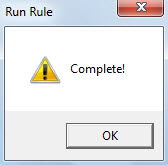
- After it completes, you will get a message, like the following screenshot. It refers to the rule has finished.

Watch out for Malicious Macros
As we all know, malicious emails have become increasingly rampant. Such emails often carry with malicious macros. Thus, if you set your Outlook macro security level to low, you have to beware of the hidden viruses and malware. Moreover, it’s prudent to get hold of a powerful PST fix tool, such as DataNumen Outlook Repair. It is able to repair PST file and extract maximum data for you without breaking a sweat.
Author Introduction:
Shirley Zhang is a data recovery expert in DataNumen, Inc., which is the world leader in data recovery technologies, including recover mdf and outlook repair software products. For more information visit www.datanumen.com