
Many users are longing for a method to rapidly extract all email addresses from the body of an Outlook email, or even multiple emails. Therefore, this article will look at this issue and share you a quick method which is using VBA.
When someone send you an email whose body contains a list of email addresses, if you want to make use of these email addresses for some reasons, like adding to your Contacts folder or others, you have to firstly extract all the email addresses in the body. Therefore, in the followings, we will show you how to achieve it with VBA.

Extract All Email Addresses from the Body of Multiple Outlook Emails
- At the very outset, launch your Outlook application.
- Then, after getting into the main Outlook window, you can press “Alt + F11” keys.
- Next, in the new “Microsoft Visual Basic for Applications” window, you need to open an unused module or simply insert a new one.
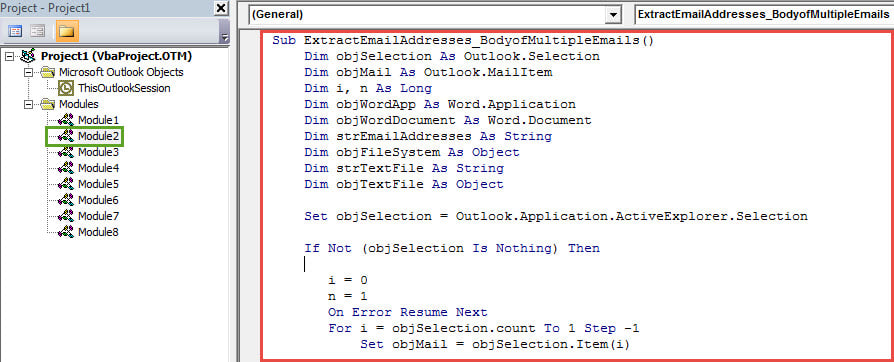
- Later, you have to copy and paste the following VBA code into this module.
Sub ExtractEmailAddresses_BodyofMultipleEmails()
    Dim objSelection As Outlook.Selection
    Dim objMail As Outlook.MailItem
    Dim i, n As Long
    Dim objWordApp As Word.Application
    Dim objWordDocument As Word.Document
    Dim strEmailAddresses As String
    Dim objFileSystem As Object
    Dim strTextFile As String
    Dim objTextFile As Object

    Set objSelection = Outlook.Application.ActiveExplorer.Selection

    If Not (objSelection Is Nothing) Then

       i = 0
       n = 1
       On Error Resume Next
       For i = objSelection.count To 1 Step -1
           Set objMail = objSelection.Item(i)

           objMail.Display

           Set objWordDocument = objMail.GetInspector.WordEditor
           Set objWordApp = objWordDocument.Application
           Set objSearchRange = objWordDocument.Range

           'Find the email addresses via wildcards
           With objWordApp.Selection.Find
                .Text = "[A-z,0-9]{1,}\@[A-z,0-9,.]{1,}"
                .MatchWildcards = True
                .Execute
           End With

           While objWordApp.Selection.Find.Found
                 'Get a list of email addresses in the body
                 strEmailAddresses = strEmailAddresses & n & ": " & objWordApp.Selection.Text & vbCrLf
                 objWordApp.Selection.Find.Execute
                 n = n + 1
           Wend
           objMail.Close olDiscard
      Next
    End If

    'Create a new Text file
    Set objFileSystem = CreateObject("Scripting.FileSystemObject")
    strTextFile = "E:\Extracted Email Addresses-" & Format(Date, "YYYYMMDD") & ".txt"
    Set objTextFile = objFileSystem.CreateTextFile(strTextFile, True)

    'Input the list of extracted email addresses into this Text file
    objTextFile.WriteLine (strEmailAddresses)
    objTextFile.Close

    MsgBox "Completed!", vbInformation, "Extract Email Addresses"
End Sub
- Later, you can exit the current VBA editor window and continue to add the new macro to Quick Access Toolbar.
- After that, you have to change your Outlook macro security level to low.
- Finally, you can have a try.
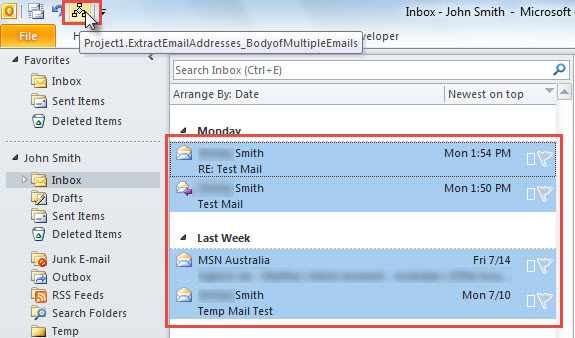
- Firstly, in the email list, select multiple Outlook emails, from whose body you need to extract the email addresses.
- Then click on the new button in the Quick Access Toolbar.

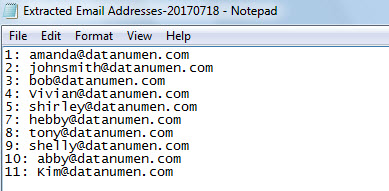
- When you get a message prompting you “Completed”, you can go to the predefined folder in the VBA code to find a new .TXT file.
- Open this file and you’ll see that all extracted email addresses, shown as the following screenshot:

Safeguard Outlook against Malicious Macros
If you have set your Outlook to permit all macros, you have to keep an eye out for all macros disguised in the unknown emails. It is because that they may contain a lot of hidden viruses, which can directly cause Outlook corruption. Virus-infected PST file is pretty difficult to be recovered. At that time, perhaps your last resort is a potent and reliable Outlook fix utility, such as DataNumen Outlook Repair. It can repair Outlook file no matter how extreme the damage is.
Author Introduction:
Shirley Zhang is a data recovery expert in DataNumen, Inc., which is the world leader in data recovery technologies, including corrupt sql and outlook repair software products. For more information visit www.datanumen.com