
If you would like to quickly export all image attachments of an Outlook email to a PDF file, you can use the method introduced in this article. It utilizes a piece of VBA code to realize such “export” in quick time.
At times, you may want to combine many images to a PDF file, like exporting all image attachments of an email to a PDF file. It sounds a little bit difficult. But in the followings, we’ll show a method, which can quickly achieve this without any hassle.

Export All Image Attachments of an Email to a PDF File
- For a start, launch your Outlook program as usual.
- Then, in the main Outlook window, tap on the “Alt + F11” key buttons.
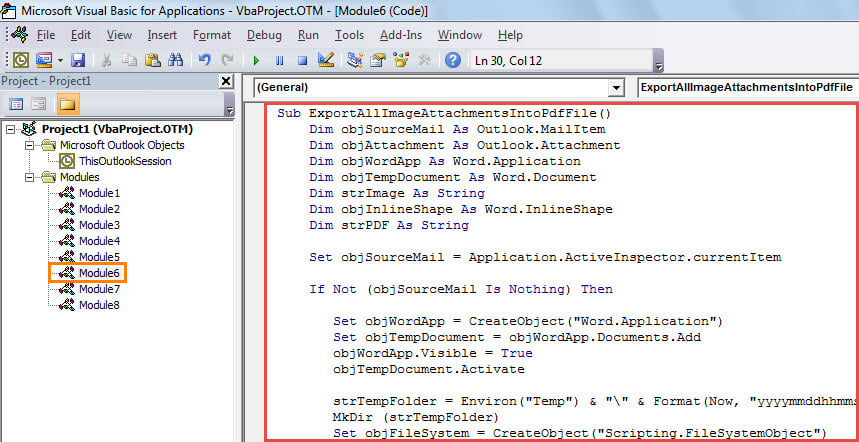
- Subsequently, you will see the popup “Microsoft Visual Basic for Applications” window.
- In this window, you need to access a module that is not being used.
- Next, you can copy and paste the following VBA code into this module.
Sub ExportAllImageAttachmentsIntoPdfFile()
    Dim objSourceMail As Outlook.MailItem
    Dim objAttachment As Outlook.Attachment
    Dim objWordApp As Word.Application
    Dim objTempDocument As Word.Document
    Dim strImage As String
    Dim objInlineShape As Word.InlineShape
    Dim strPDF As String

    Set objSourceMail = Application.ActiveInspector.currentItem

    If Not (objSourceMail Is Nothing) Then

       Set objWordApp = CreateObject("Word.Application")
       Set objTempDocument = objWordApp.Documents.Add
       objWordApp.Visible = True
       objTempDocument.Activate

       strTempFolder = Environ("Temp") & "\" & Format(Now, "yyyymmddhhmmss") & "\"
       MkDir (strTempFolder)
       Set objFileSystem = CreateObject("Scripting.FileSystemObject")

       For Each objAttachment In objSourceMail.Attachments
           If IsEmbedded(objAttachment) = False Then
              Select Case LCase(objFileSystem.GetExtensionName(objAttachment.filename))
                     Case "jpg", "jpeg", "png", "bmp", "gif"
                           objAttachment.SaveAsFile strTempFolder & objAttachment.filename
              End Select
           End If
       Next

       strImage = Dir(strTempFolder & "*.*", vbNormal)

       Do Until Len(strImage) = 0
          With Selection
               .InlineShapes.AddPicture (strTempFolder & strImage)
               .TypeParagraph
               .Collapse Direction:=wdCollapsEnd
               .ParagraphFormat.Alignment = wdAlignParagraphCenter
               .TypeParagraph
          End With
          strImage = Dir()
       Loop

       For Each objInlineShape In objTempDocument.InlineShapes
           objInlineShape.Select
           Selection.ParagraphFormat.Alignment = wdAlignParagraphCenter
           objInlineShape.ScaleHeight = 50
           objInlineShape.ScaleWidth = 50
       Next

       'Change the path to save the PDF file
       strPDF = "E:\Image Attachments.pdf"

       'Export the temp Word document as a PDF file
       objTempDocument.ExportAsFixedFormat strPDF, wdExportFormatPDF

       objTempDocument.Close False
       objWordApp.Quit

       MsgBox "Complete!"
    End If
End Sub

Function IsEmbedded(objCurAttachment As Outlook.Attachment) As Boolean
    Dim objPropertyAccessor As Outlook.propertyAccessor
    Dim strProperty As String

    Set objPropertyAccessor = objCurAttachment.propertyAccessor
    strProperty = objPropertyAccessor.GetProperty("http://schemas.microsoft.com/mapi/proptag/0x3712001E")

    If InStr(1, strProperty, "@") > 0 Then
       IsEmbedded = True
    Else
       IsEmbedded = False
    End If
End Function
- After that, you can close the current window.
- Later, you can go to “File” > “Options” > “Quick Access Toolbar”. Now you can add the new macro to Quick Access Toolbar.
- Eventually, you can try this macro.
- First off, open an email whose image attachments you want to export to a PDF file.
- Then, click the macro button in Quick Access Toolbar.
- When macro completes, you will get a message.
- After that, you can head to the predefined local folder to find a PDF file, which is containing all the images attached to the open email.

Retrieve Compromised Outlook Data
If Outlook gets corrupted, you should make efforts to recover the damaged data. In this case, you can firstly try the built-in repair tool – Scanpst. Assuming that it is not up to the task of repairing Outlook file, you could also take aid of external tools, such as DataNumen Outlook Repair. It’s good at restoring damaged Outlook files with a minimized corruption.
Author Introduction:
Shirley Zhang is a data recovery expert in DataNumen, Inc., which is the world leader in data recovery technologies, including mdf repair and outlook repair software products. For more information visit www.datanumen.com