
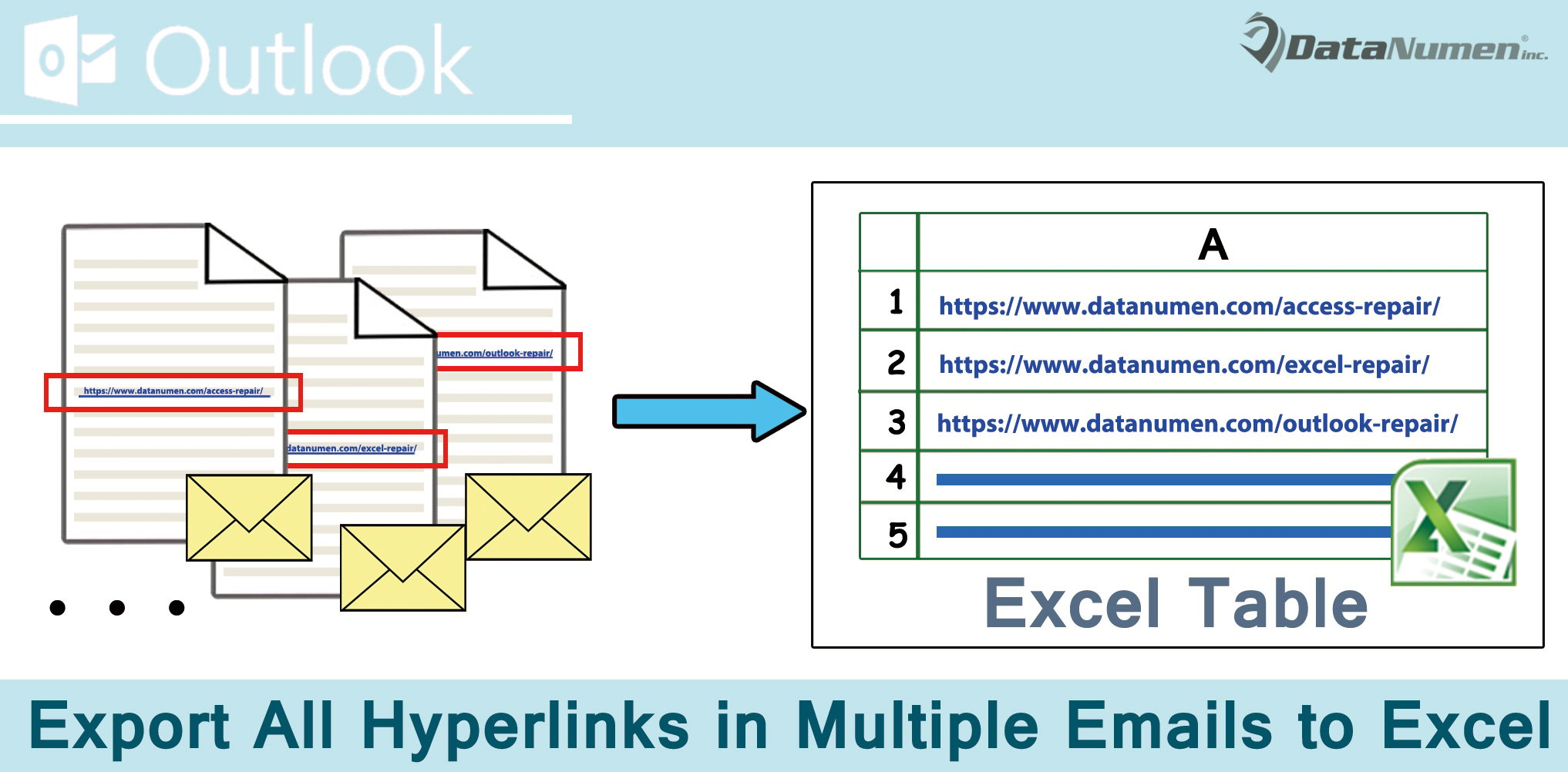
When you need to extract all hyperlinks in one or more emails, it is stupid to copy them one by one. This post will teach you a method to rapidly export all hyperlinks in many emails to Excel.
For some reasons, such as logging the hyperlinks in all of your sent emails, you’ll need to extract the hyperlinks. Without any doubts, it’s inadvisable to extract and copy them manually. You must long for a much smarter approach, such as using VBA. Here we will share you such a piece of VBA code, which is able to export all the hyperlinks in many emails to Excel via an easy click.
Export All Hyperlinks in Multiple Emails to Excel
- To start with, launch your Outlook program as normal.
- Then, in the Outlook window, you need to hit the “Alt + F11” key buttons.
- At once, you will get access to Outlook VBA editor.
- Subsequently, you need to enable “Microsoft Word Object Library” as well as “Microsoft Excel Object Library”. Click “Tools” > “References” and then enable them in the popup dialog box.
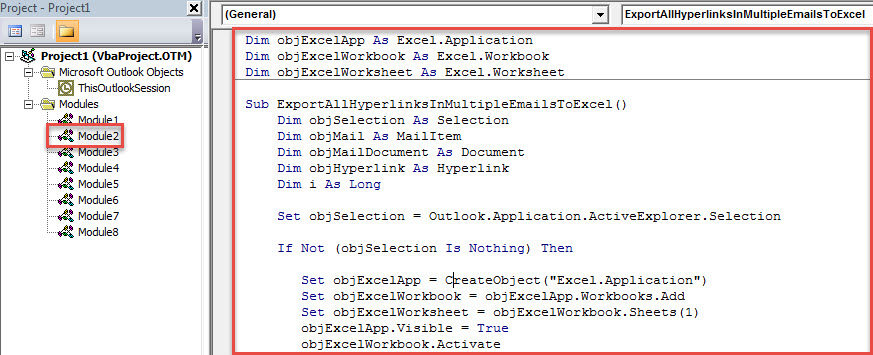
- Next, you need to open an unused module, in which you have to copy the VBA code below into this module.
Dim objExcelApp As Excel.Application
Dim objExcelWorkbook As Excel.Workbook
Dim objExcelWorksheet As Excel.Worksheet

Sub ExportAllHyperlinksInMultipleEmailsToExcel()
    Dim objSelection As Selection
    Dim objMail As MailItem
    Dim objMailDocument As Document
    Dim objHyperlink As Hyperlink
    Dim i As Long

    Set objSelection = Outlook.Application.ActiveExplorer.Selection

    If Not (objSelection Is Nothing) Then

       Set objExcelApp = CreateObject("Excel.Application")
       Set objExcelWorkbook = objExcelApp.Workbooks.Add
       Set objExcelWorksheet = objExcelWorkbook.Sheets(1)
       objExcelApp.Visible = True
       objExcelWorkbook.Activate

       With objExcelWorksheet
            .Cells(1, 1) = "No."
            .Cells(1, 2) = "Displaying Text"
            .Cells(1, 3) = "Address"
            .Cells(1, 4) = "Source Mail"
      End With

      On Error Resume Next
      i = 0
      For Each objMail In objSelection
          objMail.Display
          Set objMailDocument = objMail.GetInspector.WordEditor
          If objMailDocument.Hyperlinks.Count > 0 Then
             For Each objHyperlink In objMailDocument.Hyperlinks
                 If InStr(objHyperlink.Address, "www.") > 0 Then
                    i = i + 1
                    Call ExportToExcel(i, objMail, objHyperlink)
                 End If
             Next
          End If
          objMail.Close olDiscard
      Next

      objExcelWorksheet.Columns("A:D").AutoFit
    End If
End Sub

Sub ExportToExcel(n As Long, objCurrentMail As MailItem, objCurrentHyperlink As Hyperlink)
    Dim nLastRow As Integer

    nLastRow = objExcelWorksheet.Range("A" & objExcelWorksheet.Rows.Count).End(xlUp).Row + 1

    objExcelWorksheet.Range("A" & nLastRow) = n
    objExcelWorksheet.Range("B" & nLastRow) = objCurrentHyperlink.TextToDisplay
    objExcelWorksheet.Range("C" & nLastRow) = objCurrentHyperlink.Address
    objExcelWorksheet.Range("D" & nLastRow) = objCurrentMail.Subject
End Sub
- After that, you can exit the current VBA editor window.
- Later access “Outlook Options” to customize Quick Access Toolbar to add the newly added macro to Quick Access Toolbar.
- Finally you can take a shot:
- First off, in the email list, select the emails whose hyperlinks you wish to extract.
- Then, click on the macro button in Quick Access Toolbar.
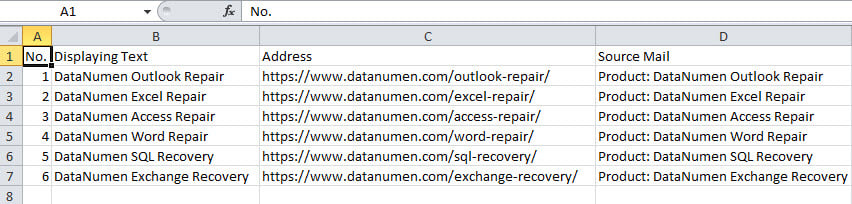
- When the macro finishes, you will get an Excel file, like the image below:

Fix Unexpected Outlook Issues
Outlook issues can occur from time to time without any omens. But, in terms of small errors, Outlook can recover by a simple restart or its inbox repair tool. But if encountering some severe troubles, the internal means will not make effects. At this point, your last resort is definitely a more reputable and robust tool, such as DataNumen Outlook Repair.
Author Introduction:
Shirley Zhang is a data recovery expert in DataNumen, Inc., which is the world leader in data recovery technologies, including corrupted mdf and outlook repair software products. For more information visit www.datanumen.com