
If you would like to quickly get the total count of items in each color category in your Outlook PST file, you can use the VBA code exposed in this article. It’ll export all the counts into an Excel file directly for your convenient check.
 Sometimes, for some reasons, you may want to count how many items are in each color category in an Outlook data file. In general, you can use instant search to do the counting. For instance, firstly click into the search box. Then click “Categorize” button in the “Search” ribbon and choose a specific color category from the drop down list. Next select “All Outlook Items” in the “Scope” ribbon group. Later, after the searching completes, all the items in the selected color category will be listed out. Now you can see the count of these search results in the lower-left corner of status bar.
Without any doubts, if you have a lot of color categories, by this means, counting one by one will be very tedious. Therefore, in response to this requirement, here we will unveil a much quick method. It will straightly export all the counts into an Excel file.
Export the Count of Items in Each Color Category in Your Outlook to Excel
- In the first place, start your Outlook application.
- Then press “Alt + F11” key buttons to access Outlook VBA editor.
- In the subsequent “Microsoft Visual Basic for Applications” window, open a blank module.
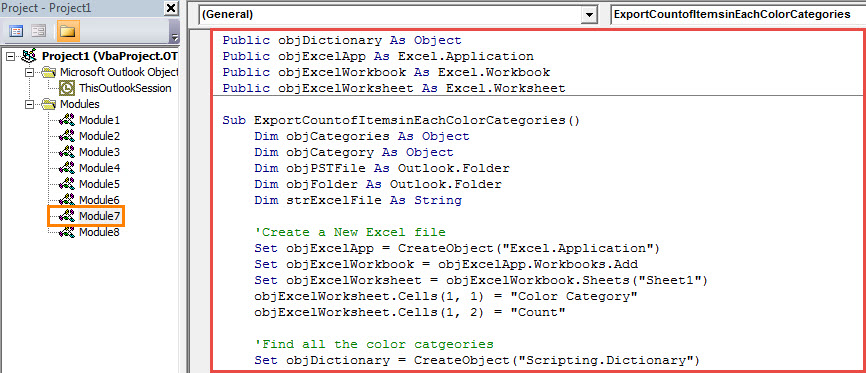
- Next you can copy the following VBA codes into this module window.
Public objDictionary As Object
Public objExcelApp As Excel.Application
Public objExcelWorkbook As Excel.Workbook
Public objExcelWorksheet As Excel.Worksheet

Sub ExportCountofItemsinEachColorCategories()
    Dim objCategories As Object
    Dim objCategory As Object
    Dim objPSTFile As Outlook.Folder
    Dim objFolder As Outlook.Folder
    Dim strExcelFile As String

    'Create a New Excel file
    Set objExcelApp = CreateObject("Excel.Application")
    Set objExcelWorkbook = objExcelApp.Workbooks.Add
    Set objExcelWorksheet = objExcelWorkbook.Sheets("Sheet1")
    objExcelWorksheet.Cells(1, 1) = "Color Category"
    objExcelWorksheet.Cells(1, 2) = "Count"

    'Find all the color categories
    Set objDictionary = CreateObject("Scripting.Dictionary")

    Set objCategories = Outlook.Application.Session.Categories
    For Each objCategory In objCategories
        objDictionary.Add objCategory.Name, 0
    Next

    Set objPSTFile = Outlook.Application.Session.PickFolder

    For Each objFolder In objPSTFile.Folders
        ProcessFolder objFolder
    Next

    'Save the new Excel file
    objExcelWorksheet.Columns("A:B").AutoFit
    strExcelFile = "E:\Outlook\Color Categories (" & Format(Now, "yyyy-mm-dd_hh-mm-ss") & ").xlsx"
    objExcelWorkbook.Close True, strExcelFile

    MsgBox "Complete!", vbExclamation
End Sub

Private Sub ProcessFolder(ByVal objCurrentFolder As Outlook.Folder)
    Dim objItem As Object
    Dim objSubFolder As Object
    Dim ArrayCategories As Variant
    Dim VarCategory As Variant
    Dim ArrayKey As Variant
    Dim ArrayItem As Variant
    Dim i As Long
    Dim nRow As Integer

    'Count the items in each color category via Dictionary object
    For Each objItem In objCurrentFolder.Items
        If objItem.Categories <> "" Then
           ArrayCategories = Split(objItem.Categories, ",")
           For Each VarCategory In ArrayCategories
               If objDictionary.Exists(VarCategory) = True Then
                  objDictionary.Item(VarCategory) = objDictionary.Item(VarCategory) + 1
               End If
          Next
        End If
    Next

    ArrayKey = objDictionary.Keys
    ArrayItem = objDictionary.Items
    nRow = 2

    'Input the information into the new Excel file
    For i = LBound(ArrayKey) To UBound(ArrayKey)
        objExcelWorksheet.Cells(nRow, 1) = ArrayKey(i)
        objExcelWorksheet.Cells(nRow, 2) = ArrayItem(i) & “ Items”
        nRow = nRow + 1
    Next

    'Process the subfolders recursively
    For Each objSubFolder In objCurrentFolder.Folders
        ProcessFolder objSubFolder
    Next
End Sub
- After that, check if Outlook permits macros.
- Finally you can have a try.
- Firstly, press F5 key button in this new macro.
- Then you need to select a source PST file and hit “OK”.
- When you get the message prompting “Complete”, you can go to the local drive and open the predefined folder for saving the Excel file.
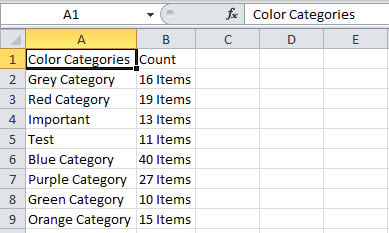
- Locate and open the Excel file. It will look like the following image:

What to Do if Outlook Crashes Suddenly
Although Outlook comes with multiple powerful features, you will tend to meet various problems in your Outlook with time going on. For instance, Outlook can crash from time to time. At best, restarting Outlook will be able to fix the issue. At worst, it can directly lead to PST data corruption. At that time, you will make use of varying means to repair PST file to get back maximum Outlook data, for which you can recur to an experienced tool like DataNumen Outlook Repair.
Author Introduction:
Shirley Zhang is a data recovery expert in DataNumen, Inc., which is the world leader in data recovery technologies, including sql repair and outlook repair software products. For more information visit www.datanumen.com