
If you would like to move all emails in a PST file to a specific folder in another PST file, you can use the method introduced in this article. It will teach you how to use VBA to quickly get it.
Sometimes, for some reasons, you may need to move all emails in a specific PST file to a specific folder in another PST file. In this case, if you manually do it, it will be unquestionably pretty troublesome. Therefore, here we will teach a quick method, which will use VBA to loop through all the folders in a certain PST file and move each email to a specific folder. Read on to achieve the elaborate steps and codes.

Batch Move All Emails in an Outlook PST File to a Specific Folder
- At the very outset, launch your Outlook application.
- Then you can switch to “Developer” tab and click on “Visual Basic” button. Or press “Alt + F11” key shortcuts.
- Subsequently, in the popup VBA editor window, open a not-in-use module or straightly insert a new one.
- Next copy and paste the following VBA codes into this module.
Private Sub GetAllFolders()
    Dim objFolders As Outlook.Folders
    Dim objFolder As Outlook.Folder

    'Get all the folders in a specific PST file
    Set objFolders = Outlook.Application.Session.Folders("Personal").Folders

    For Each objFolder In objFolders
        Call MoveEmails(objFolder)
    Next
End Sub

Private Sub MoveEmails(ByVal objFolder As Outlook.Folder)
    Dim objTargetFolder As Outlook.Folder
    Dim objSubFolder As Outlook.Folder
    Dim i As Long
    Dim objMail As Outlook.MailItem

    'Get the specific destination folder
    'You can change it as per your case
    Set objTargetFolder = Outlook.Application.Session.Folders("John Smith").Folders("New")

    If objTargetFolder Is Nothing Then
       Set objTargetFolder = Outlook.Application.Session.Folders("John Smith").Folders.Add("New")
    End If

    'Move each emails in the folder to the destination folder
    For i = objFolder.Items.Count To 1 Step -1
        If objFolder.Items.Item(i).Class = olMail Then
           Set objMail = objFolder.Items.Item(i)
           objMail.Move objTargetFolder
        End If
    Next i

    'Process the subfolders in the folder recursively
    If (objFolder.Folders.Count > 0) Then
       For Each objSubFolder In objFolder.Folders
           Call MoveEmails(objSubFolder)
       Next
    End If
End Sub
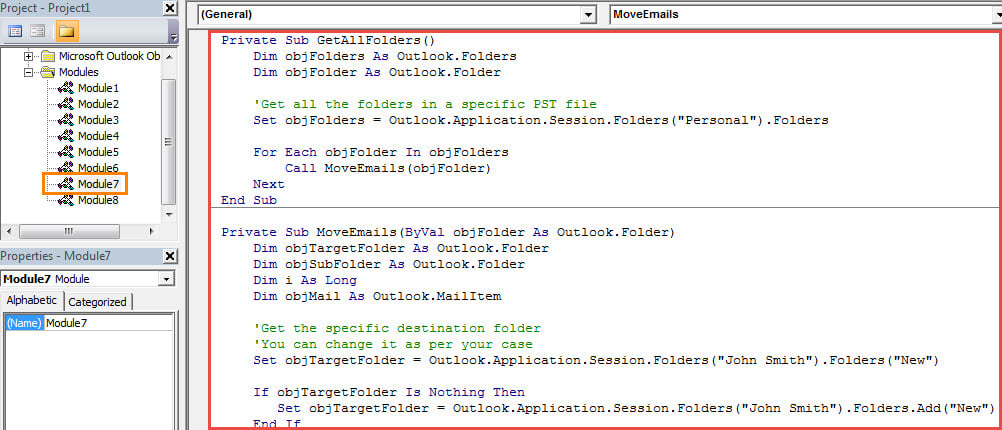
- After that, change your Outlook macro security level to low.
- Eventually you can run the new macro by click the “Run” icon in the toolbar or press the “F5” key.
- At once, all the emails of all the folders in a specific folder will be moved to the predetermined folder in batches.
Rescue Your PST Data in Time
If you unfortunately suffer PST damage, what will you do then? In general, your first thought must to get back the compromised PST data as soon as possible. As usual, the simplest way is to restore from an up-to-date data backup. However, if the data backup is several weeks old, it may be useless. In this case, you have no choice but to recur to a potent recovery tool, such as DataNumen Outlook Repair.
Author Introduction:
Shirley Zhang is a data recovery expert in DataNumen, Inc., which is the world leader in data recovery technologies, including mdf fix and outlook repair software products. For more information visit www.datanumen.com