
Many users hope that Outlook can auto select the different signatures for different recipients in the emails. Thus, this article will teach how to realize it via VBA.
By default, Outlook only allows you to auto insert the varying signature into new emails, replies and forwards. However, many people even hope that Outlook can auto select the different signatures for varying recipients. Unfortunately, Outlook doesn’t provide such a direct feature. Thus, you have to seek other ways, such as any third party add-ins or VBA code. Now, in the followings, we will unveil a piece of VBA code to you, which can help you realize it like a breeze.
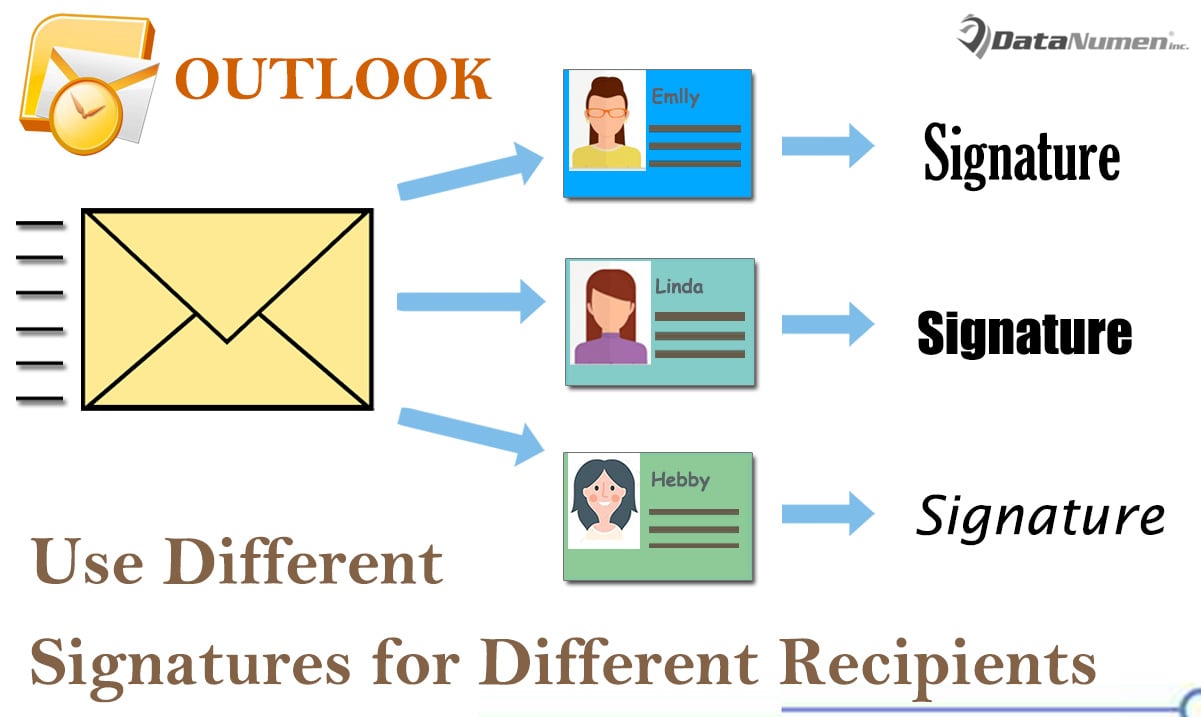
Auto Select Different Signatures for Different Recipients
- To start with, you should launch your Outlook program.
- Then you had better disable the auto-insert signature feature.

- Firstly, go to “File” menu and select “Options”.
- In the “Outlook Options” window, switch to “Mail” tab.
- Then find and click on “Signatures” button.
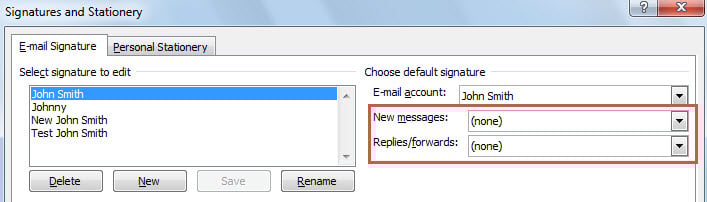
- Next in the popup dialog box, set “(none)” in the both “New Messages” and “Replies/Forwards”.
- After that, click a series of “OK” to save the changes.
- After that, you can back to Outlook main window and press “Alt + F11” keys.
- Next, in the “Microsoft Visual Basic for Applications” window, find and open the “ThisOutlookSession” project.
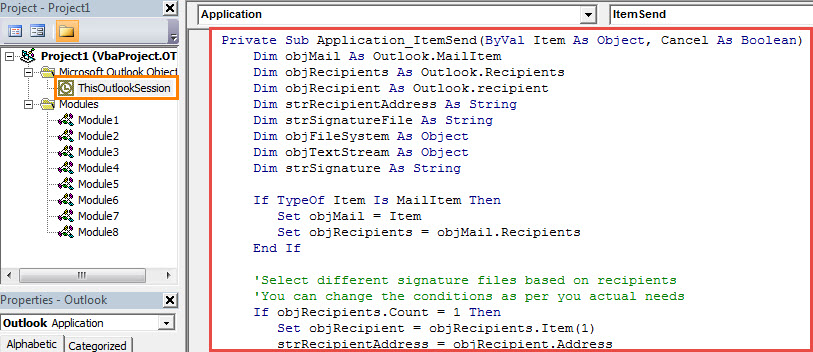
- Subsequently, copy and paste the following VBA code into this project.
Private Sub Application_ItemSend(ByVal Item As Object, Cancel As Boolean)
    Dim objMail As Outlook.MailItem
    Dim objRecipients As Outlook.Recipients
    Dim objRecipient As Outlook.recipient
    Dim strRecipientAddress As String
    Dim strSignatureFile As String
    Dim objFileSystem As Object
    Dim objTextStream As Object
    Dim strSignature As String

    If TypeOf Item Is MailItem Then
       Set objMail = Item
       Set objRecipients = objMail.Recipients
    End If

    'Select different signature files based on recipients
    'You can change the conditions as per you actual needs
    If objRecipients.Count = 1 Then
       Set objRecipient = objRecipients.Item(1)
       strRecipientAddress = objRecipient.Address
       If strRecipientAddress = "mandy@datanumen.com" Then
          strSignatureFile = CStr(Environ("USERPROFILE")) & "\AppData\Roaming\Microsoft\Signatures\Test John Smith.htm"
       ElseIf strRecipientAddress = "anne@datanumen.com" Or strRecipientAddress = "tony@datanumen.com" Then
          strSignatureFile = CStr(Environ("USERPROFILE")) & "\AppData\Roaming\Microsoft\Signatures\Johnny.htm"
       ElseIf strRecipientAddress = "abby@datanumen.com" Then
          strSignatureFile = CStr(Environ("USERPROFILE")) & "\AppData\Roaming\Microsoft\Signatures\New John Smith.htm"
       End If
    Else
       strSignatureFile = CStr(Environ("USERPROFILE")) & "\AppData\Roaming\Microsoft\Signatures\John Smith.htm"
    End If

    'Read the specific signature file
    Set objFileSystem = CreateObject("Scripting.FileSystemObject")
    Set objTextStream = objFileSystem.OpenTextFile(strSignatureFile)
    strSignature = objTextStream.ReadAll

    'Insert the signature to this email
    objMail.HTMLBody = objMail.HTMLBody & "<HTML><BODY><br>" & strSignature & "</br></HTML></BODY>"
End Sub
- After that, you should sign this code.
- Later change your Outlook macro settings to allow signed macros.
- From now on, every time you click “Send” button to send an email, Outlook will identify the recipient and auto insert the corresponding signature at the end of the email body.
Look out for Hidden Malicious Macros in Incoming Emails
Nowadays viruses have become very mature and powerful. They always disguise them as innocuous things in the email. Therefore, now that you intend to utilize macros in Outlook, you should raise your vigilance against the malicious macros. Otherwise, your PST data will be kept in risk. If PST gets corrupt, you’ll try your best to recover PST data. In this case, it’s suggested to apply a potent tool, such as DataNumen Outlook Repair.
Author Introduction:
Shirley Zhang is a data recovery expert in DataNumen, Inc., which is the world leader in data recovery technologies, including sql fix and outlook repair software products. For more information visit www.datanumen.com