
So as to block malicious links, you’d better configure your Outlook to auto disable the hyperlinks in incoming emails from unknown senders. This article will reveal a piece of VBA codes that can help you get it like a cork.
Many users have complained that email borne viruses attacked their Outlook file. More often than not, it is because that they readily trust in those emails from the unknown senders. So they download or click in the hyperlinks in the mails. Now, thereinafter, we will share a method. It is able to let Outlook auto disable the hyperlinks of incoming emails from unknown senders. If you have such needs, please read on to get more details.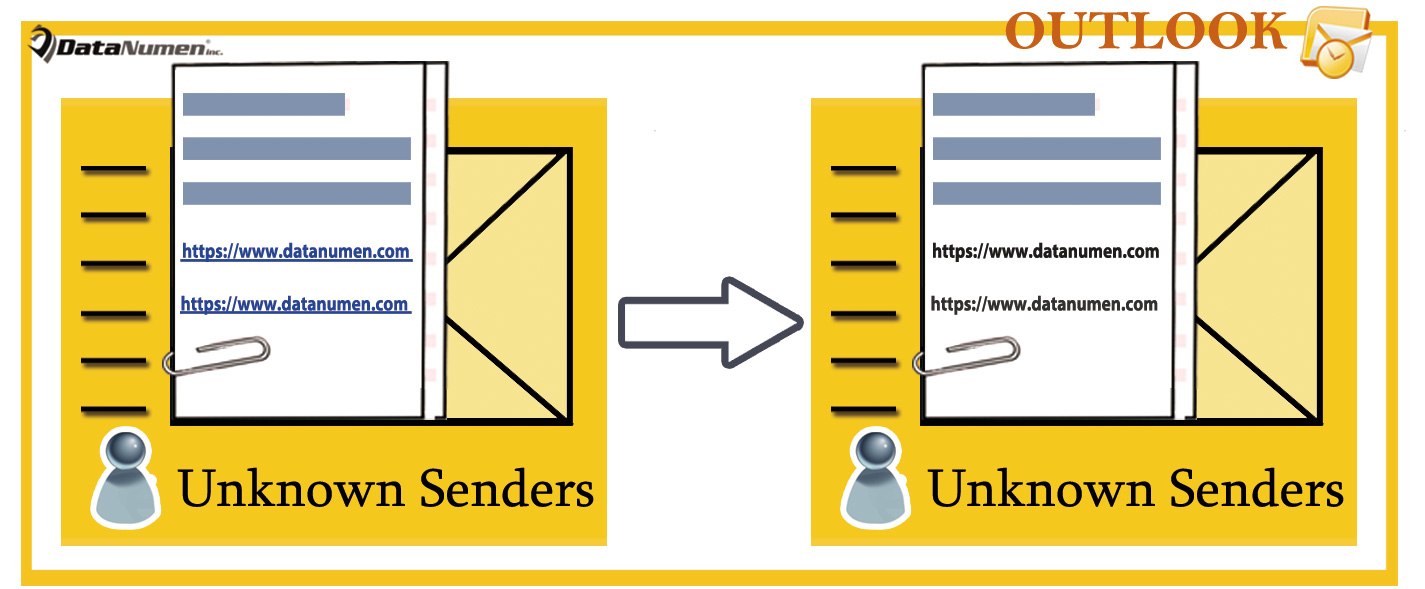
Auto Disable Hyperlinks in Incoming Emails from Unknown Senders
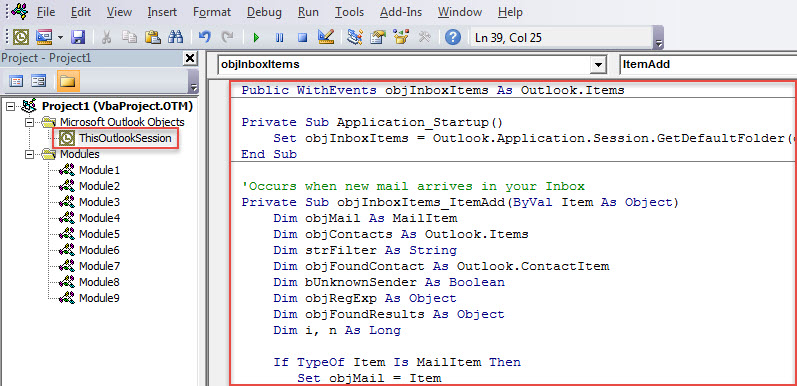
- For a start, in Outlook, go to VBA editor by “Alt + F11”.
- Next, in the new screen, add “MS VBScript Regular Expressions” object as per the post “How to Add an Object Library Reference in VBA“.
- Then, copy and paste the following code into “ThisOutlookSession” project.
Public WithEvents objInboxItems As Outlook.Items

Private Sub Application_Startup()
    Set objInboxItems = Outlook.Application.Session.GetDefaultFolder(olFolderInbox).Items
End Sub

'Occurs when new mail arrives in your Inbox
Private Sub objInboxItems_ItemAdd(ByVal Item As Object)
    Dim objMail As MailItem
    Dim objContacts As Outlook.Items
    Dim strFilter As String
    Dim objFoundContact As Outlook.ContactItem
    Dim bUnknownSender As Boolean
    Dim objRegExp As Object
    Dim objFoundResults As Object
    Dim i, n As Long

    If TypeOf Item Is MailItem Then
       Set objMail = Item

       'Check if the sender is in your default Contact folder
       Set objContacts = Application.Session.GetDefaultFolder(olFolderContacts).Items
       For i = 1 To 3
           strFilter = "[Email" & i & "Address] = " & objMail.SenderEmailAddress
           Set objFoundContact = objContacts.Find(strFilter)
           If Not (objFoundContact Is Nothing) Then
              bUnknownSender = False
              Exit For
           End If
       Next
       If objFoundContact Is Nothing Then
          bUnknownSender = True
       End If

       'If the sender is unknown
       If bUnknownSender = True Then
          'Find the urls within "<a href=" tags in HTMLbody of Mail
          Set objRegExp = CreateObject("vbscript.RegExp")
          With objRegExp
               .Pattern = "<?href\s*=\s*[""'].+?[""'][^>]*?"
               .IgnoreCase = True
               .Global = True
          End With

          If objRegExp.Test(objMail.HTMLBody) Then
             Set objFoundResults = objRegExp.Execute(objMail.HTMLBody)
             For n = 1 To objFoundResults.Count
                 'Disable the hyperlinks in HTMLbody
                 objMail.HTMLBody = Replace(objMail.HTMLBody, objFoundResults.Item(n - 1).Value, "")
             Next
          End If

          'Save the mail
          objMail.Save
       End If
    End If
End Sub
- After that, activate this macro either by restart Outlook or pressing “F5” key button in “Application_Startup” subroutine.
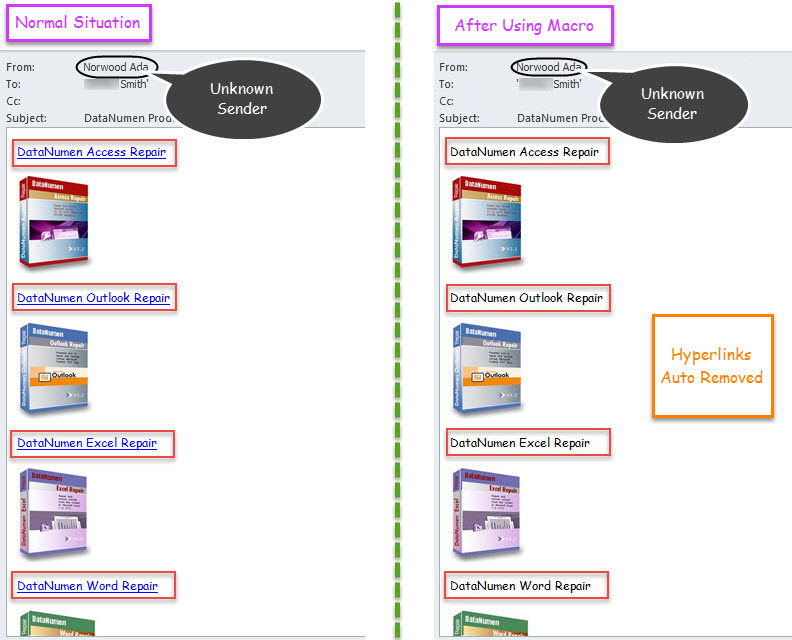
- Since then, every time when an email that comes from the sender that isn’t stored in the default Contact folder gets into Inbox, Outlook will auto disable the hyperlinks in it.

Several Matters of Necessity in Outlook Protection
As Outlook is susceptible to damage, it is pretty difficult to safeguard Outlook file. Here we’ll list out several must-haves during Outlook data protection. First of all, you have to back up your Outlook data on a regular basis. Moreover, it is essential for you to beware of all potential risks, like malicious attachments or hyperlinks. Last but not least, you should prepare a powerful Outlook fix tool in advance, like DataNumen Outlook Repair. It’ll surely come in handy when you need to repair PST file but inbox repair tool proves failure.
Author Introduction:
Shirley Zhang is a data recovery expert in DataNumen, Inc., which is the world leader in data recovery technologies, including damaged mdf and outlook repair software products. For more information visit www.datanumen.com