
In this post, we will focus on introducing 4 quick methods to you to remove unwanted page breaks in your Word document.
Word inserts automatic page break when it jumps from one page to next. Besides, you can insert manual page break following the end of a range of text. Then you will start text at the top of next page. For how to insert manual page break, you can refer to this article: 5 Ways to Quickly Insert Page Breaks into Your Word Document
However, you ought to understand that automatic page breaks are invisible and thus cannot be deleted manually. But the manual page breaks inserted do. So our article will mainly offer you useful approaches to remove unwanted manual page breaks in Word document. 
Method 1: Remove Page Breaks Manually
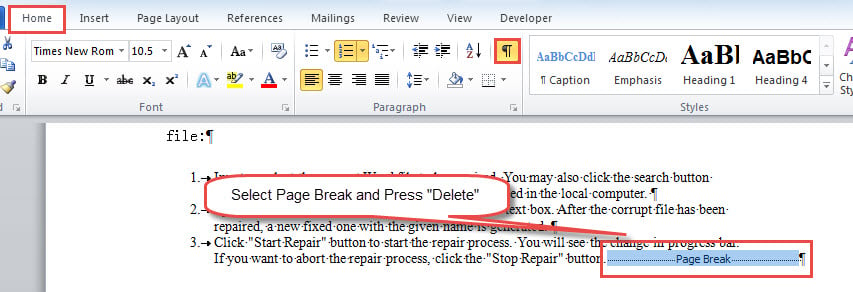
- First of all, you have to click the “Show/Hide” command under “Home” tab to reveal all hidden marks and symbols in document so you can view the page break.
- Next, select a page break and press “Delete” to get rid of it.
- Or you can click to the left of a page break and then press “Delete”.

Method 2: Use “Find and Replace” Feature
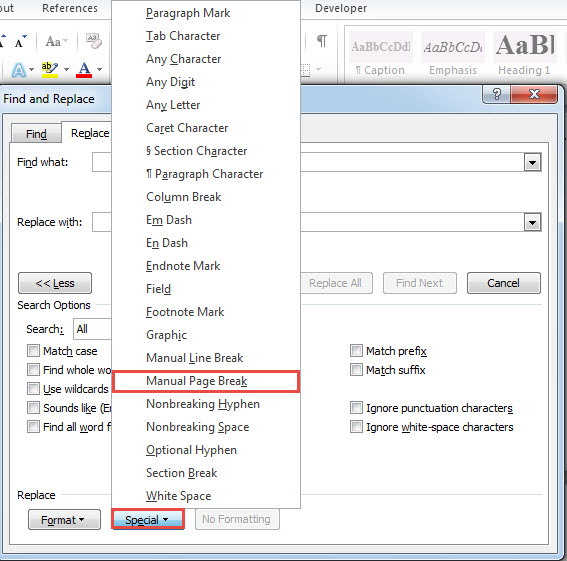
- To begin with, press “Ctrl+ H” to trigger “Find and Replace” box.
- Then place cursor inside “Find what” text box and click “More” tab.
- Next click “Special” and choose “Manual Page Break” on that menu.

- Finally, leave “Replace with” box empty and click “Replace All” to remove each page break in document.
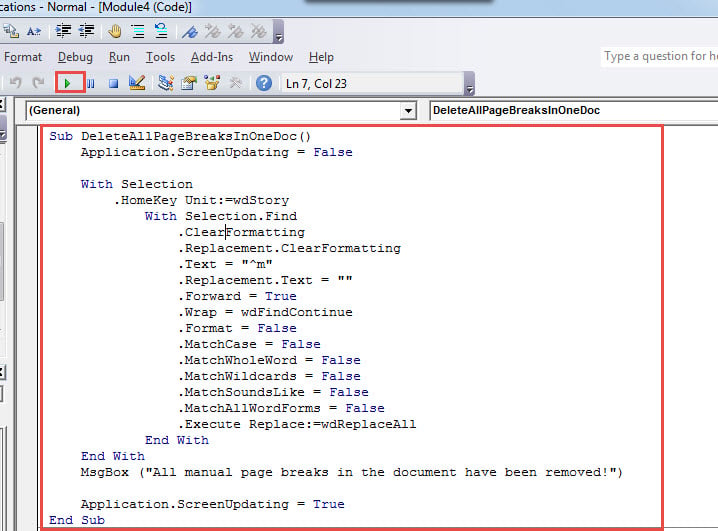
Method 3: Run Macro to Delete All Page Breaks in a Document
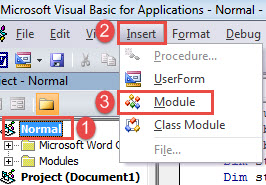
- First off, trigger VBA editor in Word by pressing “Alt+ F11”.
- Next click “Normal” project on the left column.
- Then click “Insert” on the menu bar and select “Module”.

- Open the module with double click and paste following codes there:
Sub DeleteAllPageBreaksInOneDoc()
  Application.ScreenUpdating = False

  With Selection
    .HomeKey Unit:=wdStory
    With Selection.Find
      .ClearFormatting
      .Replacement.ClearFormatting
      .Text = "^m"
      .Replacement.Text = ""
      .Forward = True
      .Wrap = wdFindContinue
      .Format = False
      .MatchCase = False
      .MatchWholeWord = False
      .MatchWildcards = False
      .MatchSoundsLike = False
      .MatchAllWordForms = False
      .Execute Replace:=wdReplaceAll
    End With
  End With
  MsgBox ("All manual page breaks in the document have been removed!")

  Application.ScreenUpdating = True
End Sub
- Lastly, hit “F5” to execute codes.

Method 4: Delete All Page Breaks in All Documents in a Folder
To remove all page breaks in all documents in a folder, you can utilize this method.
- To install and run a macro, you can refer to steps in method 3.
- And remember to replace with this macro below:
Sub DeleteAllPageBreaksInAFolder()
  Dim StrFolder As String
  Dim strFile As String
  Dim objDoc As Document
  Dim dlgFile As FileDialog

  Application.ScreenUpdating = False

  Set dlgFile = Application.FileDialog(msoFileDialogFolderPicker)

  With dlgFile
    If .Show = -1 Then
      StrFolder = .SelectedItems(1) & "\"
    Else
      MsgBox "Select a folder first!"
      Exit Sub
    End If
  End With

  strFile = Dir(StrFolder & "*.docx", vbNormal)

  While strFile <> ""
    Set objDoc = Documents.Open(FileName:=StrFolder & strFile)

    With Selection
      .HomeKey Unit:=wdStory
      With Selection.Find
        .ClearFormatting
        .Replacement.ClearFormatting
        .Text = "^m"
        .Replacement.Text = ""
        .Forward = True
        .Wrap = wdFindContinue
        .Format = False
        .MatchCase = False
        .MatchWholeWord = False
        .MatchWildcards = False
        .MatchSoundsLike = False
        .MatchAllWordForms = False
        .Execute Replace:=wdReplaceAll
      End With
    End With
    objDoc.Save
    objDoc.Close
    strFile = Dir()
  Wend
  Application.ScreenUpdating = True
End Sub
The macro shall trigger the “Browse” window. Select a folder which contains your target documents and click “OK” to proceed.
Prepare for Data Disaster
Many of you have been aware of the randomness of data loss. For Word users, it’s also advisable to be well prepared for any data disaster. And one of the best ways is to obtain a docx repair tool in advance.
Author Introduction:
Vera Chen is a data recovery expert in DataNumen, Inc., which is the world leader in data recovery technologies, including xlsx recovery and pdf repair software products. For more information visit www.datanumen.com