
In this article, there will be 3 methods for you to count the number of words for sections in your Word document.
It’s easy to get the total number of words of a document. But there is no function in Word to tell us the number of words of a section. And given to the fact that we prefer to put contents of the same topic in one section, such as organizing a chapter while writing a book, it’s necessary for us to come up with workarounds to get the section count. 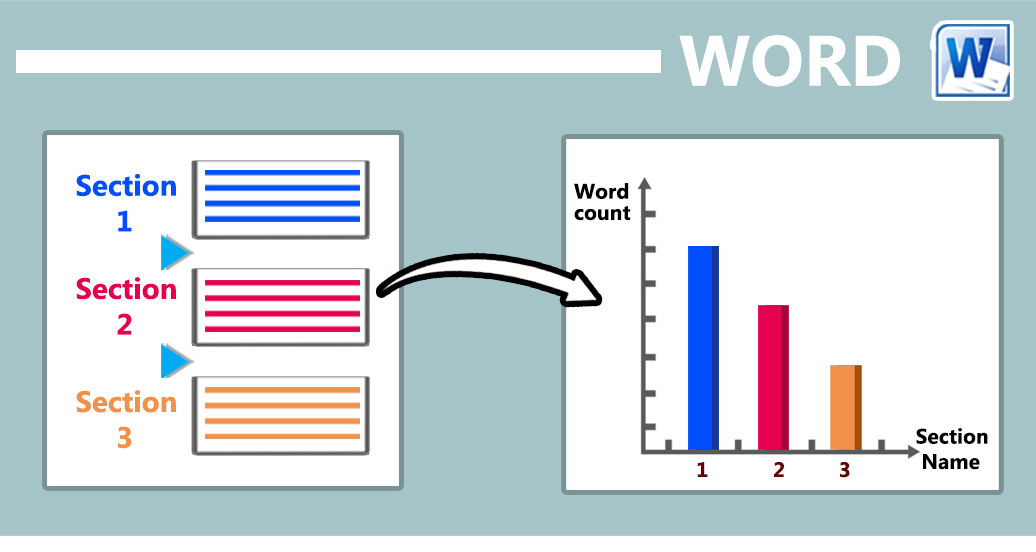 Following are 3 approaches which require you running a macro.
Method 1: Count the Number of Words for Current Section
- Firstly, place cursor inside a target section.
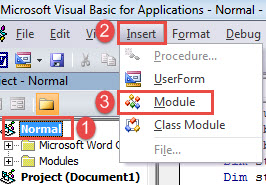
- Then you need to open VBA editor in Word. Click “Developer” and then the “Visual Basic” command. In case you can’t find “Developer” in the Ribbon, then press “Alt+ F11” instead.
- Next click “Normal” project in the left column.
- Then click “Insert” tab.
- On that drop-down menu, choose “Module”.

- Open new module by double click.
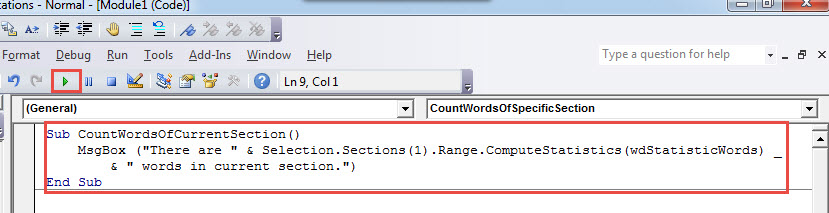
- Now in the open module, paste bellowing codes:
Sub CountWordsOfCurrentSection()
  MsgBox ("There are " & Selection.Sections(1).Range.ComputeStatistics(wdStatisticWords) _
         & " words in current section.")
End Sub
- Lastly, click “Run” or press “F5” to execute codes.

You will receive a message box, showing the total number of current section, such as below: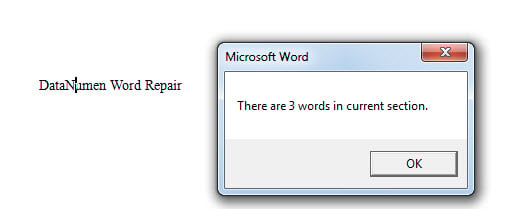
Method 2: Count the Number of Words for a Specific Section
Let’s say you have been working on a book and setting each chapter as an individual section. Then to know how many words you’ve written in a chapter, you can utilize this method.
- Follow above steps to install and run a macro.
- Just replace macro with this one:
Sub CountWordsOfSpecificSection()
  Dim strSecNum As String
  Dim objDoc As Document

  Application.ScreenUpdating = False

  Set objDoc = ActiveDocument
  strSecNum = InputBox("Enter a section number here:", "Enter Section Number")
  MsgBox ("There are " & objDoc.Sections(strSecNum).Range.ComputeStatistics(wdStatisticWords) _
          & " words in section " & strSecNum & ".")
  Application.ScreenUpdating = True
End Sub
- And running it, there will be an input box. In the “Enter Section Number” box, input the section number and click “OK” to move on.

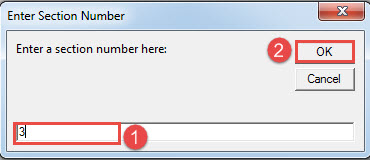
The result is shown on a message box.
Method 3: Count the Number of Words for All Sections in a Document
As the subtitle suggests, this way shall get you total number of words of each section in a document and list them on a message box.
- First of all, open target document.
- Still, you have to repeat steps in method 1 to install and run the macro.
- And this time, change with this macro:
Sub CountWordsOfEachSectionInDoc()
  Dim objDoc As Document
  Dim nNumberOfSection As Long
  Dim strText As String

  Application.ScreenUpdating = False
  Set objDoc = ActiveDocument
  nNumberOfSection = objDoc.Sections.Count

  For nNumberOfSection = 1 To nNumberOfSection
    strText = strText & "There are " & objDoc.Sections(nNumberOfSection) _
              .Range.ComputeStatistics(wdStatisticWords) & " words in section " & nNumberOfSection & "; " _
              & vbNewLine
  Next nNumberOfSection

  MsgBox strText

  Application.ScreenUpdating = True
End Sub
Here is the possible outcome: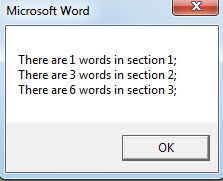
Save Valuable Data
While dealing with all kinds of documents, you have to keep in mind the safety of them. Since you can never tell when the next data loss shall happen, it’s suggested to back up important files. Besides, it’s always good to obtain a tool that can recover doc, if any.
Author Introduction:
Vera Chen is a data recovery expert in DataNumen, Inc., which is the world leader in data recovery technologies, including xls repair and pdf repair software products. For more information visit www.datanumen.com