
In this article, we are glad to share with you 2 ways to quickly merge multiple Word documents into one via VBA.
In Word, there is the default built-in feature to help user combine or merge several documents into one. Details are explained in this article: How to Combine & Merge Multiple Word Documents into One
With that method, you have to make a couple of clicks and the contents of next document always come right after that of the previous one. Therefore, we want to offer you quicker ways to do so.
Method 1: Merge Selected Documents into One
- First and foremost, create a new blank document.
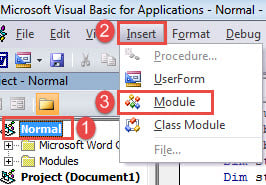
- Trigger VBA editor in Word by pressing “Alt+ F11”.
- Next click “Normal”.
- Then click “Insert”.
- And choose “Module”.

- Double click on new module to open the editing space.
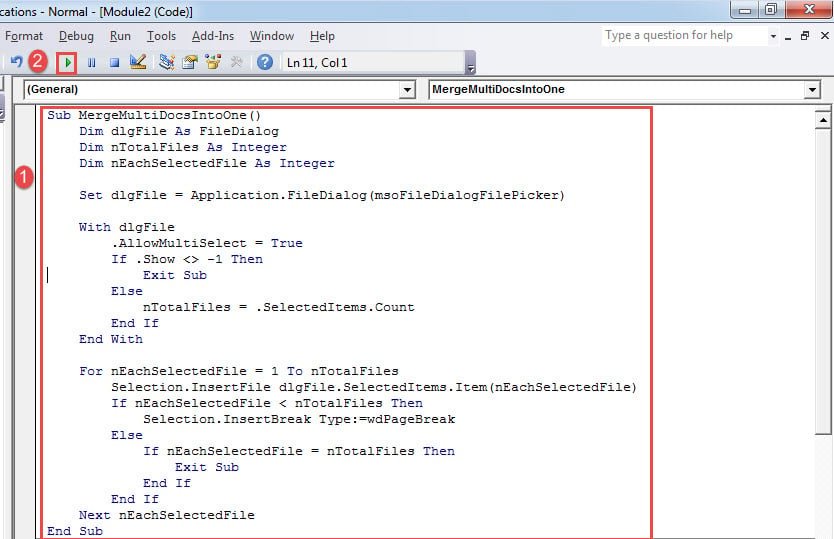
- Paste the following macro there:
Sub MergeMultiDocsIntoOne()
  Dim dlgFile As FileDialog
  Dim nTotalFiles As Integer
  Dim nEachSelectedFile As Integer

  Set dlgFile = Application.FileDialog(msoFileDialogFilePicker)

  With dlgFile
    .AllowMultiSelect = True
    If .Show <> -1 Then
      Exit Sub
    Else
      nTotalFiles = .SelectedItems.Count
    End If
  End With

  For nEachSelectedFile = 1 To nTotalFiles
    Selection.InsertFile dlgFile.SelectedItems.Item(nEachSelectedFile)
    If nEachSelectedFile < nTotalFiles Then
      Selection.InsertBreak Type:=wdPageBreak
    Else
      If nEachSelectedFile = nTotalFiles Then
        Exit Sub
      End If
    End If
  Next nEachSelectedFile
End Sub
- Next click “Run” or hit “F5”.

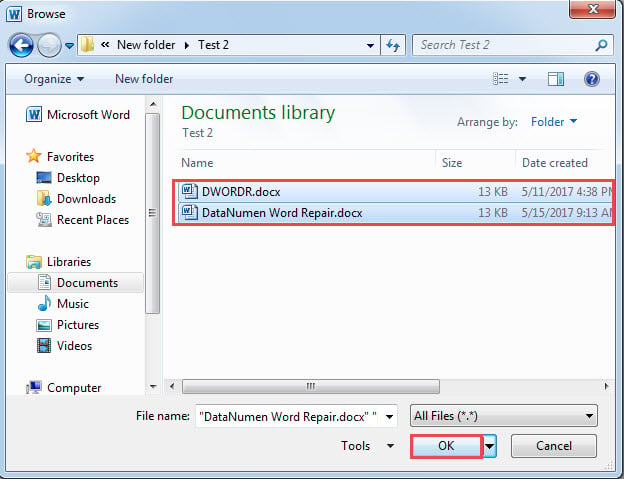
- Now in “Browse” window, select multiple files by pressing “Ctrl” and click “OK”.

- Then all contents in selected files will be pieced together in the new document, with texts of each document starting on a new page.
Note:
As we mentioned, this macro puts texts of each document on a new page. But if you need them to be one after another, you can alter some code lines in the macro. Just find line “If nEachSelectedFile < nTotalFiles Then”, the delete it and the next six lines as well.
Method 2: Merge All Documents in a Folder into One
In case you have a folder of files to be combined, then this macro shall work beautifully.
- To start off, install and run macro as described in method 1.
- Then replace macro with this one:
Sub MergeFilesInAFolderIntoOneDoc()
  Dim dlgFile As FileDialog
  Dim objDoc As Document, objNewDoc As Document
  Dim StrFolder As String, strFile As String

  Set dlgFile = Application.FileDialog(msoFileDialogFolderPicker)

  With dlgFile
    If .Show = -1 Then
      StrFolder = .SelectedItems(1) & "\"
    Else
      MsgBox ("No folder is selected!")
      Exit Sub
    End If
  End With

  strFile = Dir(StrFolder & "*.docx", vbNormal)
  Set objNewDoc = Documents.Add

  While strFile <> ""
    Set objDoc = Documents.Open(FileName:=StrFolder & strFile)
    objDoc.Range.Copy
    objNewDoc.Activate
    With Selection
      .Paste
      .InsertBreak Type:=wdPageBreak
      .Collapse wdCollapseEnd
    End With

    objDoc.Close SaveChanges:=wdDoNotSaveChanges

    strFile = Dir()
  Wend

  objNewDoc.Activate
  Selection.EndKey Unit:=wdStory
  Selection.Delete
End Sub
- Run the macro by clicking “Run”.
- Next you see “Browse” window open. Select the folder where you store all documents. And click “OK”.
Similarly, texts of each document starts on a new page. To make them stick together one after another, find and delete code line “.InsertBreak Type:=wdPageBreak”.
Protect Your Word Document Properly
One of the best ways to protect your Word documents is to back them up on a regular basis. With backups in hand, you will never have to fear the loss of data. Besides, it’s also advisable to get a tool to repair docx if any of them shall be damaged.
Author Introduction:
Vera Chen is a data recovery expert in DataNumen, Inc., which is the world leader in data recovery technologies, including damaged Excel and pdf repair software products. For more information visit www.datanumen.com