
You may have noted that Outlook can only be set to auto insert signature to emails. It can’t auto insert signature to meeting invitations. Hence, this article will look at this issue and share 2 means to achieve it.
You can’t configure Outlook to auto insert a signature to meeting invitation. This “Auto-signature” feature is available for email only. Therefore, if you want to auto insert signature to outgoing meeting requests, you need seek other means. Here, we will introduce you 2 methods.

Method 1: Achieve with a Custom Form
- At the very outset, launch your Outlook application.
- Then, shift to “Calendar” navigation pane by “Ctrl + 2” key buttons.
- Next, create a new meeting invitation by clicking on “New Meeting” button in ribbon.
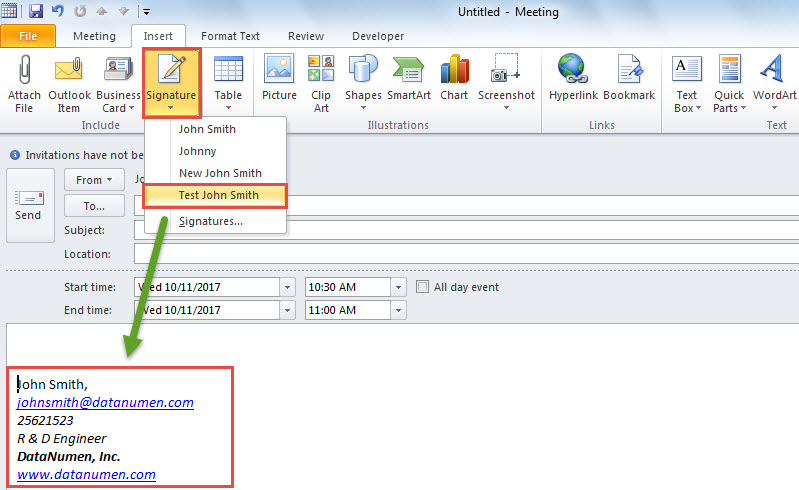
- In the new meeting window, switch to “Insert” tab.
- Then, click on “Signature” and select a signature to be inserted into meeting.

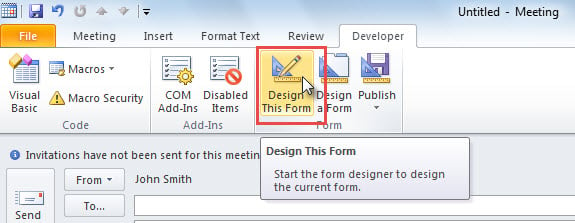
- After that, switch to “Developer” tab and click “Design This Form” button.

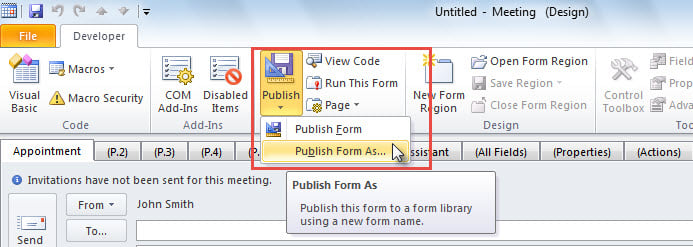
- Later, in the new screen, click “Publish” > “Publish Form As”.

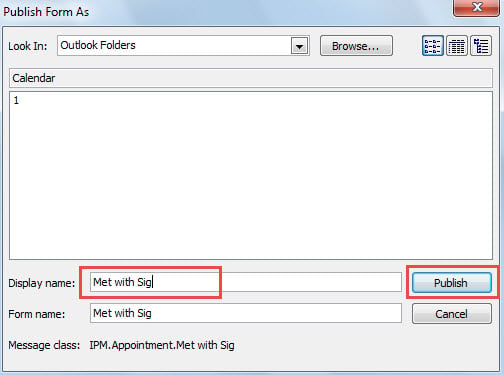
- In the new dialog box, input a name for this form in “Display name” field.

- Then, click “Publish” button.
- Finally, close the current meeting window without saving changes.
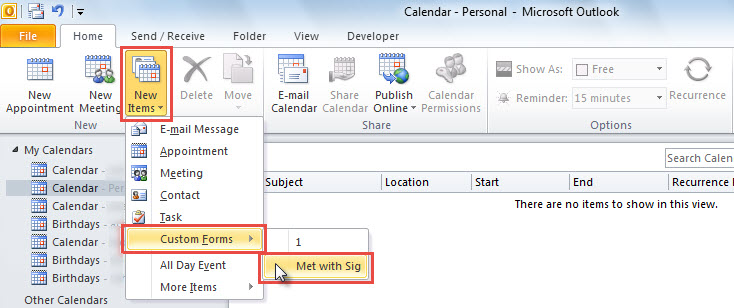
- From now on, every time as you want to create a new meeting with signature, you can click “New Items” > “Choose Form” and then select the new form.

Method 2: Make Use of Outlook VBA
- First off, you can access Outlook VBA editor according to the article – “How to Run VBA Code in Outlook”.
- Then, copy the following VBA code into “ThisOutlookSession” project.
Private Sub Application_ItemSend(ByVal Item As Object, Cancel As Boolean)
    Dim objMeeting As Outlook.MeetingItem
    Dim strSignatureFile As String
    Dim objFileSystem As Object
    Dim objTextStream As Object
    Dim strText As String
    Dim objTempMail As Outlook.MailItem

   If TypeName(Item) = "MeetingItem" Then
      Set objMeeting = Item

      'Change the path to your own signature file
      strSignatureFile = CStr(Environ("USERPROFILE")) & "\AppData\Roaming\Microsoft\Signatures\Test John Smith.htm"
      Set objFileSystem = CreateObject("scripting.FileSystemObject")
      Set objTextStream = objFileSystem.OpenTextFile(strSignatureFile)
      strText = objTextStream.ReadAll

      Set objTempMail = Outlook.Application.CreateItem(olMailItem)
      objTempMail.Display
      objTempMail.HTMLBody = strText

      objMeeting.Body = objMeeting.Body & vbCrLf & vbCrLf & objTempMail.Body
      objMeeting.Save

      objTempMail.Close olDiscard
    End If
End Sub
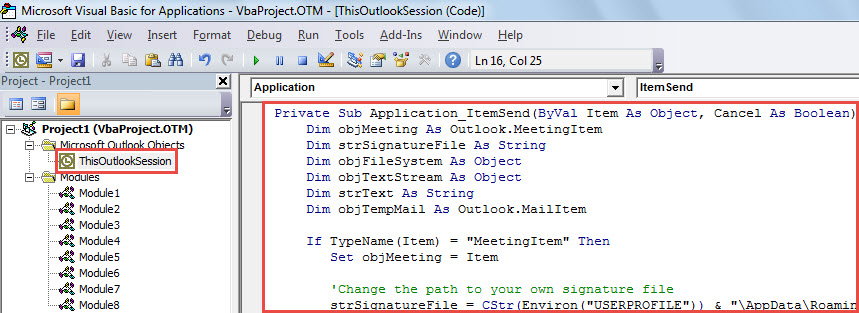
- Next, change the commented code as per your own case.
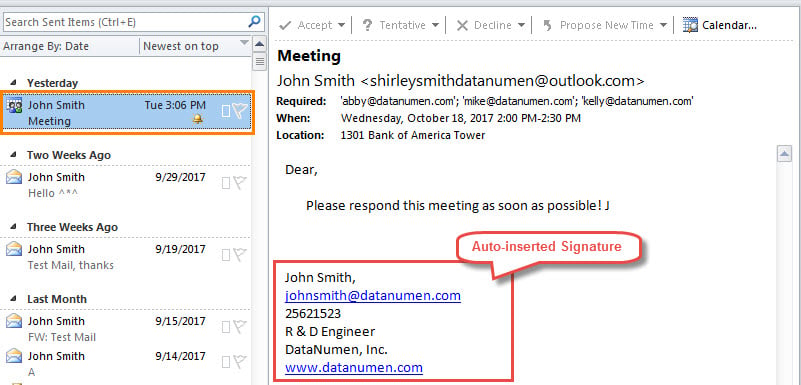
- Since then, every time when you send an outgoing meeting invitation, the predefined signature will be inserted at the end automatically.

Counter Assorted Outlook Troubles
Outlook users are plagued with various Outlook issues, ranging from unexpected crash to severe corruption. Generally, we will tend to use the inbuilt repair tool – Scanpst to fix Outlook errors. However, it can only fix some small glitches. If the PST file is damaged seriously, this tool can’t be a lot of help. In that case, you have to utilize third party software like DataNumen Outlook Repair, which is expert at PST fix.
Author Introduction:
Shirley Zhang is a data recovery expert in DataNumen, Inc., which is the world leader in data recovery technologies, including recover sql and outlook repair software products. For more information visit www.datanumen.com