

I had a thumb drive that had a lot of documents on it that became corrupt. Datanumen Word Repair was able to recover over 95% of them when
Overview
Features
How to Recover
More Information
Related Products
Why DataNumen Word Repair?

#1 Recovery
Rate

10+ Million
Users

20+ Years of
Experience

100% Satisfaction
Guarantee
Recover Much More than Our Competitors
DataNumen Word Repair vs. Kernel for Word, Recovery for Word, RecoveryFix for Word, etc.
Average Recovery Rate
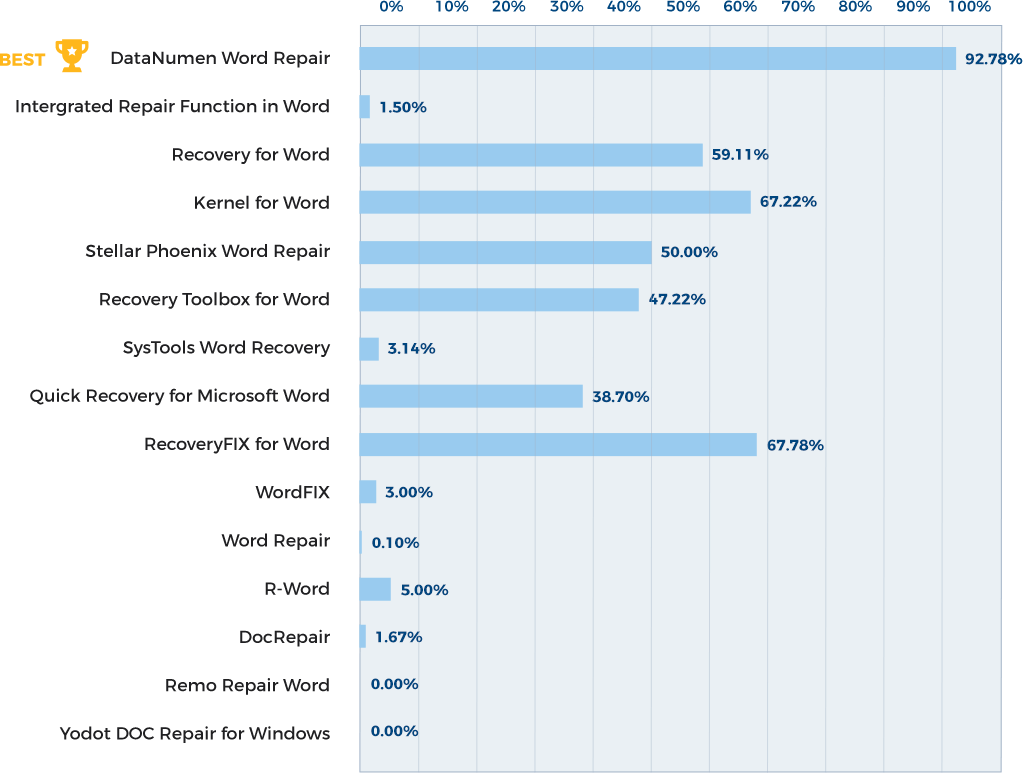
Learn more about how DataNumen Word Repair smokes the competition
Our Customers' Testimonials

... Read more
I had a thumb drive that had a lot of documents on it that became corrupt. Datanumen Word Repair was able to recover over 95% of them when many other applications I tried to use failed.
Happy to be a paid up member. Thank you
Paul B
Washington State USA
2024-12-18
Your Word document recovery tool is amazing. It brings most of the contents back, together with the formatting.
Noah Simon
France
September 8th, 2021
Thanks a lot. Indeed, your MS Office file content recovery solution is the best I tested up to now.
Tomasz Warmuz
Technical Director
Landis+Gyr Poland Sp. z o.o.
Poznań, Poland
May 20, 2019
I had a file word file that had errors to repair, your website repaired the word file in 6 minutes.
This is unique and very good.
Valentin Bogatu
Physicist engineer https://helpwithphysics.com
Romania
September 4, 2019
Oh my goodness, THANK YOU! I cannot believe you were able to fix it! I have literally tried everything else- this is amazing, and I am so
Oh my goodness, THANK YOU! I cannot believe you were able to fix it! I have literally tried everything else- this is amazing, and I am so grateful.
Thank you again for your help! I am happy to write a testimonial if you need one- no one else has been able to repair this!!
Mandy Clark
United States
Sep 16th, 2015
Thank you very much for your help and interest You never had difficulty in any way.
I am very satisfied. I recommend you to everyone. I wish you
Thank you very much for your help and interest You never had difficulty in any way.
I am very satisfied. I recommend you to everyone. I wish you continued success.
good work.
isil yaman baydar
Ankara, Turkey
Jan 29th, 2019
Extremely Simple Interface
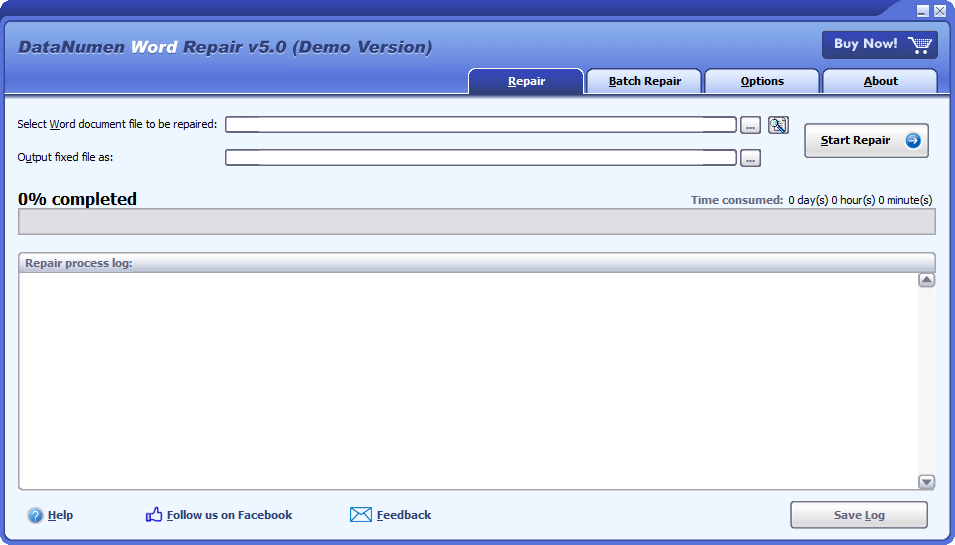
Repair
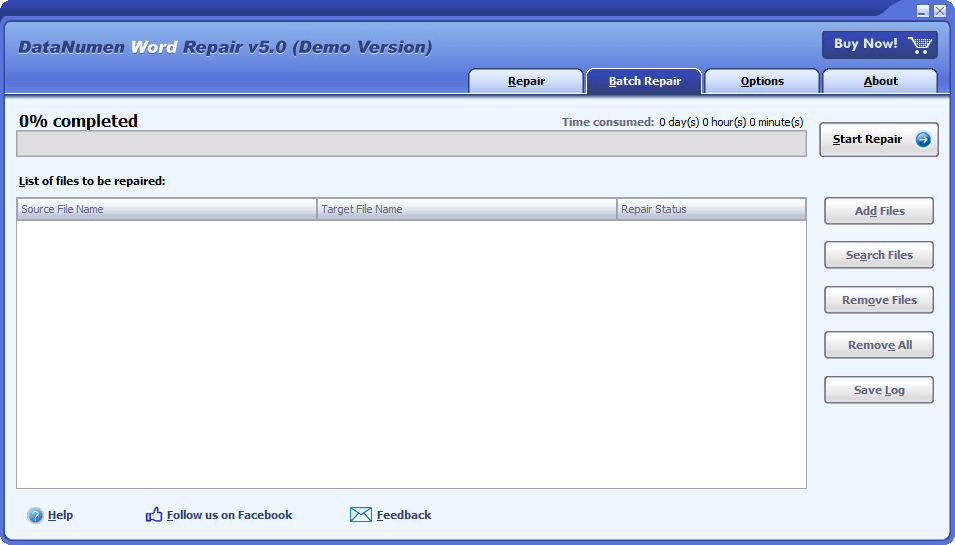
Batch Repair
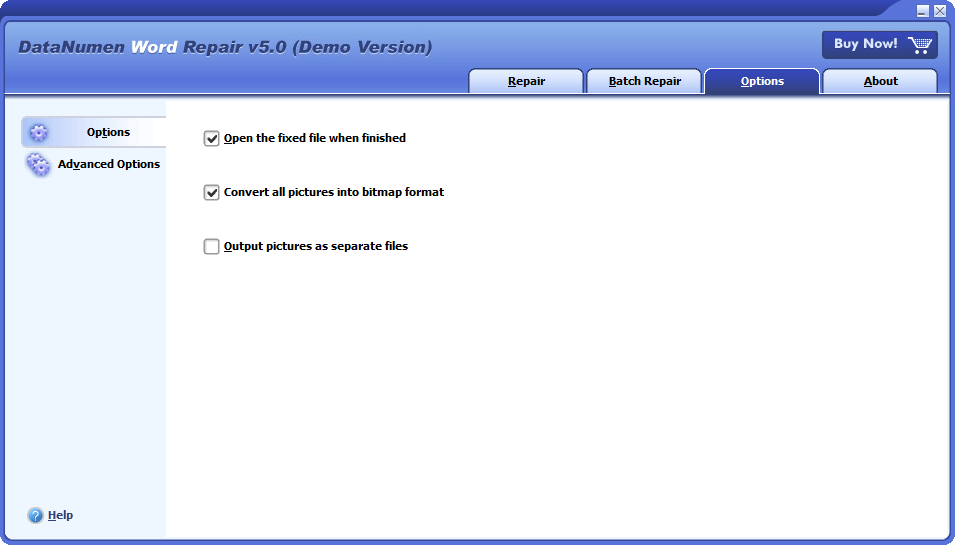
Options
Solution for Following Common Errors Due to Word Document Corruption

- The File xxxx.docx Cannot Be Opened Because There Are Problems With The Contents
- Word Experienced an Error Trying to Open the File
- File Conversion Dialog Pop up when Opening a Corrupt Word Document
- Pictures Cannot Display in Corrupt Word Documents
Free Download20+ Years Of Experience
Buy Now100% Satisfaction Guarantee
Main Features
- Repair .doc and .docx documents in Microsoft Word 6.0, 95, 97, 2000, XP, 2003, 2007, 2010, 2013, 2016, 2019, 2021, Word for Office 365, and Microsoft 365 formats.
- Repair documents generated by Word for Windows and Mac.
- Recover texts, images, fonts, layouts, and formattings in Word documents.
- Recover tables.
- Recover bulleted or numbered lists.
- Recover formatting and hyperlinks.
- Recover bookmarks.
- Recover a MS Word document from temporary files when data disaster occurs.
Free Download20+ Years Of Experience
Buy Now100% Satisfaction Guarantee
Using DataNumen Word Repair to Recover Corrupted Word Documents
Start DataNumen Word Repair.
Note: Before recovering any corrupted or damaged Word file with DataNumen Word Repair, please close Microsoft Word and any other applications that may access the Word file.
Select the corrupted or damaged Word .doc/.docx file to be repaired:

You can input the Word .doc/.docx file name directly or click the  button to browse and select the file. You may also click the
  button to find the file to be repaired on the local computer.
By default, DataNumen Word Repair will save the fixed Word file as xxxx_fixed.doc, where xxxx is the name of the source Word .docx/.doc file. For example, for source Word file Damaged.docx, the default name for the fixed file will be Damaged_fixed.doc. If you want to use another name, then please select or set it accordingly:

You can input the fixed file name directly or click the button to browse and select the fixed file.
Note: The output fixed file is always saved in .doc format, no matter what the source format is.
Click the  button. DataNumen Word Repair will start scanning and repairing the source Word file.
Progress bar

will indicate the data recovery progress.
After the file recovery process, if the source Word file can be repaired successfully, you will see a message box like this:
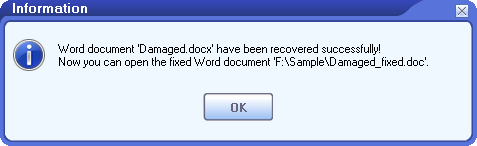
Now you can open the fixed Word file with Microsoft Word or other compatible applications.
More Information
| Version | 5.0 (Version History) |
| Release Date | November 16th, 2023 |
| Supported File Types | DOC, DOCX |
| Supported Word Versions | Word 6.0–2021; Word for Office 365; Microsoft 365 |
| Recoverable Objects | Text, images, fonts, layouts, formatting, tables, bulleted lists, numbered lists, hyperlinks, bookmarks |
| Temporary File Recovery | Supported |
| Supported Languages | 95 languages |
Requirements
| Operating System | Windows |
| Processor | Intel or equivalent (x86, x64) |
| Memory | 32 MB minimum (2 GB recommended) |
| Disk Space | 22 MB |
How to recover unsaved Word documents?
To recover unsaved Word documents, you can try many methods. And for most of them, we need to use the AutoRecover option in Word.
1. AutoRecover option
Microsoft Word has an AutoRecover option. By default, it will auto-save your Word documents every 10 minutes. To change this option, please do as follows:
- Start MS Word.
- Click the File tab, then click Options.
- In the Word Options dialog box, click the Save tab.
- Ensure the Save AutoRecover information every 10 minutes option is selected. And you can change the save interval as needed.
- Also, ensure the Keep the last AutoRecovered version if I close without saving is also selected. Note: If you decrease the save interval, for example, to 1 minute, then Word will auto-save your document more frequently, which will degrade the performance, and consume more spaces on your hard disk, especially when your Word document is large. But if you increase the save interval, for example, to 100 minutes. Then if Word crashes in the 199th minutes, then your changes made from 100th to 199th minutes will be lost. So a save interval of 10 minutes is a good trade-off between the performance and the data losses.
2. Recover via the Document Recovery panel
Word will check for the AutoRecover information each time when you start it. So, if it crashes before you save your document, you can simply do as follows to recover the unsaved Word document:
- Start Microsoft Word.
- If Word finds and saved AutoRecover information on the hard disk, it will show a Document Recovery panel. All documents that can be recovered are listed as “document name [Original]” or “document name [Recovered]”.
- If your lost file is in the list, double-click to open it.
- Click Save As to save the document to a new file.
3. Recover via the Documents tab
If the Document Recovery panel does not appear, you can try to do as follows:
- Click the File tab, then click Open.
- Click the Recent tab.
- In the right panel, select the Documents tab.
- Click the Recover Unsaved Documents button at the bottom.
- In the Open file dialog, double-click the wanted document to open it.
- In the top bar, select Restore to restore the unsaved document.
- Click Save As to save the document to a new file.
4. Recover via the Manage Document function
Or, you can use Manage Document to recover the unsaved Word documents, as follows:
- Start Microsoft Word.
- Go to Home > New, then click Blank Document.
- The menu items will appear.
- Select File > Info
- In the right panel, click the Manage Document button.
- You will see two options, Recover Unsaved Documents and Delete Unsaved Documents.
- Click Recover Unsaved Documents to browse and recover the unsaved documents.
5. Find AutoRecover files directly
You may also try to find the AutoRecover file directly. The AutoRecover file has a file type of .asd.
On the Windows system, it is under the following directories:
- C:\Users\<UserName>\AppData\Roaming\Microsoft\Word
- C:\Users\<UserName>\AppData\Local\Microsoft\Office\UnsavedFiles
where you should replace <UserName> with your user name.
On the Mac OS system, then:
For Word 2016/2019/Office 365 in 2020/2021, the directory is:
/Users/<UserName>/Library/Containers/com.microsoft.Word/Data/Library/Preferences/AutoRecovery
For Word 2011, the directory is:
/Users/<UserName>/Library/Application Support/Microsoft/Office/Office 2011 AutoRecovery
6. Find and recover from temporary files
You can also find temporary files on your local computer which may be your unsaved document, as follows:
- Set the file type to .tmp, and other search criteria based on what you know about your lost file, such as the size, last update date & time, etc.
- After you find the temporary files, copy it to your own directory.
- Rename the .tmp files to .doc or .docx files, based on the type of your original document.
- Open the renamed files via MS Word.
- You may also use our Word document recovery tool to repair the temporary files found in step 2.
For Windows 10, version 2004 or later, there is a Windows File Recovery tool. You can use it to recover deleted or lost files.
If all the above methods fail, then you can use a professional Word recovery tool to recover files.
How to recover a deleted Word document?
If you store the MS Word document on the local computer, you can recover it via the following 3 methods:
- If you have backed up your computer beforehand, then you can restore the deleted Word document from the backup.
- You can also check the Recycle Bin. If you have not emptied it after the deletion, then you can restore the deleted Word document from Recycle Bin. If you don’t know the file name, then you can search for files with file types such as .doc and .docx.
- You may also use a data recovery software to scan your hard drive and recover deleted files.
If you store the Word document on a document library or list in Microsoft Teams or SharePoint, you can also restore the deleted Word document from the SharePoint site recycle bin.
If you store the Word document on OneDrive, then you can also restore the deleted Word document from OneDrive recycle bin.
How to recover a lost word document?
A lost Word document is just like a deleted document, so you can try similar methods to recover it from your backup, Recycle bin, or via a data recovery software.
How to recover an overwritten Word document?
It is a bit hard but still possible to recover overwritten Word documents. Below are some methods:
- Restore the overwritten Word document with a previous backup, if any.
- Use a data recovery utility to scan your hard drives. Sometimes, it can also recover overwritten files.
Can you recover corrupt Word documents on Mac OS?
Yes, you can do as follows to repair your Microsoft Word document on Mac:
1. Install our Word data recovery software on a PC/Windows computer.
2. Copy the corrupt Word document from Mac to PC.
3. Repair the corrupt Word document on PC with DataNumen Word Repair.
4. Copy the fixed Word document back to Mac.
Sorry but DataNumen Word Repair does not support to run under Mac directly.
How can a Word document get corrupted?
Many reasons that will corrupt a Word document, such as virus, malware, an unexpected crash of Word, hard drive formatting, etc. We recommend you to have a professional Word data recovery tool on hand so you can repair your corrupt document as soon as possible.
Which versions of Word are supported?
Currently, our tool supports repairing documents created by Microsoft Word 6.0, 95, 97, 2000, XP, 2003, 2007, 2010, 2013, 2016, 2019, and Word for Microsoft Office 365. Moreover, it supports both doc and docx file formats.
Which versions of Windows are supported?
Currently, our tool supports Windows 95/98/ME/NT/2000/XP/Vista/7/8/8.1/10 and Windows Server 2003/2008/2012/2016/2019 operating systems. And it supports both 32bit and 64bit systems.
Do I need to have MS WORD on my computer to run your Word file recovery tool?
Yes, you need to have MS Word installed on your computer to run our file recovery software. Before repairing a damaged Microsoft Word document, if our file recovery software detects that there is no Word installed, it will pop up an error message and abort the data recovery process.
Related Products
DataNumen Excel Repair
Repair and recover corrupt or damaged Microsoft Excel xls, xlw and xlsx files.
Details
Access Database Repair Tool
Repair and recover corrupt Microsoft Access databases (.mdb and .accdb files).
Details DataNumen Word Repair