
Sometimes we need to split the large PST file into small ones, because:
- Large size of file and large number of items will lead to slow speed in many operations, such as search, moving, etc., so you can split it into small pieces and obtain a more easier and fast management on it.
- Outlook old versions (97 to 2002) don’t support files larger than 2GB, so if your file reaches that limit, you have two options:
- If you have Outlook 2003 or higher versions, you can convert your oversize PST file to the new format.
- Otherwise, you can split it into small pieces, making sure each piece <= 2GB limit.
DataNumen Outlook Repair can help you to split the large PST file into smaller ones automatically.
Start DataNumen Outlook Repair.
Note: Before splitting oversized PST file with DataNumen Outlook Repair, please close Microsoft Outlook and any other applications that may modify the PST file.
Go to  tab, then select the following option:

and set the size limit to a value less than 2GB. It is recommended to use a value that is only a fraction of 2GB so that your file will not reach 2GB again soon, for example, 1000MB. Please note the unit is MB.
Go back to  tab.
tab.
Select the oversized Outlook PST file as the source PST file to be repaired:

You can input the PST file name directly or click the  button to browse and select the file. You may also click the
  button to find the PST file to be processed on the local computer.
As the PST file is oversized, it must be in Outlook 97-2002 format. Therefore, please specify its file format to “Outlook 97-2002” in the combo box  beside the source file edit box. If you leave the format as “Auto Determined”, then DataNumen Outlook Repair will scan the source oversized PST file to determine its format automatically. However, this will take additional time.
By default, when DataNumen Outlook Repair scans and splits the source oversized file into several smaller ones, the first splitted fixed file is named xxxx_fixed.pst, the second one is xxxx_fixed_1.pst, the third one is xxxx_fixed_2.pst, and so on, where xxxx is the name of the source PST file. For example, for source PST file Outlook.pst, by default, the first splitted file will be Outlook_fixed.pst, and the second will be Outlook_fixed_1.pst, and the third will be Outlook_fixed_2.pst, etc..
If you want to use another name, then please select or set it accordingly:

You can input the fixed file name directly or click the button to browse and select the fixed file name.
You can select the format of the fixed PST file in the combo box  beside the fixed file edit box , possible formats are Outlook 97-2002 and Outlook 2003-2010. If you leave the format as “Auto Determined”, then DataNumen Outlook Repair will generate the fixed PST file compatible with the Outlook installed on the local computer.
Click the  button, and DataNumen Outlook Repair will start scanning the source PST file, recovering and collecting the items in it, and then putting these recovered items into a new fixed PST file whose name is set in Step 6. We will use Outlook_fixed.pst as an example.
When the size of Outlook_fixed.pst reaches the limit preset in Step 2, DataNumen Outlook Repair will create a second new PST file called Outlook_fixed_1.pst, and try to put the remaining items into that file.
When the second file reaches the preset limit too, DataNumen Outlook Repair will create a third new PST file called Outlook_fixed_2.pst to accommodate the remaining items, and so on.
In the process, the progress bar

will advance accordingly to indicate the split progress.
After the process, if the source oversized PST file has been splitted into several smaller new PST files successfully, you will see a message box like this:
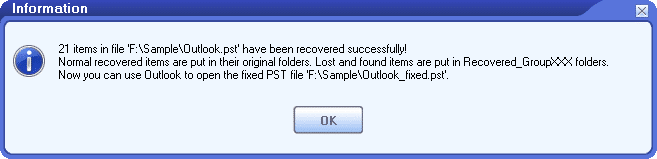
Now you can open the splitted PST files one by one with Microsoft Outlook. And you will find all the items of the original oversized PST file are spreaded among these splitted files.
Note: The demo version will display the following message box to show the success of the split:
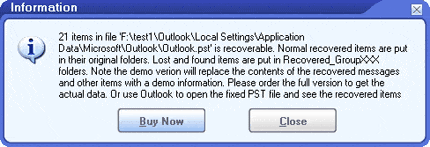
In the new splitted PST files, the contents of the messages and attachments will be replaced with a demo information. Please order the full version to get the actual contents.