

非常好用,虽然价格有点小贵,但是我觉得物超所值,通过这个软件
Overview
Features
How to Recover
More Information
Related Products
Why DataNumen Exchange Recovery?

#1 Recovery
Rate

10+ Million
Users

20+ Years of
Experience

100% Satisfaction
Guarantee
Recover Much More than Our Competitors
DataNumen Exchange Recovery vs. Kernel Recovery for OST, Stellar Phoenix Mailbox Exchange Desktop, OST2PST, Recover Data for OST to PST, etc.
Average Recovery Rate
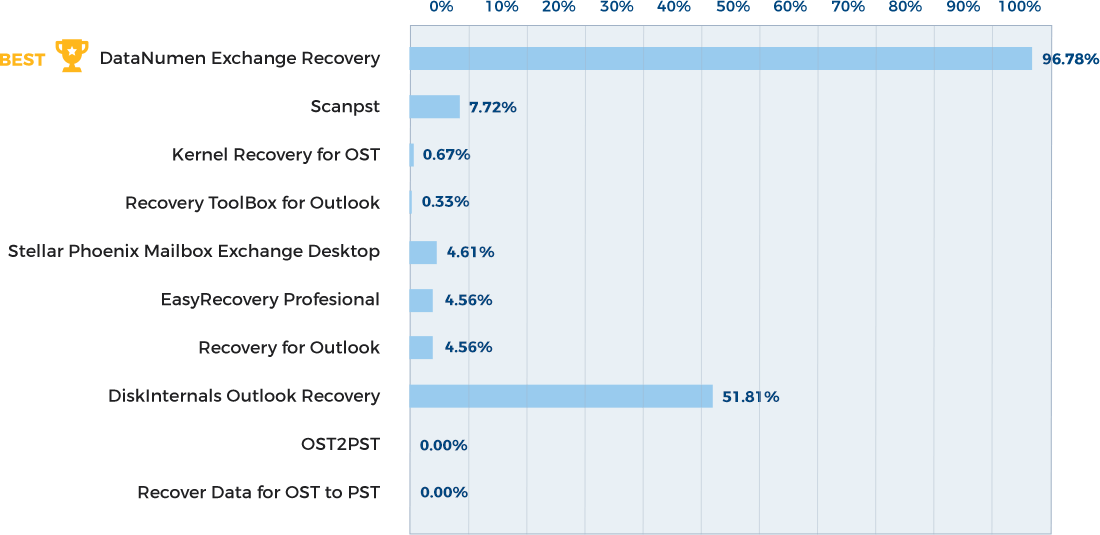
Learn more about how DataNumen Exchange Recovery smokes the competition
Our Customers' Testimonials

非常好用,虽然价格有点小贵,但是我觉得物超所值,通过这个软件
Peter Wen
BitActive, Inc.
Beijing, China
September 1, 2024
Great product. Email repaired perfectly. Alan and team had me up and running with the product again when I replaced my tired old
Great product. Email repaired perfectly. Alan and team had me up and running with the product again when I replaced my tired old computer.
Michael Wilhelm
Cygnet Energy Ltd.
Calgary, Canada
Nov 12, 2022
Congrats!
Your Exchange recovery software is amazing and works like a champ. Thank you.
Erwin W.
May 9th, 2020
DataNumen tool worked perfectly, did the task I needed it to do. A+ Product thank you.
Seth L
May 9th, 2020
I would like to thank you very much for making it possible to recover an email box that you already consider lost, with DataNume Exchange Recovery
I would like to thank you very much for making it possible to recover an email box that you already consider lost, with DataNume Exchange Recovery software.
Congratulations to DataNumen Team!
Nelson d'Avila
February 16th, 2020
I just wanted to say thank you for providing this program. I just used it to successfully convert a large OST file which is allowing me to recover
I just wanted to say thank you for providing this program. I just used it to successfully convert a large OST file which is allowing me to recover 150 emails that went missing.
It did a great job, and I'm super happy.
Thank you very much. I hope you have a most excellent day, and an outstanding weekend!!
Christopher Baber
Asheville, NC
May 10, 2019
By the way, we appreciate a lot your help. We made the decision of buying Datanumen Exchange Recovery tool yesterday, and one of the things we based
By the way, we appreciate a lot your help. We made the decision of buying Datanumen Exchange Recovery tool yesterday, and one of the things we based our decision was the excellent technical service that you provided while we were testing.
Daniel Navarro
April 29, 2019
Hi Team
This tool was so helpful! I've tried other similar software but this one does the trick for recovering ALL my e-mails from OST file.
Genrev
May 20, 2019
I just wanted to say you guys are the best...
You are very appreciated! Now i can get my calendar info from an incorrecty setup OST (should have
I just wanted to say you guys are the best...
You are very appreciated! Now i can get my calendar info from an incorrecty setup OST (should have had calendar info split into a pst instead of included in ost)
Thanks again and have a great day!
Gene Rovinsky
April 5, 2019
You are save my day. Anything I needed - just to convert 2 OST files. Only your program do this. Thanks a lot!
Ilya Sevryukov
Moscow, Russia
April 29, 2019
This is a great piece of software. It recovered a broken OST file first time and it then opened first time in Outlook 2019. I had tried 3 other
This is a great piece of software. It recovered a broken OST file first time and it then opened first time in Outlook 2019. I had tried 3 other pieces of repair software without success and was about to accept the old mail had been lost. Thanks heaps DataNumen! ?
Peter Keating
ex CIO, now retired
Melbourne, Australia
July 15, 2019
Your product did all that it was supposed to do. Recovering my email data file saved me.
I will be recommending your product to anyone who needs
Your product did all that it was supposed to do. Recovering my email data file saved me.
I will be recommending your product to anyone who needs it, and for sure if i need it, i will re-install it.
Excellent product.
Alasmarh
December 26, 2019
After the replacement of my personal PC, I needed to recover for personal use the old UST file converting it to PST. Among a lot of softwares, I have
After the replacement of my personal PC, I needed to recover for personal use the old UST file converting it to PST. Among a lot of softwares, I have found DEXR.EXE that fitted exactly my purpose. Whilst the UI looks very simple, DEXR was able to recover all my emails, contacts and contact groups with no errors. I well keep in mind DATANUMEN for the future as a reference Brand for data recovery.
Roberto Baldassar
Italy
March 7, 2020
After over 10 hours of active time wasted to educate MS on what the problem is when I upgraded my Outlook 2010 to 2013 and the autogeneration of
After over 10 hours of active time wasted to educate MS on what the problem is when I upgraded my Outlook 2010 to 2013 and the autogeneration of mutiple .ost files I finally gave up. when they told me they cannot open the original .ost file. I then got the bright idea to do a quick search on .ost to .pst conversion and boom - 3.8GB of data that was very valuable to me was back in my hands - all this after MS top tier support for Outlook said they couldn't do anything. I am far from a computer geek but when you know more than the tech support rep you should figure out quickly that you are in trouble. It works...
RJ Collins Founder V360
San Diego, CA, USA
May 15th, 2015
Extremely Simple Interface
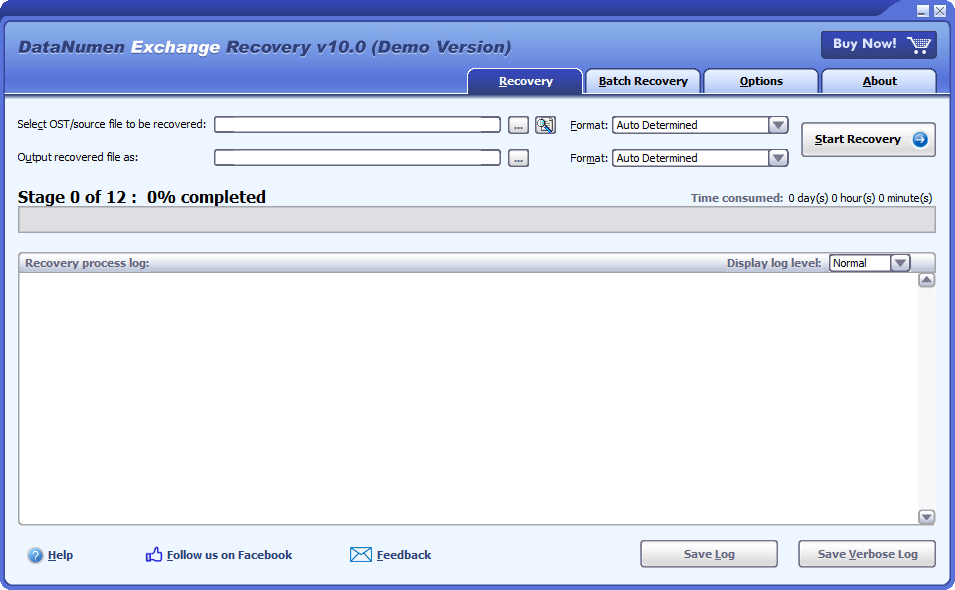
Recovery
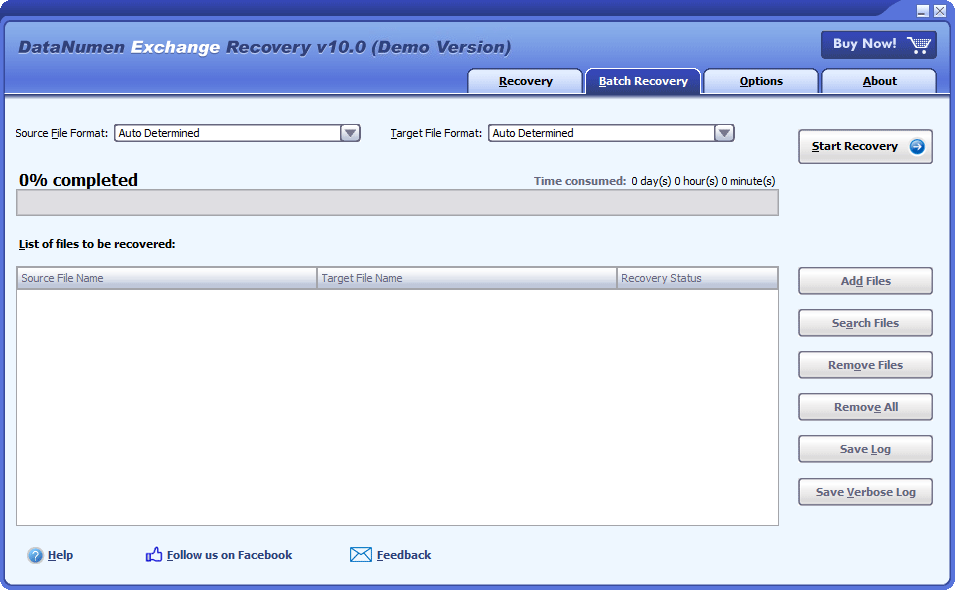
Batch Recovery
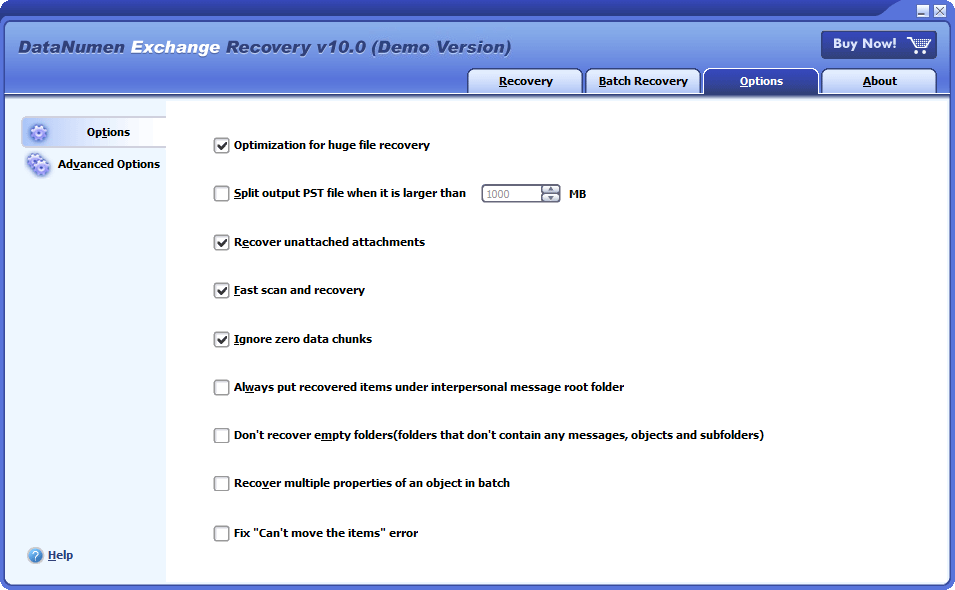
Options
Solution for Following Common Errors and Problems in Outlook OST File

- Exchange is Currently in Recovery Mode
- Oversized OST File Problem
- Delete Exchange Objects by Mistake
Free Download20+ Years Of Experience
Buy Now100% Satisfaction Guarantee
Main Features
- Support Exchange 5.0 + and Exchange ActiveSync.
- Support MS Outlook 97 and higher versions, including Outlook for Office 365 and Microsoft 365.
- Support offline OST files for IMAP accounts(e.g. Outlook.com, GMail.com, Hotmail.com, etc.), Microsoft 365 accounts, and Exchange accounts.
- Convert and recover all kinds of objects, properties, and formats.
- The recovered items are saved and converted to PST file format that can easily be accessed by Microsoft Outlook and other compatible email clients.
- Recover all kinds of deleted objects.
- Powerful OST to PST converter tool.
- Convert and recover oversized 2GB OST files.
Free Download20+ Years Of Experience
Buy Now100% Satisfaction Guarantee
Using DataNumen Exchange Recovery to Convert OST to PST Files
When disaster occurs on Microsoft Exchange server, such as server crashes, server database corruption, etc., the Exchange offline folder (.ost) files on the client computer still contain the mail messages and all other items of your Exchange mail account. You can use our OST to PST converter software to convert OST files to PST files so that the mailbox data inside the files can be accessed in MS Outlook.
Moreover, when you encounter various errors and problems with OST files, such as data corruption, synchronization errors, deleting emails by mistake, oversized 2GB OST file problem, etc., you can always use our conversion tool to recover data from the OST files and convert them into PST file format.
Start DataNumen Exchange Recovery.
Important: Prior to converting the Outlook OST file using DataNumen Exchange Recovery, kindly ensure that you close any other applications that might have access to or make changes to the OST file. Additionally, please make sure to close Microsoft Outlook.
Choose the OST file that you wish to convert:

You have 3 options to select the OST file for conversion:
- Direct Input: You can enter the name of the OST file directly.
- Browse and Select: Click on the
 button to browse and choose the OST file from your computer.
 - Find: Click on the button to look for the OST file that needs to be converted on your local computer.
 button to browse and choose the OST file from your computer.
 button to look for the OST file that needs to be converted on your local computer.
If you are aware of the Outlook version associated with the OST file you wish to convert, you can specify it in the combo box  located next to the source file edit box. The available formats are Outlook 97-2002, Outlook 2003-2010, and Outlook 2013+/Office 365.
Alternatively, if you choose to leave the format as "Auto Determined," DataNumen Exchange Recovery will scan the source OST file to automatically determine its format. Please note that this automatic detection process may require additional time.
During the conversion process, DataNumen Exchange Recovery will save the converted data as a new file in Outlook PST format. This allows you to open and view the converted objects using Microsoft Outlook.
By default, the new file will be named "xxxx_recovered.pst," where "xxxx" represents the name of the source OST file. For instance, if the source OST file is named "Source.ost," the default converted file will be "Source_recovered.pst." If you prefer to use a different name for the converted file, please select or specify it accordingly:

You have two options to specify the name of the converted file:
- Direct Input: You can enter the desired name for the converted file directly.
- Browse and Select: Click on the button to browse and choose the location and name for the converted file.
Both methods allow you to determine the name and location of the converted file according to your preferences.
You have the option to choose the format of the converted PST file using the combo box located next to the converted file edit box. The available formats include Outlook 97-2002 and Outlook 2003+/Office 365.
Alternatively, if you select "Auto Determined" as the format, DataNumen Exchange Recovery will generate the converted PST file in a format compatible with the version of Outlook installed on your local computer.
Simply click on the  button to initiate the OST to PST conversion process with our OST converter tool. The progress bar will display the ongoing conversion progress:

Upon completion of the conversion process, if any data has been successfully converted, you will be presented with a message box similar to the following:
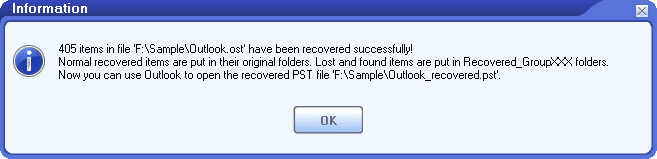
You can now open the converted PST file using Microsoft Outlook and review the converted objects. It's important to note that our OST to PST converter software will try to place the converted objects in their original folders. However, for any lost and found objects, they will be recovered and organized in special folders such as Recovered_Group1, Recovered_Group2, and so on.
More Information
DataNumen Exchange Recovery: The Key to Uninterrupted Email Communication at Nucor
Liberty Mutual Retrieves Data from OST Files with DataNumen Exchange Recovery: A Case Study
Johnson & Johnson Solves Email Recovery via DataNumen Exchange Recovery: A Case Study
Xerox Converts OST to PST with DataNumen Exchange Recovery
Clearwell Integrates DataNumen Exchange Recovery Commandline to Their e-Discovery Platform: A Case Study
What is the difference between PST and OST files?
PST (Outlook Data File) stores the mailbox contents on your local computer, for POP accounts.
OST (Offline Outlook Data File) stores a synchronized copy of the mailbox contents on your local computer, for most other account types, such as IMAP accounts(e.g. Outlook.com, GMail.com, Hotmail.com, etc.), Microsoft 365 accounts, and Exchange accounts.
How to open or import OST files in Outlook?
MS Outlook cannot open or import OST files directly. To access the mailbox data inside an offline OST file, you need to use our OST to PST converter to perform the conversion of OST files to PST files, and then open or import the PST files in Outlook.
Why do I need to convert OST file to PST file format?
There are many cases you need to perform the conversion, including:
- MS Exchange server crashes due to various reasons.
- The Exchange mailbox becomes inactive and you need to access the orphaned OST file.
- You cannot connect to the Exchange server, such as system maintenance, downtime, dismission, etc.
- Recover deleted emails from the Outlook OST file.
- Open or access the OST file data from another Outlook profile.
- Data migration from one computer to another.
- You are using an old version of Outlook and the OST file size reaches 2GB limit.
Use OST to PST converter, you can access the OST mailbox data directly in Outlook.
Is there a free way to convert OST file to PST format?
Yes, if you can still access the mailbox data in the OST file, then you can use the manual method to export OST file to PST file, as follows:
-
- Start Outlook.
- Click File > Open & Export.
- Click the Import/Export option.
- In the Import and Export Wizard dialog box, choose Export to a file and click Next.
- Select Outlook Data File (.pst) as the file type and click Next.
- Select the folder to export from, and make sure Include subfolders is checked. Then click Next.
- Set the path of the output PST file.
- Click Finish.
- If the Outlook PST file does not exist, Outlook will create a new one. It will pop up a dialog box asking you to input the optional password for the new PST file. Just leave it empty and click the OK button.
Then Outlook will export the OST file to the PST file, which can be opened or imported from Outlook later. However, if you are unable to access the orphaned OST file, then you need to use our conversion tool to do the task.
Does your tool need to connect to the Exchange server to convert OST to PST file?
No. It does not need to connect to the Exchange server to perform the OST to PST conversion.
What makes your tool stand out from other OST to PST converters?
Our tool has the best recovery rate and the most comprehensive features among all the OST to PST converters in the industry. You can see the comparison between it and other competitors.
Can your software convert OST emails to .msg files?
Each MSG file stored only one email. It is called Outlook Message Format. It has two variants, i.e., non-Unicode format and Unicode format. Both will use .msg as the file extension.
If you want to export emails in an offline OST file as .msg files, please do as follows:
- Convert the OST file to a PST file via our file converter.
- Start Outlook.
- Open the PST file in Outlook.
- Double-click to open the email you want to convert.
- Click File -> Save to save the email as an Outlook Message Format or Outlook Message Format – Unicode.
- Repeat steps 1 to 5 for all OST emails you want to export as .msg files.
Can your software CONVERT OST emails to .eml/.XML files?
Each EML file stores only one email. The email contents are saved as Internet Message Format.
XML(Extensible Markup Language) file can also be used to store an email.
If you want to export all emails in an offline OST file as .eml/.xml files, you need to do as follows:
- Export the wanted emails to .msg format. Both non-Unicode and Unicode formats are OK.
- Based on the bitness of your Outlook, download the corresponding version of MFCMAPI. For the 32bit version of Outlook, you need to download the one without the x64 tag. And for the 64bit version, you need to download the one with the x64 tag.
- Start MFCMAPI.
- Click Advanced -> Import/Export -> Convert MSG to EML or Convert MSG to XML to convert to .eml/.xml format.
- Keep all the default values, click the OK button.
- Select the .msg file you saved in step 1.
- Set the .eml/.xml file name and location, then click Save.
- Now you have successfully saved one email in .eml/.xml format.
- Repeat step 1 to 8 for all emails you want to export as .eml/.xml files.
Can your tool convert OST mailbox to MBOX format?
MBOX format just concatenates all messages in plain text format. To convert OST mailbox to MBOX format, take the steps below:
- Use our file converter to convert the Exchange OST file to PST file format.
- Use an email client Thunderbird to import the PST file and convert it to MBOX format.
Can your tool convert OST contacts to vCard files?
vCard file is also called Virtual Contact File(VCF) file. It is the standard for electronic business cards.
To convert OST contacts to vCard files, please do as follows:
- Convert the OST file to a PST file via our tool.
- Start Outlook.
- Open the PST file in Outlook.
- Double-click to open the contact you want to convert.
- Click File -> Save to save the contact as vCard files (*.vcf) format.
- Repeat steps 1 to 5 for all OST contacts you want to export as .vcf files.
How long will it take to complete the conversion process?
This depends on many factors, including:
- Outlook OST file size.
- The number of items in the OST file.
- The complexity of the OST file.
- The performance of your computer system.
Normally for a 10GB OST file, it will take about 2 to 3 hours to convert it to a PST file on a 64bit modern computer.
Can your tool recover corrupt OST files?
Yes, our tool can recover data from corrupt or damaged OST files and output them into a PST file.
Are there any data losses during the conversion process?
If your OST file is not corrupt, then there will be no data loss. All the items in the original OST file will be converted and saved into the new PST file. If your OST file is corrupt, then all unaffected data can be converted. For the affected data, they will also be recovered in the maximum possibility.
What is the limitation of the free demo version, when compared with the full version?
The only limitation is that the demo version will replace the message body with a brief demo text, while the full version will output the actual recovered contents.
Which Windows versions are required?
Currently, our OST converter tool supports all Windows OS versions, including Windows 95/98/ME/NT/2000/XP/Vista/7/8/8.1/10 and Windows Server 2003/2008/2012/2016/2019. And it supports both 32bit & 64bit systems.
Related Products
DataNumen Outlook Drive Recovery
Recover lost Outlook data, including emails and other objects from raw disks or drives
Details
DataNumen Outlook Express Repair
Recover emails from corrupt Outlook Express dbx and mbx files.
Details
 DataNumen Exchange Recovery