
Recover unsaved Word document with complete 2026 guide, including free tips, advanced methods & professional tools.
1. Introduction
1.1 Common Causes of Unsaved Word Documents
In general, Word documents are not saved for the following reasons:
- Accidental closure without saving—clicked Don’t Save by mistake
- System crash, freeze, power outage, or unexpected shutdown
- Windows Update forcing Word to close mid-session
- Word application crash or freeze
- OneDrive sync conflicts overwriting or reverting file versions
1.2 Two Key Scenarios This Guide Covers
- Scenario A: A brand-new file that was never saved to disk
- Scenario B: An existing file with unsaved changes lost due to a crash, freeze, accidental closure, or overwrite
2. Before You Start: Immediate Actions
2.1 Stop Writing to the Drive Where the File Was Stored
As soon as you realize a document is unsaved, stop all activities on the drive where it was stored. Every file you create, download, or install risks overwriting the temporary data that could be used for recovery. Do not install recovery software to the same drive you are recovering from.
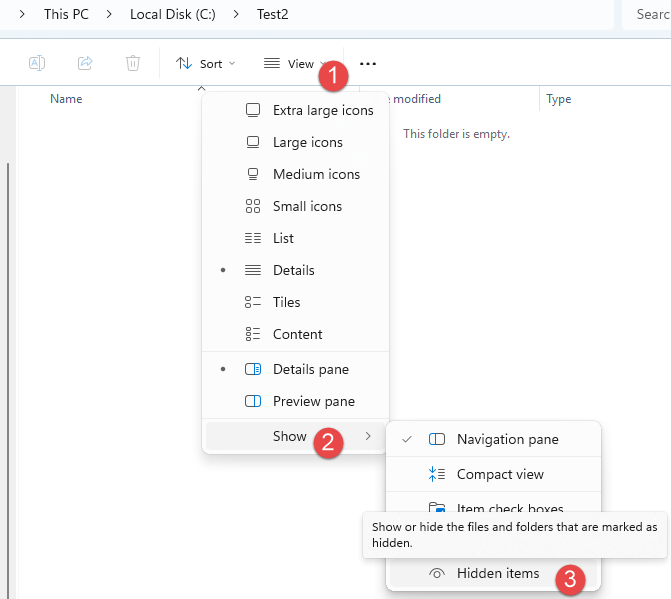
2.2 Enable Hidden Files and Folders in File Explorer
AutoRecover and temporary files are hidden or reside in hidden system folders. Make them visible before searching and recovering.
Windows 10: Open File Explorer, click View, and check Hidden items.
Windows 11: Open File Explorer, click View -> Show -> Hidden items:
3. Method 1: Use the Yellow Message Bar
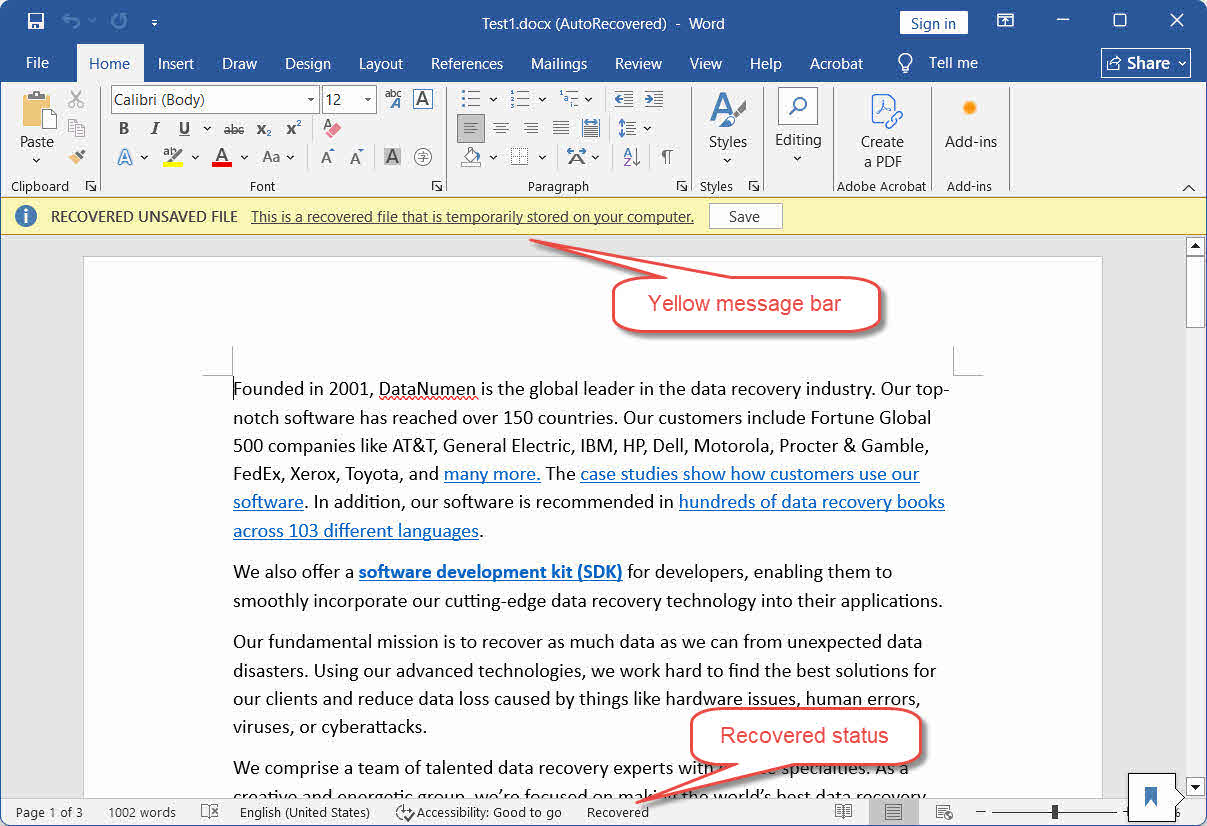
Each time Word starts, it automatically scans for AutoRecover files from the previous session and opens them. This is the fastest way to restore an unsaved Word document after a crash.
- Reopen Word after the crash or unexpected closure.
- Word opens all recovered documents automatically, each in its own window.
- Each recovered document displays a yellow message bar at the top:
RECOVERED UNSAVED FILE — This is a recovered file that is temporarily stored on your computer. - Click Save in the yellow bar immediately.
- Use File -> Save As to save the file to a permanent location with a proper name.
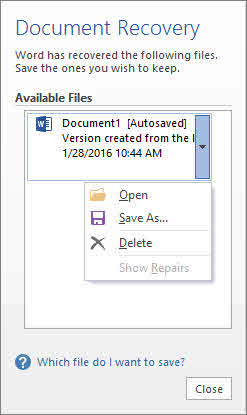
Note: In Word 2016 and earlier, recovered files appear in the Document Recovery Pane on the left instead of opening individually. Double-click the file name in the pane, then save.
Note: If you see the yellow bar and close the file without clicking Save, Word moves the temporary copy to the Recycle Bin—not permanently deleted. See Method 13.
4. Method 2: Recover Unsaved Word Documents via File > Open
Use this method when you do not see the wanted document with a yellow bar or in the Document Recovery Pane on startup:
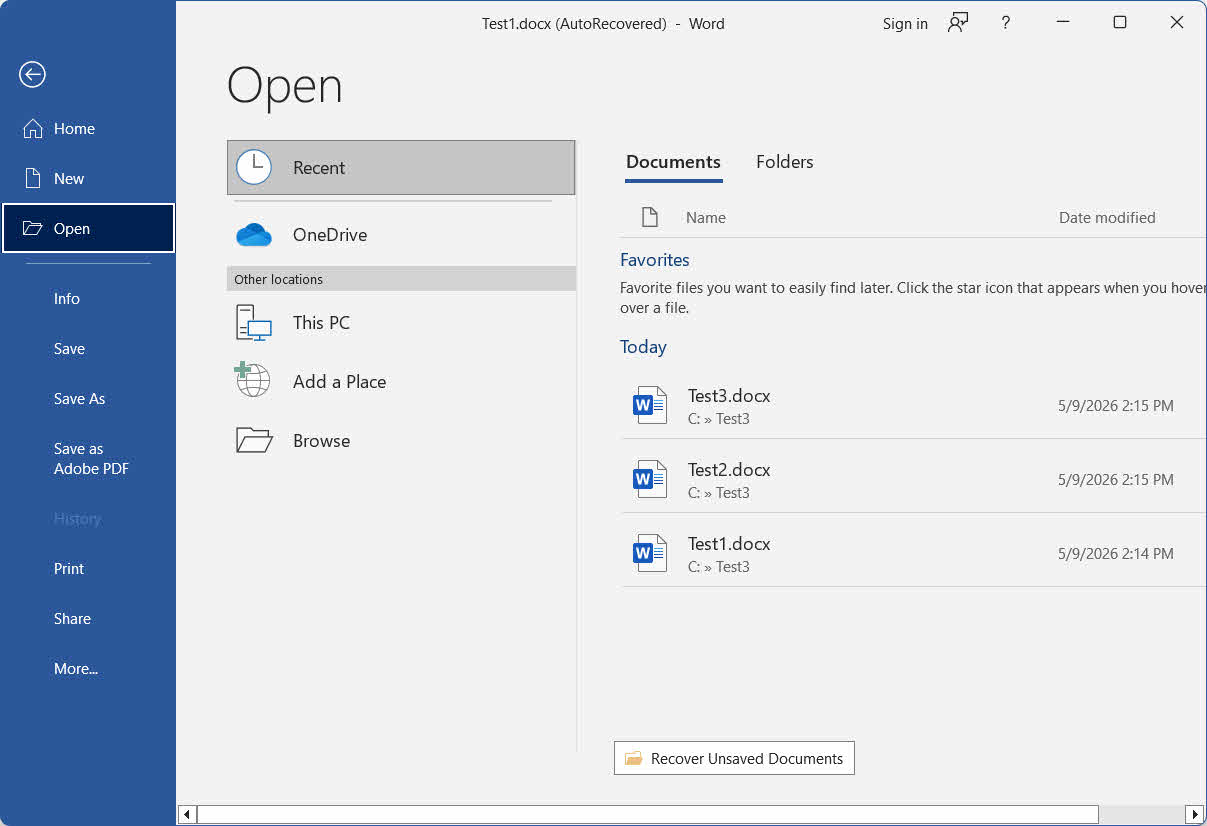
- Start Word and click File -> Open -> Recent.
- Scroll to the bottom of the Recent list and click Recover Unsaved Documents.
- In the Open window, select your file and click Open.
- Immediately save the recovered file using File -> Save As.
5. Method 3: Recover Unsaved Word Documents or Versions via File > Info
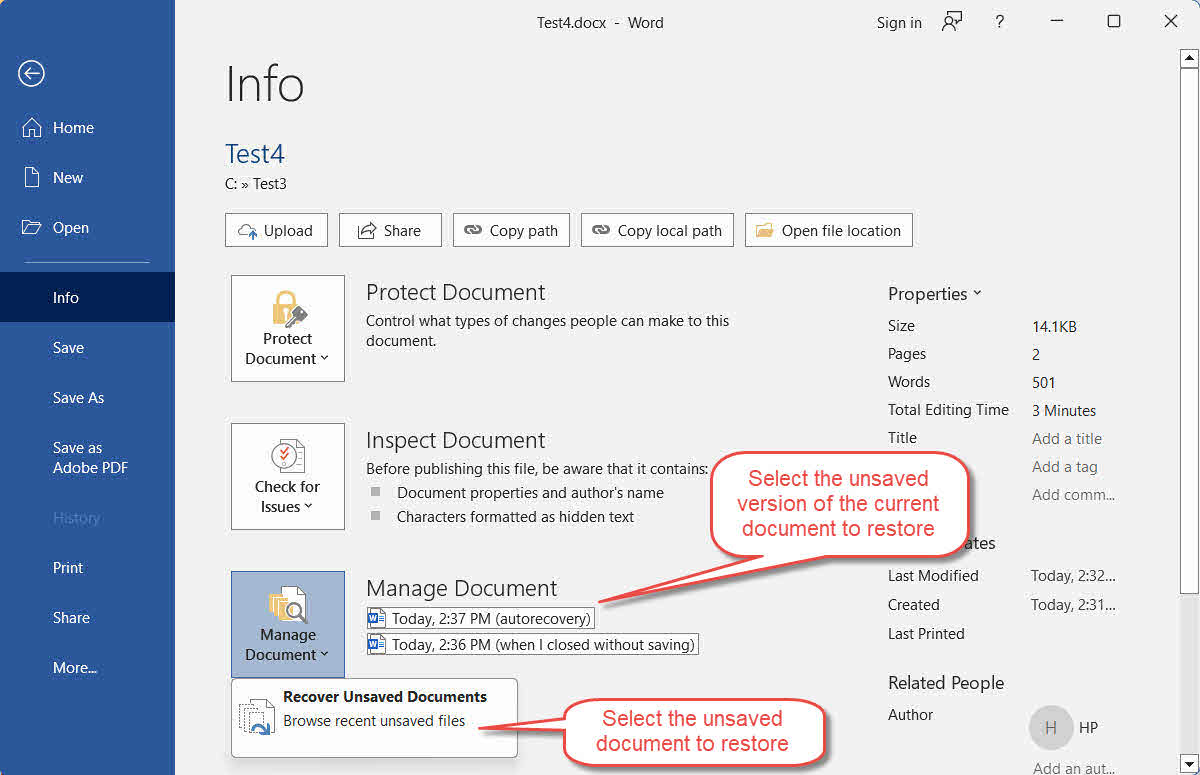
This is a more advanced method, which can recover both the unsaved documents and the unsaved versions of the current open document, including the unsaved version of the previous session:
- Open Word and go to File -> Info -> Manage Document.
- Click Recover Unsaved Documents from the dropdown menu.
- Select your file and click Open.
- Other than this, beside the Manage Document button, you can see a list of timestamped autosave versions of the currently open document, or any version labeled when I closed without saving in the previous session. Choose the version you want to open.
- Immediately save the recovered document or version using File -> Save As.
6. Method 4: Search for AutoRecover (.asd) Files Manually
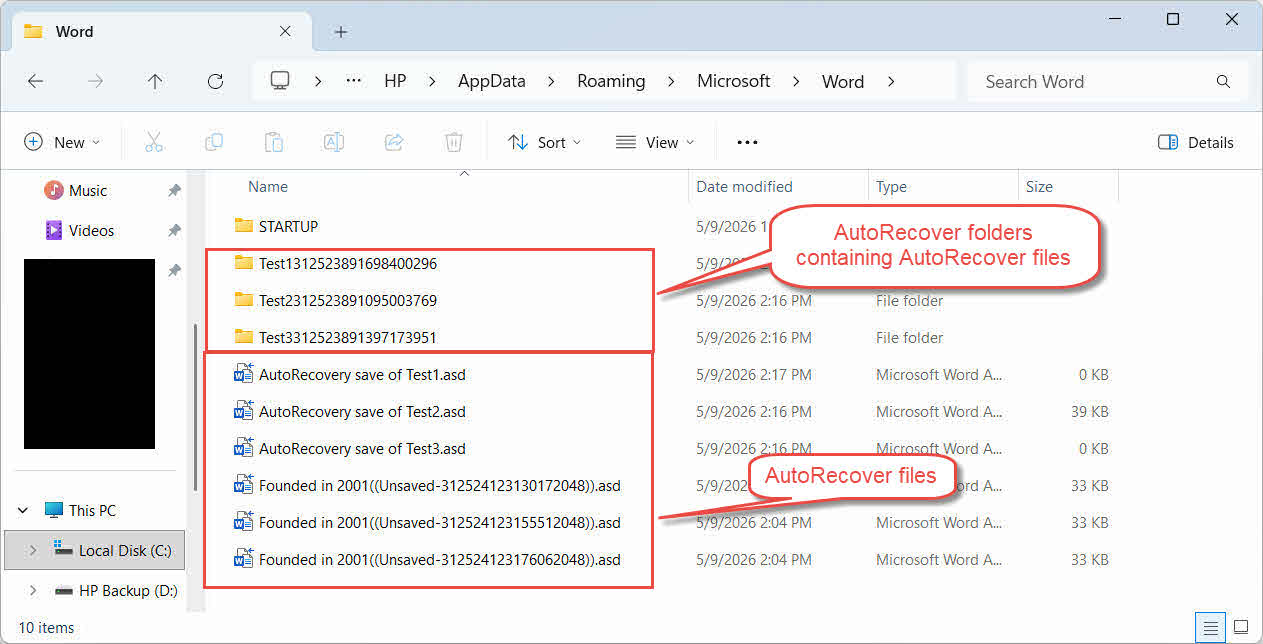
If Methods 1–3 do not recover your wanted file, search the AutoRecover folder directly. Word saves AutoRecover data as .asd files at that folder.
For Windows:
- Press Windows + R, type %AppData%\Microsoft\Word\ and press Enter.
- Sort files by Date Modified to bring the newest files to the top.
- Identify any .asd candidate file and make a copy of it before opening.
- Open Word, go to File -> Open -> Browse, change the file type dropdown to All Files, and open the .asd file.
- If the .asd file will not open, change its extension to .doc and try again. Note: .asd is actually in .doc format, do NOT change its extension to .docx.
- Save immediately with File -> Save As.
For Mac:
- Open Finder, click Go -> Go to Folder.
- Type the following path and press Enter:
~/Library/Containers/com.microsoft.Word/Data/Library/Preferences/AutoRecovery/
- Open any .asd file found here with Microsoft Word.
- Save immediately with File -> Save As.
7. Method 5: Search the UnsavedFiles Cache Folder
Word maintains a dedicated UnsavedFiles cache folder that may contain recoverable copies of recent documents:
- Press Windows + R, type %LocalAppData%\Microsoft\Office\UnsavedFiles and press Enter.
- Sort files by Date Modified and identify any relevant file.
- Make a copy of the file before opening it.
- If a file will not open:
- For .asd file, change its extension to .doc and try again. Note: .asd is actually in .doc format, do NOT change its extension to .docx.
- For other files, change its extension to .doc or .docx and try again.
- Save immediately with File -> Save As.
8. Method 6: Use Word Backup Files (.wbk)
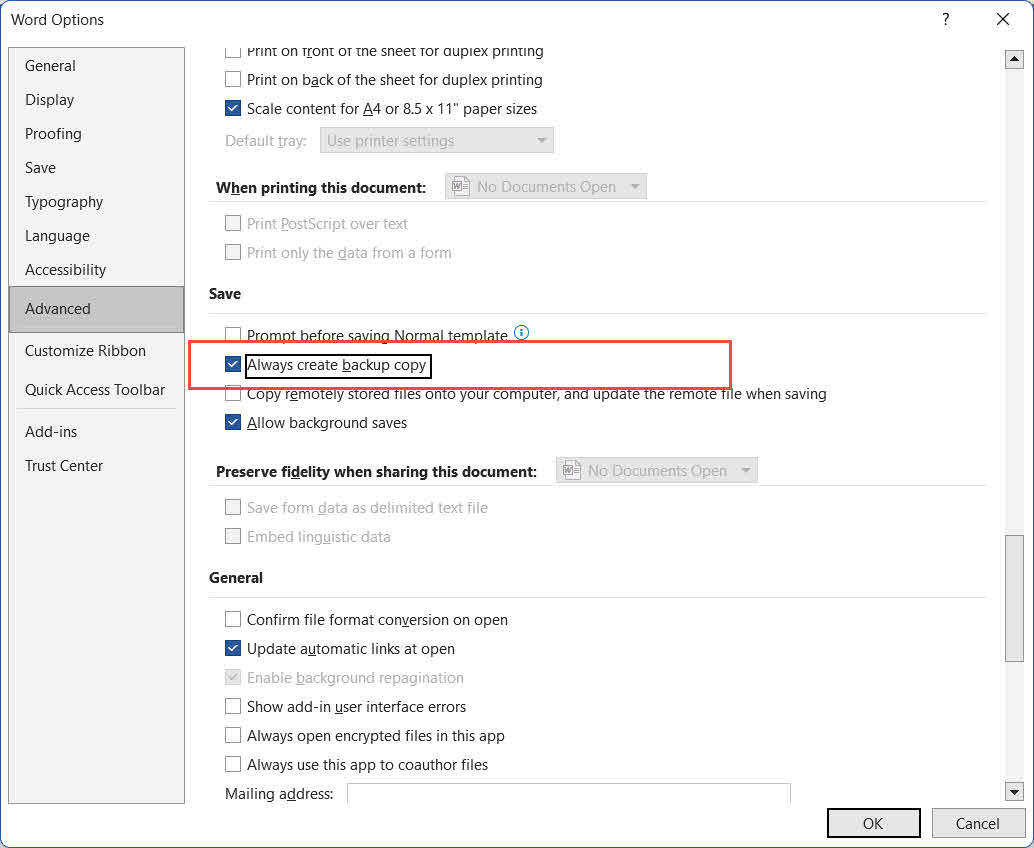
If the Always create backup copy option was enabled in Word before the loss occurred, a .wbk file exists alongside the original. This backup holds the version from before your most recent save—useful when an unwanted save overwrote content you needed.
To verify the option is enabled: go to File -> Options -> Advanced, scroll to the Save section, and check Always create backup copy. This is a global setting that applies to all documents saved going forward once enabled.
- Open the folder where the original Word file is saved and look for a file named Backup of [original filename].wbk.
- Double-click the .wbk file to open it in Word.
- Use File -> Save As to save a permanent copy to a safe location.
9. Method 7: Search the TemporaryBackupFile Folder
Some users have successfully recovered Word documents from a dedicated TemporaryBackupFile folder, particularly after unexpected shutdowns or Windows Updates:
- Open File Explorer and navigate to:
C:\Users\<Username>\AppData\Local\Microsoft\Word\TemporaryBackupFile
Replace <Username> with your Windows username.
- Look for a file that has today’s date prepended to your original file name.
- Open the file in Word and use File -> Save As to save a permanent copy.
10. Method 8: Search for Temporary Files
Word and Windows create temporary files during an active editing session, which can help to recover unsaved Word documents:
For Windows:
- Press Windows + R, type %temp%, and press Enter.
- In the File Explorer search box, type
*.tmpand press Enter. Sort results by Date Modified. - Look for a .tmp file larger than 0 KB created during your editing session.
- Make a copy of any candidate file and change its extension to .docx.
- Open the renamed file in Word.
- If it opens successfully, save immediately with File -> Save As.
Note: Also check files beginning with ~, ~$, or $ in the temporary folder and the folder where the original file was saved — Word creates these during an active session and they may contain recoverable content. In the File Explorer search box, enter the following filters:
- Files starting with ~:
System.FileName:~<"~" - Files starting with ~$:
System.FileName:~<"~$" - Files starting with $:
System.FileName:~<"$"
For Mac:
- Open Terminal via Spotlight (Command + Space, type Terminal, press Enter).
- Type open $TMPDIR and press Enter. A Finder window opens at the system temp folder.
- Look for files ending in .tmp or .asd, or names beginning with ~Word.
- Open any promising file to verify its contents.
- Save a permanent copy via File -> Save As.
11. Method 9: Recover from Outlook Temporary Internet Cache (Email Attachments)
If you opened a Word document directly from an Outlook email attachment and worked on it without saving to a permanent location, a temporary copy may remain in Outlook’s content cache folder:
- Press Windows + R, type %LocalAppData%\Microsoft\Windows\INetCache\Content.Outlook\ and press Enter.
- Sort by Date Modified and look for your file.
- Make a copy, change its extension to .docx if needed, and open it in Word.
- Save immediately with File -> Save As to a permanent location.
12. Method 10: Search the Whole Computer
Instead of checking individual folders, you can also search the entire computer for potential candidate Word documents or temporary files created during your work session:
- Open File Explorer and click This PC in the left panel to search across all drives.
- Click in the search box, type
*.doc OR *.docx OR *.tmp OR *.wbk OR *.asdand press Enter. - Sort the results by Date modified to bring the most recent files to the top.
- Copy any promising file to a separate folder before opening it. Do not open Word during this step, as starting Word may clear the AutoRecover folder.
- For .tmp files, change its extension to .docx before opening.
- Open the file in Word. If successful, save immediately with File -> Save As.
If the above search does not find the wanted files, try to find Word temporary files beginning with ~, ~$, or $. In the search box, enter the following filters:
- Files starting with ~:
System.FileName:~<"~" - Files starting with ~$:
System.FileName:~<"~$" - Files starting with $:
System.FileName:~<"$"
13. Method 11: Recover from AutoSave
AutoSave is another feature that can help to recover unsaved Word document. It is completely different from AutoRecover, though people always confuse them.
AutoSave is only available in Word for Microsoft 365, and only for files stored on OneDrive, OneDrive for Business, or SharePoint Online. When active, it syncs every change to the cloud continuously, making it possible to retrieve any point in your editing history.
- Open the file in Word.
- Click the file name in the top title bar.
- In the popup menu, click Version History.
- The Version History panel opens on the right, listing all versions with timestamps. Browse to find the version you need.
- Click the version to preview it.
- Click Restore in the information bar to restore that version.
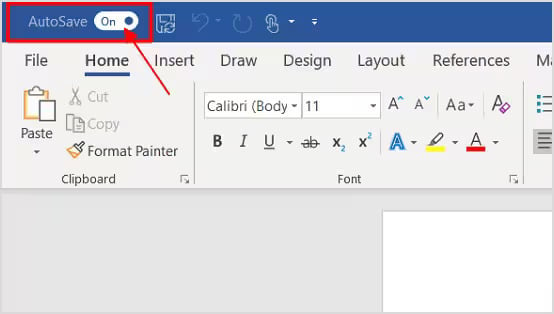
Note: If the AutoSave toggle in the top-left corner of Word is off, AutoSave is not active for that file. Saving the file to OneDrive and turning on the toggle will enable it going forward.
14. Method 12: Restore a Previous Version
If the file is stored in a location that supports versioning, you can restore a previous version directly without relying on Word built-in features:
- Windows File History
- Mac Time Machine
- Google Drive Version History
- OneDrive Version History
- SharePoint Version History
- Dropbox Version History
15. Method 13: Recover from Recycle Bin
15.1 Scenarios that Your Document is in the Recycle Bin
- You dismissed an AutoRecover recovery prompt without saving—Word moves the temporary copy to the Recycle Bin rather than deleting it permanently.

- You deleted the .docx file directly without emptying the Recycle Bin.
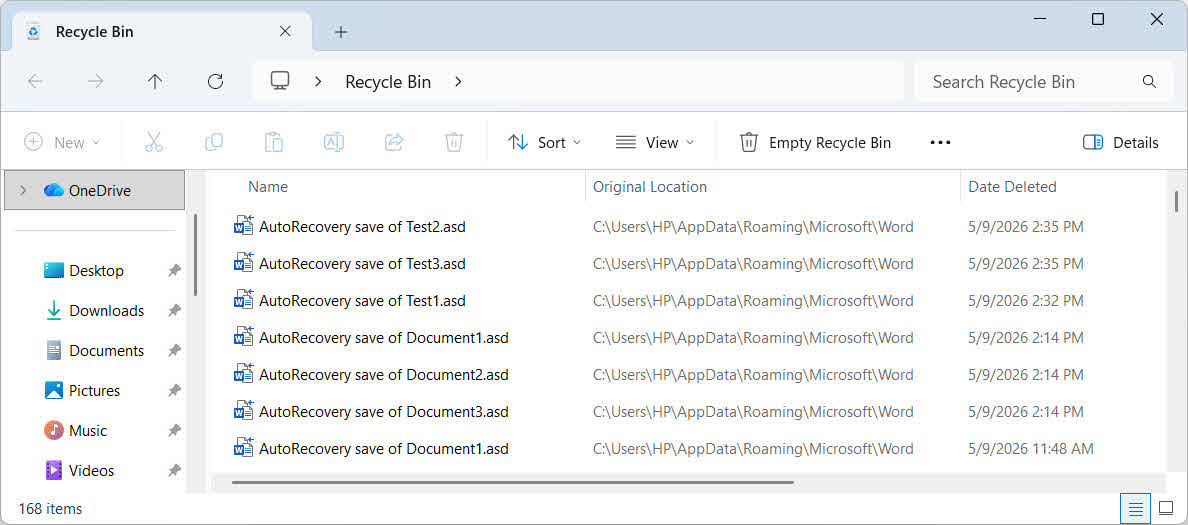
Always check the Recycle Bin before concluding the file is permanently gone.
15.2 Recover from the Recycle Bin
- Windows Recycle Bin
- Mac Trash
- OneDrive Recycle Bin
- SharePoint Recycle Bin
- Google Drive Trash
- Dropbox Deleted Files
- iCloud Drive Recently Deleted
16. Method 14: Use Professional File Recovery Software
If all the above methods fail, professional file recovery software can scan your drive and recover unsaved Word documents:
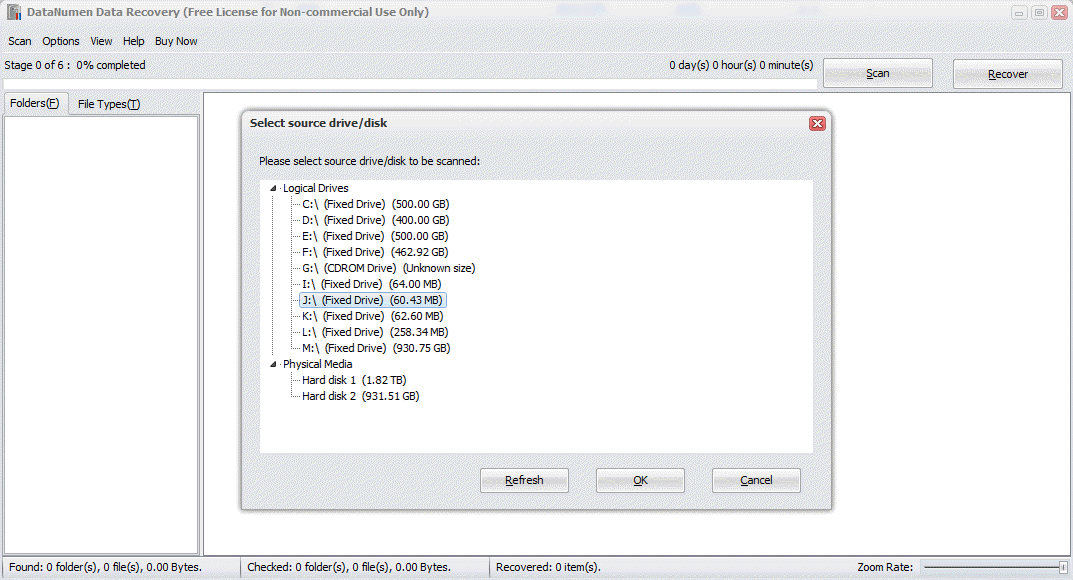
- Download and install DataNumen Data Recovery.
- Select the drive to scan.

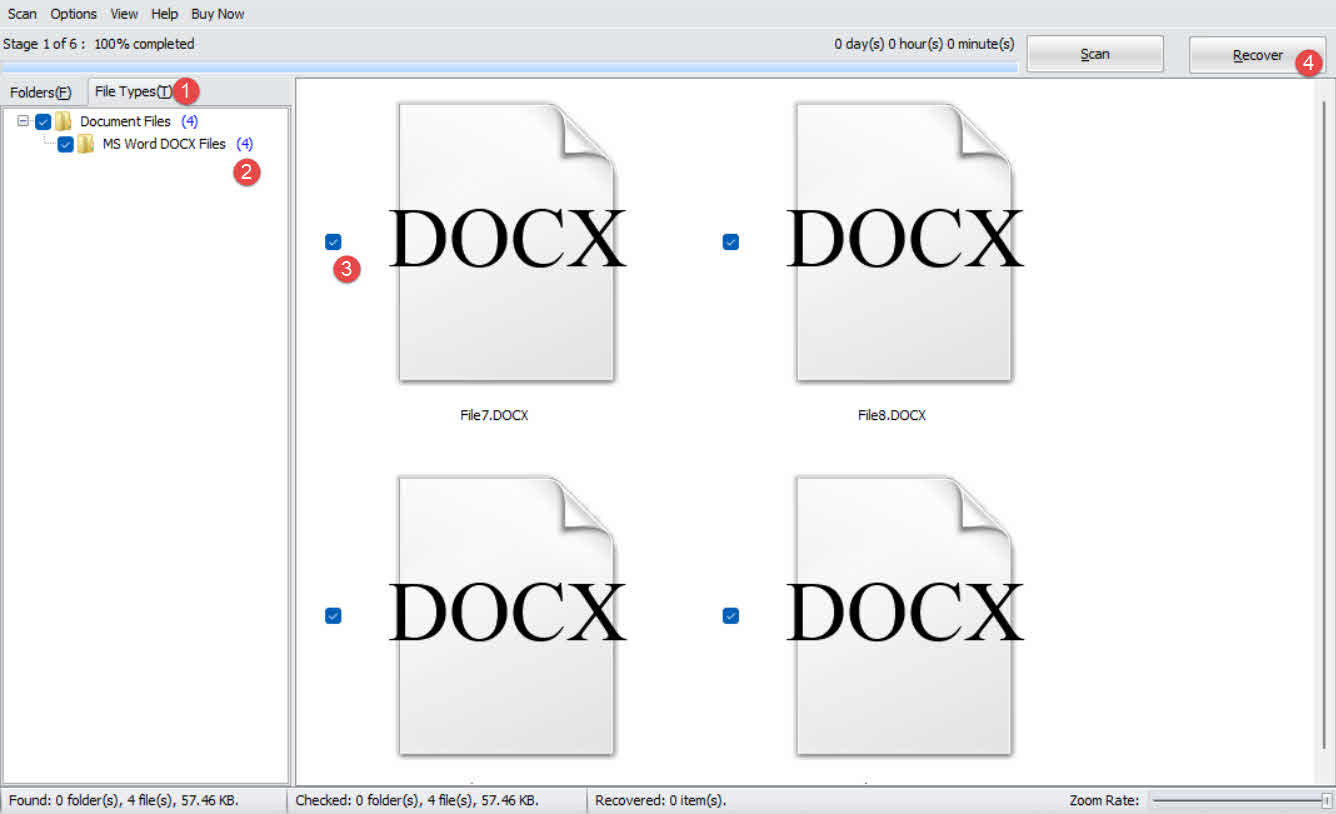
- Click the File Type tab in the left panel.
- Select Document Files to filter all document files. Or more specifically, select MS Word DOCX files.
- Check the potential candidate files in the right search results:

- Click the Recover button to save recovered files to a different drive to avoid overwriting data.
17. Repair Corrupt Recovered Word Documents
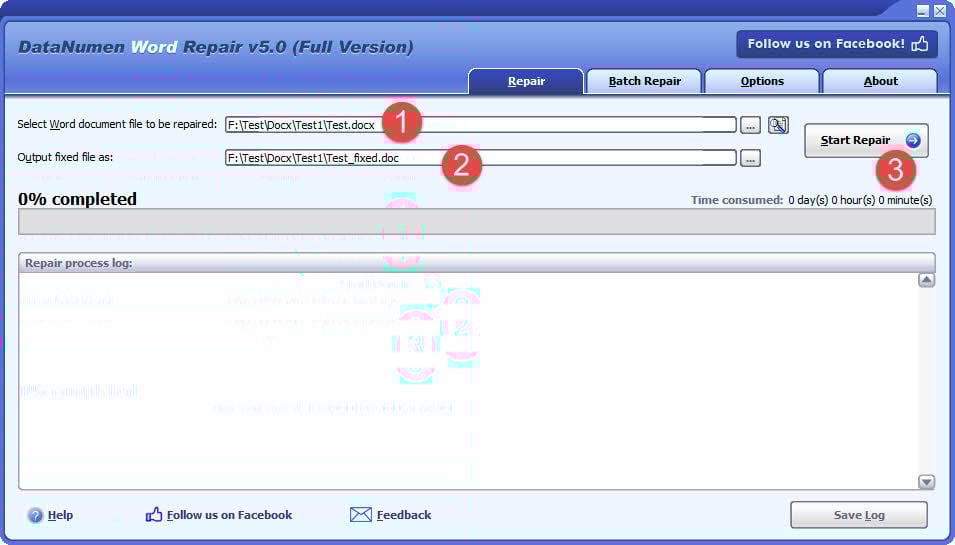
From time to time, unsaved files recovered from crash states, AutoRecover folders, temp folders, or data recovery scans may be corrupt and will not open in Word properly. In such a case, DataNumen Word Repair can repair corrupt Word DOC and DOCX files and output a fixed file:
- Close Microsoft Word and other applications that may modify your source Word document.
- Select the corrupt Word document.
- Set the fixed document name.
- Click the “Start Repair” button
- After the repair process, DataNumen Word Repair will output a new fixed Word document.
18. How to Prevent Future Loss
To prevent losing unsaved documents again, apply the following methods:
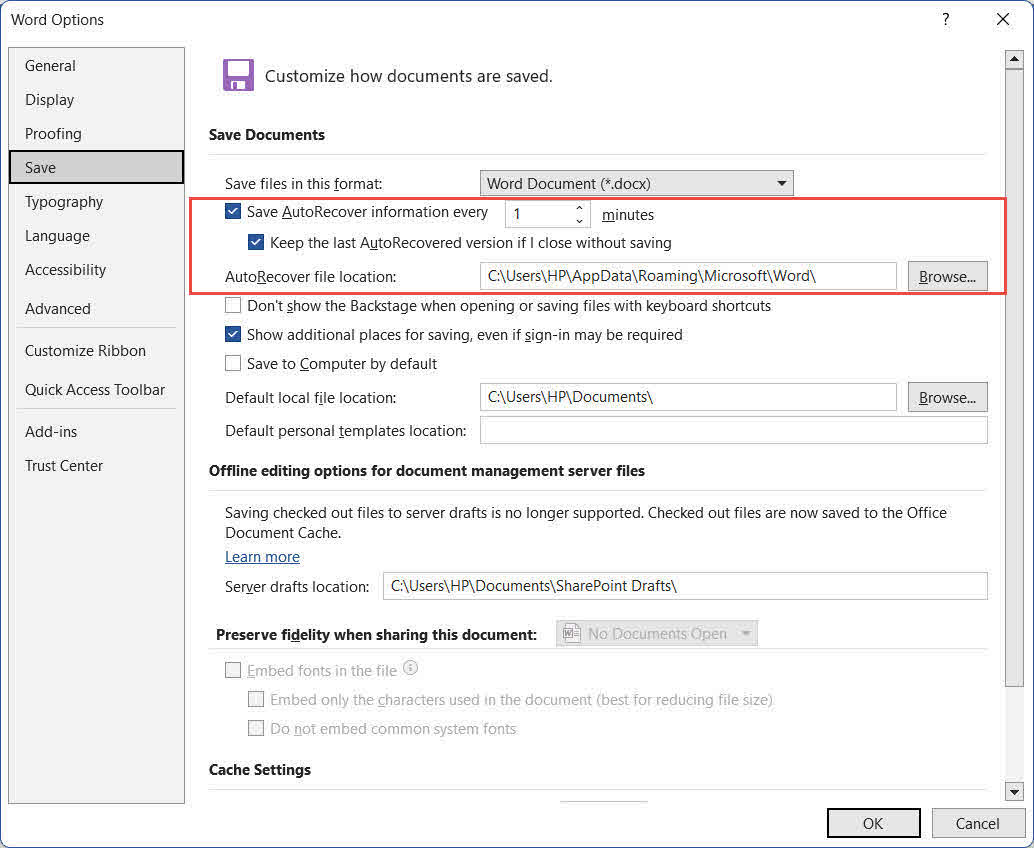
- Enable AutoRecover and shorten the interval. In Word, go to File -> Options -> Save. Check Save AutoRecover information every ## minutes and reduce the interval from the default 10 to 1–2 minutes. Also, check Keep the last AutoRecovered version if I close without saving:

- Enable Always Create Backup Copy: Go to File -> Options -> Advanced, scroll to the Save section, and check Always create backup copy. Word will maintain a .wbk of the previous saved version alongside every document.
- Use VBA to show a periodic save reminder for unsaved Word documents.
- Save locally before opening email attachments. When you open a Word document directly from an Outlook email attachment, save it to a permanent local file immediately and make edits on the local file thereafter.
- Adopt a 3-2-1 backup strategy: Keep 3 copies of critical files on 2 different media types, with 1 copy stored offsite or in the cloud.
- Email yourself a copy at the end of each session: For critical documents, emailing a copy provides a simple, timestamped off-device backup.
- Keep a local backup alongside OneDrive: Some users have reported data loss caused by OneDrive sync conflicts. Maintain a local copy of critical files in addition to cloud storage.
19. Frequently Asked Questions
Q: Can I recover a Word document I never saved at all?
A: Yes, in many cases. If AutoRecover was enabled, Word saves drafts of new documents to %AppData%\Microsoft\Word\ and %LocalAppData%\Microsoft\Office\UnsavedFiles. Use Methods 1–5 to check these locations. If no draft exists on disk, third-party recovery software (Method 14) is the last option.
Q: How long does Word keep AutoRecover files?
A: Word deletes AutoRecover files when a document is closed normally, whether saved or deliberately discarded. If Word crashes, it retains the files until you restart Word and accept or dismiss the recovery prompt. Dismissed files go to the Recycle Bin, not permanent deletion.
Q: Where are AutoRecover files stored on Windows?
A: The default locations are %AppData%\Microsoft\Word\ for .asd files created during editing, and %LocalAppData%\Microsoft\Office\UnsavedFiles for drafts of files closed without saving.
Q: Where are AutoRecover files stored on Mac?
A: ~/Library/Containers/com.microsoft.Word/Data/Library/Preferences/AutoRecovery/. Use Finder -> Go -> Go to Folder to navigate there, as the Library folder is hidden by default.
Q: What is the difference between AutoSave and AutoRecover?
A: AutoRecover saves a temporary local copy of your document at a set interval (default 10 minutes) and works for all files regardless of where they are stored. AutoSave is a Microsoft 365-only feature that syncs every change continuously to OneDrive or SharePoint; it does not work for locally stored files.
Q: How do I retrieve an unsaved Word document after a crash?
A: Reopen Word. In Word 2019 and Microsoft 365, recovered documents open automatically with a yellow message bar—click Save immediately. In Word 2016 and earlier, the Document Recovery Pane appears on the left side of the screen. Double-click the file in the pane to open it, then save.
Q: Can I find an unsaved Word document after restarting my computer?
A: Possibly. AutoRecover .asd files in %AppData%\Microsoft\Word\ survive a reboot if Word crashed rather than closed normally. Temporary files in %temp% are less likely to survive a restart. Check the AutoRecover folder first.
Q: What is a .asd file and how do I open it?
A: A .asd file is a Word AutoRecover file. Open it via File -> Open -> Browse, change the file type dropdown to All Files, and open the .asd file. If Word refuses to open it, make a copy and change its extension to .doc, then try again. Note: .asd is actually in .doc format, do NOT change its extension to .docx.
Q: What if I accidentally clicked “Don’t Save” in Word?
A: Check %LocalAppData%\Microsoft\Office\UnsavedFiles immediately—Word writes a draft there when you close without saving. Also try File -> Open -> Recent -> Recover Unsaved Documents at the bottom of the list. If you dismissed a recovery prompt, check the Recycle Bin—Word moves dismissed recovery files there rather than deleting them.
Q: Can third-party software restore a Word document that was never saved?
A: It is unlikely but possible. Third-party tools scan for file fragments marked as deleted but not yet overwritten on disk. Success depends on whether AutoRecover wrote any data to disk during the session and whether that data has since been overwritten. The sooner you run the scan, the higher the chance of recovery.
20. Conclusion
To find an unsaved Word document, begin with the fastest built-in options: the yellow message bar on Word startup (Method 1), the Recover Unsaved Documents menu via File -> Open or File -> Info (Methods 2–3), and the AutoRecover folder (Method 4). If those fail, check the UnsavedFiles cache (Method 5), backup files (Methods 6–7), temporary files (Method 8), and the Outlook cache (Method 9). For a broad sweep, run a whole-computer search (Method 10). For documents on OneDrive or SharePoint, use AutoSave version history and cloud recycle bins (Methods 11–13). As a last resort, DataNumen Data Recovery (Method 14) can retrieve files that no other method can recover. And if the recovered documents cannot open, DataNumen Word Repair can repair them.
Going forward, enable AutoRecover and reduce the interval to 1–2 minutes, enable Always create backup copy, and follow a 3-2-1 backup strategy. These three strategies together prevent most unsaved document scenarios before they occur.
About the Author
Shou Sheng is a Microsoft Office specialist with over 10 years of hands-on experience in Word, Excel, and PowerPoint troubleshooting across enterprise and educational environments. He has helped thousands of users recover lost work, resolve file corruption issues, and optimize their Office workflows.
Through his technical writing, Shou is committed to translating complex Office troubleshooting into clear, actionable steps for users of all skill levels. He keeps up with the latest developments in Microsoft 365 and continuously tests methods against real-world file corruption scenarios to ensure accuracy.
Have questions about this guide or need additional help with Office issues? Shou welcomes feedback and suggestions for improving these troubleshooting resources.