
Repair STL files with our complete 2026 guide, including free recovery tips, advanced methods & professional tools.
1. Introduction
1.1 What Is an STL File?
STL (STereoLithography) is the dominant file format for 3D printing, rapid prototyping, and computer-aided manufacturing, and is supported by virtually all CAD and mesh editing tools.
1.2 Why We Need to Repair STL Files before Printing
STL files frequently contain errors that prevent a slicer from producing a correct toolpath or cause a print to fail entirely. The main reasons a file may need repair are:
- Mesh conversion errors. 3D designers build models using smooth curves and splines. When a model is exported to STL, those surfaces are converted into a triangulated mesh. Done poorly, the conversion introduces holes, non-manifold edges, inverted normals, and floating fragments.
- Non-watertight or non-manifold geometry. Not all STL files are watertight or manifold. A slicer cannot correctly interpret an inner surface from an outer surface on a flawed file, making it impossible to determine where material should be deposited.
- Slicer rejection or misinterpretation. Slicer software rejects or misinterprets corrupt or non-manifold models. Corrupted geometry causes print failures, wasted material, and lost time.
- Modeling and workflow errors. Boolean operations in CAD software, 3D scanning artifacts, kitbashing (copy-pasting mesh fragments from multiple files), and poor exporter behavior in tools such as Blender or SketchUp all produce invalid geometry.
- File-level corruption. The STL file’s binary data or structures are damaged by hardware failures, software crashes, transfer errors, malware, etc., making the file unreadable by any slicer software or editor tools. This requires a fundamentally different solution from mesh geometry repair.
2. Common Mesh Geometry Errors
Mesh geometry errors are problems within the STL’s internal structure that prevent a slicer from correctly interpreting the model. The file can be opened, but its geometry is invalid, so we need to repair the STL file. The following are the most common types.
2.1 Holes and Gaps in the Mesh (Non-Watertight)
The most frequent STL error is a mesh that is not watertight — it has open edges where triangle faces are missing, leaving holes in the surface. A 3D printer cannot distinguish inner from outer surface without a fully closed mesh. Holes are caused by incomplete boolean cuts, incomplete modeling, or scanning gaps over dark or reflective surfaces.

2.2 Non-Manifold Geometry
A manifold mesh requires every edge to be shared by exactly two faces. Non-manifold geometry occurs when edges are shared by more than two faces, or when identical edges are stacked directly on top of each other. This typically results from extruding faces or edges without moving them. The structure is geometrically ambiguous — analogous to M.C. Escher’s impossible drawings — and 3D printers cannot resolve it.

2.3 Floating Shells and Surfaces
Floating shells are disconnected mesh fragments not attached to the main body of the model. They are a common artifact of 3D scanning, where unsuitable structures — hair, highly dark surfaces, reflective materials — produce unintended geometry. Floating shells must be removed or merged before slicing; most slicers either ignore them or generate incorrect toolpaths around them.

2.4 Thin Walls
If a wall’s thickness falls below the printer’s minimum extrusion capability, the slicer may omit it entirely or produce a structurally weak result. Wall thickness must be sufficient to support the overall structure and yield a robust print at economic material consumption.

2.5 Inverted Normals and Overlapping Triangles
Each triangle in an STL file has a normal vector indicating which side is the exterior. When normals point inward, slicers become confused about which surface to treat as the outside. Overlapping or intersecting triangles — common when kitbashing mesh objects — require recalculating entire mesh sections. Duplicate faces and duplicate vertices add redundant geometry that increases file size and causes slicing errors.

2.6 Oversized File
Cloud-based 3D printing services typically impose upload limits of 50–100 MB. High triangle counts from scanned models or over-tessellated exports easily exceed these limits. Simplification or decimation reduces the triangle count without significant loss of visual fidelity.
3. File-Level Corruption
File-level corruption is fundamentally different from mesh geometry errors. Rather than internal geometric problems, the binary data or structures of the STL file itself is damaged. Unlike a mesh error, which allows the file to open but renders the geometry invalid, a corrupted STL file cannot be opened by slicers or mesh repair/editor tools at all.
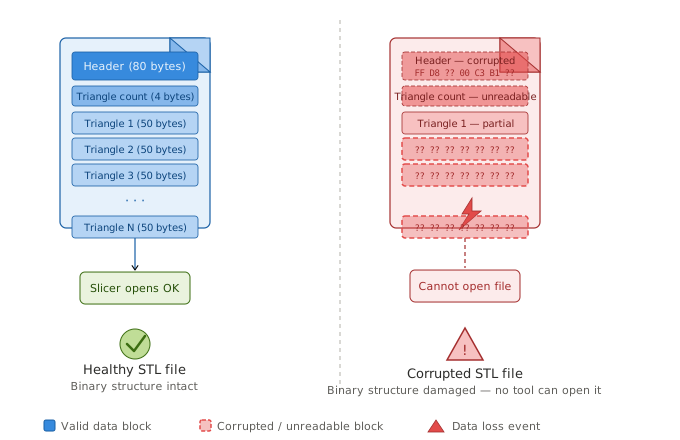
Binary data or structures in an STL file become corrupted due to:
- Software crash, improper shutdown, or power failure during file operations
- Hardware failures (failing storage drive, bad memory)
- Virus or malware infection
- Interruption during file transfer
Mesh repair tools such as Meshmixer, MeshLab, and FreeCAD cannot open a file with damaged binary data or structures. You need to use a dedicated data recovery tool (see Method 19) to repair the corrupt STL file first to make it 100% satisfy the STL specification, then use other methods to fix the mesh geometry errors.
4. How to Identify STL Errors
4.1 Slicer Warnings and Error Prompts
Most modern slicers detect mesh problems on import and report them:
- PrusaSlicer: Auto-repairs minor errors on import and reports the count (“Auto repaired N errors”). For a manual repair pass, use File -> Repair STL File.
- Bambu Studio (Windows): Automatically repairs errors on import. The macOS version does not auto-repair and requires an external tool.
- Cura: More permissive than PrusaSlicer; loads many non-manifold models without an explicit warning, though the resulting print may fail.
- Creality Slicer: Displays a warning for non-manifold edges with a Fix model prompt at the bottom of the interface.
4.2 Dedicated Inspection Tools
For a more detailed analysis before committing to repair:
- Meshmixer: Analysis -> Inspector displays a color-coded error map — blue for minor defects, red for serious problems, magenta for small unnecessary details. Thresholds are adjustable.
- FreeCAD: Switch to the Mesh Design workspace and run Meshes -> Analyze -> Evaluate and Repair Mesh to identify errors before attempting repair.
- Formware Online: Automatically analyzes the file on upload and displays an error summary with a model preview before applying any repair.
4.3 Slicer and Mesh Repair/Editing Tools Cannot Open Files
When binary data or structures in the STL file are damaged, the file cannot be opened at all — not by slicers such as PrusaSlicer, Bambu Studio, Cura, or Creality Slicer, and not by mesh repair tools such as Meshmixer, MeshLab, Blender, or FreeCAD. In such a case, a dedicated data recovery tool is required.
5. STL File Repair Workflow
A complete repair workflow follows these sequential steps. Most automated tools handle steps 1–6 internally; manual intervention is required only when automated repair falls short.
- Auto-repair. Run the software’s automated repair wizard. This handles holes, separate shells, and intersections and is sufficient for most models with minor errors.
- Separate and remove shells. A mesh may contain multiple disconnected surfaces. Keep surfaces that belong together; remove floating fragments.
- Close holes and bridge gaps. Fill remaining open areas using planar, tangent, ruled, or freeform hole-filling methods depending on the geometry. Tools such as Meshmixer and Magics allow different strategies per individual hole.
- Resolve overlaps and intersections. Recalculate mesh sections where geometry intersects. In Meshmixer, Edit -> Make Solid merges overlapping bodies into a single watertight object.
- Fix normals, double faces, and sharp triangles. Filter out inverted normals, duplicate faces, duplicate vertices, and degenerate (sharp or narrow) triangles.
- Stitch open edges. Close any remaining open edges after the steps above to produce a fully sealed mesh.
- Manual repair. For localized errors that automated tools cannot resolve, delete and recreate individual triangles by hand.
- Remesh and export. Optimize the triangle count and distribution through remeshing. Export in Binary STL format (smaller than ASCII) or an alternative format such as AMF, OBJ, or PLY if color, material, or UV data is needed.
- Repair corrupt STL files with a professional data recovery tool. If the file cannot be opened by any slicer or mesh repair tool, the binary structure is damaged. Use a dedicated data recovery tool to recover the file before proceeding with mesh repair.

6. Repair STL Files: 19 Methods
The methods below are ordered by cost: free tools first, then free-with-paid-tiers, then paid-only tools. DataNumen STL Repair appears last as it addresses a distinct problem — file-level corruption — rather than mesh geometry errors.
6.1 Method 1: Microsoft 3D Builder (Free, Windows)
3D Builder is a free Windows application pre-installed on many Windows 10 systems. On Windows 11, it must be downloaded separately from the Microsoft Store. When an STL is opened, 3D Builder previews the model and outlines any errors in red. A prompt reads Click here to repair. The repair runs automatically with no detailed feedback; when complete, the outline changes from red to blue, confirming the file is valid. Save the repaired file using File -> Save in STL or 3MF format.
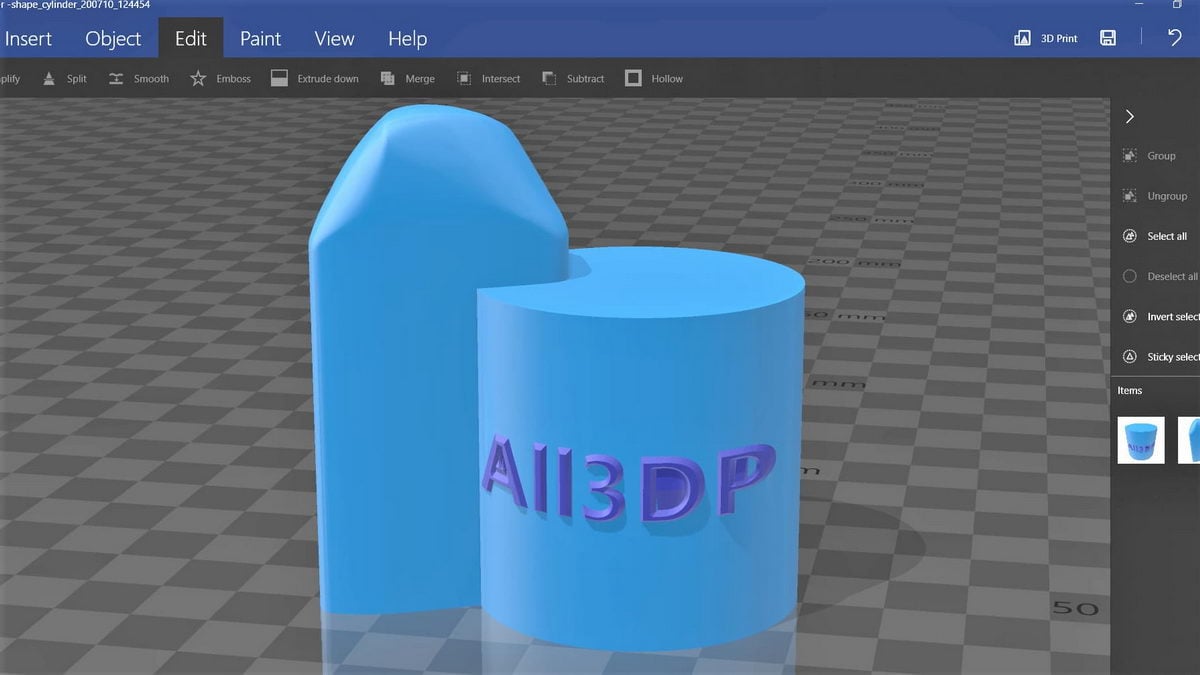
Two additional tools help finalize the model: Settle flattens the model to the build plate, and Simplify reduces triangle count and file size. Multiple community users rate 3D Builder as the least disruptive free repair option for invalidly defined models, with consistent success on most standard errors.
6.2 Method 2: PrusaSlicer / SuperSlicer / Orca Slicer (All Free)
PrusaSlicer auto-repairs minor mesh errors on import and reports the number corrected. For a manual pass, select File -> Repair STL File. SuperSlicer, a community fork of PrusaSlicer, applies the same automatic repair on load. Orca Slicer, another PrusaSlicer fork, includes a built-in repair function on Windows that handles small hole filling and flipped normals; the macOS version of Orca Slicer does not include this feature.
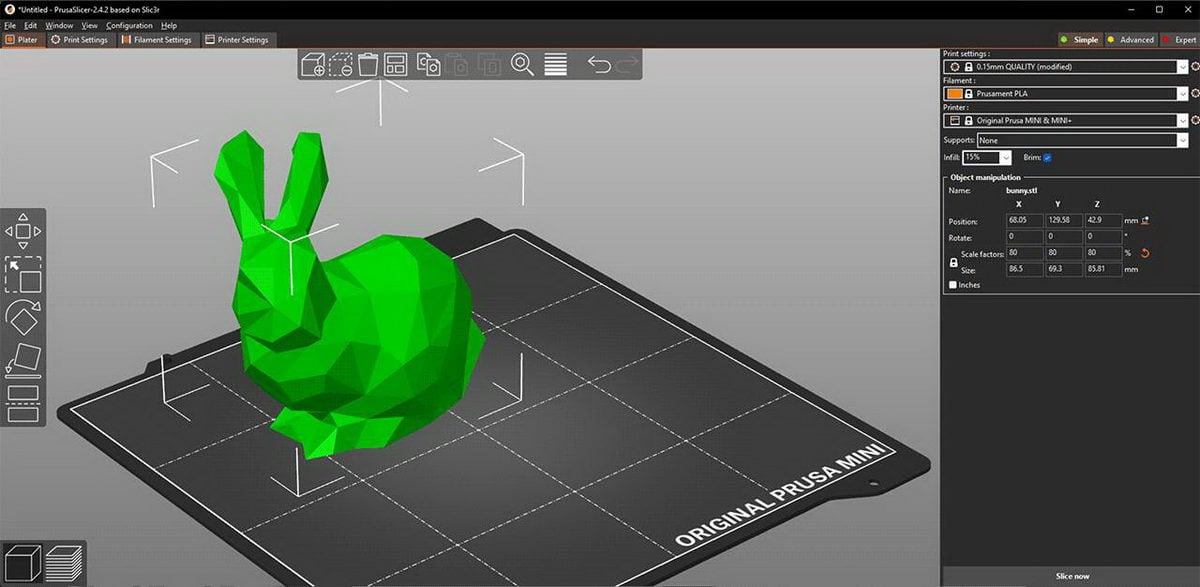
All three tools are best suited for quick fixes on files that are about to be printed and do not function as standalone repair tools for severely damaged models.
6.3 Method 3: Bambu Studio (Free)
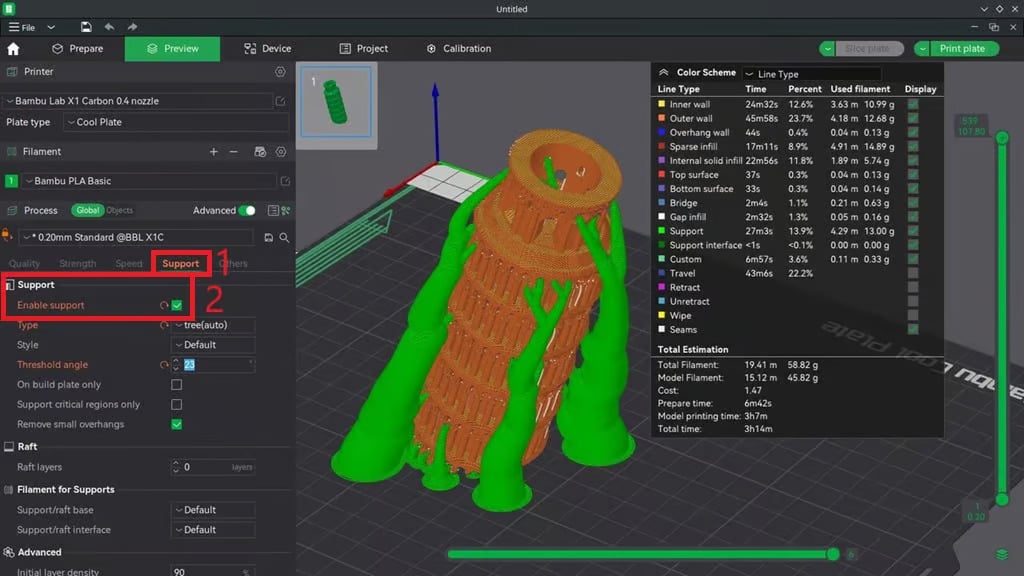
Bambu Studio‘s Windows version automatically detects and repairs mesh errors on import, integrating the fix directly into the slicer workflow without requiring a separate export step. The macOS version does not auto-repair; macOS users must repair the file with an external tool before importing into Bambu Studio.
6.4 Method 4: Meshmixer (Free)
Developed by Autodesk, Meshmixer is the strongest all-round free STL repair tool despite no longer being in active development. Load the STL and open Analysis -> Inspector. Switch to the X-Ray shader under Shaders for better interior visibility. The Inspector displays a color-coded error map: blue for minor defects, red for serious problems, magenta for small unnecessary geometry. Fix individual errors by clicking the corresponding dot indicators, or click Auto Repair All to resolve all detected issues in one pass.
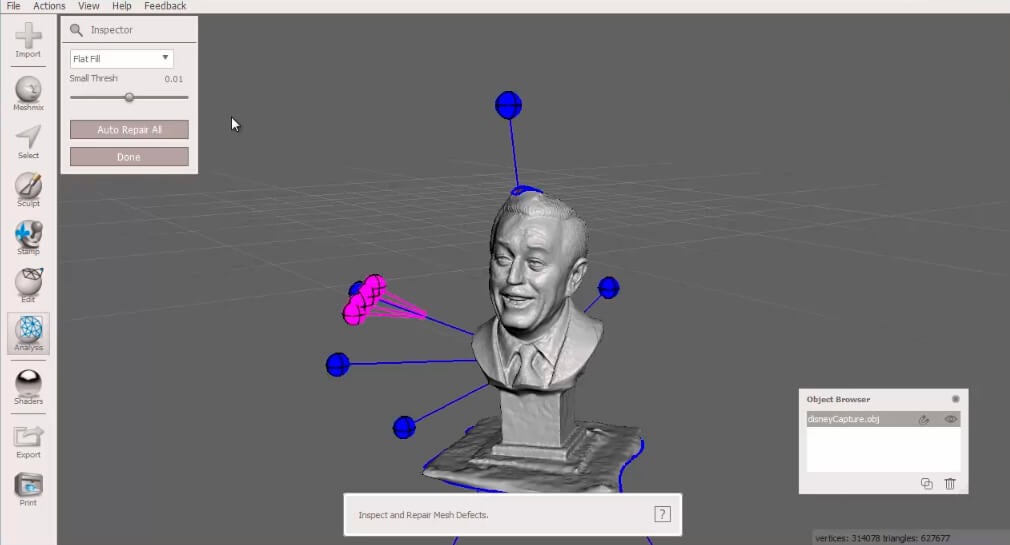
For models with overlapping geometry — common in kitbashed or scanned models — use Edit -> Make Solid to merge all overlapping bodies into a single watertight solid. Meshmixer also supports resculpting, advanced remeshing, and direct export, making it a complete repair and preparation environment in a single free tool.
6.5 Method 5: Blender (Free)
Blender is a free, open-source 3D modeling application. Its 3D Print Toolbox add-on — included with Blender but requiring manual activation — detects non-manifold edges, thin walls, and intersecting faces. Enable it under Edit -> Preferences -> Add-ons and search for 3D Print Toolbox. After running the toolbox checks, use Mesh -> Clean Up -> Merge by Distance to remove duplicate vertices. The Remesh modifier can regenerate a manifold mesh from a flawed one in many cases.
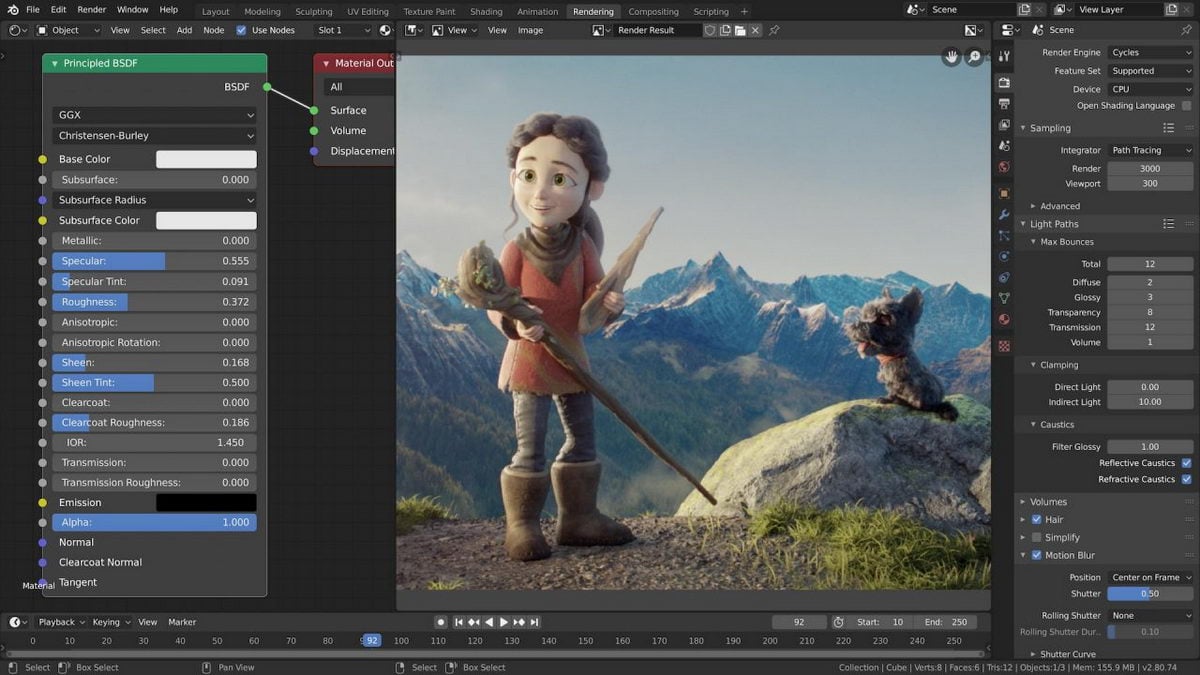
Blender has a steep learning curve and demands a capable computer for high-polygon models. It is best suited to users already familiar with its interface.
6.6 Method 6: MeshLab (Free)
MeshLab is a free, open-source mesh processing tool used primarily by professionals working with large files and point cloud data. Its capabilities include mesh analysis, error cleaning, remeshing, surface reconstruction, automatic smoothing, and visual inspection. Advanced remeshing scripts allow significant mesh optimization, and multiple meshes can be merged to produce new models.
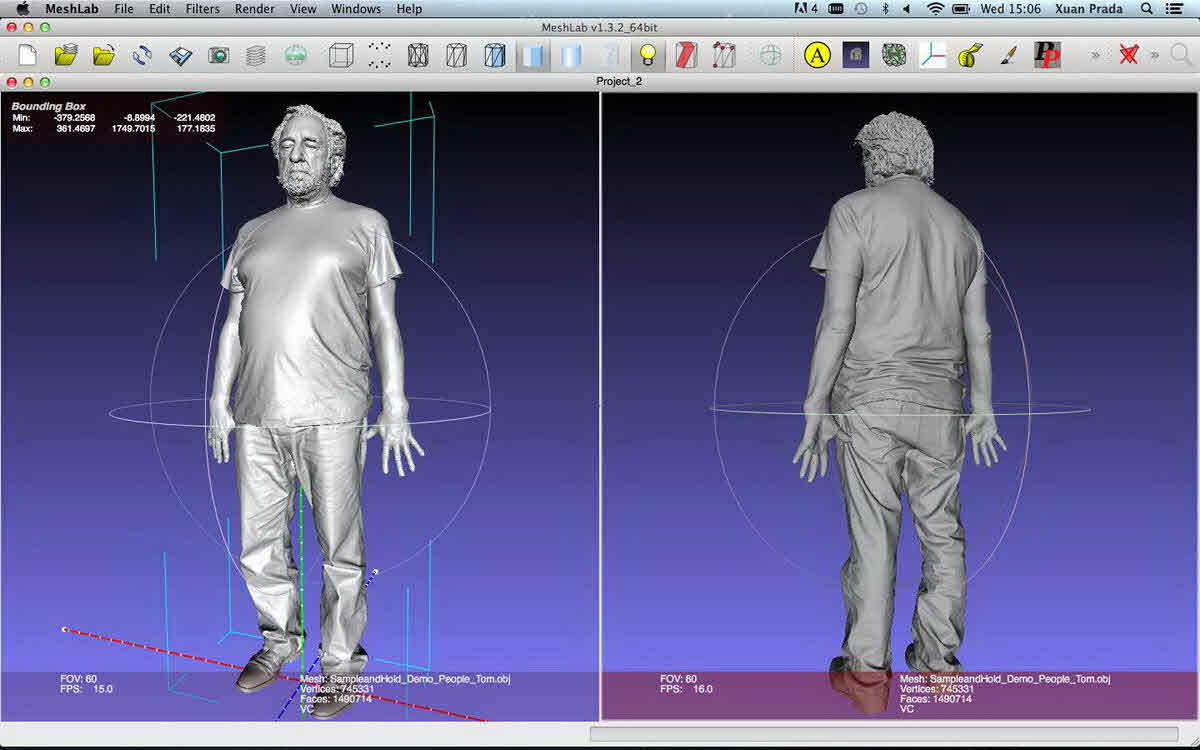
MeshLab offers less automated repair capability than Meshmixer and requires more manual configuration, making it less practical for quick fixes but valuable for complex, large-scale mesh work.
6.7 Method 7: FreeCAD (Free)
FreeCAD is an open-source parametric CAD application. To fix an STL file:
- Open the STL file in FreeCAD.
- Switch to the Mesh Design workspace.
- Run Meshes -> Analyze -> Evaluate and Repair Mesh to identify errors.
- Apply Repetitive Repair to fix detected issues automatically.
- Export the repaired mesh via Meshes -> Export Mesh.
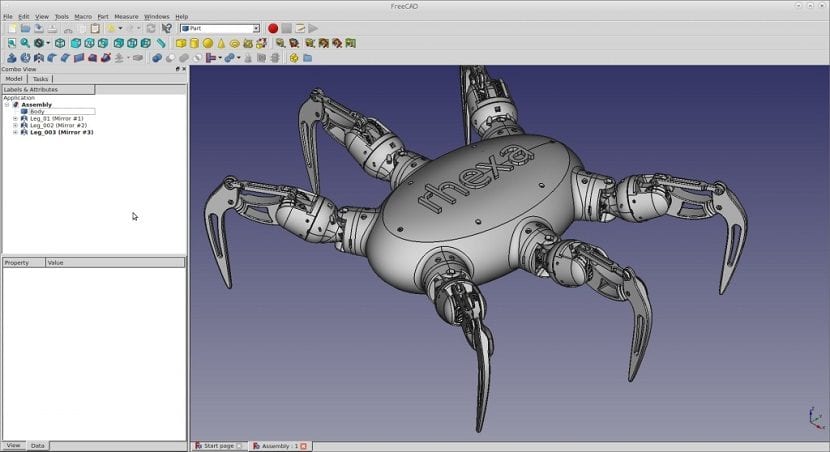
FreeCAD is less effective on severely damaged files and may require multiple repair passes. It is best for users who need to make design-level edits alongside mesh repair.
6.8 Method 8: Creality Slicer (Free)
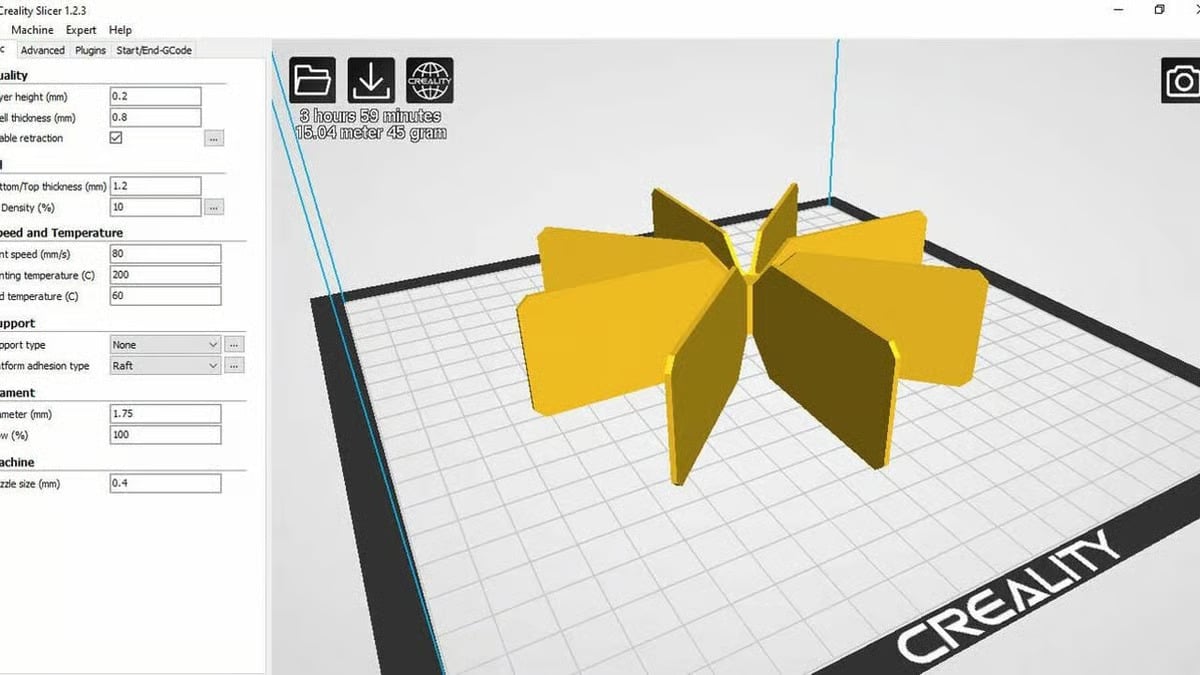
Creality Slicer is a free slicer tailored to Creality printers. When a file with non-manifold edges is imported, the slicer displays a warning. A Fix model prompt appears at the bottom of the interface; clicking it applies an automatic correction and clears the warning. This is a convenient option for Creality printer users who want a quick in-slicer fix without opening a separate repair application.
6.9 Method 9: Formware Online Tool (Free tier / Paid)
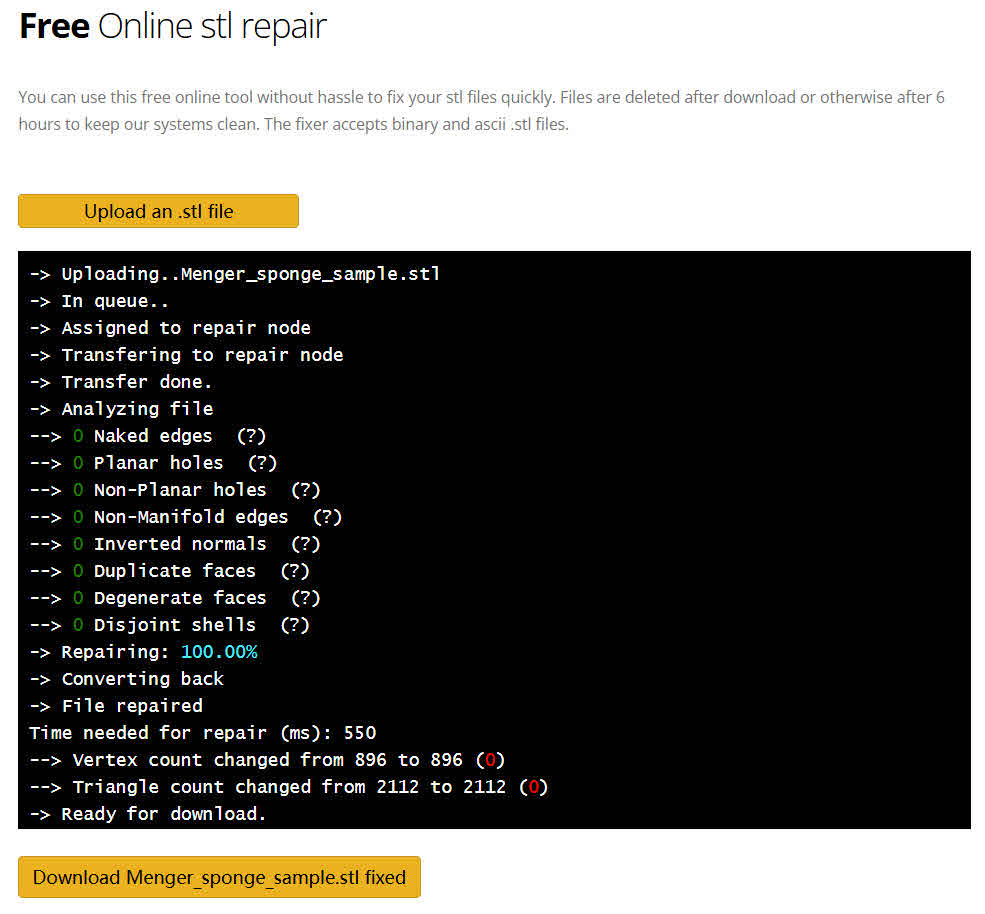
Formware’s online repair tool is browser-based and requires no registration. Upload an STL file and the tool automatically analyzes it, applies repair, and displays a summary of fixes alongside a model preview. The free tier imposes a 50 MB file size limit and a 4-minute processing cap; larger or more complex files may time out. The full Formware slicer license costs approximately $145 (personal) or $300 (commercial). This tool is best for quick repair without installing software, particularly for smaller, well-structured models.
6.10 Method 10: Chitubox (Free basic / Paid)
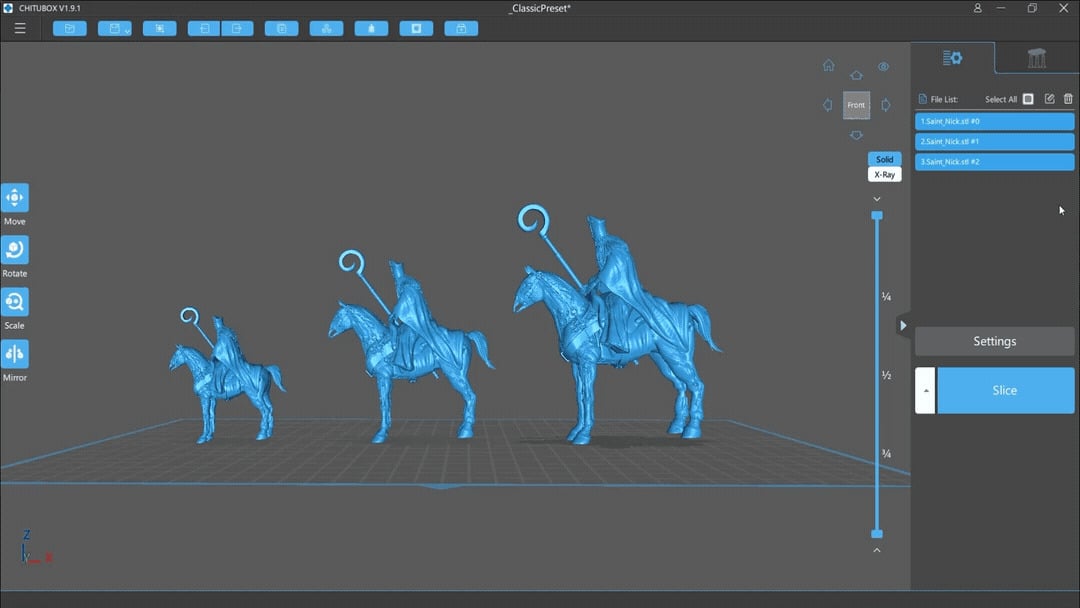
Chitubox is a resin-printer-oriented slicer with a built-in repair tool. The free basic version covers most repair tasks. The software has undergone user-interface changes in recent versions that some users find less intuitive than earlier releases. It is best suited to resin printer users already working within the Chitubox workflow.
6.11 Method 11: Lychee Slicer (Free tier / Paid)
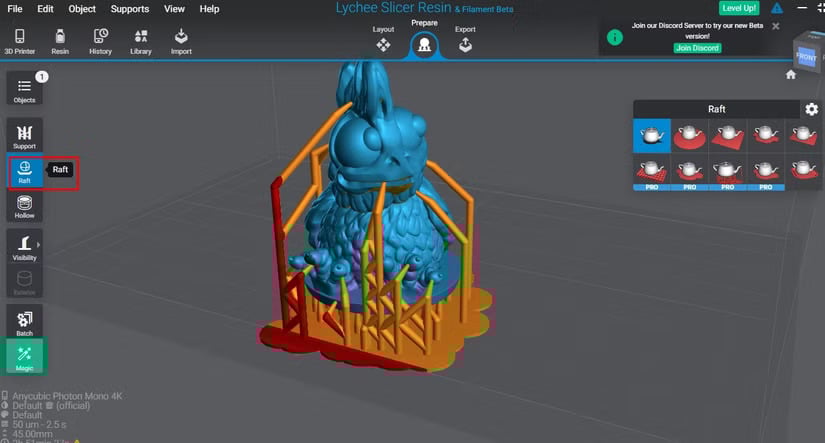
Lychee Slicer is a resin-printer-oriented slicer whose repair tool community users rate as capable and effective. A free tier is available; advanced features require a paid subscription. Like Chitubox, it is best suited to resin printer users who want to fix STL files within their existing slicer workflow.
6.12 Method 12: Fusion 360 (Free personal / Paid)
Fusion 360 is Autodesk’s professional CAD platform. The free personal use license includes mesh repair functionality. To repair an STL file:
- Import the file via Insert -> Insert Mesh.
- Select the mesh body in the browser.
- Open Mesh -> Repair to run the automated repair.
- Export the result via File -> Export.
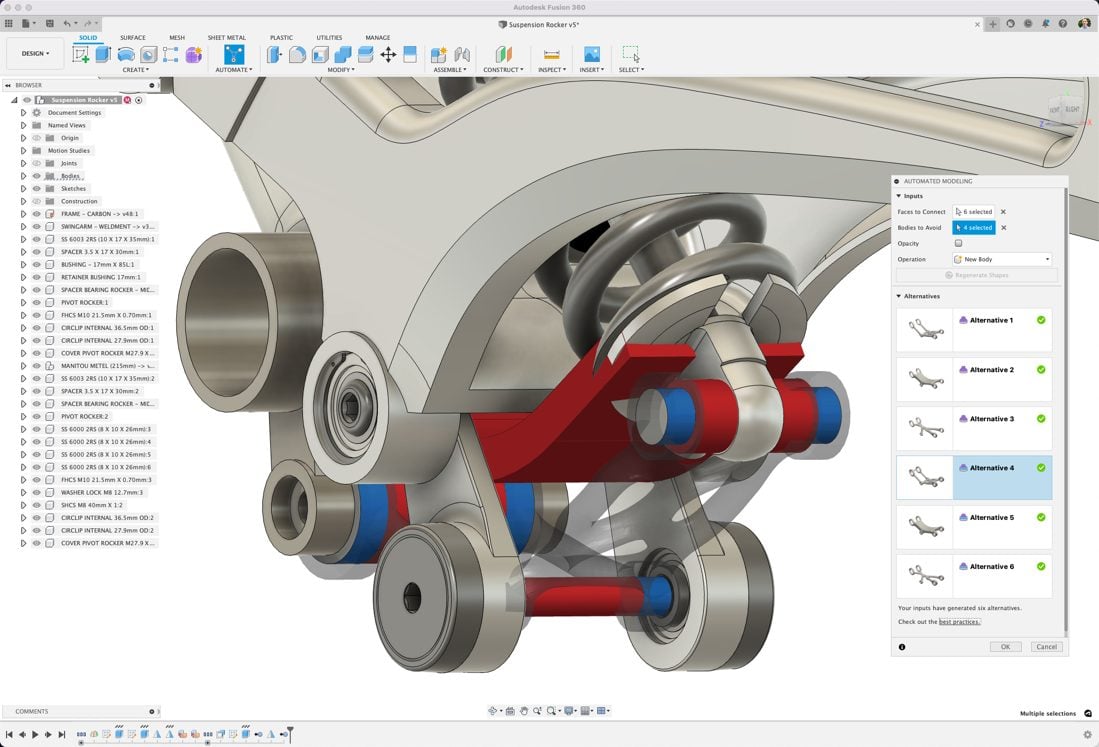
The personal license limits active documents to 10 at a time. Toggle documents between Editable and Read-Only status to work around this limit — read-only documents do not count against the active cap. The license lasts three years and is renewable. Fusion 360’s complex interface makes it harder to navigate than dedicated repair tools for users unfamiliar with the platform.
6.13 Method 13: SketchUp (Free / Paid)
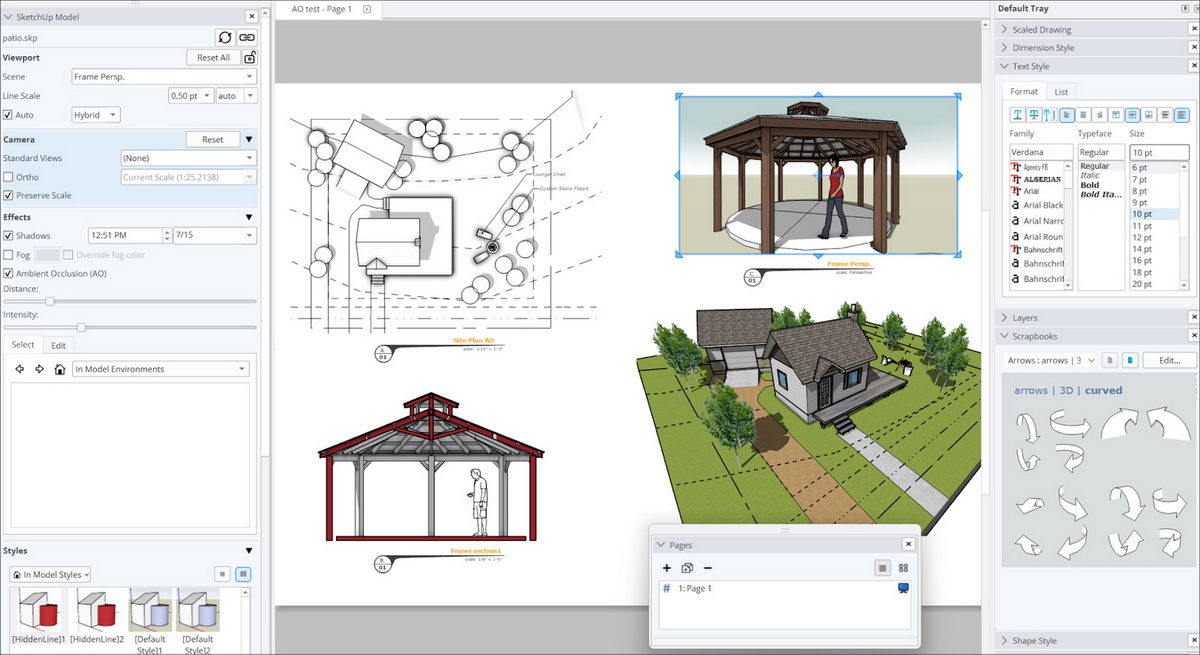
SketchUp (free SketchUp Make; paid SketchUp Pro) can be used to repair STL files, and some users report success with manual mesh correction. However, it is missing key STL editing features: it cannot create solid objects directly, and it cannot convert a triangular mesh into quads for easier editing. It is best suited to users already familiar with SketchUp who need occasional light repair work.
6.14 Method 14: Autodesk Netfabb (Paid)
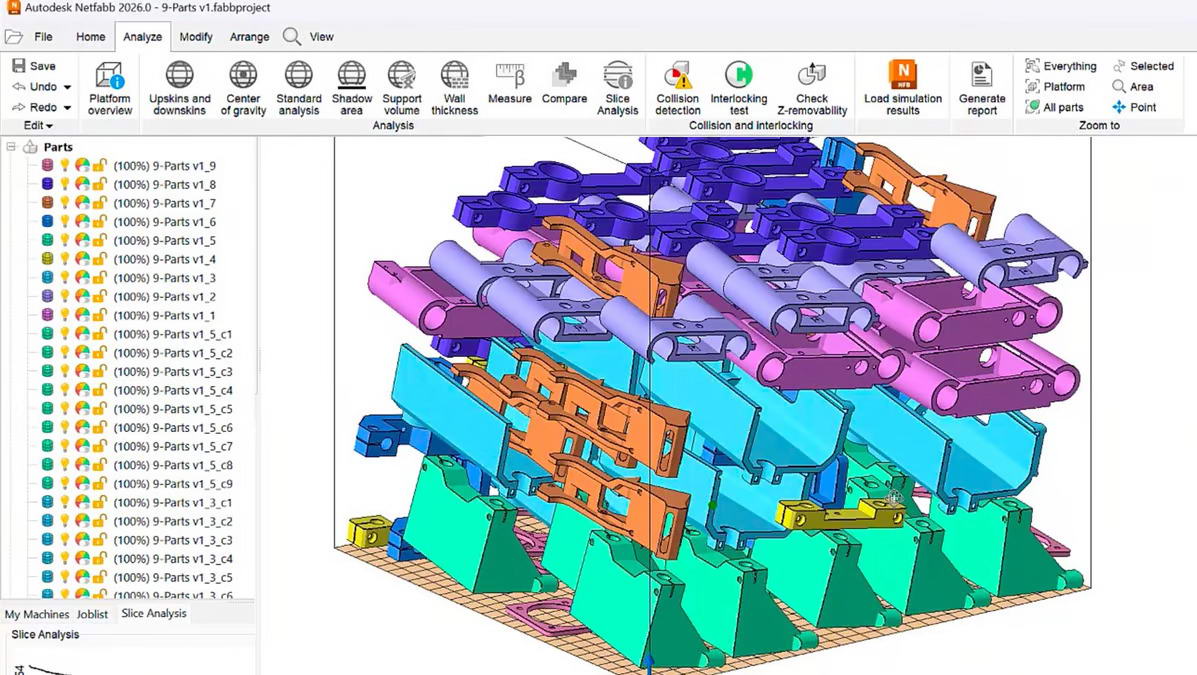
Netfabb is a professional STL repair and print preparation platform. Originally a standalone application, it has been integrated into Autodesk’s paid software suite. It offers advanced repair, infill generation, and support structure capabilities, and is geared toward engineers preparing files for industrial 3D printing. A free educational license is available; personal and commercial use requires a paid subscription.
6.15 Method 15: Materialise Magics (Paid)
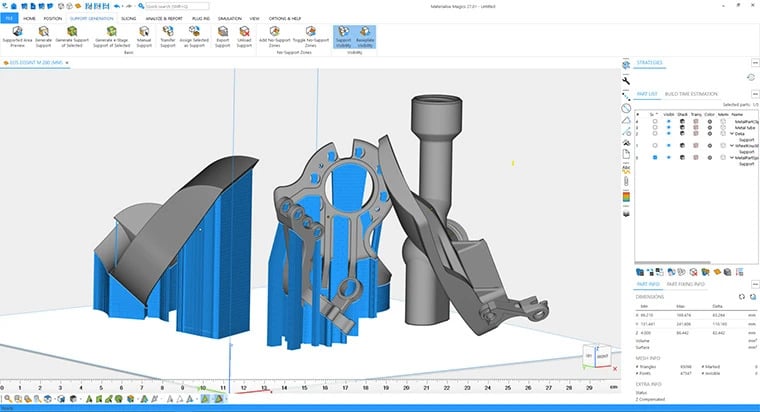
Magics is a professional STL editor from Materialise with the broadest range of manual repair functions available in any single tool. It supports complex geometry and offers extensive format compatibility. However, it often requires more manual repair work than automated tools, which can be time-consuming for straightforward repairs. Its significant cost makes it most appropriate for manufacturing engineers and professional print bureaus handling complex industrial models.
6.16 Method 16: CUR3D (Paid)
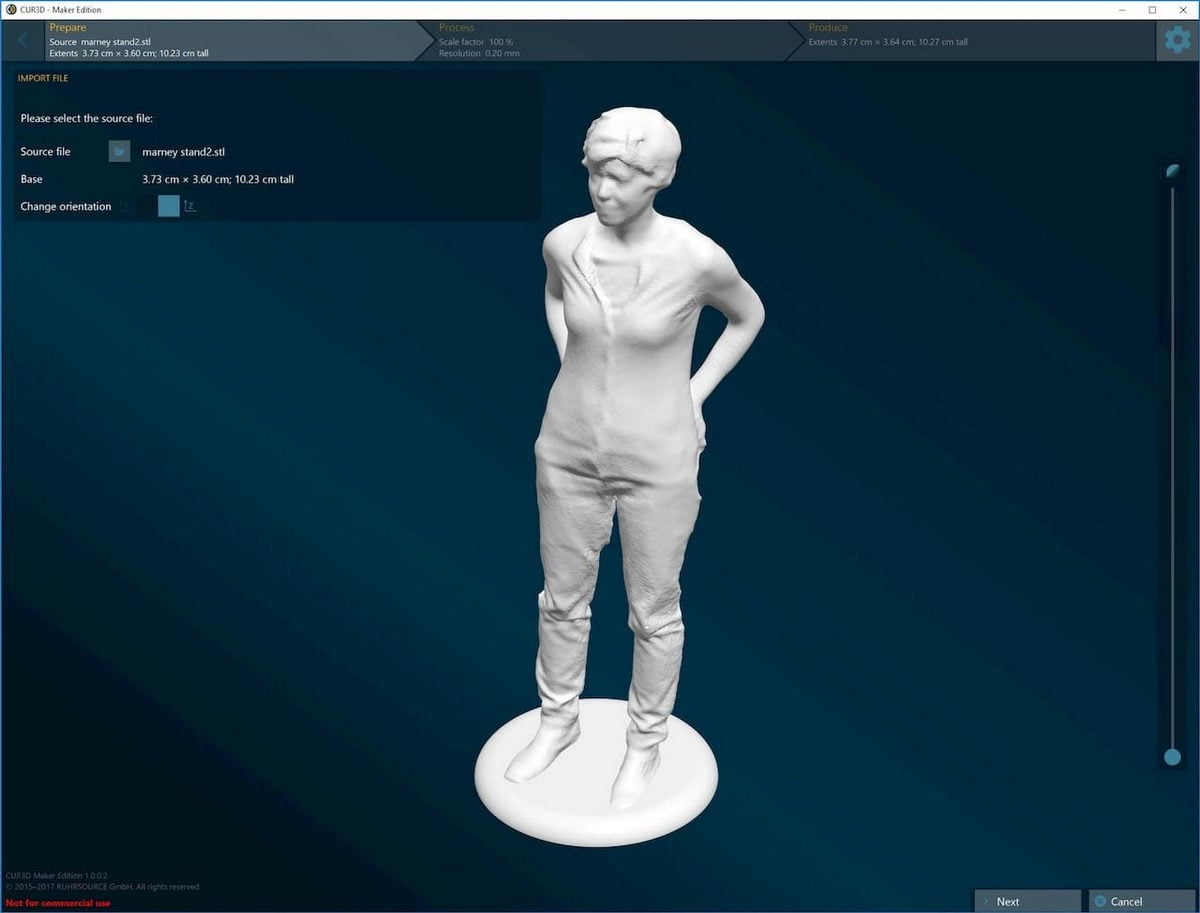
CUR3D is a dedicated STL repair tool available on Steam, priced at approximately $80 AUD. It processes one STL file at a time, which makes it tedious for large print runs with 10 or more parts. Users have reported licensing issues and the absence of built-in instructions. Community reception is mixed relative to its cost, given the tool’s limited feature set compared to free alternatives. It is best for users who need a dedicated repair tool and are prepared for these constraints.
6.17 Method 17: Rhinoceros (Paid)
Rhinoceros (Rhino), developed by Robert McNeel & Associates, is a professional NURBS and polygon modeling application. Its strength in STL repair lies in precise geometric work: patching boundary edges, filling gaps while maintaining exact dimensional accuracy, and correcting topology errors in engineering-grade models.
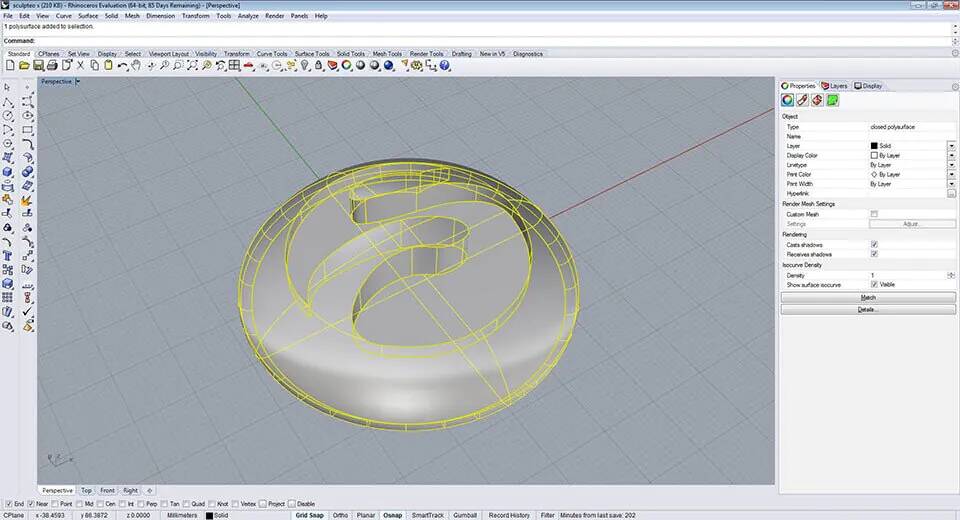
Grasshopper, a visual programming plugin built into Rhinoceros, extends this precision further. By defining repair geometry parametrically — using mathematical relationships rather than manual sculpting — Grasshopper can reconstruct missing surfaces with zero geometric deviation from the original design intent. This makes the Rhinoceros + Grasshopper workflow the most accurate STL repair method available, though also the most demanding to learn. Rhinoceros is best suited to engineers and industrial designers already working within the Rhino environment who need to repair models with strict dimensional requirements.
6.18 Method 18: ZBrush (Paid)
ZBrush, developed by Maxon, is a digital sculpting application optimized for high-polygon organic mesh work. In STL repair, it excels at the problems most common in 3D scan output: filling holes in irregular surfaces, smoothing transitions between repaired and original geometry, and rebuilding missing sections of organic forms such as characters, figurines, or anatomical models.
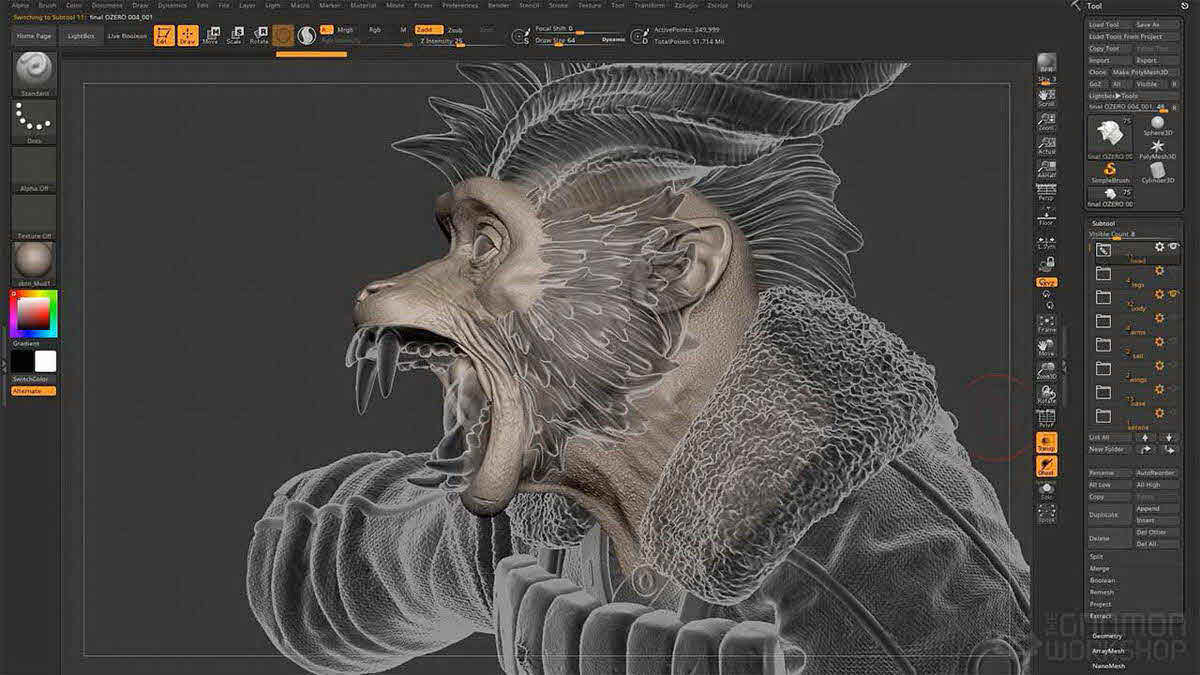
Geometry loss with ZBrush is minimal compared to automated repair tools, but it is less dimensionally precise than Rhinoceros — the sculpted repairs follow visual shape rather than mathematical definition. ZBrush is best suited to scanned or artistic models where restoring the correct silhouette and surface flow matters more than exact measurements.
6.19 Method 19: DataNumen STL Repair (Paid)
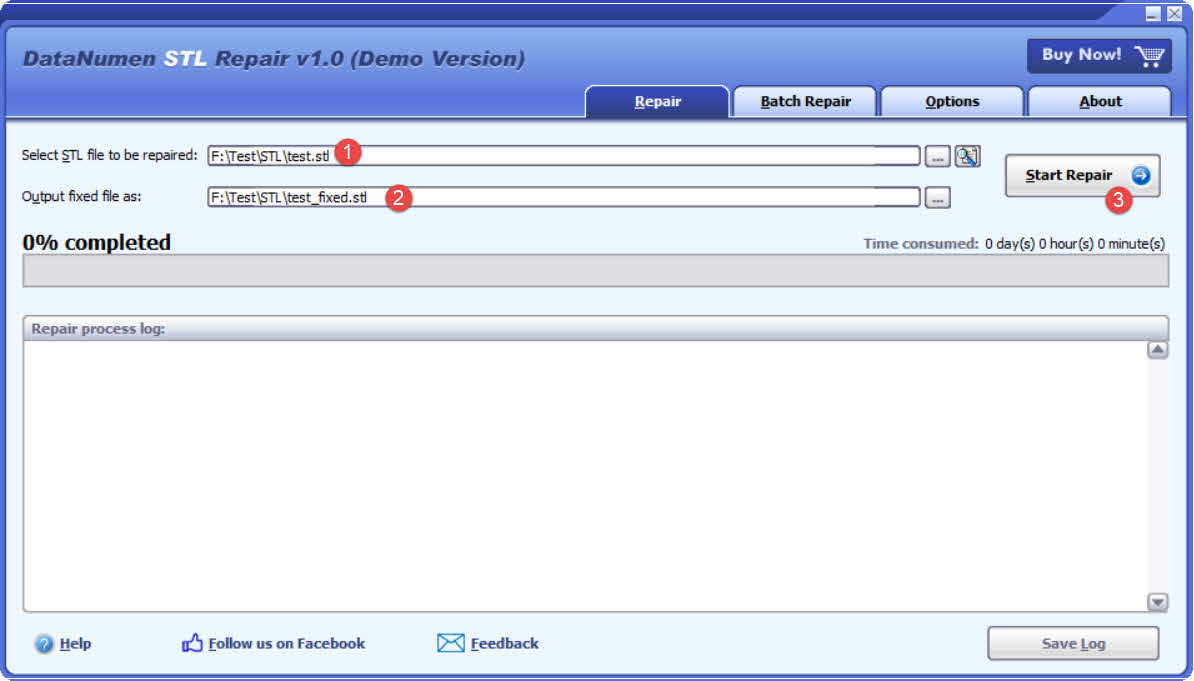
DataNumen STL Repair is a professional data recovery tool for STL files that are so corrupt that no other software can open them. When slicers and mesh editing tools all fail to load a file, DataNumen STL Repair can recover the underlying data and produce a readable STL. Below are the steps:
- Select the corrupt source STL file.
- Set the fixed STL file name.
- Click Start Repair to start the repair process.
- After the repair, the fixed file will conform to the STL specification but may still contain mesh geometry errors. Therefore, use one of the mesh repair tools above — such as Meshmixer or 3D Builder — to fix any remaining geometric issues before printing.
7. STL Repair Software Comparison
| Tool | Cost | Platform | Auto-Repair | Manual Repair | Remeshing | Best For |
|---|---|---|---|---|---|---|
| Microsoft 3D Builder | Free | Windows | Yes | No | No (Simplify) | Quick one-click fixes |
| PrusaSlicer / SuperSlicer / Orca Slicer | Free | Win/Mac/Linux (Orca repair: Win only) | Yes (on import) | File -> Repair | No | Pre-print repair in slicer |
| Bambu Studio | Free | Win (Mac: no auto) | Yes (Win) | No | No | Bambu printer workflows |
| Meshmixer | Free | Win/Mac | Yes | Yes | Yes (advanced) | Most use cases; scanned models |
| Blender | Free | Win/Mac/Linux | No | Yes | Yes | Users in CG/modeling workflows |
| MeshLab | Free | Win/Mac/Linux | No | Yes | Yes (advanced) | Professionals; large files |
| FreeCAD | Free | Win/Mac/Linux | Partial | Yes | No | Design + repair combined |
| Creality Slicer | Free | Windows | Yes (on import) | No | No | Creality printer users |
| Formware Online | Free (limited) | Browser | Yes | No | No | Quick online repair, small files |
| Chitubox | Free / Paid | Win/Mac | Yes | No | No | Resin printer users |
| Lychee Slicer | Free / Paid | Win/Mac | Yes | No | No | Resin printer users |
| Fusion 360 | Free personal / Paid | Win/Mac | Yes | Yes | No | Users needing repair + CAD editing |
| SketchUp | Free / Paid | Win/Mac | No | Yes | No | Light repair for SketchUp users |
| Netfabb | Paid (free edu) | Win/Mac | Yes | Yes | Yes | Engineers; print preparation |
| Magics | Paid | Windows | Yes | Yes | Yes | Industrial/professional |
| CUR3D | Paid | Windows | Yes | No | No | Standalone repair; single STL at a time |
| Rhinoceros | Paid | Win/Mac | No | Yes | No | Engineering models; exact geometry |
| ZBrush | Paid | Win/Mac | No | Yes | No | Organic/scanned models; shape fidelity |
| DataNumen STL Repair | Paid | Windows | N/A | N/A | No | Corrupt files no other tool can open |
8. STL File Repair Prevention Tips
8.1 Ensure Proper Wall Thickness from the Start
Set wall thickness during modeling to a value that supports the overall structure and suits the target material. Validate the minimum printable wall thickness against the printer’s capabilities before exporting — walls that are too thin will be omitted by the slicer or fail during printing.
8.2 Check for Non-Manifold Geometry During Modeling
Run topology checks in the modeling application before export. Avoid extruding faces or edges without moving them, as this creates zero-thickness walls and stacked edges. In Blender, enable and run the 3D Print Toolbox before export. In FreeCAD, use Meshes -> Analyze -> Evaluate and Repair Mesh to catch problems early.
8.3 Remove Floating Surfaces Before Export
Clean up 3D scan output before printing. Remove scanner artifacts — particularly those produced by hair, very dark surfaces, and reflective materials — using MeshLab’s cleaning tools or an equivalent. Automated cleanup is available in most STL repair tools.
8.4 Minimize File Size
Use automatic downscaling or decimation tools — such as MakePrintable, Materialise Cloud, or Meshmixer’s Remesh function — to keep file size within the 50–100 MB upload limits common to cloud-based 3D printing services. When exporting, choose Binary STL format rather than ASCII; Binary STL produces significantly smaller files for the same model.
8.5 Use a Slicer’s Built-in Repair on Every Import
Make it a habit to run File -> Repair STL File in PrusaSlicer, or open Analysis -> Inspector in Meshmixer, every time a new STL file is imported. Catching errors before slicing takes seconds; discovering them after a failed print costs hours.
8.6 File Maintenance
To reduce the risk of file-level corruption:
- Regular backups. Schedule daily backups and store copies in a separate physical location or cloud storage.
- Proper shutdown practices. Always close your STL software before shutting down the computer. Never terminate the application using Task Manager while an STL file is open.
- UPS for power protection. Use an uninterruptible power supply to prevent data loss from sudden power failures during file saves.
- Maintain healthy storage hardware. Monitor drive health with diagnostic tools and replace aging storage media before failure occurs.
9. Frequently Asked Questions
Q: Why does one slicer flag an STL error while another slicer loads the same file without complaint?
A: Different applications apply different tolerance thresholds for what constitutes an error. Some programs — such as Bambu Studio on Windows and Chitubox — auto-fix tiny gaps silently on import. Others, such as Voxeldance Tango, flag the same gap as an error requiring manual action. A 0.001 mm gap may be insignificant to one slicer and fatal to another.
Q: Is Microsoft 3D Builder available on Windows 11?
A: Windows 11 ships with 3D Viewer, not 3D Builder. 3D Builder must be downloaded separately from the Microsoft Store.
Q: Can Blender repair STL files without any add-ons?
A: Yes, partially. Blender’s Remesh modifier can regenerate a manifold mesh from a flawed one in many cases. However, the 3D Print Toolbox add-on — included with Blender but requiring manual activation — provides explicit error detection and is recommended before any export.
Q: What is the file size limit for online STL repair tools?
A: Formware’s free online tool limits uploads to 50 MB with a 4-minute processing cap. Other cloud services such as MakePrintable and Materialise Cloud set limits between 64 MB and 100 MB.
Q: Does repairing an STL file with an automated tool guarantee a perfect print?
A: No. Automated repair closes geometric errors so the file is valid for slicing, but issues such as insufficient wall thickness, hollow interiors, or overly complex support requirements are outside the scope of mesh repair and must be addressed separately.
Q: What format should I use when saving a repaired STL file?
A: Save in Binary STL format for the smallest file size. Alternatives such as AMF, OBJ, or PLY offer additional capabilities — color, material, or UV data — when needed.
Q: What is the best free tool to repair STL files?
A: Meshmixer is the strongest all-round free option. It combines a user-friendly interface with color-coded error inspection, automatic and manual repair, advanced remeshing, and a Make Solid function for merging overlapping geometry — all at no cost.
Q: Why did my print time increase significantly after repairing an STL file?
A: Some repair tools, particularly those that remesh the model, can increase the triangle count or alter geometry in ways that cause the slicer to add more support structures or recalculate toolpaths. Use the slicer’s simplification or decimation options after repair to reduce triangle count without losing critical detail.
Q: Can I repair an STL file without installing any software?
A: Yes. Formware’s online repair tool is browser-based, requires no registration, and applies automatic repair on upload. The free tier supports files up to 50 MB with a 4-minute processing limit. Larger files require a desktop tool.
Q: My STL file cannot be opened by any software. Can it still be recovered?
A: If the file’s binary structure is damaged — by a software crash, hardware failure, transfer interruption, or malware — standard mesh repair tools will not be able to open it. DataNumen STL Repair is designed specifically for this scenario. After recovery, the file may still contain mesh geometry errors that require a separate repair pass with a tool such as Meshmixer or 3D Builder.
Q: What causes floating shells in an STL file, and do they always need to be removed?
A: Floating shells are disconnected mesh fragments not attached to the main body. They most commonly originate from 3D scanning, where scanner artifacts from hair, reflective surfaces, or dark materials produce unintended geometry. They must be removed before slicing; most slicers either ignore them or generate incorrect toolpaths around them, both of which result in failed or wasted prints.
10. Conclusion
Fixing STL files is a routine part of the 3D printing workflow. For most mesh geometry errors — holes, non-manifold edges, floating shells, and inverted normals — free tools such as Meshmixer and Microsoft 3D Builder resolve the majority of problems with minimal effort. Users embedded in a slicer workflow can rely on PrusaSlicer, Orca Slicer, Bambu Studio, or Creality Slicer to catch and fix minor errors on import. For professional and industrial use, Netfabb and Magics offer the most complete repair and preparation capabilities.
When a file cannot be opened at all due to binary-level corruption, DataNumen STL Repair addresses the problem that all other tools cannot: recovering the file structure so that mesh repair can proceed.
Regardless of which tool you use, the best practice is to validate and repair STL files before every print — and to build good habits during modeling and file management to minimize the need for repair in the first place.
About the Author
Tai Yi is an image, CAD, and STL file recovery specialist with over 12 years of experience. His hands-on experience encompasses working with native recovery functions, file structure analysis tools, and developing systematic approaches for repairing complex images and drawings.
Through his technical knowledge and practical approach, Tai creates comprehensive guides that help both novice users and experienced designers solve file corruption issues effectively. He regularly tests recovery methods across different versions, stays current with the latest file formats and repair utilities, and ensures his recommendations reflect proven techniques with documented success rates in real-world scenarios.
Have questions about image, CAD file, and STL file recovery, or need help with other image and CAD file challenges? Tai welcomes feedback and suggestions for improving these technical resources.