
1. Understanding SQL Server Failover Cluster
1.1 What It Is and How It Works
SQL Server failover cluster is a high-availability solution that keeps a SQL Server instance operational even when a server fails. It achieves this by running the same instance across multiple physical servers — called nodes — so that if one server goes down, another automatically takes over without requiring manual intervention or changes on the client side.
1.2 Key Components and Architecture
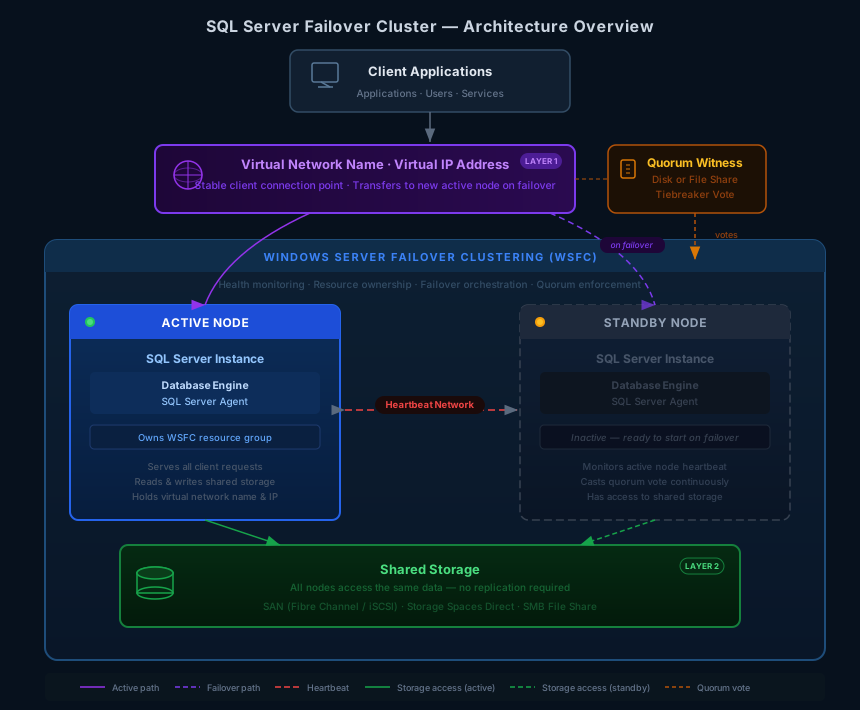
A SQL Server failover cluster instance is built from five core components, each playing a distinct role. Together, they form a single logical unit that clients interact with as if it were one server.
- Nodes: The physical servers that participate in the cluster. At any given time, exactly one node is active and runs the SQL Server instance; the remaining nodes stand by and monitor the active node’s health.
- Shared storage: A storage volume — SAN, iSCSI, Storage Spaces Direct, or SMB file share — accessible by all nodes simultaneously. Because every node reads from and writes to the same storage, no data replication is needed between nodes, and the same database files are immediately available whichever node takes over.
- Virtual network name and virtual IP address: A stable identity that clients always connect to, regardless of which physical node is currently active. When a failover occurs, the virtual network name and IP address are re-registered on the new active node, making the switchover transparent to applications.
- Windows Server Failover Clustering (WSFC): The underlying platform that holds everything together. WSFC continuously monitors node and resource health via a heartbeat network, manages resource group ownership, and orchestrates the failover process when a failure is detected.
- Quorum: A voting mechanism within WSFC that prevents split-brain scenarios. Each node casts a vote on cluster health; a witness disk or file share provides an additional vote on even-node clusters. The cluster stays online only when a majority of votes are reachable, ensuring that two isolated node groups can never simultaneously claim ownership of the SQL Server instance.
These components work in a clear hierarchy: WSFC manages the nodes and enforces quorum, the nodes share access to the same storage, and the virtual network name provides clients a consistent connection point across all of it. When a node fails, WSFC detects the loss of heartbeat, confirms quorum still holds, transfers resource group ownership — including the virtual network name, virtual IP, and storage — to a standby node, and brings SQL Server back online there. The entire sequence happens automatically and without any change required on the client side.
1.3 FCI vs Always On Availability Groups
SQL Server provides two Always On technologies built on WSFC. The key differences:
- Failover Cluster Instance (FCI): Instance-level high availability (HA). All databases fail over together. Requires shared storage. No data replication between nodes. No built-in disaster recovery (DR).
- Always On Availability Groups (AG): Database-level high availability. Log-based replication to secondary replicas. No shared storage required. Supports both HA and DR.
Use FCI for instance-level failover with existing shared storage. Combine FCI with an AG when disaster recovery or readable secondaries are also required.
1.4 Benefits and Limitations
Benefits:
- Automatic failover on hardware, OS, or service failure;
- no client reconfiguration;
- predictable failover time via indirect checkpoints;
- flexible shared storage options.
Limitations:
- Shared storage is a single point of failure unless storage itself is redundant;
- Only one node runs SQL Server at a time so no read load balancing;
- No built-in DR without pairing with an AG.
2. Prerequisites and Requirements
2.1 Hardware and Software
- Minimum two physical servers with identical or equivalent hardware, 64-bit processors, and storage controllers certified for failover clustering.
- Windows Server 2016, 2019, or 2022 (Standard or Datacenter). All nodes must run the same OS edition, version, and cumulative update level.
- SQL Server Standard or Enterprise edition. All nodes must run the same SQL Server version and patch level.
2.2 Network and Domain Requirements
- All nodes must belong to the same Active Directory domain. Workgroup clusters, multi-domain clusters, and Read-Only Domain Controllers are not supported.
- Assign static IP addresses to all adapters. Dedicate at least one network interface card (NIC) per node for cluster heartbeat traffic. Configure Domain Name System (DNS) for name resolution.
- The installation account requires local Administrator rights on all nodes and Create Computer Objects permission in Active Directory.
SQL Server failover clustering supports several shared storage technologies. Choose the one that best fits your infrastructure and budget:
- SAN (Fibre Channel or iSCSI): Most common. All nodes must access the same logical unit numbers (LUNs). Use multipath I/O (MPIO) to avoid single-path failures.
- Storage Spaces Direct (S2D): Locally attached NVMe or SSD pooled across nodes. Requires Windows Server 2016 Datacenter or later.
- Server Message Block (SMB) file shares and Cluster Shared Volumes (CSV): Supported from SQL Server 2014 onward.
Format all cluster disks as basic NT File System (NTFS). Avoid mounted volumes on cluster nodes.
3. Planning the Cluster
Before installation, you need to plan the node configuration type and the quorum setup, which directly affect cluster reliability and hardware cost:
3.1 Configuration Types
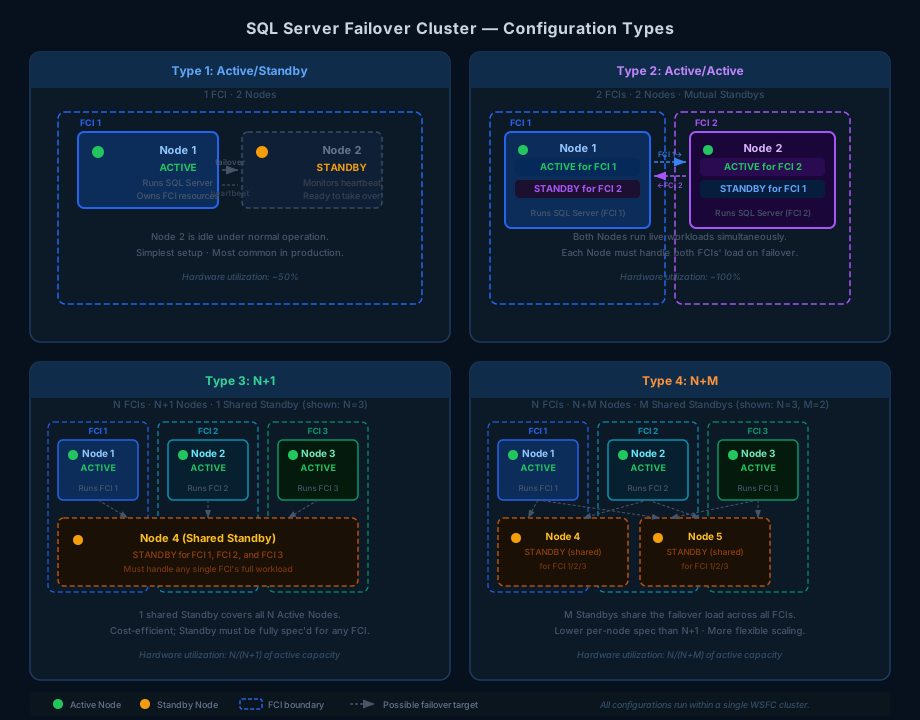
SQL Server failover clusters support four types of node configurations, each trading off simplicity, hardware cost, and standby capacity differently.
- Type 1: Active/Standby. 1 FCI, 2 Nodes. Node 1 is Active; Node 2 is Standby. The Standby Node monitors the Active Node’s heartbeat continuously and takes over the FCI when the Active Node fails. This is the simplest configuration and most common in production.
- Type 2: Active/Active. 2 FCIs sharing 2 physical Nodes. Node 1 is the Active Node for FCI 1 and the Standby Node for FCI 2; Node 2 is the Active Node for FCI 2 and the Standby Node for FCI 1. The two Nodes are mutual standbys — both carry live workloads under normal operation. If either Node fails, the surviving Node takes over the failed Node’s FCI while continuing to run its own. Each Node must therefore be sized to handle the combined workload of both FCIs.
- Type 3: N+1. N FCIs sharing N+1 Nodes. Each FCI has one Active Node; all N FCIs share a single common Standby Node. The shared Standby Node must be capable of independently absorbing the full workload of any one failed Active Node.
- Type 4: N+M. N FCIs sharing N+M Nodes. Each FCI has one Active Node; all N FCIs share M Standby Nodes. The M Standby Nodes collectively cover failover for all N Active Nodes, distributing the potential load across more standby capacity and reducing the per-node hardware requirements compared to N+1.
3.2 Quorum Guidelines
Quorum determines whether the cluster has enough healthy members to stay online. Keep the following guidelines in mind when setting up and maintaining quorum:
- Configure an odd total number of quorum votes to guarantee a majority in a split scenario and prevent split-brain.
- For two-node clusters, use Node and Disk Majority with a witness disk as the third vote. The witness disk does not need a drive letter.
- If quorum is lost entirely, force quorum as a last resort to recover surviving nodes, then reconfigure immediately before returning to production.
4. Installing Windows Server Failover Cluster (WSFC)
Attach and configure all shared storage before creating the cluster.
- Physically attach or provision all storage LUNs to every cluster node.
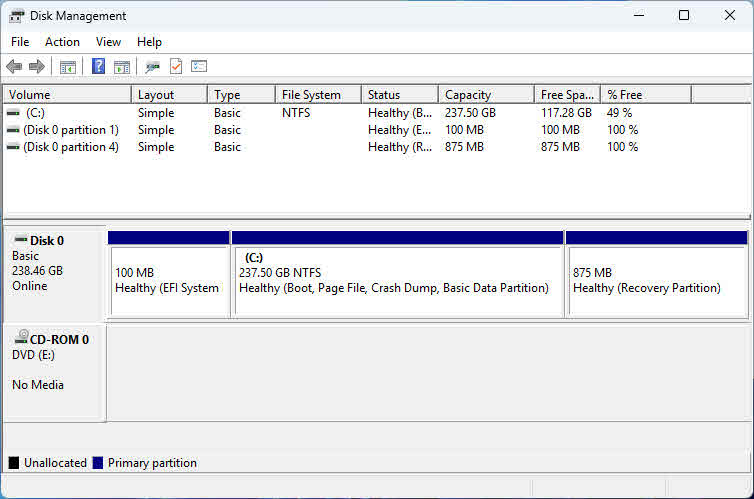
- On the first node only, open Disk Management, bring each disk online, initialize it, and create an NTFS volume with a drive letter. Create a small volume (1–2 GB) for the witness disk — a drive letter is not required.
- On each remaining node, open Disk Management and bring the disks online only. Do not re-initialize or reformat. Assign drive letters manually if they do not match the first node.
4.2 Install the Failover Clustering Feature and Validate
Install the Failover Clustering feature on every node, then validate before creating the cluster.
- On each node, open Server Manager -> Add Roles and Features -> Features, select Failover Clustering, and click Install. Reboot if prompted. PowerShell alternative:
Install-WindowsFeature -Name Failover-Clustering -IncludeManagementTools - On any one node, open Failover Cluster Manager -> Validate Configuration. Add all node hostnames and run all tests. PowerShell alternative:
Test-Cluster -Node Node1, Node2 - Resolve all errors in the validation report before proceeding. Storage Spaces Direct warnings can be ignored if S2D is not in use.
4.3 Create the WSFC
After validation passes, create the cluster and verify its configuration.
- In Failover Cluster Manager, click Create Cluster, add all node hostnames, enter the cluster name and a static virtual IP address, then click Next. PowerShell alternative:
New-Cluster -Name ClusterName -Node Node1, Node2 -StaticAddress x.x.x.x - If domain permissions are restricted, ask your Active Directory administrator to pre-stage the cluster name computer object before running this step.
- After creation, confirm the quorum shows Node and Disk Majority with the witness disk assigned.
- Under Storage -> Disks, rename each cluster disk to reflect its role (for example, SQL_DATA, SQL_LOG, WITNESS). Under Networks, rename each cluster network to reflect its traffic type.
5. Installing SQL Server Failover Cluster Instance
5.1 Choose an Installation Method
SQL Server Setup provides two approaches for installing a failover cluster instance. Select the one that matches your environment.
- Integrated installation (Add Node): Install a complete, operational FCI on the first node, then add each subsequent node using the Add Node option. Simpler and recommended for most deployments.
- Advanced/Enterprise installation: Run Prepare Failover Cluster on all nodes first, then run Complete Failover Cluster on the node that owns the shared disk. Use this approach for large multi-node rollouts where you want to prepare all nodes in parallel before committing.
5.2 First Node Installation
Run SQL Server Setup on the first node to create the FCI using the Integrated method.
- Run Setup.exe as an administrator. Select Installation -> New SQL Server failover cluster installation.
- On Feature Selection, choose Database Engine Services and Management Tools – Basic.
- On Instance Configuration, enter the SQL Server Network Name — the virtual name clients use to connect.
- On Cluster Resource Group, enter a descriptive group name.
- On Cluster Disk Selection, select shared disks for data, log, and backup files.
- On Cluster Network Configuration, assign an IP address per subnet. Setup sets an OR dependency automatically for multi-subnet clusters.
- On Server Configuration, set service accounts. Use a Group Managed Service Account (gMSA) for automated password management; use domain accounts as a fallback.
- On Database Engine Configuration, choose an authentication mode and set data directory paths. Place system databases, user databases, logs, backups, and TempDB on separate disks.
- Review the summary and click Install.
5.3 Add Remaining Nodes
After the first node is complete, add each additional node to the FCI.
- On the additional node, run Setup.exe and select Installation -> Add node to a SQL Server failover cluster.
- On Cluster Nodes Configuration, select the existing FCI instance.
- On Cluster Network Configuration, assign the IP address for this node’s subnet.
- On Service Accounts, confirm the service account passwords match those set on the first node, then click Install.
- Repeat for every additional node.
6. Post-Installation: Configure and Test
6.1 Essential SQL Server Settings
Apply these settings immediately after the FCI is operational.
- Set max server memory to cap SQL Server’s memory and leave headroom for OS and cluster services:
EXEC sp_configure 'show advanced options', 1; RECONFIGURE; EXEC sp_configure 'max server memory', <value_in_MB>; RECONFIGURE; - Set max degree of parallelism (MAXDOP) based on your Non-Uniform Memory Access (NUMA) topology.
- Move TempDB to a dedicated volume to isolate its I/O:
USE master;
ALTER DATABASE tempdb MODIFY FILE (NAME = tempdev, FILENAME = 'D:\TempDB\tempdb.mdf');
ALTER DATABASE tempdb MODIFY FILE (NAME = templog, FILENAME = 'D:\TempDB\templog.ldf');
Restart the SQL Server service for the file move to take effect.
6.2 Test Failover
Validate failover behavior before moving the cluster to production.
- In Failover Cluster Manager, right-click the SQL Server FCI role and select Move -> Select Node. Choose the secondary node and click OK.
- Wait until the role status shows Running on the new node.
- From a client machine, connect to SQL Server using the virtual network name and confirm the connection succeeds without changing the connection string.
- Review the SQL Server error log and Windows cluster event log to confirm a clean failover within your target recovery time objective (RTO).
7. Management, Best Practices, and Troubleshooting
7.1 Failover Policy and Monitoring
- In Failover Cluster Manager, right-click the SQL Server FCI role -> Properties -> Failover to set the failure condition level and health check timeout. Increase the timeout on heavily loaded servers to avoid false failovers.
- Monitor cluster health via Failover Cluster Manager, Windows Event Viewer, the SQL Server error log, and SQL Server Activity Monitor for real-time resource and session visibility.
- After any automatic failover, review the SQL Server diagnostic logs (stored alongside the error log) for the component state leading up to the event. Use SQL Server Extended Events to capture a detailed trace of resource health and error conditions around the failover window.
7.2 Best Practices
- Use static IPs on all nodes. Dynamic Host Configuration Protocol (DHCP) lease expiry during failover extends downtime and complicates DNS registration.
- Keep an odd number of quorum votes at all times. Add a witness if adding a node makes the count even.
- Run cluster validation after any hardware change, driver update, or significant OS configuration change.
- Assign identical drive letters on all nodes before SQL Server installation. Mismatches block Setup and are hard to fix afterward.
- Engage your Active Directory administrator before installation day. Computer object creation permissions are the most common pre-installation blocker.
- Maintain a tested SQL Server backup strategy even with FCI in place. FCI protects against node failure, not against data corruption, accidental deletion, or storage-level loss — a regular backup and restore schedule is the only safeguard for those scenarios.
7.3 Common Issues and Fixes
- Active Directory permission errors: Ask your Active Directory (AD) admin to pre-stage the cluster computer object, or grant Create Computer Objects and Read All Properties to the installation account.
- Shared storage not visible on nodes: Restart the iSCSI Target Server service on the storage host, then reconnect from the iSCSI initiator on each node. Verify LUN masking and zoning.
- Validation warnings on drivers or update levels: Apply the latest cumulative update from Windows Update on all nodes before re-running validation.
- WSFC goes offline after node failure: Use force quorum to bring surviving nodes online, recover any databases affected by the failure, restore quorum, then reconfigure before returning to production. Run DBCC CHECKDB on each recovered database to confirm integrity before resuming normal workloads.
- False automatic failovers: Increase the health check timeout in FCI role properties. Review diagnostic logs to distinguish a genuine failure from a transient resource spike.
8. FAQs
Q: What is the minimum number of nodes required for a SQL Server failover cluster?
A: Two nodes are the minimum. One acts as the active node running the SQL Server instance; the other is the standby. Most production deployments start with a two-node Active/Passive configuration.
Q: Does SQL Server FCI require shared storage?
A: Yes. Unlike Always On Availability Groups, an FCI requires all nodes to access the same storage — either a SAN (Fibre Channel or iSCSI), Storage Spaces Direct, or an SMB file share. The shared storage is what makes the same database files accessible from any node after a failover.
Q: What SQL Server editions support failover clustering?
A: SQL Server Standard and Enterprise editions support FCI. Express and Developer editions do not. Enterprise edition supports more nodes and additional high-availability features such as online index operations during maintenance.
Q: Can SQL Server FCI and Always On Availability Groups be used together?
A: Yes. An FCI node can host an availability group replica, giving you both instance-level HA from the FCI and database-level DR from the availability group. However, automatic failover of the availability group to or from an FCI-hosted replica is not supported — only manual failover is available in that configuration.
Q: How long does a SQL Server failover typically take?
A: Failover time depends on the number of dirty pages in the buffer cache that must be written to disk before the instance restarts on the new node. With indirect checkpoints enabled (the default from SQL Server 2012 onward), dirty pages are bounded, and most failovers complete in under 30 seconds. Your actual RTO depends on workload, storage speed, and database recovery time.
Q: What is quorum, and why does it matter?
A: Quorum is the mechanism WSFC uses to determine whether the cluster has enough healthy members to remain online and serve requests. It prevents a split-brain scenario where two isolated node groups each believe they are the authoritative owner of the SQL Server instance. If quorum is lost, WSFC takes the cluster offline to protect data integrity.
Q: Can SQL Server FCI be installed on a workgroup cluster (without Active Directory)?
A: No. SQL Server FCI requires all nodes to be members of the same Active Directory domain. Workgroup clusters, multi-domain clusters, and clusters that include Read-Only Domain Controllers are not supported configurations.
Q: What happens to client connections when a failover occurs?
A: Active connections to the SQL Server instance are dropped during the failover. After the instance comes online on the new node, the virtual network name and virtual IP are re-registered there, and clients that use retry logic in their connection strings will reconnect automatically without any configuration change.
Q: Can I add or remove nodes from an existing SQL Server failover cluster?
A: Yes. Run SQL Server Setup on any node and choose Add node to a SQL Server failover cluster to add a node, or Remove node from a SQL Server failover cluster to remove one. Adding or removing a node does not require downtime for the other nodes in the cluster.
Q: What is the difference between a planned failover and an automatic failover?
A: A planned failover is initiated manually by an administrator — typically for maintenance such as patching or hardware replacement. It allows SQL Server to flush dirty pages and shut down cleanly before transferring ownership, resulting in minimal downtime. An automatic failover is triggered by WSFC when health monitoring detects that the active node has failed, and recovery time depends on the amount of crash recovery required.
Q: How do I recover a SQL Server failover cluster if the entire WSFC goes offline?
A: If quorum is lost and the cluster cannot start normally, use force quorum to bring surviving nodes online in a non-fault-tolerant state. Run the following PowerShell command on the surviving node: Start-ClusterNode -ForcQuorum. After the cluster is online, recover databases, verify data integrity, and then reconfigure quorum with the remaining nodes before returning to production.
Q: Should I run the Cluster Validation Wizard before every SQL Server installation?
A: Yes, and also after any significant hardware or configuration change. Microsoft only supports failover cluster configurations that pass all validation tests without errors. Skipping validation risks running an unsupported configuration that may behave unpredictably under failure conditions.
9. Conclusion
SQL Server failover clustering delivers transparent instance-level high availability through WSFC, with automatic failover and no client reconfiguration required. It is the right choice when shared storage is available and you need every database on the instance to fail over together as a unit. For environments that also require disaster recovery or secondary read workloads, pair the FCI with Always On Availability Groups to cover both scenarios.
References
- Microsoft Official Document: Windows Server Failover Cluster with SQL Server
- Microsoft Official Document: Always On Failover Cluster Instances
- Microsoft Official Document: Install a Failover Cluster Instance
- Microsoft Official Document: WSFC Quorum Modes and Voting Configuration
About the Author
Yuan Sheng is a senior database administrator (DBA) with over 10 years of experience in SQL Server environments and enterprise database management. He has successfully resolved hundreds of database recovery scenarios across financial services, healthcare, and manufacturing organizations.
Yuan specializes in SQL Server database recovery, high availability solutions, and performance optimization. His extensive hands-on experience includes managing multi-terabyte databases, implementing Always On Availability Groups, and developing automated backup and recovery strategies for mission-critical business systems.
Through his technical expertise and practical approach, Yuan focuses on creating comprehensive guides that help database administrators and IT professionals solve complex SQL Server challenges efficiently. He stays current with the latest SQL Server releases and Microsoft’s evolving database technologies, regularly testing recovery scenarios to ensure his recommendations reflect real-world best practices.
Have questions about SQL Server recovery or need additional database troubleshooting guidance? Yuan welcomes feedback and suggestions for improving these technical resources.