
1. Introduction to SQL Server Always On
1.1 What is SQL Server Always On?
SQL Server Always On is Microsoft’s comprehensive high availability and disaster recovery solution introduced with SQL Server 2012. It represents a significant advancement over previous technologies like database mirroring and log shipping, ensuring continuous access to data while minimizing downtime and data loss.
1.2 Why Businesses Need Always On Solutions
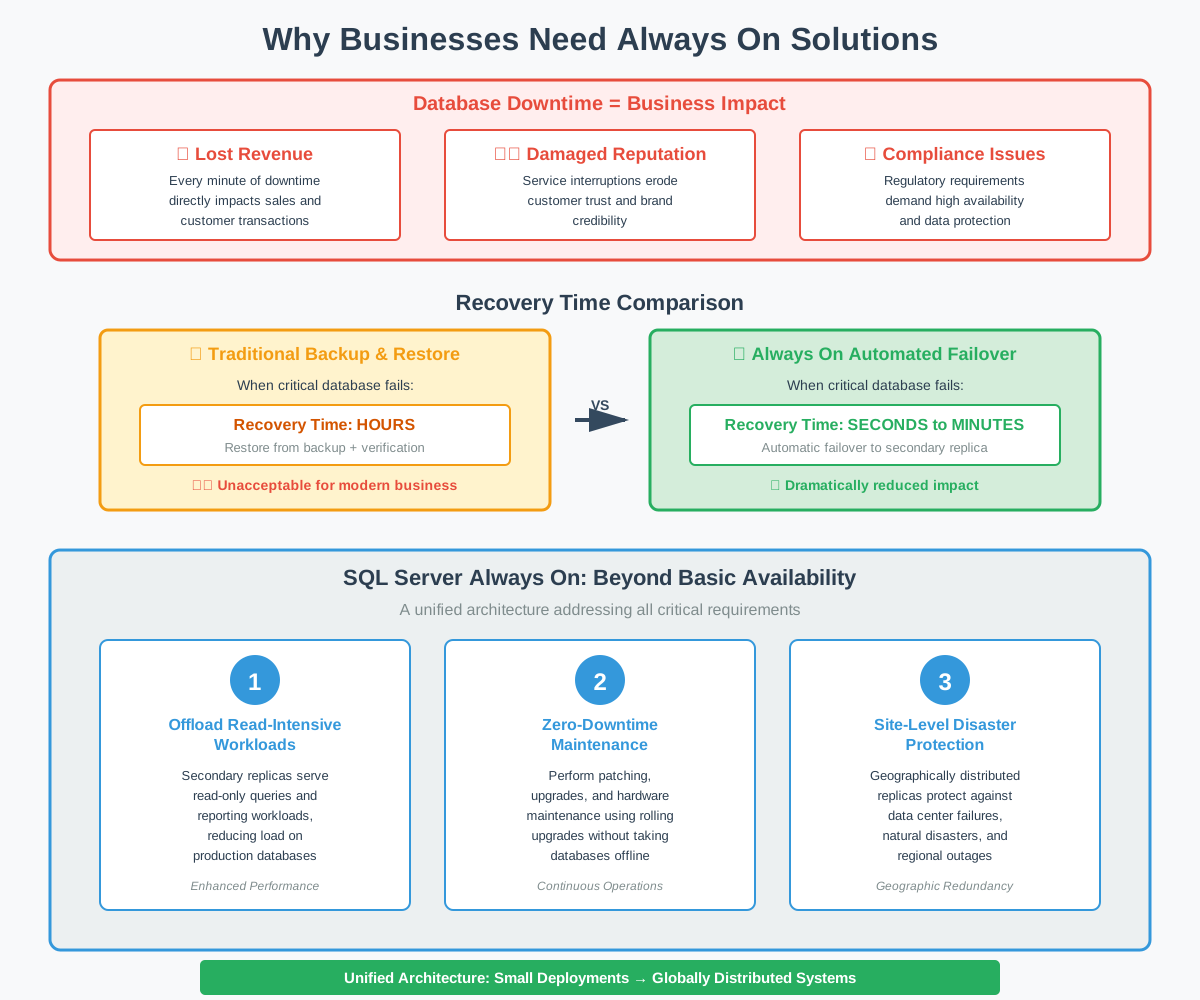
In today’s digital economy, database downtime directly translates to lost revenue, damaged reputation, and regulatory compliance issues. Organizations require high availability solutions that can guarantee near-continuous uptime while protecting against various failure scenarios.
Traditional backup and restore procedures are insufficient for modern business requirements. When a critical database fails, businesses cannot afford the hours required to restore from backups. Always On solutions provide automated failover that can restore service in seconds or minutes rather than hours, dramatically reducing the impact of system failures.
Beyond basic availability, businesses need to offload read-intensive workloads from production databases, perform maintenance without downtime, and protect against site-level disasters. SQL Server Always On addresses all these requirements through a unified architecture that scales from small deployments to globally distributed systems.
1.3 Key Concepts: RTO, RPO, HA, and DR
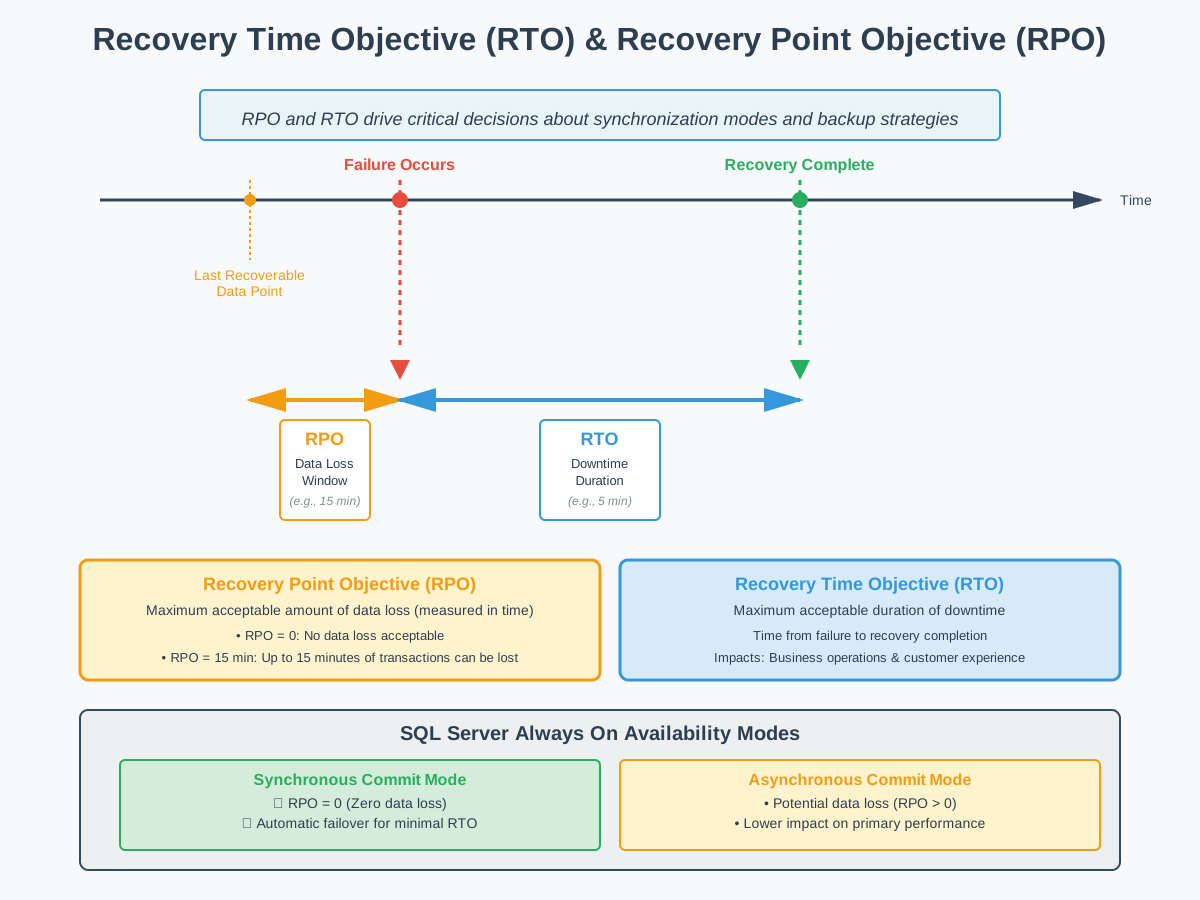
Recovery Time Objective (RTO) defines the maximum acceptable duration of downtime following a failure — how fast the database must be back online.
Recovery Point Objective (RPO) defines the maximum acceptable data loss measured in time — how much recently committed data the business can afford to lose.
High Availability (HA) focuses on minimizing downtime caused by routine failures such as hardware malfunctions or software crashes within the same data center.
Disaster Recovery (DR) addresses catastrophic events that affect entire sites, maintaining copies of data at geographically separate locations. While HA focuses on minimizing downtime, DR focuses on ensuring data protection and business continuity during major incidents.
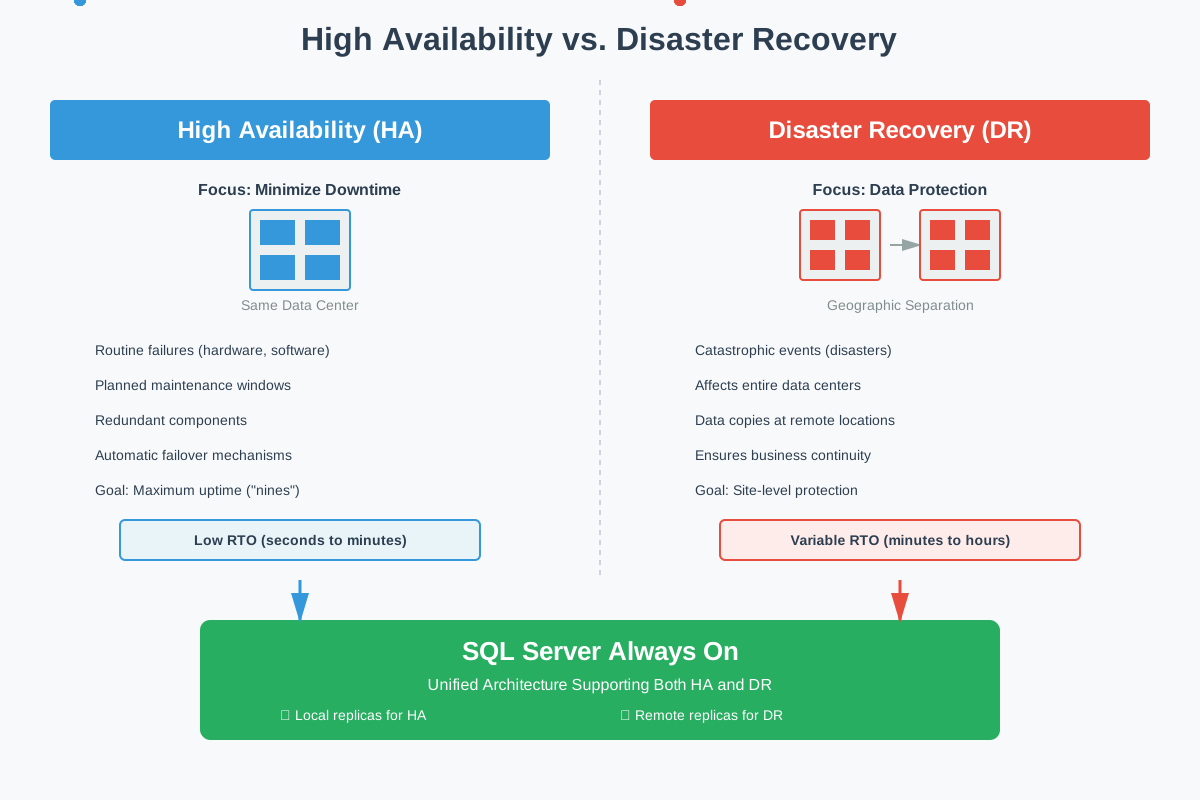
SQL Server Always On supports both HA and DR within a single unified architecture. Synchronous-commit mode delivers RPO = 0 with automatic failover for near-zero RTO; asynchronous-commit mode accepts potential data loss in exchange for lower latency impact across distant sites.
1.4 Always On Solutions
SQL Server Always On provides three deployment options, each suited to different availability and infrastructure requirements. This guide covers all three:
- Always On Availability Groups (AG): Database-level high availability and disaster recovery without shared storage.
- Always On Failover Cluster Instances (FCI): Instance-level high availability using shared storage.
- AG + FCI combined: Two-layer protection that combines instance-level and database-level failover for maximum resilience.
2. Always On Availability Groups
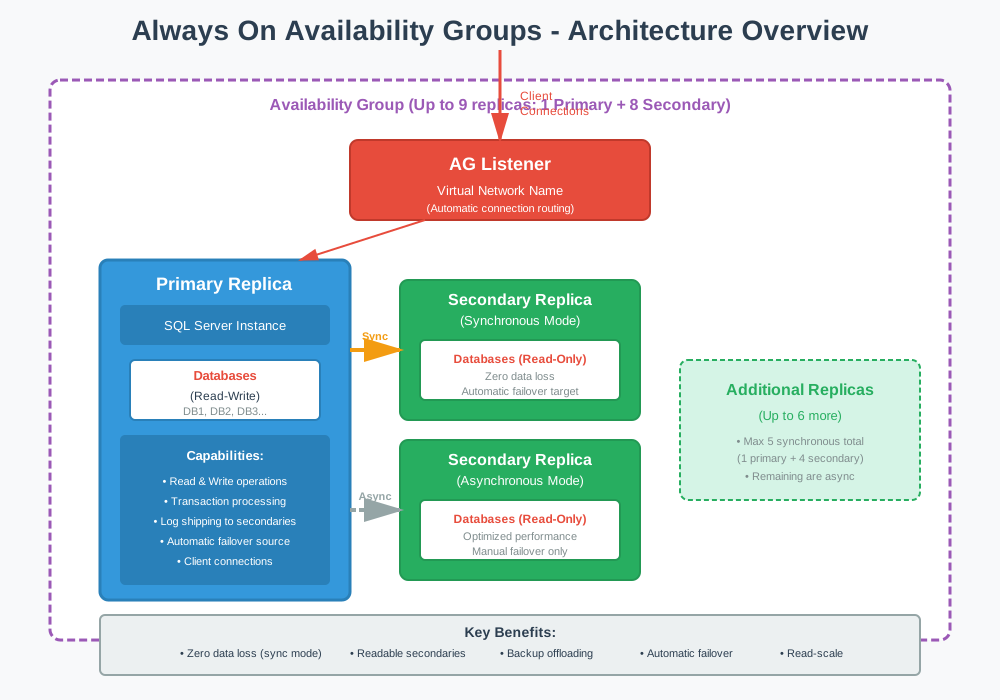
Always On Availability Groups (AG) is a database-level high availability and disaster recovery solution that replicates a set of user databases to up to eight secondary replicas through continuous transaction log shipping.
2.1 Key Features
- Database-level failover: individual databases or groups can fail over independently of the SQL Server instance;
- up to nine replicas (one primary, eight secondaries) in Enterprise Edition;
- synchronous-commit mode for zero data loss; asynchronous-commit for distant DR replicas;
- automatic failover for synchronous replicas when the primary becomes unavailable;
- readable secondary replicas for offloading reporting and backup workloads;
- availability group listener provides a single connection endpoint that automatically routes to the current primary.
2.2 Implementation Steps
- Prepare Active Directory service accounts and configure permissions on all nodes;
- install and validate Windows Server Failover Clustering on all participating servers;
- install SQL Server as a standalone instance on each node using consistent paths and settings;
- enable the Always On Availability Groups feature via SQL Server Configuration Manager or PowerShell;
- set databases to full recovery model and take full and log backups;
- create the availability group, add replicas, and configure availability and failover modes;
- seed secondary replicas using automatic seeding or manual backup and restore;
- create the availability group listener and verify client connectivity.
For the complete step-by-step walkthrough, see our Always On Availability Groups complete guide.
2.3 Best For
- Mission-critical databases requiring zero data loss and automatic failover;
- workloads that need readable secondaries for reporting or backup offloading;
- deployments spanning multiple sites for disaster recovery;
- environments without existing shared storage infrastructure.
2.4 Pros
- No shared storage required — each replica uses independent local storage;
- supports both HA and DR in a single configuration;
- readable secondaries reduce primary workload;
- database-level granularity allows different failover policies per database group.
2.5 Cons
- Requires Enterprise Edition for full feature set (Standard supports Basic AG with significant limitations);
- synchronous-commit mode adds write latency proportional to network round-trip time;
- logins, SQL Agent jobs, and linked servers require manual synchronization in SQL Server 2019 and earlier;
- all replicas must reside on nodes of the same Windows Server Failover Cluster.
2.6 References
- Microsoft Official Document: What is an Always On availability group?
- Microsoft Official Document: Getting Started with Always On Availability Groups
3. Always On Failover Cluster Instances
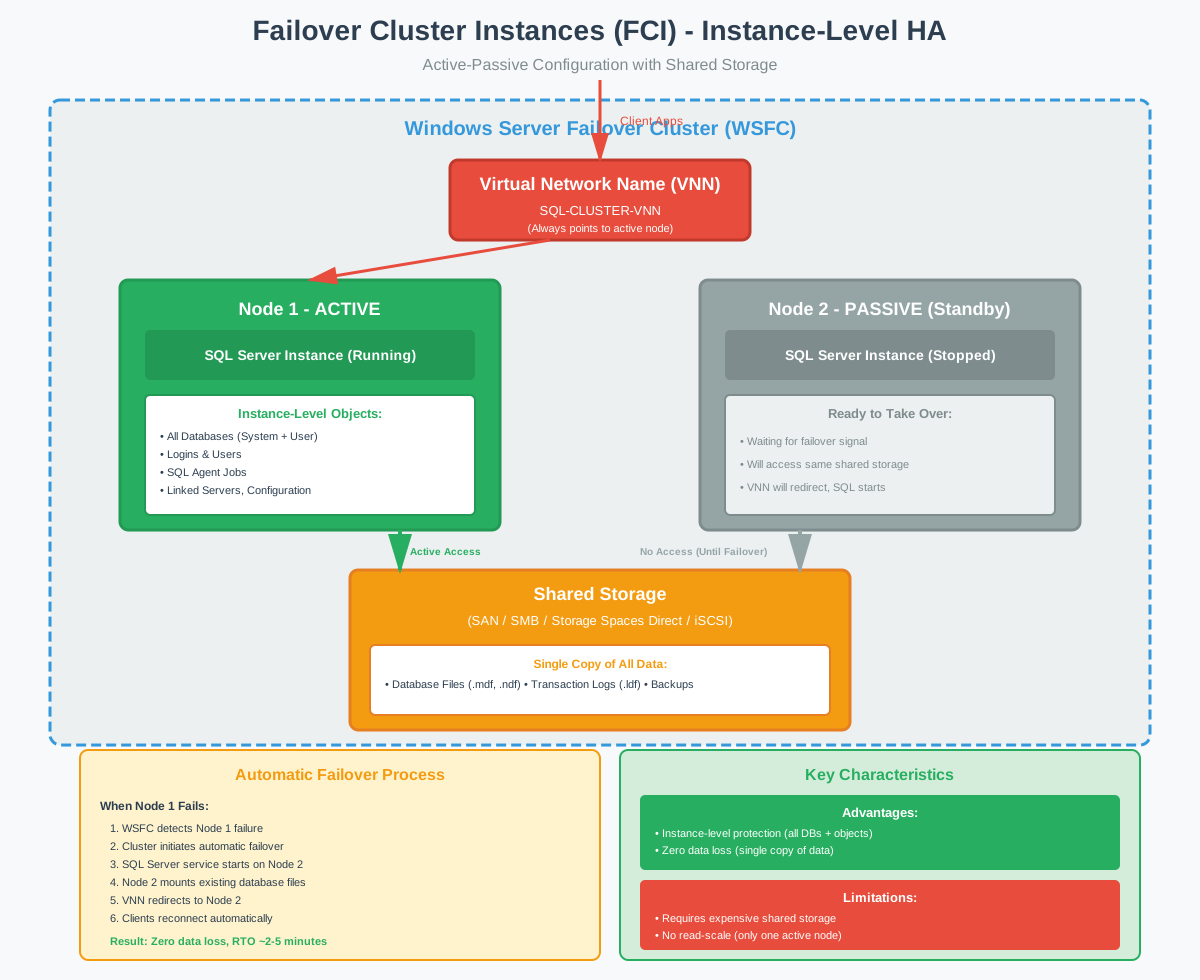
Always On Failover Cluster Instances (FCI) provides instance-level high availability by running a single SQL Server instance across multiple physical nodes that share the same storage. When the active node fails, the SQL Server instance on a standby node is automatically restarted, making the transition transparent to client applications.
3.1 Key Features
- Instance-level failover: all databases on the instance fail over together as a single unit;
- shared storage (Storage Area Network (SAN), iSCSI, Storage Spaces Direct, or SMB) accessible by all nodes;
- virtual network name and virtual IP address provide a stable connection endpoint regardless of which node is active;
- Windows Server Failover Clustering manages node health monitoring, quorum, and failover orchestration;
- supports Active/Standby, Active/Active, N+1, and N+M node configuration types.
3.2 Implementation Steps
- Provision and attach shared storage to all cluster nodes;
- install the Failover Clustering feature and validate the cluster configuration;
- create the Windows Server Failover Cluster and configure quorum;
- run the SQL Server installation selecting the failover cluster option and specifying the virtual network name and shared storage paths;
- add additional nodes to the SQL Server failover cluster instance;
- verify failover behavior by testing a manual failover between nodes.
For the complete step-by-step walkthrough, see our SQL Server Failover Cluster complete guide.
3.3 Best For
- Environments with existing shared storage infrastructure (SAN or iSCSI);
- applications that require instance-level failover where all databases must fail over together;
- scenarios where client transparency is critical and no application-side changes are acceptable;
- organizations prioritizing simplicity of a single-instance failover model.
3.4 Pros
- Automatic failover at the instance level with no client reconfiguration required;
- no data replication overhead — all nodes access the same storage;
- predictable failover behavior for all databases simultaneously;
- supports flexible node configurations (Active/Active, N+1, N+M) to optimize hardware utilization.
3.5 Cons
- Shared storage is a potential single point of failure unless the storage itself is redundant;
- only one node runs SQL Server at a time — no read load balancing on secondary nodes;
- no built-in disaster recovery without pairing with an availability group;
- shared storage infrastructure adds cost and complexity compared to AG.
3.6 References
- Microsoft Official Document: Always On Failover Cluster Instances (SQL Server)
4. Combine Availability Groups with Failover Cluster Instances
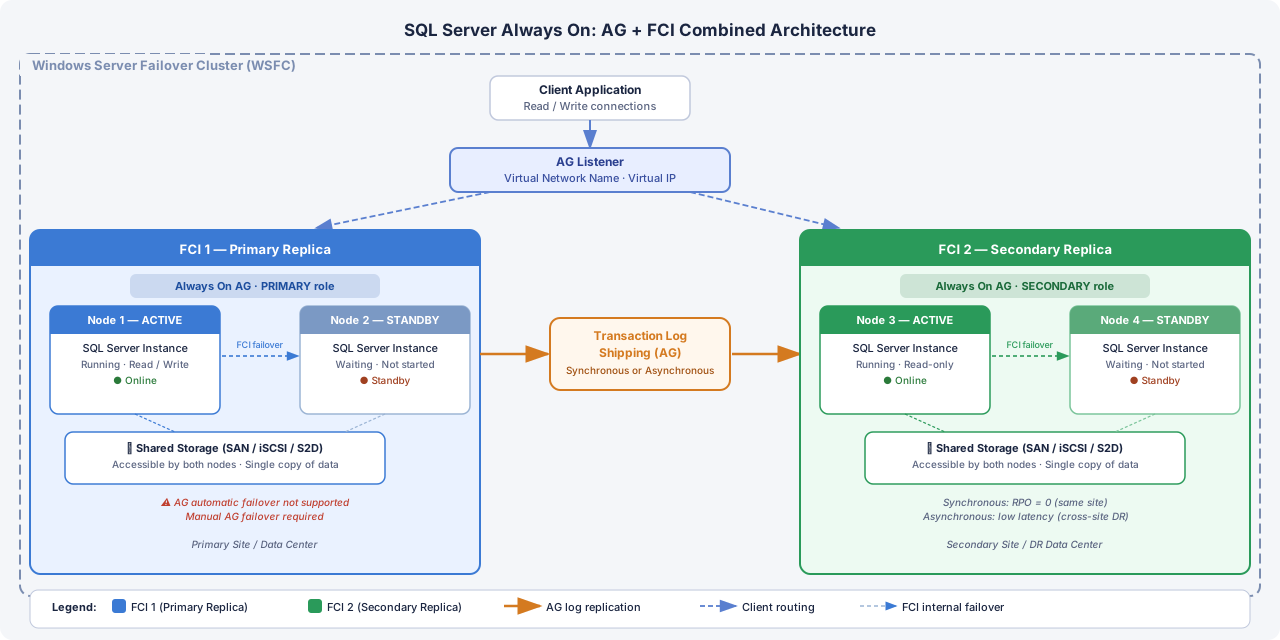
For organizations requiring both instance-level and database-level protection, SQL Server supports hosting availability group replicas on Failover Cluster Instances (FCI). In this configuration, each FCI node acts as a single availability replica, so an FCI failover is transparent to the availability group while an AG failover provides database-level protection across sites. This combination delivers the most comprehensive high availability and disaster recovery coverage available in SQL Server.
4.1 Key Features
- Two-layer failover: FCI handles instance-level node failures; AG handles site-level or replica-level failures;
- each FCI counts as a single replica within the availability group regardless of how many nodes the FCI contains;
- FCI-hosted replicas still require shared storage as per standard FCI requirements;
- AG replicas hosted on FCIs support only manual failover — automatic failover is not available for FCI-hosted replicas;
- standalone instances can participate in the same availability group alongside FCI-hosted replicas.
4.2 Implementation Steps
- Deploy and validate each FCI independently following standard FCI setup procedures;
- ensure all FCI nodes and standalone replica nodes belong to the same Windows Server Failover Cluster;
- enable the Always On Availability Groups feature on each FCI instance;
- verify that no single WSFC node would host two replicas of the same availability group after any possible FCI failover;
- create the availability group, designating FCI instances as replicas and configuring manual failover mode for all FCI-hosted replicas;
- seed secondary replicas and configure the availability group listener.
For FCI setup details, see our SQL Server Failover Cluster complete guide. For AG setup details, see our Always On Availability Groups complete guide.
4.3 Best For
- Mission-critical environments requiring protection against both individual node failures and site-level disasters;
- organizations already running FCI who need to add cross-site disaster recovery;
- regulated industries where maximum data protection and availability SLAs are mandatory;
- large-scale deployments where instance-level and database-level failover policies must coexist.
4.4 Pros
- Maximum protection: node failures handled by FCI, site failures handled by AG;
- FCI failover is transparent to the availability group — AG sees no replica change during an FCI failover;
- flexible topology: mix FCI-hosted and standalone replicas in the same availability group.
4.5 Cons
- FCI-hosted replicas support only manual AG failover — automatic AG failover is unavailable for these replicas;
- requires careful WSFC node planning to prevent a single node from hosting two replicas of the same AG after an FCI failover;
- higher infrastructure cost and operational complexity than either AG or FCI alone;
- shared storage still required for each FCI component.
4.6 References
- Microsoft Official Document: Failover Clustering and Always On Availability Groups (SQL Server)
- Microsoft Official Document: What is an Always On availability group?
- Microsoft Official Document: Getting Started with Always On Availability Groups
- Microsoft Official Document: Always On Failover Cluster Instances (SQL Server)
5. Comparison of Always On Solutions
5.1 Feature Comparison Table
| Feature | Availability Groups | Failover Cluster Instances | AG + FCI Combined |
|---|---|---|---|
| Failover scope | Database-level | Instance-level | Both |
| Shared storage required | No | Yes | Yes (for FCI component) |
| Data replication | Log-based to each replica | None (shared storage) | Log-based between FCIs |
| Automatic failover | Yes (synchronous replicas) | Yes | FCI: Yes; AG: No |
| Readable secondaries | Yes | No | Yes (AG component) |
| Disaster recovery | Built-in | Not built-in | Built-in |
| Max replicas | 9 (Enterprise) | N/A | 9 (Enterprise) |
| Infrastructure complexity | Medium | Medium | High |
| Cost | Lower (no SAN needed) | Higher (SAN required) | Highest |
5.2 Choose Your Always On Solution
Start with your storage infrastructure: if you have no existing shared storage, Availability Groups is the natural choice and the most cost-effective path to both HA and DR. If you already operate a SAN environment and need instance-level failover, FCI is the simpler option — but plan for adding AG later if cross-site DR is a future requirement.
Choose the AG + FCI combination only when you have a genuine need for both layers of protection and the operational maturity to manage the increased complexity. The key constraint to remember is that FCI-hosted AG replicas do not support automatic AG failover, so this topology requires manual intervention for availability group-level failovers.
For most greenfield deployments today, Always On Availability Groups is the recommended starting point: it covers both HA and DR, requires no shared storage, and supports readable secondaries — capabilities that FCI alone cannot match.
6. Best Practices for SQL Server Always On Solutions
6.1 Planning and Design
- Define RTO and RPO requirements before selecting an Always On solution — these targets directly determine whether synchronous or asynchronous commit mode is appropriate, and whether automatic failover is feasible.
- Size secondary replicas to handle the full primary workload during a failover event, including peak load scenarios.
- For AG deployments, place synchronous replicas within the same data center or low-latency network to minimize write latency impact. Reserve asynchronous mode for geographically distant DR replicas.
- Design quorum with an odd number of votes. For two-node clusters, add a file share or cloud witness as a third vote to prevent split-brain scenarios.
- Plan your network topology carefully for multi-subnet deployments. Each subnet requires its own listener IP address, and clients need MultiSubnetFailover=True in their connection strings.
6.2 Implementation Guidelines
- Use consistent SQL Server version, edition, and cumulative update levels across all replicas. Mixed patch levels can cause unexpected behavior during failover.
- Configure dedicated network interfaces for cluster heartbeat traffic, separate from application traffic.
- Enable automatic seeding for initial database synchronization in SQL Server 2016 and later — it eliminates the need to manually copy backups to secondary replicas for most scenarios.
- For AG + FCI topologies, verify after every FCI node configuration change that no single WSFC node could end up hosting two replicas of the same availability group.
- Always use SQL Server Management Studio or Transact-SQL to manage availability group failovers — never use Failover Cluster Manager directly, as it is not aware of AG synchronization state and can cause extended downtime or data loss.
6.3 Monitoring and Maintenance
- Monitor synchronization health, send queue, and redo queue regularly using the availability group dashboard in SQL Server Management Studio or Dynamic Management Views (DMVs). A growing redo queue on a secondary indicates an I/O bottleneck that will delay failover recovery.
- Run DBCC CHECKDB on secondary replicas to offload integrity checks from the primary. See our DBCC CHECKDB guide for details.
- Apply SQL Server patches using rolling upgrades: patch secondary replicas first, perform a planned manual failover to a patched secondary, then patch the former primary. This limits downtime to the duration of a single failover.
- Test failover regularly in non-production environments. Automatic failover that has never been tested is not a reliable recovery strategy.
- Configure alerts for availability group health state changes, replica role transitions, and synchronization failures using SQL Server Agent or a dedicated monitoring tool such as SQL Server Performance Monitor.
7. FAQ
Q: What is SQL Server Always On?
A: SQL Server Always On is Microsoft’s high availability and disaster recovery platform introduced in SQL Server 2012. It encompasses two technologies — Always On Availability Groups and Always On Failover Cluster Instances — that provide automated failover, data redundancy, and continuous access to databases in the event of hardware, software, or site failures.
Q: What is the difference between Always On Availability Groups and Failover Cluster Instances?
A: Availability Groups operate at the database level, replicate data to independent secondary replicas through log shipping, and require no shared storage. Failover Cluster Instances operate at the instance level, require shared storage accessible by all nodes, and fail over all databases together as a unit. AG supports readable secondaries and built-in DR; FCI does not.
Q: Do I need shared storage for Always On Availability Groups?
A: No. Each AG replica maintains its own independent copy of the databases on local storage. Shared storage is only required if you use Failover Cluster Instances to host AG replicas.
Q: Can I use Always On with SQL Server Standard Edition?
A: SQL Server Standard Edition supports Basic Availability Groups starting with SQL Server 2016, but with significant limitations: one database per AG, two replicas maximum, and no readable secondary support. FCI is available in Standard Edition without these restrictions. Enterprise Edition is required for full Always On functionality.
Q: What is the maximum number of replicas in an availability group?
A: SQL Server Enterprise Edition supports up to nine replicas: one primary and eight secondaries. Distributed availability groups can extend this to 18 replicas across two separate availability groups.
Q: Can FCI-hosted replicas use automatic AG failover?
A: No. When an availability replica is hosted on a Failover Cluster Instance, automatic availability group failover is not supported for that replica. All AG failovers involving FCI-hosted replicas require manual intervention.
Q: What is the difference between synchronous and asynchronous commit modes?
A: Synchronous-commit mode requires the primary to wait for the secondary to harden log records before committing, ensuring zero data loss (RPO = 0) at the cost of added write latency. Asynchronous-commit mode allows the primary to commit without waiting, reducing latency but risking data loss if the primary fails before the secondary receives all log records. Use synchronous for local HA replicas and asynchronous for distant DR replicas.
Q: How long does a SQL Server Always On failover take?
A: Automatic failover for a synchronous AG replica typically completes in under 30 seconds under normal conditions. FCI failover usually takes 20–60 seconds depending on database recovery time. Actual duration depends on workload, database size, and the health check timeout settings configured in WSFC.
Q: What happens to client connections during a failover?
A: Existing connections are dropped when failover occurs. Applications that use the availability group listener and include connection retry logic reconnect automatically to the new primary after failover completes. Adding MultiSubnetFailover=True to connection strings improves reconnection speed in multi-subnet deployments.
Q: How do I apply SQL Server patches with minimal downtime in an Always On environment?
A: Use rolling upgrades: patch secondary replicas first, then perform a planned manual failover to a patched secondary, and finally patch the former primary. This limits downtime to the duration of a single planned failover — typically under a minute.
Q: Can I combine Always On Availability Groups with Failover Cluster Instances?
A: Yes. You can host AG replicas on FCI instances to achieve both instance-level and database-level failover protection. Each FCI counts as a single AG replica. This topology requires careful WSFC node planning to ensure no single node hosts two replicas of the same AG after any possible FCI failover.
Q: What should I do if my database becomes corrupted in an Always On environment?
A: First, check whether the corruption exists on all replicas or only the primary. If a healthy secondary exists, fail over to it immediately. For corruption on all replicas, restore from a clean backup. Run DBCC CHECKDB on secondary replicas regularly to catch corruption early. If backups are also affected, a specialized SQL Server data recovery tool can attempt to extract data from damaged MDF files as a last resort.
Q: How does Always On Availability Groups compare to older SQL Server HA solutions?
A: AG supersedes older technologies such as log shipping and replication. Log shipping requires manual failover and has no automatic role transition; replication is designed for data distribution rather than HA. AG delivers automated failover, zero data loss with synchronous commit, and readable secondaries — capabilities those technologies cannot match.
8. Conclusion
SQL Server Always On provides a flexible, enterprise-grade platform for high availability and disaster recovery. Always On Availability Groups is the right choice for most modern deployments: it eliminates the need for shared storage, supports readable secondaries, and handles both local HA and cross-site DR in a single configuration. Failover Cluster Instances remain a solid option when instance-level failover and existing shared storage infrastructure are the primary requirements. Combining both technologies delivers the deepest protection available — at the cost of greater infrastructure investment and operational complexity.
Whichever solution you choose, the fundamentals are the same: define your RTO and RPO requirements first, design your topology around those targets, and test failover regularly. A well-implemented Always On solution that has been thoroughly tested will recover predictably when production failures occur.
About the Author
Yuan Sheng is a senior database administrator (DBA) with over 10 years of experience in SQL Server environments and enterprise database management. He has successfully resolved hundreds of database recovery scenarios across financial services, healthcare, and manufacturing organizations.
Yuan specializes in SQL Server database recovery, high availability solutions, and performance optimization. His extensive hands-on experience includes managing multi-terabyte databases, implementing Always On Availability Groups, and developing automated backup and recovery strategies for mission-critical business systems.
Through his technical expertise and practical approach, Yuan focuses on creating comprehensive guides that help database administrators and IT professionals solve complex SQL Server challenges efficiently. He stays current with the latest SQL Server releases and Microsoft’s evolving database technologies, regularly testing recovery scenarios to ensure his recommendations reflect real-world best practices.
Have questions about SQL Server recovery or need additional database troubleshooting guidance? Yuan welcomes feedback and suggestions for improving these technical resources.