
1. Introduction to SQL Server Log Shipping
1.1 What is SQL Server Log Shipping?
SQL Server log shipping is an automated disaster recovery solution that maintains warm standby copies of your production databases. The technology transfers transaction log backups from a primary database on a primary server instance to one or more secondary databases on separate secondary server instances, ensuring your secondary databases remain synchronized with the primary database, providing protection against data loss and server failures.
1.2 Purpose and Benefits of Log Shipping
Log shipping serves multiple critical purposes in database administration:
- Its primary role is disaster recovery, providing a reliable failover target when your primary server becomes unavailable due to hardware failure, software corruption, or catastrophic events affecting your data center.
- It is also a cost-effective high availability solution. Unlike enterprise-grade features that require expensive licensing, log shipping works with SQL Server Standard Edition, making it accessible for organizations with budget constraints.
- Secondary databases in standby mode offer additional value beyond disaster recovery. Database administrators can use them for read-only reporting, offloading query workloads from the production server.
- The delayed restore feature provides protection against accidental data modifications. By configuring a restore delay, you create a time window to recover from user errors before destructive changes reach your secondary database.
2. SQL Server Log Shipping Components and Workflow
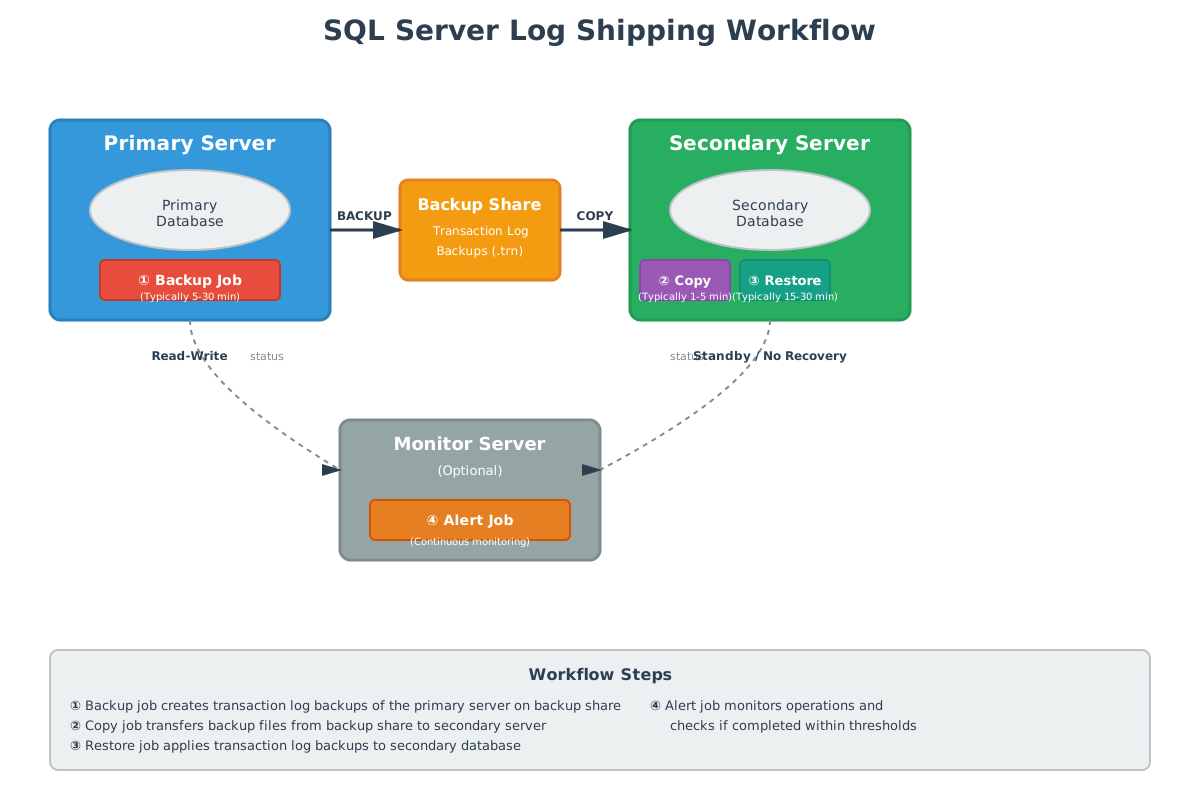
Log shipping consists of the following components:
- Primary Server and Primary Database: The primary server represents your production SQL Server instance running the primary database.
- Backup share: The intermediate location to store and transfer the transaction log backups from the primary server to the secondary servers.
- Secondary Servers and Secondary Databases: The secondary servers host the warm standby copies of your primary database.
- Monitor Server (Optional): This server tracks the history and status of all backup, copy, and restore operations across your entire log shipping topology.
- Agent Jobs: Including the backup, copy, restore, and alert jobs, automating the entire log shipping process.
The automation workflow is:
- The backup job runs on the primary server and creates transaction log backups of the primary database on the backup share.
- The copy job runs on each secondary server and transfers log backup files from the backup share to the secondary server(s).
- The restore job runs on each secondary server and applies copied transaction log backups to the secondary database.
- The alert job runs on the monitor server and checks whether backup and restore operations are completed within acceptable timeframes.
3. Prerequisites and Requirements
3.1 SQL Server Version Requirements
Log shipping has been available since SQL Server 2000 and remains supported in all subsequent versions from SQL Server 2005 to 2025. This long-standing support demonstrates the technology’s stability and continued relevance.
3.2 SQL Server Edition Requirements
Log shipping works with Standard, Workgroup, Enterprise, and Developer editions of SQL Server. This broad edition support makes log shipping accessible for organizations without Enterprise Edition licenses, unlike features such as Always On Availability Groups that require Enterprise or Evaluation editions.
Note: Express Edition does not support log shipping.
3.3 Database Recovery Model Requirements
Log shipping requires the primary database to use full recovery model or bulk-logged recovery model. Simple recovery model is not supported because SQL Server truncates transaction logs automatically, breaking the continuous log chain needed for log shipping.
For more details on recovery models, see our comprehensive guide on SQL Server backup.
4. Configuring Log Shipping Using SSMS
Before configuring log shipping, prepare the backup share folder where transaction log backups will be stored and transferred.
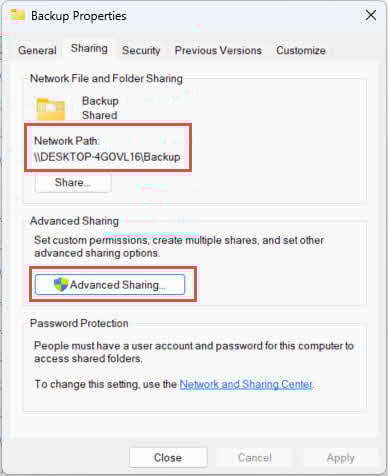
- On the primary server or a dedicated file server, create a folder (e.g., C:\Backup)
- Right-click the folder and select Properties
- Click the Sharing tab
- Click Advanced Sharing
- Check Share this folder
- Click Permissions and grant Full Control permission to the SQL Server service account NT Service\MSSQLSERVER.
- Click OK to apply.
- Document the network path (UNC) (e.g., \\SERVER-NAME\Backup)
4.2 Enable and Configure Log Shipping
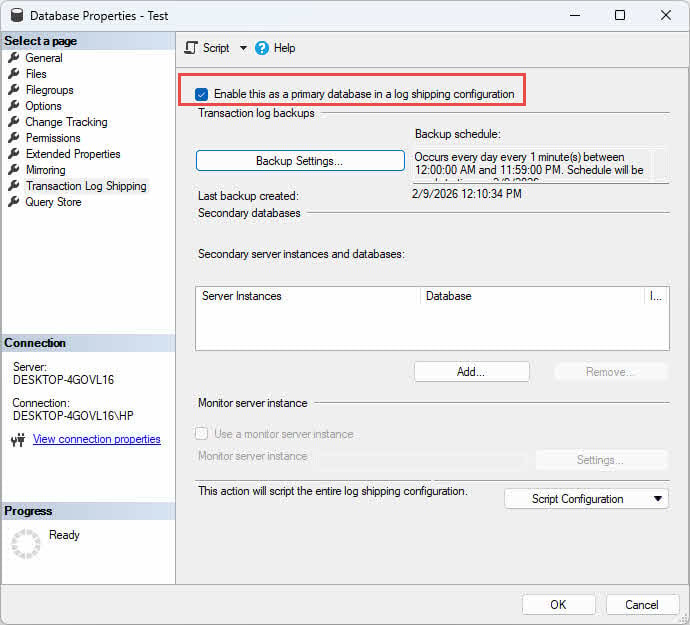
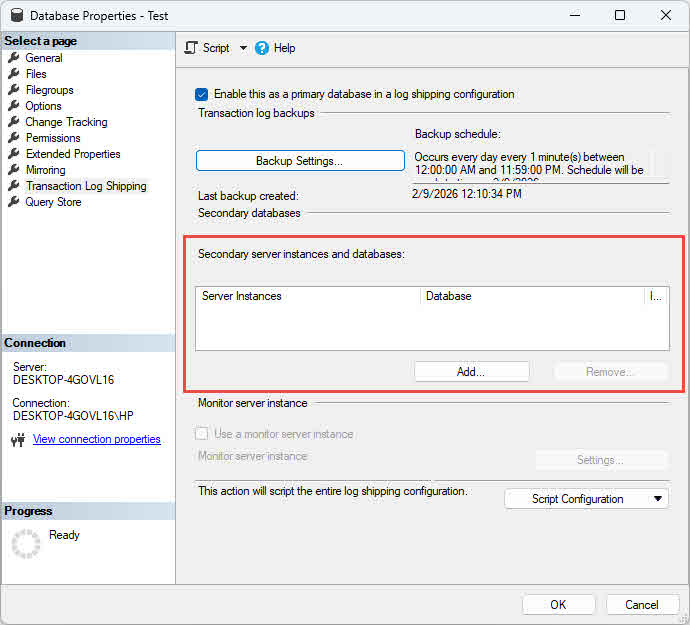
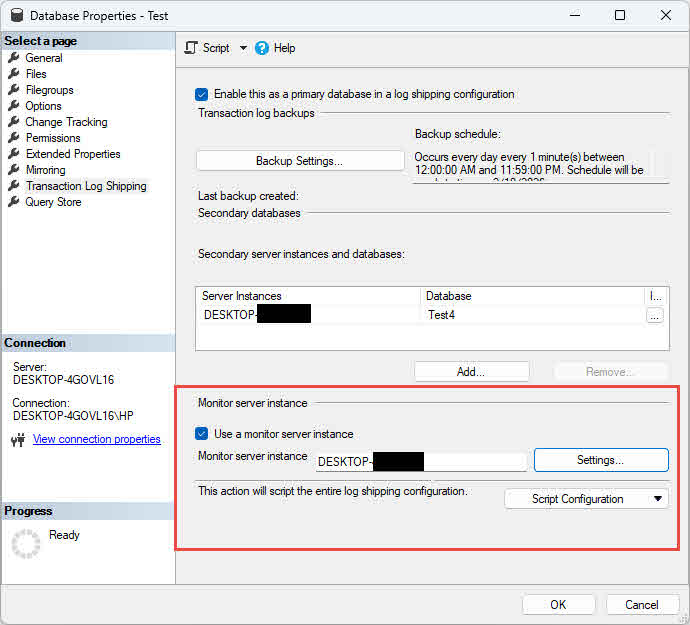
- Right-click the primary database and select Properties.
- In the Database Properties dialog, select the Transaction Log Shipping page in the left panel.
- Check Enable this as a primary database in a log shipping configuration to enable log shipping.
- Then you can configure the backup settings, secondary server, and monitor server in this property page. We will introduce them in the following subsections.

4.2.1 Configure Backup Settings
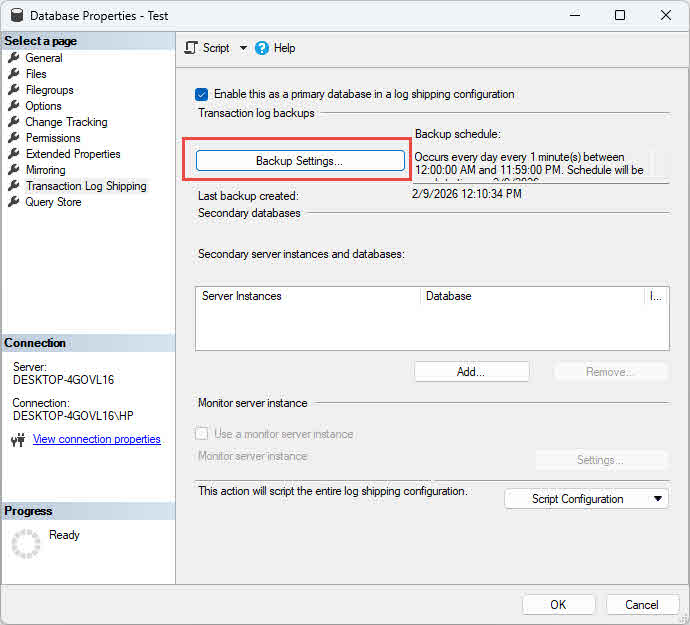
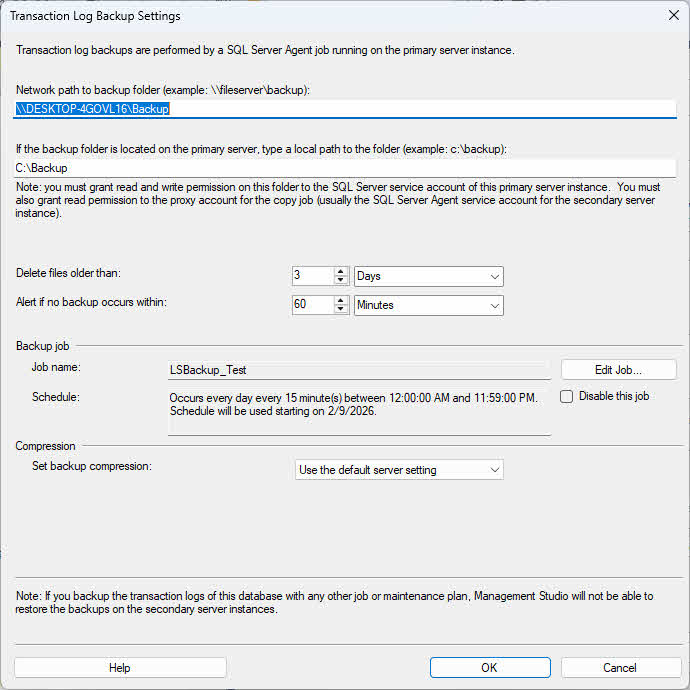
- Click the Backup Settings button
- In the Transaction Log Backup Settings dialog, under Network path to the backup folder field, enter the UNC path (e.g., \\SERVER-NAME\Backup)
- If the backup folder resides on the primary server, enter the local path (e.g., C:\Backup)
- Configure other settings, such as the backup retention period, alert threshold, backup job, and compression.
- Click OK to confirm the settings and close the dialog.

4.2.2 Configure Secondary Server Instance and Database
- Click Add under Secondary server instances and databases
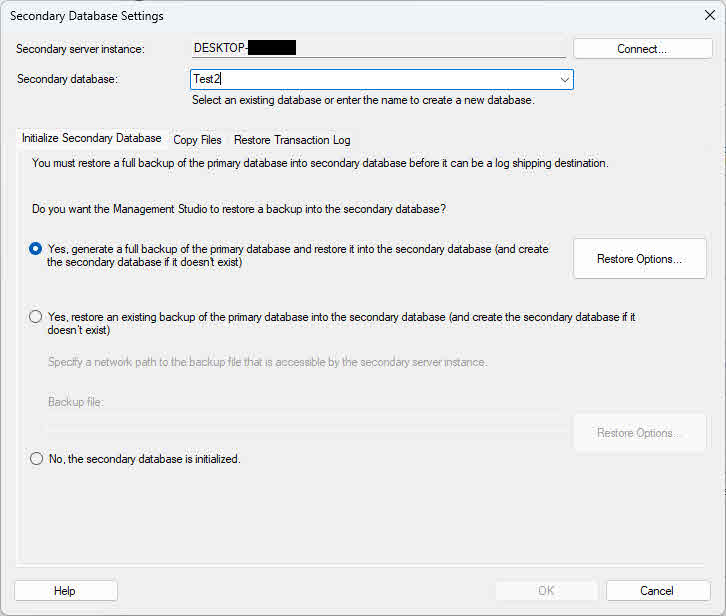
- In the Secondary Database Settings dialog, click Connect to connect to the secondary server instance.
- In the Secondary Database dropdown, select an existing database or type a new database name
- In the Initializing Secondary Database tab, select Yes, generate a full backup of the primary database and restore it into the secondary database (and create the secondary database if it doesn’t exist)

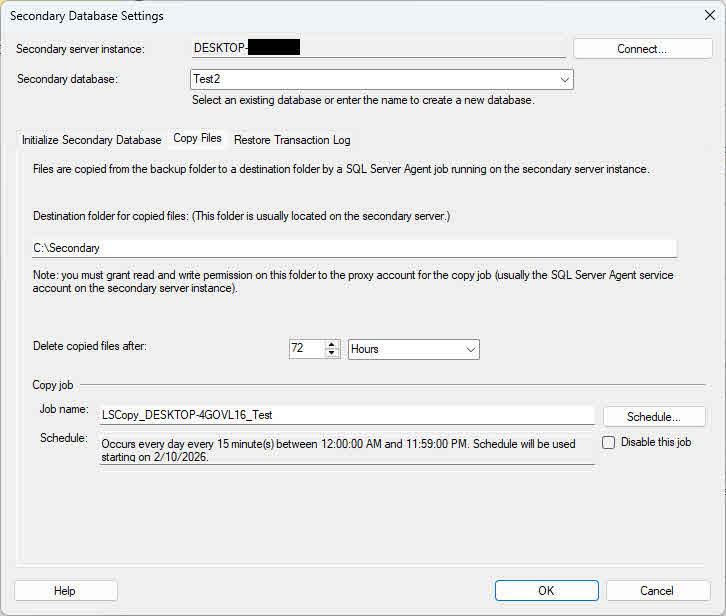
- Click the Copy Files tab
- In the Destination folder for copied files (This folder is usually located on the secondary server), enter the local path of the destination folder on the secondary server.
- Ensure the folder exists and the SQL Server service account has write permissions
- Click OK to confirm the settings and close the dialog.
4.2.3 Configure Monitor Server
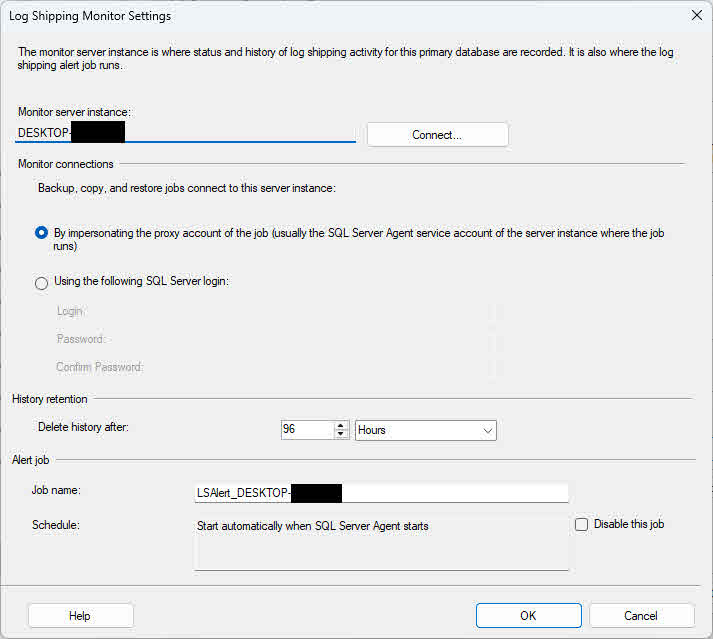
- Check Use a monitor server instance
- Click Settings
- Click Connect to connect to the monitor server instance
- Set Delete history after to specify retention period in hours
- Click OK to confirm the settings and close the dialog.

4.2.4 Reviewing and Completing Configuration
- Review all settings on the Transaction Log Shipping page
- Verify backup settings, secondary server configurations, and monitoring settings
- Click OK to apply the configuration
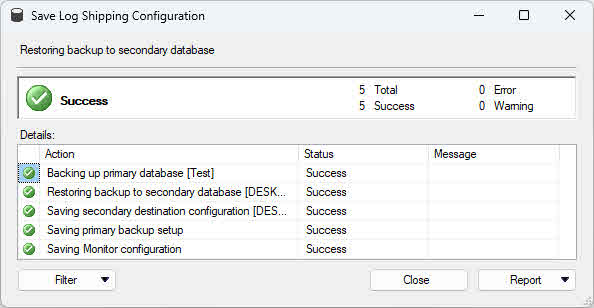
- The wizard creates all necessary jobs on primary, secondary, and monitor servers
- Click Close when the configuration completes
5. Advantages and Disadvantages of Log Shipping
5.1 Benefits of SQL Server Log Shipping
- Cost-Effective Solution: Works with SQL Server Standard Edition, eliminating expensive Enterprise Edition licensing requirements. This makes reliable disaster recovery accessible for organizations with limited budgets.
- Simple to Configure and Maintain: The configuration wizard guides administrators through setup with clear options. Most databases can be configured within 15-30 minutes without specialized training.
- Multiple Secondary Servers Support: Support numerous secondary servers without architectural limitations. Deploy one secondary for local disaster recovery, another remotely, and a third for reporting.
- Minimal Impact on Primary Server: Operates asynchronously, eliminating synchronization overhead on the primary server. Transaction commit times remain unaffected.
- Uses Existing Transaction Log Backups: Log shipping backups are standard transaction log backups, usable for point-in-time recovery independent of log shipping.
- Delayed Restore Option: The restore delay feature provides protection against accidental data modifications unavailable in real-time replication solutions.
- No Shared Storage Required: Uses independent storage on each server, eliminating shared storage requirements and associated costs.
- Cross-Platform Support: Works identically on both Windows and Linux SQL Server deployments.
- Works Across Domains: Doesn’t require domain trust relationships or Active Directory integration.
5.2 Drawbacks and Limitations of Log Shipping
- No Automatic Failover: The primary limitation is manual failover requirement. Administrators must execute multiple steps before service resumes.
- Data Synchronization Lag: Secondary databases always lag behind primary databases by the backup and restore frequency.
- Database-Level Configuration Only: Configures at the database level rather than the instance level. Protecting 50 databases requires 50 separate configurations.
- Manual Connection String Changes: Applications must update connection strings to point to the secondary server after failover.
- Secondary Database Interruptions: Standby mode secondary databases disconnect users during restore operations.
- Separate Database Management: Each database configuration must be managed individually without coordinated management capabilities.
6. Best Practices and Use Cases
6.1 When to Use Log Shipping
- Low-Budget Disaster Recovery: Excels as a cost-effective disaster recovery solution for organizations unable to justify Enterprise Edition licensing costs.
- Moderate RPO/RTO Requirements: Applications tolerating 15-30 minutes of data loss and 30-60 minutes of downtime align perfectly with its capabilities.
- Read-Only Reporting Server: Create read-only copies for reporting workloads that tolerate periodic disconnections.
- Standard Edition Environments: Organizations standardized on SQL Server Standard Edition lack access to Always On Availability Groups, making log shipping the best available option.
- Server Migration Projects: Facilitates server migrations by maintaining synchronized copies during transition periods.
- Delayed Data Requirements: Configure restore delays to maintain databases at fixed points in the past for compliance or audit purposes.
6.2 When NOT to Use Log Shipping
- Near-Zero Downtime Requirements: Applications with RTO requirements under 15 minutes cannot rely on manual failover.
- Automatic Failover Needed: Inappropriate when business requirements mandate automatic failover without administrator intervention.
- Real-Time Synchronization Required: Applications requiring real-time or near-real-time data on secondary servers cannot accept log shipping’s inherent lag.
- Minimal Data Loss Tolerance: Organizations with RPO measured in seconds or requiring zero data loss need synchronous solutions.
6.3 Best Practices
- Backup Frequency Optimization: Balance backup frequency against system overhead and recovery objectives. Start with 15-minute intervals and adjust based on actual requirements.
- Network Path Considerations: Use UNC paths rather than mapped drives for backup locations. Place backup shares on reliable network infrastructure.
- Monitoring and Alerting Setup: Configure alerts for backup, copy, and restore job failures immediately upon completing log shipping setup.
- Regular Testing Schedule: Schedule quarterly or semi-annual failover tests to validate procedures and maintain administrator readiness.
- Documentation Maintenance: Maintain detailed runbooks documenting configuration details, failover procedures, and troubleshooting steps.
- Security Considerations: Use dedicated service accounts with minimal required permissions. Restrict network share permissions appropriately.
- Disk Space Management: Monitor disk space on backup locations continuously. Configure alerts when space falls below 20%.
- Retention Policy Configuration: Set backup retention periods longer than your maximum acceptable synchronization lag.
- Restore Delay for Protection: Configure restore delays when protection against accidental modifications justifies increased synchronization lag.
7. Troubleshooting Common Issues
7.1 Backup Job Failures
- Insufficient Disk Space: Check job history for disk space errors. Verify available space and free space by deleting old backups or enabling compression.
- Permission Issues: Verify the SQL Server service account has Full Control permissions on both the local folder and network share.
- Database Not in Full Recovery: Change back to full recovery model and take a full backup to restart the transaction log chain.
7.2 Copy Job Failures
- Network Path Inaccessible: Test connectivity from the secondary server by mapping the network path manually.
- Authentication Problems: Configure explicit credentials for network share access if servers are in different domains.
- File Locking Issues: Exclude the backup folder from antivirus real-time scanning to prevent file locks.
7.3 Restore Job Failures
- Missing Backup Files: Verify files exist in the destination folder and check copy job history.
- Restore Sequence Error: Identify missing transaction log backups and restore them in sequence to repair the log chain.
- Database in Wrong State: Reinitialize log shipping by restoring a full backup with NORECOVERY if someone recovered the database.
- Database File Corruption: If restore failures persist despite correct sequence and configuration, the database files themselves may be corrupted. In such cases, you may need to use a specialized sql recovery tool to extract data from the damaged .MDF and .NDF files before attempting to reinitialize log shipping.
7.4 Synchronization Lag Issues
- Network Bandwidth Limitations: Enable backup compression to reduce file sizes and bandwidth requirements.
- High Transaction Volume: Consider increasing backup frequency to create smaller, more manageable backup files.
- Inadequate Restore Frequency: Increase restore job frequency to approximate backup frequency and minimize lag.
7.5 Monitor Server Connectivity Issues (SQL 2025)
- OLE DB Provider Errors: SQL Server 2025’s default mandatory encryption conflicts with older instances lacking proper encryption configuration.
- Encryption Configuration Mismatch: Verify linked server configuration on the monitor server and check encryption settings.
- Workaround Solutions: Drop and recreate log shipping using TLS 1.3 parameters or upgrade all instances to SQL Server 2025.
7.6 SQL Server Agent Service Issues
- Service Not Started: Check Agent service status and configure it to start automatically.
- Job Schedule Disabled: Verify job schedule status and enable disabled schedules.
- Job Step Failures: Review job history to identify failing steps and specific error messages.
8. Frequently Asked Questions (FAQ)
Q: Can I use log shipping with Express Edition?
A: No, SQL Server Express Edition does not support log shipping as it lacks SQL Server Agent.
Q: How often should I schedule log backups?
A: Default 15-minute intervals provide reasonable balance. Adjust based on your recovery point objective.
Q: Can secondary databases be used for reporting?
A: Yes, secondary databases configured in standby mode allow read-only access between restore operations.
Q: What happens if primary server fails?
A: Execute manual failover to bring a secondary database online. Data loss equals the synchronization lag at failure time.
Q: Can I have multiple secondary servers?
A: Yes, log shipping supports unlimited secondary servers with independent configurations.
Q: How do I calculate sync lag?
A: Compare the last restored transaction log timestamp against current time using log shipping monitoring tables.
Q: Can log shipping work across different domains?
A: Yes, it works across different domains or in workgroup environments without requiring trust relationships.
Q: What is the difference between No Recovery and Standby mode?
A: No recovery mode keeps the database inaccessible. Standby mode allows read-only queries between restores.
Q: Can I pause log shipping temporarily?
A: Yes, disable the backup, copy, and restore jobs to pause synchronization while preserving configuration.
Q: How do I remove log shipping configuration?
A: In the Transaction Log Shipping property page:
- Uncheck Enable this as a primary database in a log shipping configuration
- Click OK to remove the configuration and delete jobs.
Q: Can I switch the secondary database to read-write mode?
A: Yes, execute RESTORE DATABASE WITH RECOVERY, but this breaks the log shipping chain.
Q: What is the maximum delay I can configure for restore?
A: No hard limit exists. Configure delays from minutes to days based on your protection requirements.
Q: How does log shipping affect backup strategy?
A: It creates transaction log backups usable for both log shipping and point-in-time recovery.
Q: Can I use log shipping for server migration?
A: Yes, configure log shipping to the new server, synchronize, then perform planned failover of the old server during maintenance.
Q: What monitoring tools work with log shipping?
A: SQL Server Management Studio includes built-in reports. Third-party tools like SQL Monitor and SolarWinds provide enhanced monitoring.
9. Conclusion and Recommendations
9.1 Summary of Key Points
SQL Server log shipping provides reliable, cost-effective disaster recovery through automated transaction log backup and restore operations. The technology works with Standard Edition, requires minimal infrastructure, and supports multiple secondary servers.
Log shipping excels for moderate recovery objectives where manual failover is acceptable. Key limitations include manual failover requirement, synchronization lag, and database-level configuration scope.
The technology integrates well with existing backup strategies, supports read-only reporting through standby mode, and provides delayed restore protection against accidental changes.
9.2 Making the Right Choice for Your Environment
Evaluate log shipping against your specific requirements before implementation. Consider recovery point objectives, recovery time objectives, budget constraints, and operational complexity tolerance.
Organizations using SQL Server Standard Edition with moderate recovery requirements should strongly consider log shipping. Enterprises with strict RTO under 15 minutes should evaluate Always On Availability Groups.
Consider hybrid approaches combining log shipping with other technologies for cost optimization while meeting diverse requirements.
9.3 Next Steps and Additional Resources
Begin with small-scale pilot implementations to gain experience. Develop comprehensive documentation, including configuration details, failover procedures, and troubleshooting guides.
Schedule regular failover tests to validate procedures and maintain administrator readiness. Stay current with SQL Server updates and enhancements.
References
- Microsoft Official Document: About Log Shipping (SQL Server)
- Microsoft Official Document: Configure Log Shipping (SQL Server)
About the Author
Yuan Sheng is a senior database administrator (DBA) with over 10 years of experience in SQL Server environments and enterprise database management. He has successfully resolved hundreds of database recovery scenarios across financial services, healthcare, and manufacturing organizations.
Yuan specializes in SQL Server database recovery, high availability solutions, and performance optimization. His extensive hands-on experience includes managing multi-terabyte databases, implementing Always On Availability Groups, and developing automated backup and recovery strategies for mission-critical business systems.
Through his technical expertise and practical approach, Yuan focuses on creating comprehensive guides that help database administrators and IT professionals solve complex SQL Server challenges efficiently. He stays current with the latest SQL Server releases and Microsoft’s evolving database technologies, regularly testing recovery scenarios to ensure his recommendations reflect real-world best practices.
Have questions about SQL Server recovery or need additional database troubleshooting guidance? Yuan welcomes feedback and suggestions for improving these technical resources.