
Repair corrupt PSD file with our complete 2026 guide, including free recovery tips, advanced methods, and professional tools.
1. Introduction
1.1 What Is a Photoshop PSD File?
A PSD (Photoshop Document) file is Adobe Photoshop’s native file format. It stores all project data — layers, masks, adjustment layers, blending modes, and metadata — in a single file. Because PSD files preserve this complex layered structure, they tend to be large and are more vulnerable to corruption than simpler formats such as JPEG or PNG.
1.2 Signs Your PSD File Is Corrupted
1.2.1 Common Error Messages
When you attempt to open a corrupted PSD file, Photoshop typically displays one of the following error messages:
- “Unexpected end of file was encountered”
- “End-of-file error” when opening
- “Could not complete your request because the file is not compatible with this version of Photoshop”
- “This file contains layers which appear to be corrupted”
1.2.2 Other Symptoms of PSD Corruption
Beyond error messages, corruption may also present as the following symptoms:
- File Size Anomalies: A PSD that drops dramatically in size (e.g., from 500 MB to 7 MB) after a crash is a strong indicator that most data was not written to disk.
- Thumbnail Displays Correctly but File Will Not Open: Photoshop embeds a thumbnail in the file header. A correct thumbnail does not mean the layer data is intact.
- Layers Missing or Rendered as Red/Black Bands: Partial corruption may allow the file to open but with layers showing corrupted channel data or missing entirely.
1.3 Common Causes of PSD File Corruption
- Photoshop or System Crash During Save: The most common scenario. Photoshop crashes or the computer freezes while writing the PSD, leaving the file incomplete.
- Sudden Power Failure Mid-Save: Power loss interrupts the write operation; file progress is terminated rather than saved.
- Hardware Issues: Faulty RAM, failing hard drives, or problematic storage devices can corrupt file data at the I/O level.
- Photoshop Software Bugs: Technical bugs within Photoshop itself can cause save failures. Users have reported files becoming corrupt simply by opening and closing Photoshop.
- Malware and Virus Infection: Malware attacking the system or file system can corrupt PSD data.
2. Method 1: Recover from Photoshop Auto-Recovery Files
2.1 Locate and Recover Auto-Recovery Files
By default, Photoshop periodically saves an auto-recovery copy of open documents to the following default locations:
- Windows:
%AppData%\Adobe\Adobe Photoshop [version]\AutoRecover\ - macOS:
~/Library/Application Support/Adobe/Adobe Photoshop [version]/AutoRecover/
If Photoshop crashes when you’re editing or saving a file, you can try to recover the auto-recovery copy for that file:
- Do NOT open Photoshop. The auto-recovery file is deleted when Photoshop reopens after a crash.
- Navigate to the above locations directly to find the recovery file.
- Make a copy of the recovery file to a different location.
- Open the copy in Photoshop.
- If it opens successfully, immediately use File -> Save As to save it as a new PSD.
2.2 Check or Change Auto-Recovery Settings
You can check or change the auto-recovery settings by:
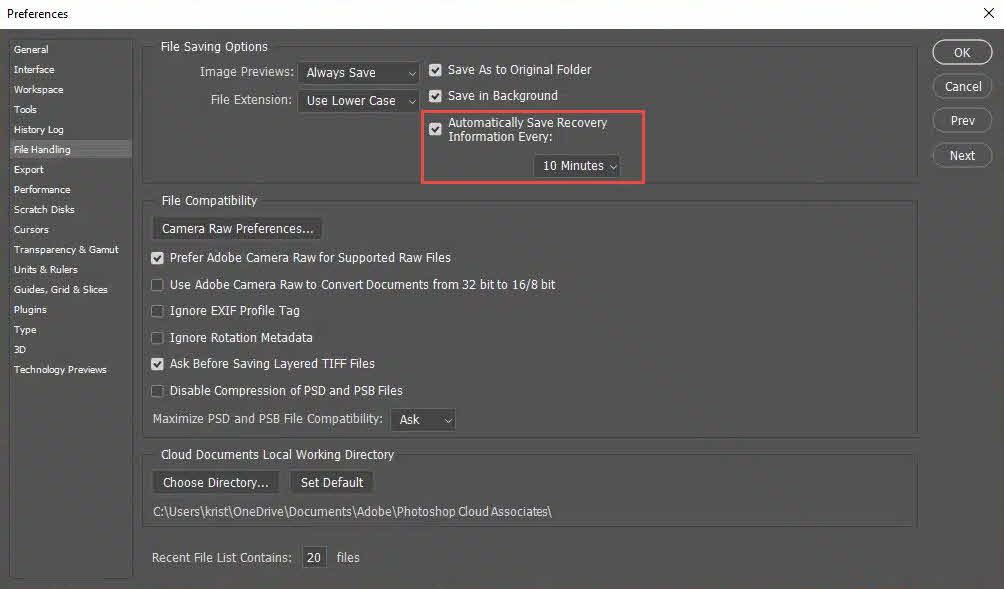
- In Photoshop, go to Edit -> Preferences -> File Handling
- In the File Saving Options section, confirm that Automatically Save Recovery Information Every [X] Minutes is checked.
- Set the interval to 5–10 minutes. For huge files, a too-small interval may decrease the performance.
3. Method 2: Recover from the Photoshop .temp File
While a PSD is open, Photoshop writes a working .temp file to the system temp directory. If Photoshop crashes, you can try to recover the PSD data from the .temp file.
3.1 Recover from the Photoshop .temp File (Windows)
- Do NOT open Photoshop. Like auto-recovery files, the .temp file is deleted when Photoshop reopens after a crash.
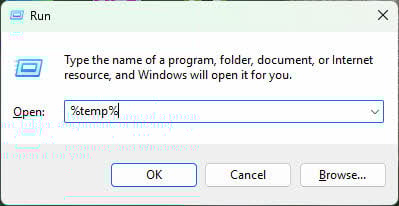
- Press Win + R, type %temp%, and press Enter to open the temp folder.

- Locate a file with the same base name as your PSD, or with a Photoshop-related name.
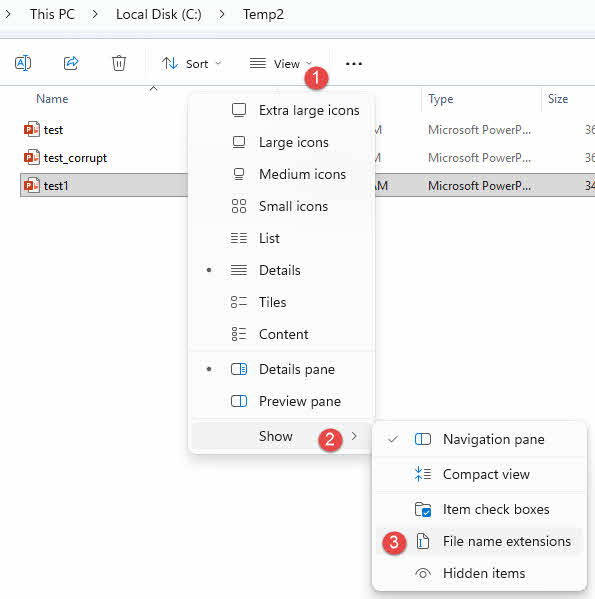
- On Windows, file extensions are hidden by default. To show them, open File Explorer, click the View tab, and check File name extensions. On Windows 11, click View -> Show -> File name extensions.
- Right-click the file, select Rename, and change the .temp extension to .psd.
- Open the renamed file in Photoshop. If it opens, use File -> Save As to save it immediately to a new location.
3.2 Recover from the Photoshop .temp File (macOS)
- Do NOT open Photoshop. Like auto-recovery files, the .temp file is deleted when Photoshop reopens after a crash.
- In Finder, press Shift + Command + G and enter
/var/folders/to navigate to the temp directory. - Locate the Photoshop-related .temp file.
- Right-click the file, select Rename, and change the extension to .psd.
- Open the renamed file in Photoshop and use File -> Save As to save it to a new location if successful.
4. Method 3: Restore to a Previous Version of the PSD File
If the file is stored in a location that supports versioning, you may be able to roll it back to a state before the corruption occurred, other than repairing the corrupt PSD file. The following services and tools all maintain version history automatically:
- Windows File History
- macOS Time Machine
- Google Drive Version History
- OneDrive Version History
- Dropbox Version History
- SharePoint Version History
5. Method 4: Open the Corrupt PSD in an Alternative Application
Third-party applications that support the PSD format sometimes handle partial corruption more gracefully than Photoshop. After opening the file in such applications successfully, export or save it as a new PSD immediately.
5.1 Photopea (Browser-Based PSD Editor)
Photopea is a free browser-based editor with broad PSD support. It is the most widely reported free option for recovering corrupted PSD files and requires no installation.
- Go to photopea.com in a browser.
- Select File -> Open and choose the corrupted PSD file.
- Review the recovered layers in the Layers panel.
- Select File -> Save as PSD to export a clean copy.
5.2 Krita (Download and Install Required)
Krita is a free, open-source painting application that supports the .psd format and has been reported to open corrupted PSDs that Photoshop cannot. Certain Photoshop layer types — such as smart objects or some adjustment layers — may not be fully supported and may trigger warnings or render differently.
- Download and install Krita from krita.org.
- Select File -> Open and choose the corrupted PSD.
- If the file opens, select File -> Save As and choose Photoshop PSD as the format.
5.3 GIMP (Download and Install Required)
GIMP can open PSD files, and re-saving from GIMP may fix minor corruption. Results are inconsistent for severely damaged files.
- Download and install GIMP from gimp.org.
- Select File -> Open and choose the corrupted PSD.
- If the file opens, select File -> Export As and save with a .psd extension.
5.4 Corel Painter (Download and Install Required)
Corel Painter supports the .psd format and may open files that Photoshop rejects. Unsupported layer type warnings may appear during import.
- Download and install Corel Painter from painterartist.com.
- Open Corel Painter and select File -> Open.
- Select the corrupted PSD file.
- If the file opens, select File -> Save As and choose .psd as the format.
5.5 Opening the File in a Later Version of Photoshop
Later versions of Photoshop may be more tolerant of partial corruption than the version in which the file was created. If a colleague or service has a newer Photoshop installation, it is worth attempting to open the corrupted file there before concluding it is unrecoverable.
5.6 Adobe Fireworks (Legacy)
Fireworks can open and re-save PSD files, preserving most layers and data. Users report this approach fixes many corruption cases. Note that Fireworks has been discontinued and requires an existing installation.
- Open the corrupted PSD in Fireworks.
- Select File -> Save As and save the file as a .psd with a new filename. Do not overwrite the original.
- Open the newly saved file in Photoshop.
6. Method 5: Open a Flat Copy of the PSD
6.1 What Is a Flat Copy?
A flat copy is a merged, single-layer composite stored inside the PSD file alongside the layered data. It represents the document as it appeared on screen at the last save. Photoshop writes this composite only when a file is saved with Maximize Compatibility enabled.
6.2 How to Open a Flat Copy
- Windows: Hold Alt + Shift while clicking the file in Photoshop’s Open dialog.
- macOS: Hold Option + Shift while clicking the file in Photoshop’s Open dialog.
This opens the composite image without individual layers. It is useful when the layer data is corrupt but the composite image is intact. Once open, save it immediately using File -> Save As.
6.3 Limitations
- All individual layer information is lost — only a flattened composite is recovered.
- This method only works if the file was previously saved with Maximize Compatibility enabled in Photoshop’s File Handling preferences. The default option is Ask, which means Photoshop will always ask you whether to enable Maximize Compatibility each time when you save a PSD file.
7. Method 6: Use Professional PSD Repair Software
If all the above methods fail, you can try professional PSD repair software, which uses advanced algorithms that can repair PSD files with severe corruption.
7.1 Use DataNumen PSD Repair to Repair PSD Files
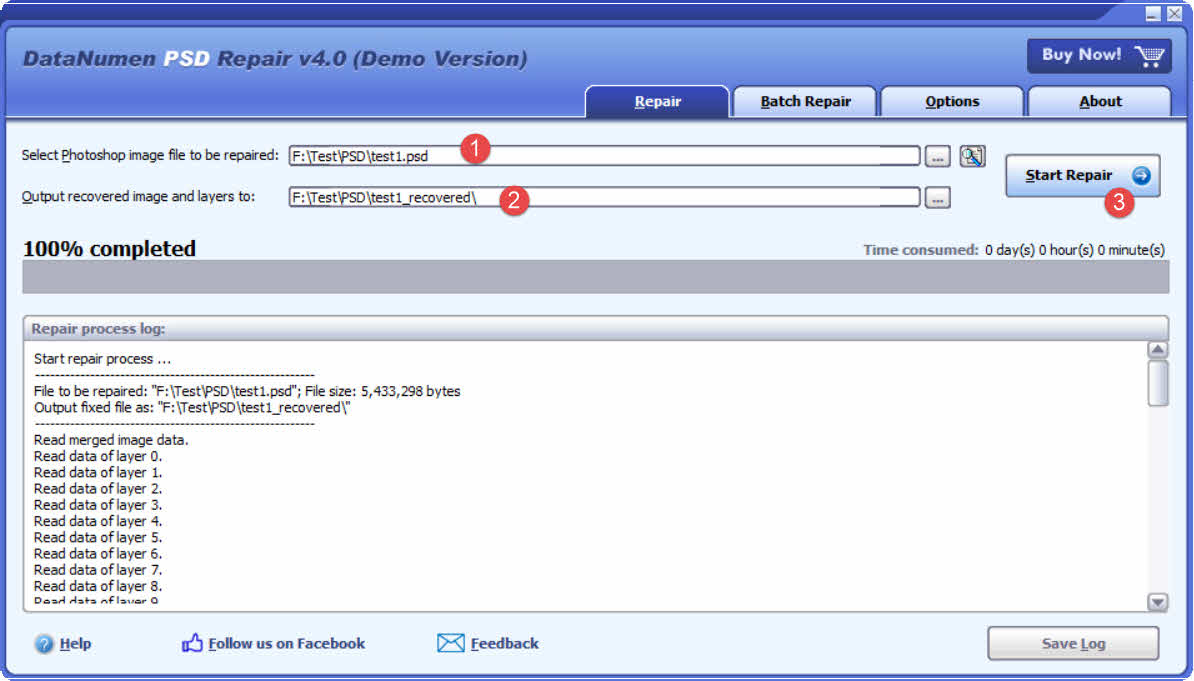
- Download and install DataNumen PSD Repair from its homepage.
- Select the corrupted PSD file to be repaired.
- Specify an output directory for the recovered image and layers.
- Click Start Repair to begin the repair process.
- Once complete, open the output directory to verify the recovered data.
7.2 Recover PSD Data from Hard Drive, Disk Image, or Backup Files
PSD data can be recovered directly from hard drives, disk images, or backup files if you do not have the original PSD files any more, for example:
- You delete the PSD file permanently.
- You format the hard drive.
- Hard drive failure.
- The virtual disk in VMWare or Virtual PC is corrupt or damaged.
- The backup file on the backup media is corrupt or damaged and you cannot restore the PSD file from it.
- The disk image file is corrupt or damaged and you cannot recover your PSD file from it.
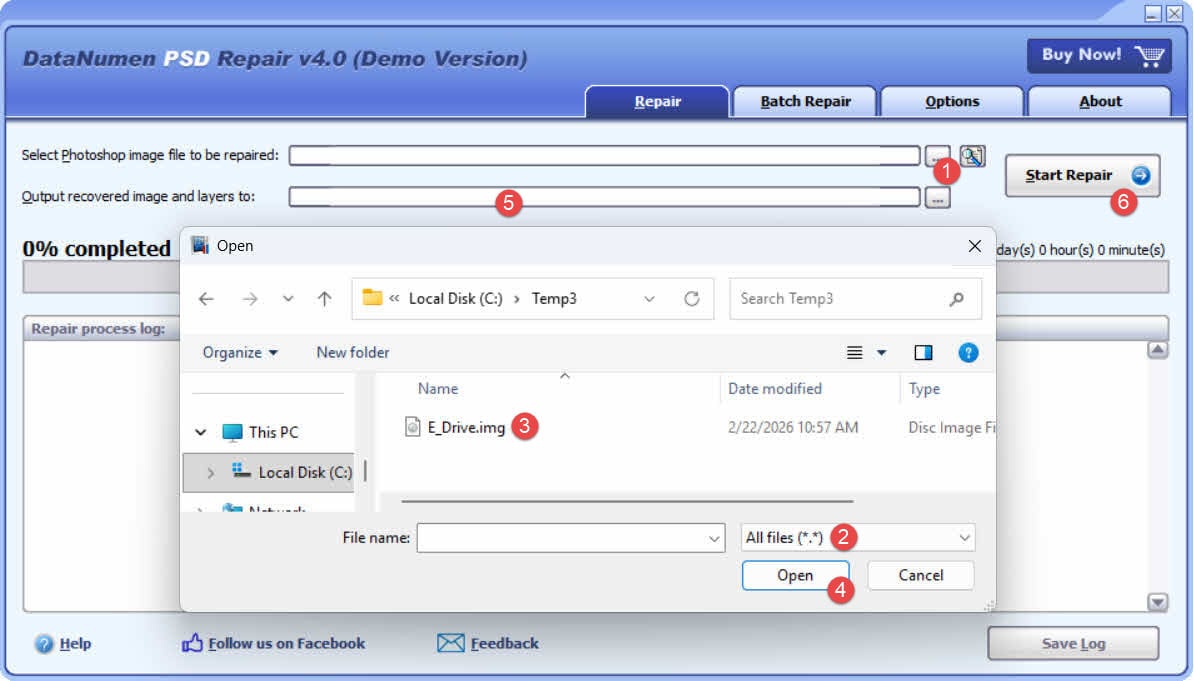
If you have the disk image or backup files on hand, then you can do as follows:
- Click “…” button to select the source file.
- In the “Open File” dialog, select “All Files (*.*)” as the filter.
- Select the disk image or backup file as the source file to be repaired.
- Set the output directory.
- Click Start Repair to begin the repair process.
- Once the repair process completes, open the output directory.
- Rename the extension of the recovered file from .img to .psd.
- Open the .psd file in Photoshop.
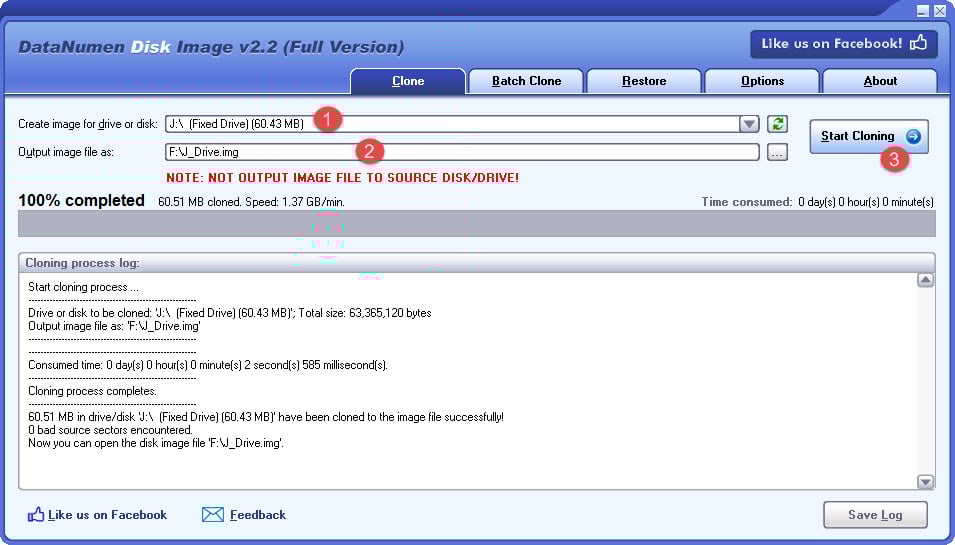
If you want to recover from hard drive directly, you need to use DataNumen Disk Image to create a disk image file for the hard drive:
- Select the hard drive or disk.
- Set the output image file name.
- Click “Start Cloning” button to create the disk image file from the hard drive/disk.
7.3 Online Repair Tools
Online repair services allow you to upload a corrupted PSD file through a browser without installing any software. Be aware that uploading files to third-party servers carries privacy implications for proprietary artwork. Available services include:
- psd.repair: https://www.psd.repair/
- onlinefile.repair: https://www.onlinefile.repair/photoshop
- Recovery Toolbox for Photoshop Online: https://photoshop.recoverytoolbox.com/online/
- OfficeRecovery Online: https://online.officerecovery.com/
8. How to Prevent PSD File Corruption
8.1 Enable Photoshop Auto-Recovery
Go to Edit -> Preferences -> File Handling and enable Automatically Save Recovery Information Every [X] Minutes. Set the interval to 5–10 minutes.
8.2 Save Incrementally with Versioned Filenames
Use File -> Save As with a version suffix (e.g., project_v01.psd, project_v02.psd) at regular intervals. Delete older versions in batches to manage storage. The open-source Photoshop-Auto-Save-PSD-script (available on GitHub) can automate incremental saves on a configurable keyboard shortcut.
8.3 Back Up to Cloud Storage with Version History
OneDrive, Google Drive, and Dropbox all maintain file version history at free or low-cost tiers. Storing your working PSD folder in a synced cloud location means every save automatically creates a restorable version.
8.4 Enable Windows File History or macOS Time Machine
On Windows, configure File History to back up to a separate drive or network location. On macOS, enable Time Machine — it creates local snapshots hourly and retains them on the local disk for 24 hours. Check backup status immediately after any corruption event.
8.5 Use a UPS for Power Protection
An Uninterruptible Power Supply (UPS) provides battery backup during power outages, giving Photoshop time to complete the current save operation before the system shuts down.
8.6 Enable “Maximize Compatibility” in PSD Save Options
Go to Edit -> Preferences -> File Handling and set Maximize PSD and PSB File Compatibility to Always. This writes a flattened composite inside every PSD, enabling the flat copy recovery method (Method 5) if layered data is later corrupted.
8.7 Keep Photoshop and the OS Updated
Software updates patch known bugs in file-writing routines. In Photoshop, go to Help -> Updates to check for and install the latest version.
8.8 Maintain Healthy Storage Hardware
Run periodic disk health checks using tools such as CrystalDiskInfo (Windows) or Disk Utility (macOS). Replace drives showing SMART errors promptly. Avoid working on large PSD files directly from USB flash drives, which have limited write endurance and higher failure rates under sustained load.
9. FAQ: Repairing Corrupt PSD Files
Q: Can a corrupted Photoshop file be repaired?
A: Yes, in many cases — provided that some layer data was written to disk before the crash and/or a previous version or temp file is available. Files where the crash occurred at the very start of the write operation are generally unrecoverable.
Q: Why does my corrupted PSD file show a correct thumbnail?
A: Photoshop embeds the thumbnail in the file header, which is written before the layer data. If the crash occurred after the header but before the layer data was written, the thumbnail survives while the actual content is lost.
Q: What is the best free way to repair a corrupted PSD file?
A: Photopea (photopea.com) is consistently reported as the most effective free option. It runs in a browser, requires no installation, and has recovered files that Photoshop and other tools could not open. Krita and GIMP are also free alternatives worth trying.
Q: How do I fix a PSD file that gives an “end of file” error?
A: First check for auto-recovery and temp files. If those are absent, try opening the PSD in Photopea or Krita. If the file opens with partial content, export it as a clean PSD immediately.
Q: Should I use dedicated PSD repair software?
A: Dedicated tools add value when free alternatives fail and the file’s content justifies the cost. Use them as a last resort after exhausting temp files, previous versions, and alternative applications.
Q: How can I avoid losing PSD work in the future?
A: Enable Photoshop’s auto-recovery, save incrementally with versioned filenames, and use a cloud storage service that maintains version history. For critical projects, use a UPS to prevent power-loss corruption.
Q: My PSD file looks full-sized after a crash but still will not open — is it recoverable?
A: Not necessarily. A full file size only means the file table entry was written, not the actual layer data. Opening the file in a hex editor or plain text editor will show blank space or garbage data past the first chunk if the content was never written. In that case, recovery is unlikely unless a temp file or previous version is available.
Q: I reopened Photoshop after the crash before trying to recover — have I lost my temp file?
A: Possibly. Photoshop deletes its working temp file when it closes or reopens normally. If Photoshop was relaunched before the temp file was located and renamed, that recovery path is no longer available. Check for auto-recovery files and previous versions instead.
Q: My PSD opened but shows only one layer rendered as a red image — what should I do?
A: This indicates partial corruption where only the file header and a portion of the layer data were written before the crash. Try opening the file in Photopea or Krita, which may reconstruct more layers than Photoshop can. Also try the flat copy method — hold Alt + Shift (Windows) or Option + Shift (macOS) when opening the file in Photoshop — to at least recover the composite image.
Q: What causes a PSD file to corrupt?
A: The most common causes are Photoshop or system crashes during a save operation, sudden power loss, faulty RAM or storage hardware, bugs in Photoshop itself, and malware. In every case, the underlying mechanism is the same: Photoshop’s write operation is interrupted before all file data is flushed to disk.
Q: What is a flat copy and when should I use it to repair a PSD file?
A: A flat copy is a merged, single-layer composite stored inside the PSD alongside the layered data. If the layered data is corrupt but the flat copy is intact, holding Alt + Shift (Windows) or Option + Shift (macOS) while opening the file in Photoshop recovers the composite image. All individual layers are lost in this process.
Q: Can opening a corrupted PSD in Krita recover more data than Photopea?
A: Results vary by file. Photopea is generally tried first because it requires no installation and is widely reported as effective. Krita is a worthwhile second attempt, but it does not fully support all Photoshop layer types, so some layers may render differently or trigger warnings. If both produce incomplete results, try Corel Painter or a dedicated repair tool such as DataNumen PSD Repair.
10. Conclusion
Fixing a corrupt PSD file requires working through recovery methods in order of least to most invasive: start with Photoshop’s auto-recovery files and temp files, then check previous versions and cloud backups, then attempt to open the file in alternative applications such as Photopea or Krita, and finally use dedicated repair software such as DataNumen PSD Repair if all other options fail. The flat copy method provides a last-resort path to recovering the composite image when layer data cannot be reconstructed. To avoid future data loss, enable auto-recovery, save incrementally, maintain both cloud and local backups, and keep storage hardware in good health.
About the Author
Tai Yi is an image and CAD file recovery specialist with over 12 years of experience. His hands-on experience encompasses working with native recovery functions, file structure analysis tools, and developing systematic approaches for repairing complex images and drawings.
Through his technical knowledge and practical approach, Tai creates comprehensive guides that help both novice users and experienced designers solve file corruption issues effectively. He regularly tests recovery methods across different versions, stays current with the latest file formats and repair utilities, and ensures his recommendations reflect proven techniques with documented success rates in real-world scenarios.
Have questions about image and PSD file recovery or need help with other image and PSD file challenges? Tai welcomes feedback and suggestions for improving these technical resources.