
1. Introduction
1.1 What Is a Corrupt PowerPoint File?
A corrupt PowerPoint file is a .ppt or .pptx file whose data or internal structure has been damaged to the point where PowerPoint cannot read, open, or display it correctly. Corruption can range from minor — causing cosmetic issues like missing fonts or broken charts — to severe, where the file refuses to open entirely. In this complete guide, we will cover 26 effective methods to repair a corrupt PowerPoint file.
1.2 Common Causes of PowerPoint File Corruption
PowerPoint files can become corrupted for a variety of reasons, including:
- Hard drive failure
- Power failure or abrupt shutdown during save
- Unstable network connection when transferring
- Disconnect the external hard drive when transferring
- Software crash or freeze during save
- Virus or malware infection
- Incompatible Office version or outdated software
- Problematic Windows updates (e.g., KB3097877)
- Conflicting add-ins
1.3 Common Error Messages
When you try to open a damaged presentation, you may encounter one of the following error messages:
- “PowerPoint found a problem with content in [filename].pptx. PowerPoint can attempt to repair the presentation. If you trust the source of this presentation, click Repair.”
- “Sorry, PowerPoint can’t read [filename].pptx”
- “This is not a PowerPoint Presentation”
- “Part of the file is missing”
- General Protection Fault / Illegal Instruction / Invalid Page Fault / Out of Memory
1.4 Other Signs Your PPT File Is Corrupted
Beyond explicit error messages above, the following symptoms also indicate file corruption:
- File opens to a blank document after repair
- Slides are missing or out of order
- Charts converted to static images; formatting lost
- File repeatedly prompts for repair every time it is opened
- File cannot be opened as a ZIP archive (for .pptx files)
2. Re-download/Resend the File
If you received the file by download or email, the corruption may have occurred during transfer rather than in the original file. Re-download the file from the original source, or ask the sender to resend it. This is the fastest check to solve the corruption before attempting any repair.
3. Rename the File
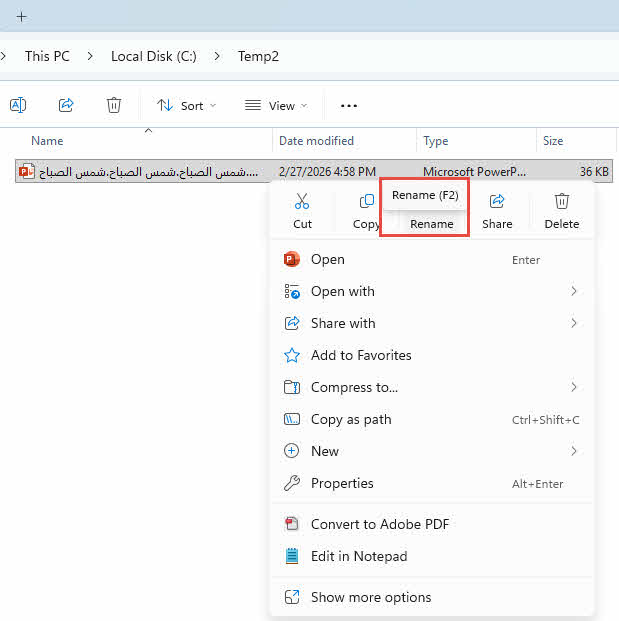
Special characters or excessively long paths in the filename can prevent PowerPoint from opening a file. Rename the file to a short, simple name containing only standard alphanumeric characters — for example, test.pptx — and try opening it again. This rules out a path or filename character issue before attempting more complex repair of the PowerPoint file.
On Windows:
- Right-click the file in File Explorer, select Rename.
- Type the new name, and press Enter.
On macOS:
- Click the file once in Finder to select it, and press Return.
- Type the new name, and press Return again to confirm.
4. Copy the File to Another Location
Sometimes the problem lies with the storage location, network connection, or permission rather than the file itself. Copy the file to a different location and try opening it from there. Common location changes to try include:
- Copy the file from an external drive to the local hard drive
- Copy the file from a network drive to the local hard drive
- Copy the file from the C: drive to another local drive, such as D: or E:
- Copy the file to a new folder on the same drive
- Copy the file from the local hard drive to an external drive
If you cannot copy the file, or there are errors during the copy, there may be errors in the hard disk. You can try to check and fix disk errors. If you can copy the file and it opens successfully from the new location, the original storage path or device is likely the source of the problem and you can use the copy instead.
5. Open the File on a Different User Profile/Computer/Device/OS
Opening the file in a different environment helps determine whether the corruption is in the file itself or caused by a local software or configuration issue. Try the following in order:
- Open the file under a different Windows or macOS user profile on the same machine
- Copy the file to another computer and try opening it there
- Open the file on another device, such as an iPhone or iPad using the Microsoft PowerPoint mobile app
- Copy the file from Windows to a Mac (or vice versa) and attempt to open it on the other OS
If the file opens on another profile, machine, device, or OS but not your own, the issue is environmental rather than file-specific, and you should focus on repairing your local PowerPoint installation.
6. Unblock the File via Windows Properties
Windows marks files downloaded from the Internet or copied from external sources as blocked, which can prevent PowerPoint from opening them. To unblock the file:
- Right-click the file and select Properties.
- On the General tab, locate the Security section at the bottom.
- Check the Unblock checkbox, then click OK.
- Re-open the file in PowerPoint.
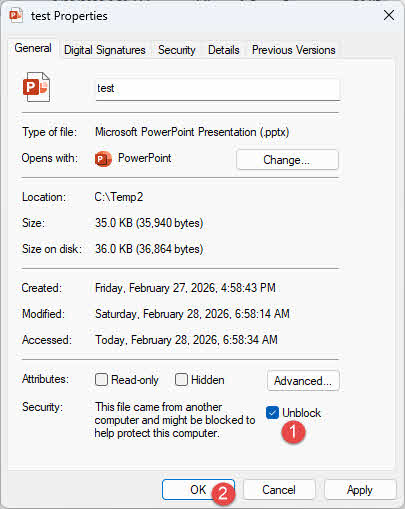
Note: Once unblocked, the Security section disappears from the General tab. This is normal and expected behavior.
7. Check File Permission (Mac)
On macOS, restricted file permissions can prevent PowerPoint from reading the file even if it is not corrupted.
To check and correct this:
- Open any working PowerPoint file
- Go to File -> Get Info (or check via Finder’s Get Info panel) and confirm the file permissions allow your user account to read the affected file.
- If the permissions are restricted, update them to allow Read & Write for your account, then try opening the file again.
8. Use PowerPoint’s Built-In “Open and Repair”
PowerPoint’s built-in repair feature can repair a corrupt PowerPoint file and fix minor structural issues in it. The steps are the same on both Windows and macOS:
- Open PowerPoint. Do not double-click the damaged file to launch it.
- Click File -> Open -> Browse.
- Navigate to the corrupt file and click it once to select it. Do NOT double-click it or click the Open button directly.
- Click the dropdown arrow next to the Open button.
- Select Open and Repair.
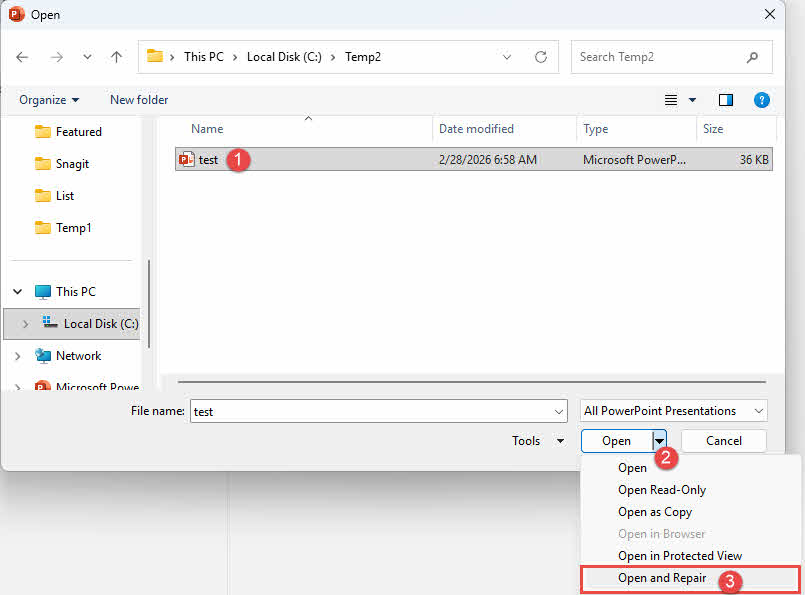
Note: If the file opens but displays a blank presentation after repair, the structural fix succeeded but the content layer was too damaged to recover. In that case, proceed to 10. Insert Slides into a New Presentation or 15. Open in Alternative Applications.
9. Open PowerPoint in Safe Mode
Safe Mode launches PowerPoint with add-ins, extensions, and custom settings disabled. If a conflicting add-in is preventing the file from opening, Safe Mode will bypass it.
On Windows, press Win + R, type powerpnt.exe /safe, and press Enter:
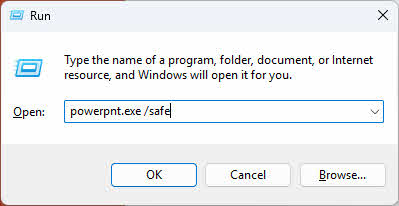
Alternatively, hold the Ctrl key while clicking the PowerPoint shortcut to launch in Safe Mode. Then open the corrupt file via File -> Open.
If PowerPoint is in safe mode, you will see “(Safe Mode)” in the PowerPoint title bar:

On macOS, Safe Mode is not directly available for individual applications. However, you can hold the Shift key during macOS startup to boot into macOS Safe Mode, which disables third-party extensions system-wide.
If the file opens in Safe Mode, a conflicting add-in is likely the cause. To disable all add-ins permanently:
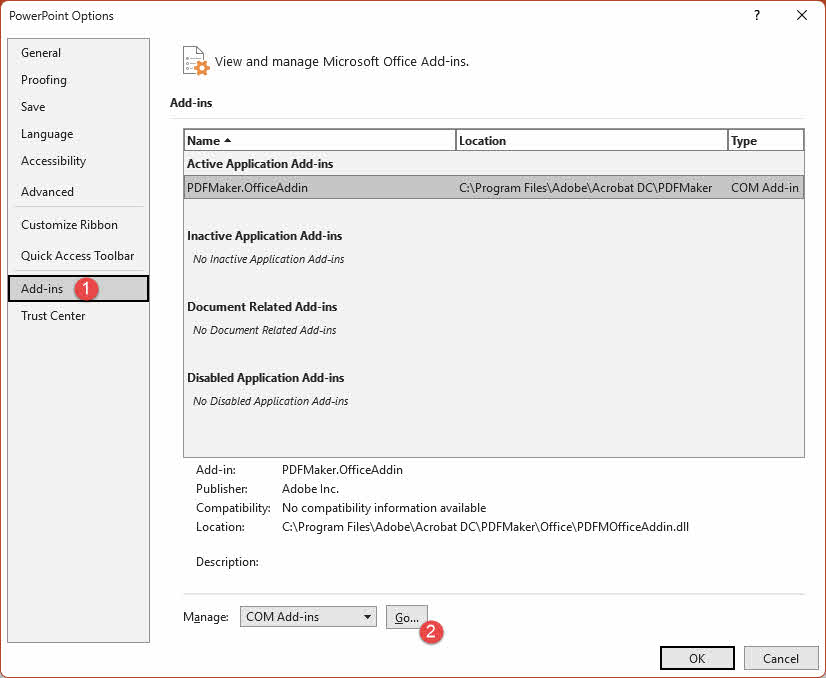
- Go to File -> Options -> Add-ins
- Set the Manage dropdown to COM Add-ins, click Go
- Uncheck all listed add-ins
- Restart PowerPoint normally and try opening the file again.
10. Insert Slides into a New Presentation
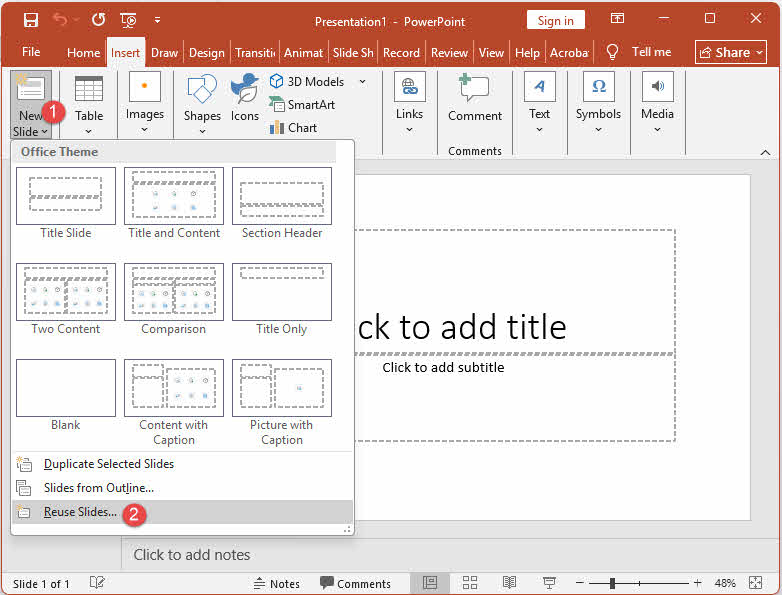
When PowerPoint cannot open a damaged file directly, the Reuse Slides feature can import slides from the corrupt file into a new, clean presentation without requiring the file to fully open. This method is effective for repairing a PowerPoint file when only some of the slides are damaged.
- Create a new blank presentation and save it to your desktop.
- Click the Home tab, then click the dropdown arrow next to New Slide, and select Reuse Slides:

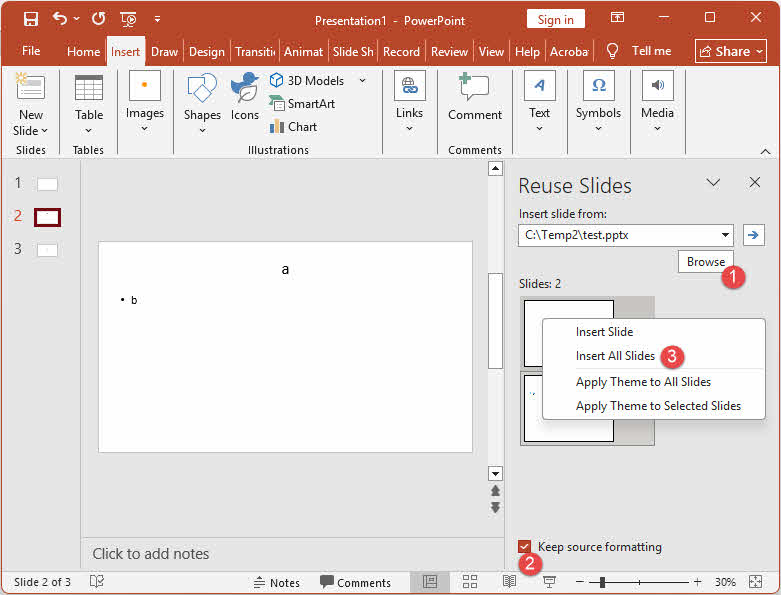
- In the sidebar that appears, click Browse and locate the damaged file.
- Check Keep formatting at the bottom of the Reuse Slides pane.
- Right-click any slide preview in the pane and select Insert All:

- Delete the auto-generated blank title slide that appears at the top.
11. Copy & Paste Slides into a New Presentation
If the damaged file can be opened but behaves unexpectedly, you can manually copy slides from it into a new presentation. This method also helps identify which specific slide is causing the problem. Similar to the reuse slides method above, this method is useful for repairing a PowerPoint file when only some of the slides are corrupted.
- Open the damaged presentation in PowerPoint.
- Press Ctrl + N (Windows) or Command + N (macOS) to create a new blank presentation. Keep both files open.
- Switch back to the damaged presentation and click View -> Slide Sorter. If this view causes errors, try View -> Outline View instead.
- Click a slide to select it. To select multiple consecutive slides, hold Shift and click the last slide in the range. To select non-consecutive slides, hold Ctrl (Windows) or Command (macOS) and click each slide individually.
- Press Ctrl + C (Windows) or Command + C (macOS) to copy the selected slides.
- Switch to the new blank presentation and press Ctrl + V (Windows) or Command + V (macOS) to paste.
- Repeat steps 4 through 6 until all slides have been transferred.
Note: If unexpected behavior appears in the new presentation after pasting a particular slide, that slide is likely the source of corruption. Recreate it manually rather than copying it.
12. Apply the Corrupt File as a Presentation Theme
If you have already recovered the slide content but the theme, fonts, and layout look wrong, you can reload the original slide master from the damaged file by applying it as a theme to the recovered presentation.
- Open the recovered presentation and save a backup copy first via File -> Save As.
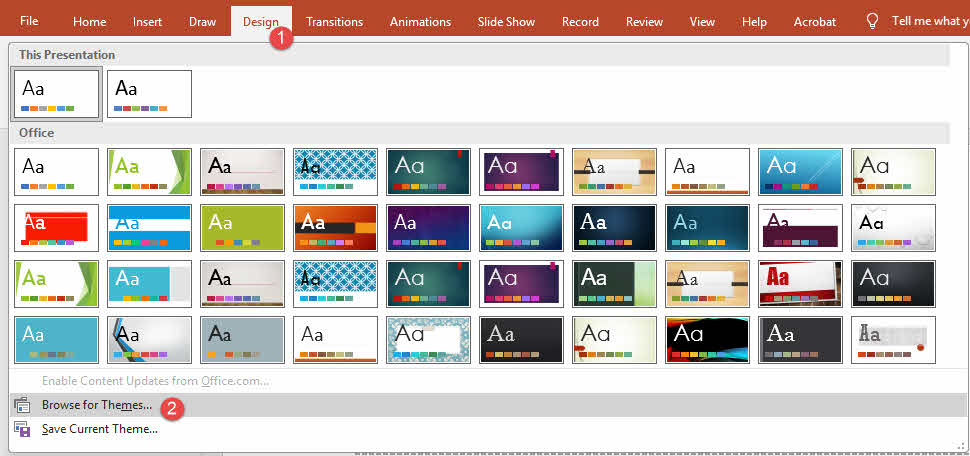
- Click the Design tab, then click the More arrow on the right side of the Themes group.
- Click Browse for Themes.
- Locate and select the original corrupt .pptx file, then click Apply.
Note: This method only restores the visual design — slide master, theme colors, fonts, and layouts. It does not recover slide content. Use it as a follow-up step after 8. Use PowerPoint’s Built-In “Open and Repair”, 10. Insert Slides into a New Presentation or 11. Copy & Paste Slides into a New Presentation, not as a standalone repair method. If unexpected behavior appears after applying the theme, revert to the backup copy you saved in step 1.
13. Adjust Trust Center Settings
Before repairing the PowerPoint file, you may also adjust the trust center settings to see if they prevent you from opening the file.
13.1 Disable Protected View (Windows Only)
Protected View opens files in a restricted, read-only mode that can sometimes trigger false corruption errors on safe files. Disabling it may allow the file to open normally.
- Click File -> Options -> Trust Center -> Trust Center Settings.
- Select Protected View in the left sidebar.
- Uncheck all Protected View options.
- Click OK twice to close both dialogs, then re-open the file.
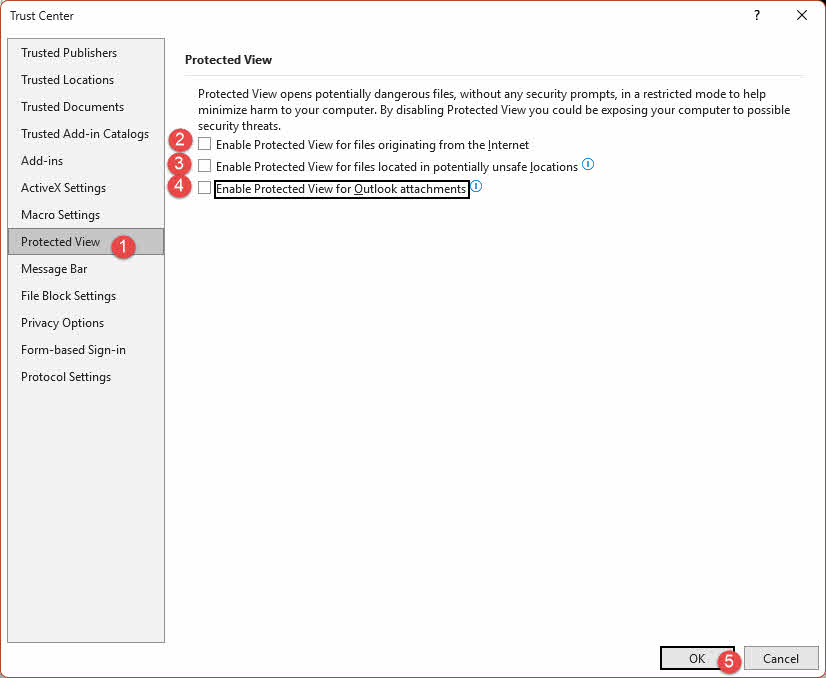
Warning: Disabling Protected View exposes your system to potentially harmful files. Re-enable all Protected View settings immediately after you have accessed the trusted file.
13.2 Add the File Location to Trusted Locations
Adding the file’s folder to Trusted Locations tells PowerPoint to open files from that path without applying Protected View restrictions.
- Click File -> Options -> Trust Center -> Trust Center Settings.
- Select Trusted Locations in the left sidebar, then click Add new location.
- Click Browse, navigate to the folder containing the corrupt file, and click OK.
- Click OK to close all dialogs, then re-open the file.
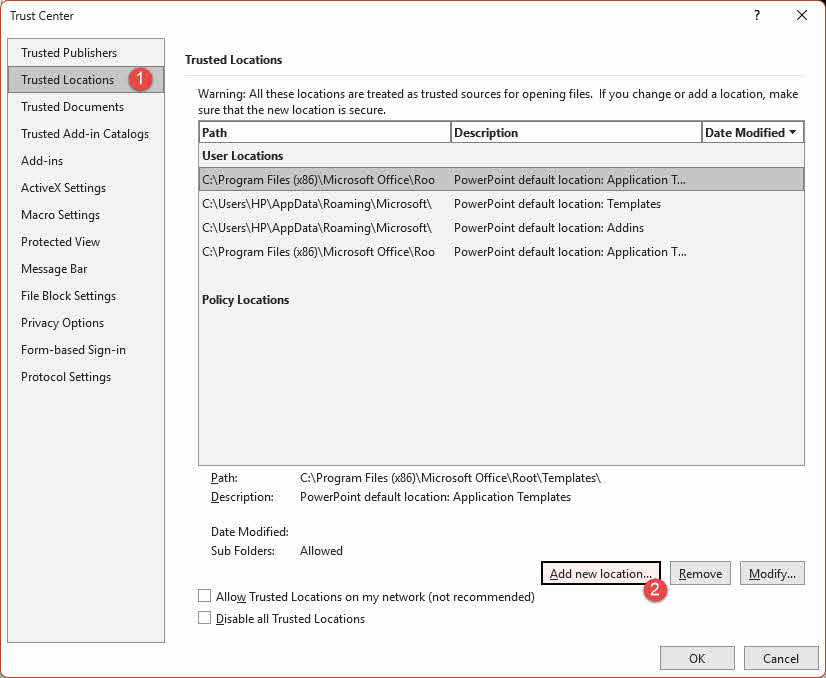
13.3 macOS: Trust Center Is Not Available
The Trust Center panel does not exist in the macOS version of PowerPoint. If you are on a Mac and encountering permission or Protected View issues, use Apple Keynote or Google Slides to open the file instead (see 15. Open in Alternative Applications).
14. Recover from Unsaved, AutoRecovery, or Temporary Files
Other than repairing a corrupt PowerPoint file directly, the built-in mechanism in PowerPoint may also help you recover your wanted file.
14.1 Find Unsaved Files (Windows/Mac)
If PowerPoint crashed or was closed before the file was ever saved, a draft may still be recoverable through the built-in unsaved files feature.
On Windows, open a blank presentation and click File -> Open -> Recover Unsaved Presentations at the bottom of the Recent list:
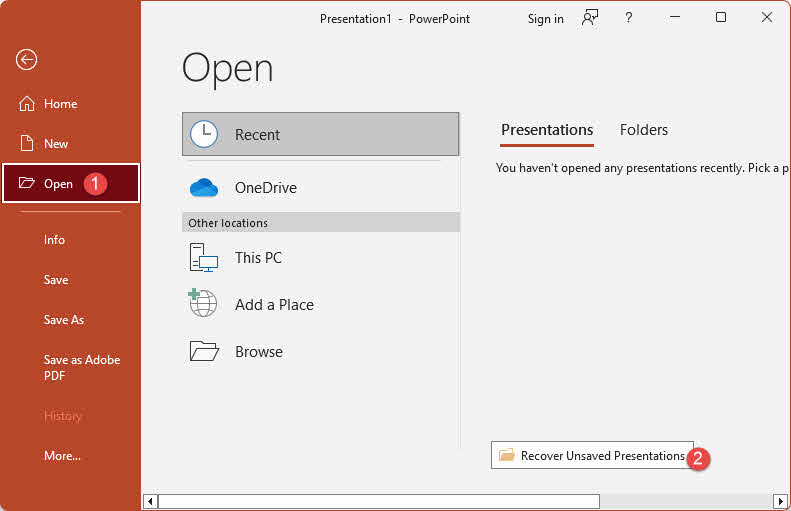
Alternatively, click File -> Info -> Manage Presentation -> Recover Unsaved Presentations.
On macOS, click File -> Open Recent -> Recover Unsaved Presentations.
Browse the list for a file matching your presentation and open it. If found, immediately save it to a permanent location via File -> Save As.
14.2 Find AutoRecovery Files (Windows/Mac)
PowerPoint’s AutoRecovery feature periodically saves a backup of open files. If your file was damaged during an editing session, an AutoRecovery backup from before the damage may exist.
You can browse to the AutoRecovery folder directly:
- Windows: C:\Users\[username]\AppData\Roaming\Microsoft\PowerPoint\
- macOS: /Users/[username]/Library/Containers/com.microsoft.Powerpoint/Data/Library/Preferences/AutoRecovery/
Look for a file matching your presentation’s name and try opening it in PowerPoint.
14.3 Find Temporary (.tmp) Files
PowerPoint creates a temporary copy of a file each time it is opened. This .tmp file may contain a usable version of the presentation from the most recent editing session.
- On Windows, open File Explorer, type %temp% in the address bar, and press Enter.

- Search for files with names resembling your presentation (e.g., PPT####.tmp).
- On Windows, file extensions are hidden by default. To show them, open File Explorer, click the View tab, and check File name extensions. On Windows 11, click View -> Show -> File name extensions.

- Right-click the .tmp file, select Rename, and change the extension from .tmp to .pptx.
- Open the renamed file in PowerPoint.
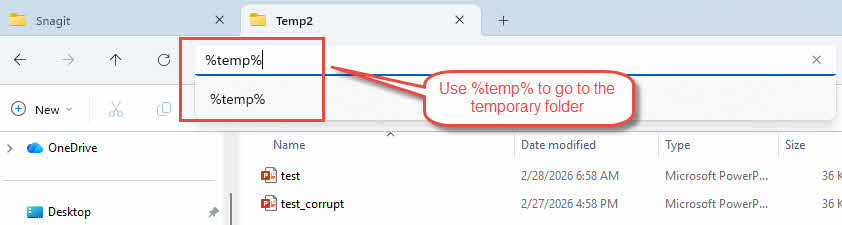
14.4 Use “Save As” Version History
If you used Save As to create incremental copies of your presentation during editing, Windows may have retained previous versions of those files through the File History feature.
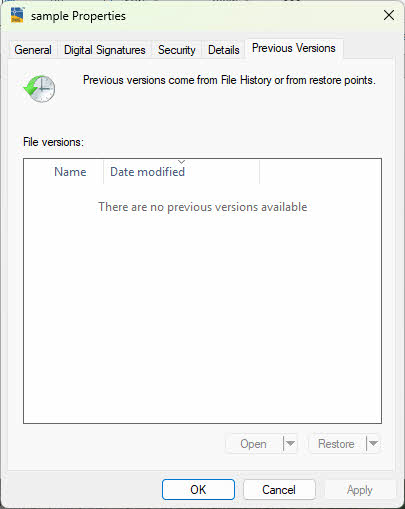
- Right-click the damaged file in File Explorer and select Restore previous versions.

- In the list of available versions, select a version predating the corruption.
- Click Restore to recover that version.
15. Open in Alternative Applications
When PowerPoint cannot open and repair a damaged PowerPoint file, other applications may succeed because they use different parsing engines. Try the following applications in order:
- PowerPoint for the Web — Open the file in OneDrive and launch it in PowerPoint for the Web. The online version uses a different rendering engine and may open files that the desktop app cannot.
- Google Slides — Upload the file to Google Drive and open it in Google Slides. If it opens, download it as .pptx and re-open in PowerPoint. Note that tables and charts may be converted to images and some formatting may shift.
- LibreOffice Impress — A free, open-source presentation application with strong .pptx compatibility. Open the file via File -> Open, and if successful, save it back as .pptx.
- Apache OpenOffice Impress — Similar to LibreOffice Impress, though less actively maintained. Worth trying if LibreOffice does not work.
- Apple Keynote (macOS only) — Keynote can open .pptx files, and has recovered presentations that PowerPoint itself could not repair. If the file opens, use File -> Export To -> PowerPoint to save a new .pptx file.
- Finder Quick Look (macOS only, preview only) — Press Space with the file selected in Finder to render a visual preview of the slides. This does not repair the file; it only allows you to take screenshots of slide content for manual reconstruction.
Note: Microsoft PowerPoint Viewer was retired in 2018 and is no longer available for download.
16. Convert to a Different File Format
Converting the corrupt PowerPoint file to a different neutral format, such as Key or ODP, and then converting it back to .pptx can sometimes fix the file corruption. Some users have reported success in repairing certain corrupt PowerPoint files using the following online services:
Note that each conversion round-trip carries a risk of further formatting loss. Use this method only after simpler approaches have failed, and only upload files to services with a clear privacy policy.
17. Restore from Backups or Copies
If you cannot repair the damaged PowerPoint file directly, restoring an earlier uncorrupted copy is often the most reliable path to recovery. If a formal backup is available, restore from it immediately. If not, systematically check every location where a copy of the file may exist. Below are the main categories.
17.1 Web-based Presentation & Editing Tools
If you have previously opened or edited the presentation online, a copy may still be accessible through one of these services:
- Microsoft 365 / OneDrive — The most native option; PowerPoint Online lets you create, edit, and share .pptx files directly in the browser and stores version history automatically.
- Google Slides — Can import and export .pptx files. A previously imported version may remain in your Google Drive.
- Canva — Supports importing and exporting PowerPoint files. Check your Canva account for any imported version.
- Zoho Show — Another web-based alternative that supports .pptx import/export.
17.2 Cloud Drive
Check your cloud storage accounts for a synchronized or uploaded copy of the file:
- Google Drive — Stores and previews .pptx files, and can open them in Google Slides.
- Dropbox — Stores and previews PowerPoint files; integrates with Office Online for editing.
- Box — Enterprise-focused storage with PowerPoint preview and editing support.
- SharePoint — Microsoft’s enterprise platform, tightly integrated with PowerPoint; stores version history automatically.
17.3 Web-based Collaboration & Presentation Tools
If the presentation was used in a live or collaborative context, a copy may remain in one of these platforms:
- Mentimeter / Slido — Can integrate with PowerPoint for interactive presentations; your slides may have been imported during setup.
- Prezi — Can import PowerPoint slides as a starting point; check your Prezi account for any import history.
- SlideShare (LinkedIn) — If the presentation was published publicly, the uploaded version may still be accessible from your LinkedIn account.
17.4 Web-based Automation & Integration Tools
If your workflow involves automated processing of files, a copy may have been stored or forwarded by an automation tool:
- Zapier / Make (Integromat) — Automated workflows involving your PowerPoint file may have created a stored copy in a connected cloud service.
- Microsoft Power Automate — Automated flows that generate or manipulate PowerPoint files may have output a copy to a SharePoint library or OneDrive folder.
17.5 Other Places
Do not overlook these additional sources where a copy of the file may exist:
- Other cloud services that are integrated with your workflow and may have received the file
- Other computers on your local network that have shared access to your drives
- Email accounts — check your Sent folder for any message to which you attached the file, or those you have sent the file to.
- File Explorer version history — check whether an earlier version was saved under a slightly different filename
While brainstorming all possible locations takes time, it is well worth the effort before concluding that the presentation is unrecoverable.
18. Restore a Previous Version
If the file is stored in a location that supports versioning, you may be able to roll it back to a state before the corruption occurred, other than repairing the corrupt PowerPoint file. The following services and tools all maintain version history automatically:
- Windows File History
- macOS Time Machine
- Google Drive Version History
- OneDrive Version History
- Dropbox Version History
- SharePoint Version History
19. Update PowerPoint
An outdated version of PowerPoint may have bugs that cause it to misread certain file structures. Updating to the latest version can resolve compatibility issues and open files that older builds could not.
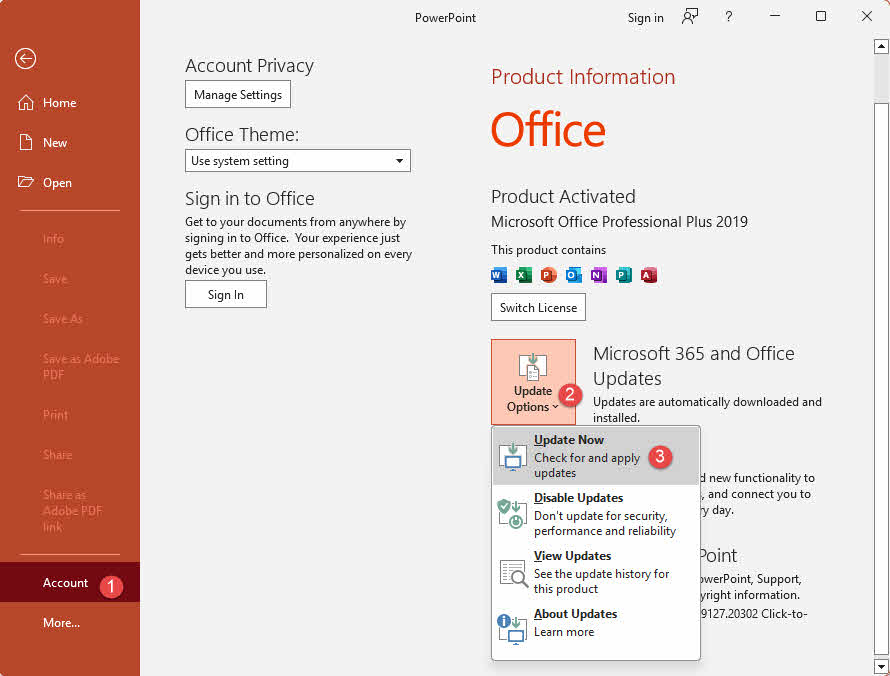
On Windows, open PowerPoint and click File -> Account -> Update Options -> Update Now:
On macOS, open PowerPoint and click Help -> Check for Updates. If the Check for Updates option is not visible, download the latest Microsoft AutoUpdate package from Microsoft’s website, run it, and it will update all installed Office applications.
After updating, restart PowerPoint and attempt to open the file again.
20. Reinstall/Repair Microsoft Office
If PowerPoint is damaged or incorrectly installed, repairing or reinstalling the Office suite can restore its ability to open files.
On Windows:
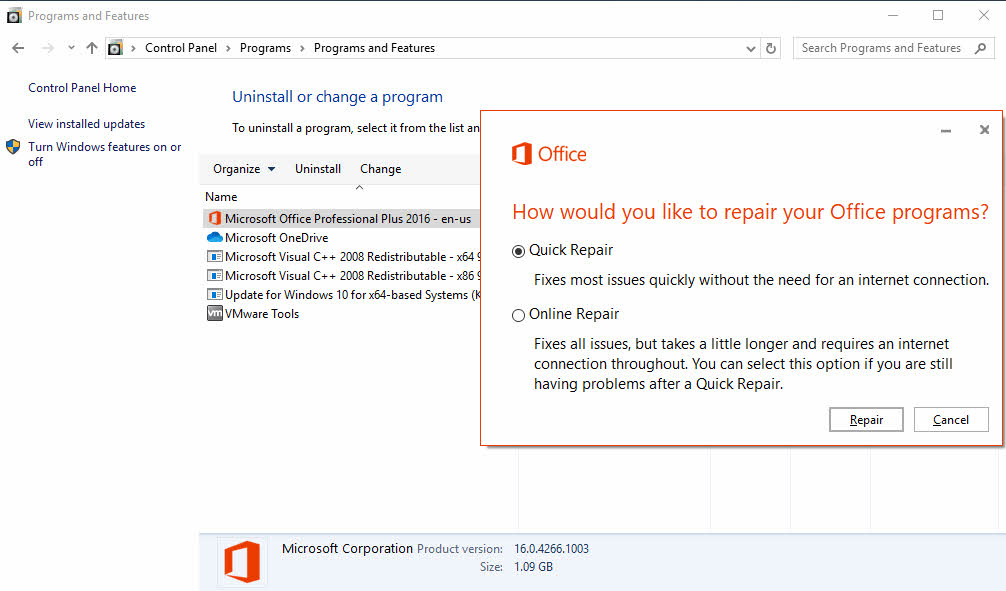
- Open Control Panel -> Programs -> Uninstall a program.
- Locate your version of Microsoft Office in the list, right-click it, and select Change.
- Choose Online Repair (recommended) and follow the prompts. The online repair option performs a more thorough check than the quick repair.
On macOS, uninstall Office by dragging the individual application files to the Trash, then download and reinstall the latest version from your Microsoft 365 account or from the Mac App Store.
21. Uninstall Problematic System Update
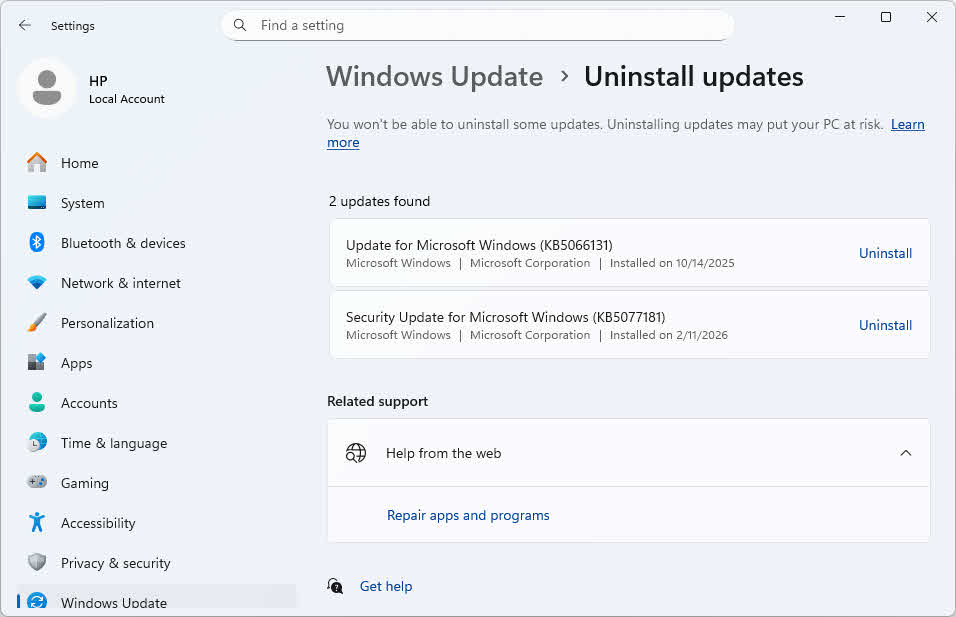
In some cases, a system update has introduced a bug that causes PowerPoint to misidentify valid files as corrupt or to prompt for repair on every open. Uninstalling the specific update can resolve the issue.
- Windows Update KB3097877: This update has been documented as causing PowerPoint (and Excel) to prompt for repair on files that are not actually corrupt. To uninstall it, open Control Panel -> Programs -> View installed updates, search for KB3097877, right-click it, and select Uninstall.

- macOS updates: If the problem began after a macOS update, check whether the installed version of PowerPoint is compatible with the current macOS release. Update PowerPoint (see section 19) before considering a macOS rollback, as an Office update is less disruptive and is usually sufficient to restore compatibility. Some users reported open file issues after updating to Sequoia 15.4.1.
22. Check Disk Error with CHKDSK
If the file is stored on a drive with bad sectors or file system errors, the corruption may be at the storage level rather than in the file itself. Running CHKDSK repairs file system errors and may restore access to the file without requiring to repair the PowerPoint file directly.
- Press Win + R, type cmd, and press Ctrl + Shift + Enter to open Command Prompt as administrator.
- Type chkdsk C: /f /r (replace C: with the drive letter where the file is stored) and press Enter.
- If prompted that the drive is in use, type Y and press Enter to schedule the check on the next restart.
- Restart your computer. CHKDSK will run before Windows loads and repair any detected errors.
- Once Windows restarts, attempt to open the file again.

On macOS, use Disk Utility to perform the equivalent check:
- Open Finder -> Applications -> Utilities -> Disk Utility.
- In the left sidebar, select the drive or volume that contains the damaged file.
- Click First Aid in the toolbar, then click Run to confirm.
- Wait for the scan to complete. Disk Utility will report any errors found and attempt to repair them.
- Once finished, click Done and then try opening the file again.
Note: If Disk Utility reports that it cannot repair the disk, boot into macOS Recovery (Command + R at startup), open Disk Utility from there, and run First Aid again. Running First Aid from Recovery gives the tool full access to the disk without the operating system holding any volumes in use.
23. Change the File Extension
A mismatch between the actual file format and its extension can sometimes cause an open failure. Changing the extension forces PowerPoint to attempt parsing the file under a different format assumption. Note that this method has a low success rate and it is easy to forget to rename the file back afterward, so try it only after the more reliable methods above have failed.
On Windows, file extensions are hidden by default. To show them, open File Explorer, click the View tab, and check File name extensions. On Windows 11, click View -> Show -> File name extensions:
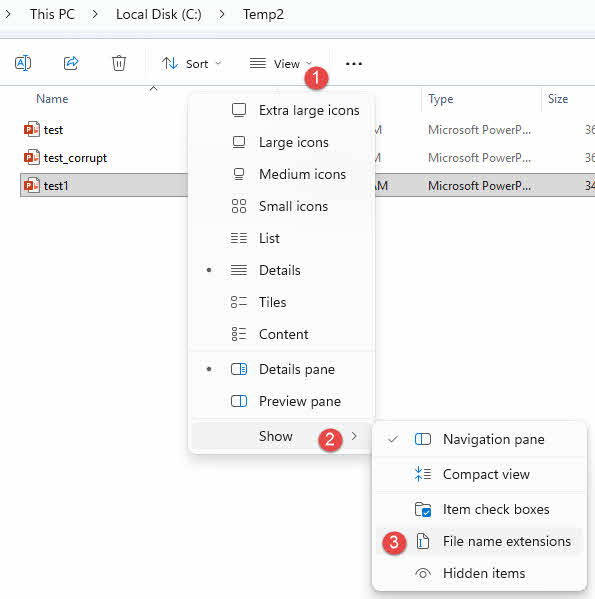
To change the extension, right-click the file, select Rename, change .pptx to .ppt (or vice versa), and press Enter. Then open the renamed file via File -> Open in PowerPoint rather than by double-clicking. If it does not open, rename the file back to its original extension.
On macOS, extensions are also hidden by default. To show them, open Finder -> Settings -> Advanced, and check Show all filename extensions. Then click the file once to select it, press Return, edit the extension, press Return again, and click Use .ppt (or the relevant extension) to confirm.
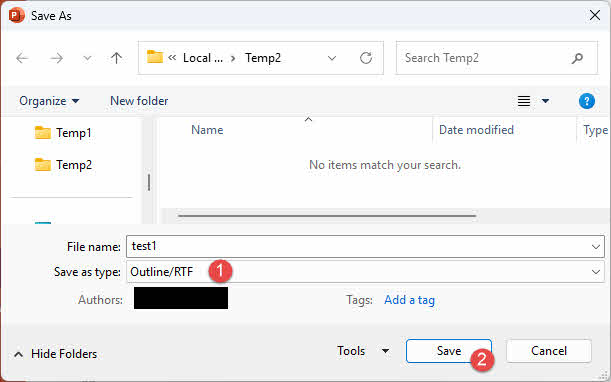
24. Save the Presentation as a Rich Text Format (RTF) File
If the file can be partially opened but is too damaged for other recovery methods, saving it as an RTF file extracts the text content visible in Outline view. This is a last resort for text recovery when slide content cannot be recovered in any other way — images, charts, tables, and formatting will not be preserved.
- Open the damaged presentation in PowerPoint.
- Click File -> Save As and choose a save location.
- In the Save as type dropdown, select Outline/RTF (*.rtf).
- Enter a filename and click Save.

- Close the damaged presentation, then click File -> Open.
- In the Files of type dropdown, select All Outlines or All Files.
- Select the .rtf file you saved and click Open. PowerPoint will reconstruct a presentation from the outline text.
25. Manually Extract Content
Because .pptx files are ZIP archives, it is possible to unzip the file and directly access the individual slide XML files and embedded media even when PowerPoint cannot open the file normally. This approach requires some comfort working with XML and plain text files.
- On Windows, file extensions are hidden by default. To show them, open File Explorer, click the View tab, and check File name extensions. On Windows 11, click View -> Show -> File name extensions
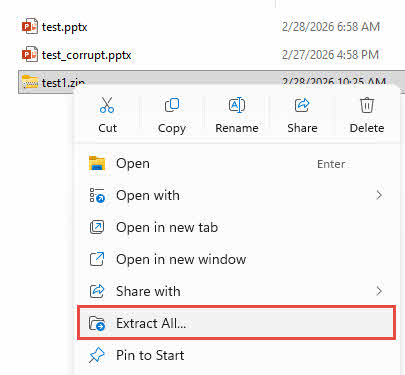
- Make a copy of the file, then right-click the copy and rename it, changing the extension from .pptx to .zip.
- Right-click the renamed .zip file and select Extract All, or use 7-Zip -> Extract Here.

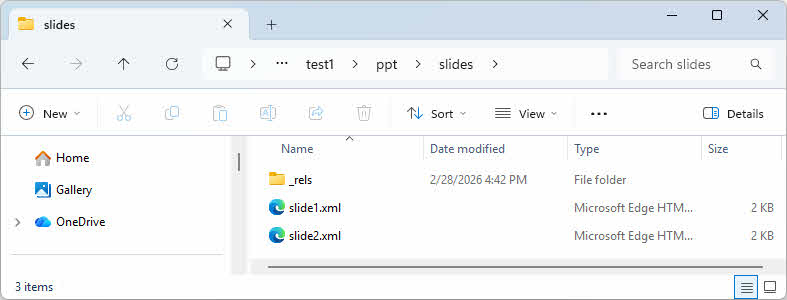
- Navigate to the ppt/slides/ folder inside the extracted contents.
- Open slide1.xml, slide2.xml, etc. in a plain text editor to read and copy the text content of each slide.

- Navigate to the ppt/media/ folder to access embedded images, which can be extracted directly.
Note: If the file cannot be opened or extracted as a ZIP, try using a Zip file repair tool to repair and extract its contents.
Limitations:
- Recovering content requires manually reconstructing slides from raw XML, which is time-consuming.
- Charts and SmartArt objects stored as binary data may not be recoverable through this method.
26. Use a Third-Party PowerPoint Repair Tool
If all the above methods fail, the corruption is too severe, and you need a dedicated PowerPoint repair tool to perform a more comprehensive repair and recovery.
26.1 Use DataNumen PowerPoint Recovery to Repair PowerPoint File
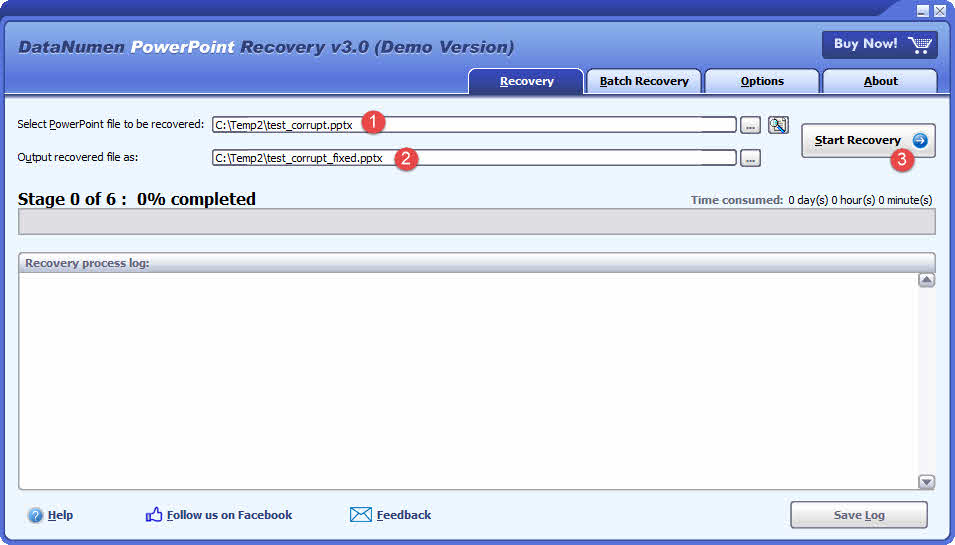
DataNumen PowerPoint Recovery is a specialized tool that can recover .pptx files, including slides, text, images, charts, tables, and embedded objects.
- Launch DataNumen PowerPoint Recovery
- Select the corrupt PowerPoint file to be repaired.
- Set the output file name.
- Click Start Recovery. The tool will start to scan and recover the file.
- Once repair is complete, open the recovered file in PowerPoint and review the content.
26.2 Recover PowerPoint Data from Hard Drive, Disk Image, or Backup Files
PowerPoint data can be recovered directly from hard drives, disk images, or backup files if you do not have the original PowerPoint files any more, for example:
- You delete the PowerPoint file permanently.
- You format the hard drive.
- Hard drive failure.
- The virtual disk in VMWare or Virtual PC is corrupt or damaged.
- The backup file on the backup media is corrupt or damaged and you cannot restore the PowerPoint file from it.
- The disk image file is corrupt or damaged and you cannot recover your PowerPoint file from it.
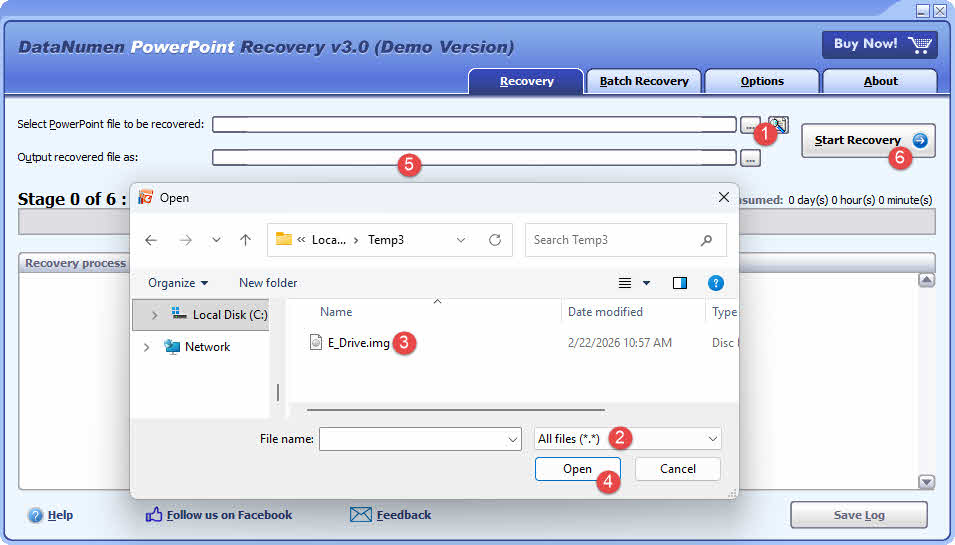
If you have the disk image or backup files on hand, then you can do as follows:
- Click “…” button to select the source file.
- In the “Open File” dialog, select “All Files (*.*)” as the filter.
- Select the disk image or backup file as the source file to be repaired.
- Set the output recovered PowerPoint file, and make sure its extension is .pptx.
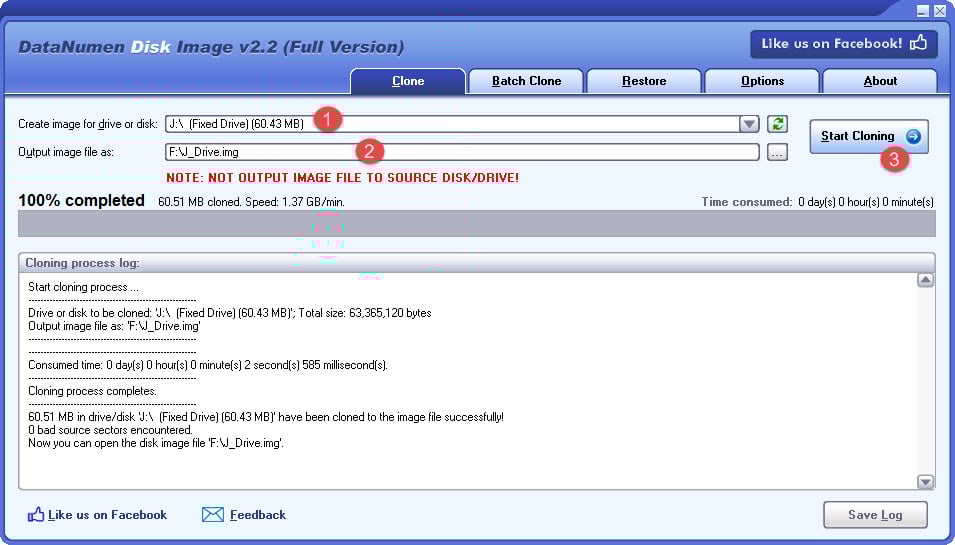
If you want to recover from hard drive directly, you need to use DataNumen Disk Image to create a disk image file for the hard drive:
- Select the hard drive or disk.
- Set the output image file name.
- Click “Start Cloning” button to create the disk image file from the hard drive/disk.
26.3 Use Online Repair Services
Several web-based services can attempt to repair a corrupt PowerPoint file without installing any software. Below are some of them:
- PPTX Repair (https://www.pptx.repair/)
- Slide Speak (https://slidespeak.co/free-tools/repair-broken-powerpoint-file)
- Office Recovery (https://online.officerecovery.com/powerpoint)
- OnlineFile.Repair (https://www.onlinefile.repair/powerpoint)
27. Troubleshooting Specific Scenarios
27.1 File Repairs but Opens Blank
If PowerPoint reports the repair as successful but the presentation opens with no content, the structural repair succeeded but the content layer was too damaged to restore. Try 10. Insert Slides into a New Presentation to import slides from the damaged file, or open the file in an alternative application (see 15. Open in Alternative Applications) which may be able to read the content that PowerPoint cannot.
27.2 PowerPoint Prompts for Repair Every Time the File Is Opened
If a file consistently triggers a repair prompt on every open without actually being corrupted, two common causes apply. First, check whether Windows Update KB3097877 is installed and uninstall it (see 21. Uninstall Problematic System Update). Second, a conflicting COM add-in may be interfering — open PowerPoint in Safe Mode (see 9. Open PowerPoint in Safe Mode) and disable all add-ins, then re-open the file normally.
27.3 File Is Too Large for Google Slides
Google Slides has a file size limit that prevents large .pptx files from being imported. Use LibreOffice Impress or Apple Keynote as alternatives (see 15. Open in Alternative Applications). If the file must be split first, use the manual extraction method (see 25. Manually Extract Content) to access individual slides and rebuild the presentation in sections.
27.4 Corrupt File on a Mac Without Trust Center
macOS versions of PowerPoint do not include the Trust Center panel, so Protected View settings cannot be adjusted directly. The primary workaround is Apple Keynote — open the file in Keynote and export it back to .pptx. If the file is small enough, Google Slides is a reliable secondary option. See 15. Open in Alternative Applications for details on both.
27.5 Corruption After Transferring from a Removable Drive
If the file became corrupt during or after a transfer from a USB drive or other removable media, first copy the file to the internal hard drive and attempt to open it from there (see 4. Copy the File to Another Location). Then check the removable drive for storage errors using CHKDSK (see 22. Check Disk Error with CHKDSK). The original file on the drive may also be recoverable once the drive errors are repaired.
28. How to Prevent PowerPoint File Corruption
28.1 Use Cloud Storage with AutoSave
Store all active presentations in OneDrive, SharePoint, or Google Drive and enable AutoSave. In Microsoft 365, toggle AutoSave on using the switch in the top-left corner of PowerPoint. Cloud storage with AutoSave provides continuous version history, meaning that even if a file becomes corrupt, an uncorrupted version from moments earlier is always available.
28.2 Enable AutoRecovery
AutoRecovery periodically saves a recovery copy of open files to a local folder. To configure it, click File -> Options -> Save, and set Save AutoRecover information every to a short interval such as 5 minutes. Confirm that the AutoRecover file location path points to a reliable local drive.
28.3 Safe File Handling Practices
Most corruption incidents are preventable with disciplined file handling:
- Never edit a presentation directly from a USB drive or network share. Copy it to the local drive first.
- Always use the operating system’s safe eject function before unplugging a removable drive.
- Keep PowerPoint and Windows (or macOS) updated to avoid known software bugs that can cause file corruption.
- Maintain active, up-to-date antivirus protection to prevent malware-related corruption.
28.4 Maintain Regular Backups
Do not rely on a single copy of an important presentation. Use Windows Backup, macOS Time Machine, or a third-party backup tool to maintain versioned local backups. Additionally, keep copies in at least two separate cloud services — for example, OneDrive as the primary location and Google Drive as a secondary backup — so that a failure in one service does not result in total loss.
29. FAQ
Q: Can I repair a PowerPoint file for free?
A: Yes. PowerPoint’s built-in Open and Repair feature, Safe Mode, Reuse Slides, and the Trust Center adjustments are all free. Alternative apps such as Google Slides, LibreOffice Impress, and Apple Keynote are also free and can open files that PowerPoint cannot. Third-party repair tools and online repair services typically charge for full recovery, though free previews are commonly available.
Q: Why does PowerPoint say “found a problem with content” even on a file that seems fine?
A: This prompt can be triggered by a Windows security block on files downloaded from the internet, a conflicting add-in, or a specific Windows update (KB3097877). Try unblocking the file via Properties (see 6. Unblock the File via Windows Properties), disabling add-ins via Safe Mode (see 9), or uninstalling the problematic update (see 21).
Q: Is it possible to recover a PowerPoint file that was never saved?
A: Possibly, if AutoRecovery was enabled. Open a blank presentation, click File -> Info -> Manage Presentation -> Recover Unsaved Presentations, and check whether a draft exists. If AutoRecovery was not enabled or the session was too short, the file cannot be recovered. See 14. Recover from Unsaved, AutoRecovery, or Temporary Files for more details.
Q: Why does Open and Repair return a blank file?
A: Open and Repair fixes structural issues in the file container but cannot always restore content that has been overwritten or lost. Try importing the slides using the Reuse Slides method (see 10. Insert Slides into a New Presentation) or opening the file in an alternative application such as Google Slides or Apple Keynote.
Q: Can I fix a .ppt file (older format) the same way as a .pptx file?
A: Most methods in this guide apply to both formats. However, the manual ZIP extraction method (see 25. Manually Extract Content) only works with .pptx, because the older binary .ppt format is not a ZIP archive. For severely corrupt .ppt files, a dedicated repair tool (see 26. Use a Third-Party PowerPoint Repair Tool) is usually the most effective option.
Q: Does Google Slides always work as a repair method?
A: Not always. Google Slides has a file size limit and may convert charts, tables, and embedded objects to static images. It works best for moderately corrupt files of a manageable size. For large files or those with complex content, LibreOffice Impress or Apple Keynote are more reliable alternatives. See 15. Open in Alternative Applications for more details.
Q: Will repaired files lose animations and transitions?
A: This depends on the repair method. The Reuse Slides method (section 10) and opening in Google Slides often strip animations and transitions. Direct repair via Open and Repair preserves more original content if it succeeds. For full fidelity recovery of animations, a dedicated repair tool (see section 26) offers the best chance.
Q: Can I fix a PowerPoint file on a Mac without Trust Center settings?
A: Yes. Since macOS PowerPoint does not include Trust Center, the primary options are Apple Keynote (open the file and export back to .pptx), Google Slides (if the file is within the size limit), or LibreOffice Impress. See 15. Open in Alternative Applications for details.
Q: What is the best tool to repair a severely corrupt PowerPoint file?
A: For severely damaged files where all built-in methods fail, DataNumen PowerPoint Recovery provides deep structural recovery and supports both .ppt and .pptx formats. It can also scan raw drives and disk images to recover files that are no longer accessible through the file system. For more details, see 26. Use a Third-Party PowerPoint Repair Tool.
Q: How do I prevent PowerPoint files from corrupting in the future?
A: The most effective measures are: store files in cloud storage with AutoSave enabled, never edit directly from a USB drive or network share, keep AutoRecovery set to a short interval (5 minutes), and maintain backups in at least two separate locations. See 28. How to Prevent PowerPoint File Corruption for a full checklist.
Q: Can a virus corrupt a PowerPoint file?
A: Yes. Malware can corrupt or encrypt .ppt and .pptx files. If you suspect a virus is the cause, run a full system scan with an up-to-date antivirus tool before attempting to repair the file. Repairing a file on an infected system may result in re-corruption immediately after recovery.
Q: What should I do if none of the methods work?
A: If all free and built-in methods have failed, try a professional repair tool (see 26. Use a Third-Party PowerPoint Repair Tool). If even that fails, the file is likely too severely damaged for content recovery. At that point, check all backup sources listed in 17. Restore from Backups or Copies — an older version of the file from a cloud service, email attachment, or collaboration tool may still be accessible.
30. Conclusion
30.1 Summary of Repair Methods
This guide covers 26 methods for repairing a corrupt PowerPoint file, progressing from the simplest checks — re-downloading, copying, renaming, and unblocking — through built-in PowerPoint tools such as Open and Repair, Safe Mode, and Reuse Slides, to alternative applications, cloud version history, disk-level repair, and finally third-party tools for the most severe cases. Most corruption issues are resolved by one of the first ten methods.
30.2 Best Practices for PowerPoint File Management
The most effective protection against file corruption is a combination of cloud storage with AutoSave, short AutoRecovery intervals, disciplined file handling (never editing from removable media), and regular backups to at least two independent locations. Following these practices means that even if a file does become corrupt, an uncorrupted version is almost always recoverable.
30.3 Final Recommendations
Start with the quick checks in sections 2 through 8 before attempting any repair. If the file is business-critical or contains work that cannot be easily recreated, make a backup copy before running any repair operation. For files that cannot be recovered by free methods, DataNumen PowerPoint Recovery offers a comprehensive scan and recovery.
About the Author
Shou Sheng is a Microsoft Office specialist with over 10 years of hands-on experience in Word, Excel, and PowerPoint troubleshooting across enterprise and educational environments. He has helped thousands of users recover lost work, resolve file corruption issues, and optimize their Office workflows.
Through his technical writing, Shou is committed to translating complex Office troubleshooting into clear, actionable steps for users of all skill levels. He keeps up with the latest developments in Microsoft 365 and continuously tests methods against real-world file corruption scenarios to ensure accuracy.
Have questions about this guide or need additional help with Office issues? Shou welcomes feedback and suggestions for improving these troubleshooting resources.