
Repair corrupt FIT files with our complete 2026 guide, including free recovery tips, advanced methods, and professional tools.
1. Introduction
1.1 What Is a FIT File?
A FIT (Flexible and Interoperable Data Transfer) file is a binary format developed by Garmin to store fitness activity data recorded by GPS watches, bike computers, and other sports devices. It captures metrics such as GPS coordinates, heart rate, speed, cadence, power, elevation, and lap data in a compact, structured format. FIT files are the native recording format for Garmin devices and are widely supported by platforms including Garmin Connect, Strava, and TrainingPeaks.
1.2 Symptoms of a Corrupt FIT File
- “One of your files was not accepted by the system” error in Garmin Connect
- NaN:NaN values displayed for time and distance
- Missing lap or heart rate data on the watch display
- Impossible activity duration (e.g., 53 days) or a GPS track line crossing continents on the map
1.3 Common Causes of FIT File Corruption
FIT files can become corrupt for several reasons:
- Interrupted data transfer: A USB disconnect or sync failure while the file is being written can leave it in an incomplete state.
- Device issues: A sudden shutdown or battery failure mid-activity cuts off the recording before the file header is finalized.
- Firmware bugs and software glitches: Errors in the watch firmware or conflicts with accessories such as the HRM-Pro heart rate strap can corrupt the file during save.
- Storage problems: When the device runs out of storage space, the file cannot be written completely, resulting in partial data loss.
- File system errors and malware: Bad sectors on the device storage or malware can alter the file structure permanently.
- Excessive button presses: Repeatedly pressing pause or stop during a recording increases the risk of write errors.
- Watch crash during activity upload: If the device crashes while syncing an activity, the FIT file may be left in a corrupt state.
2. Before You Begin: Prerequisites
Before attempting any repair, complete the following steps in order.
- Find the corrupt FIT file. Connect your Garmin device to a computer using a USB cable. Open File Explorer (Windows) or Finder (Mac) and navigate to the \GARMIN\ACTIVITY folder on the device. Your FIT files are stored here, named by date and time.
- Back up the original FIT file. Copy the corrupt file to a safe location on your computer before attempting any repair. Every repair tool modifies or replaces the file; if something goes wrong, you need the original to try a different method.
The following sections address four categories of FIT file problems. Use the following flowchart to identify which category applies to your file and go directly to that section:

3. Category 1: File Too Large for the Platform
Before assuming a file is corrupt, check its size. Most platforms reject FIT files that exceed their limits, even if the file is not corrupt. The limits vary by platform:
- Garmin Connect and Strava: files larger than approximately 10 MB may be rejected
- Wahoo devices: problems can occur with files above 5 MB
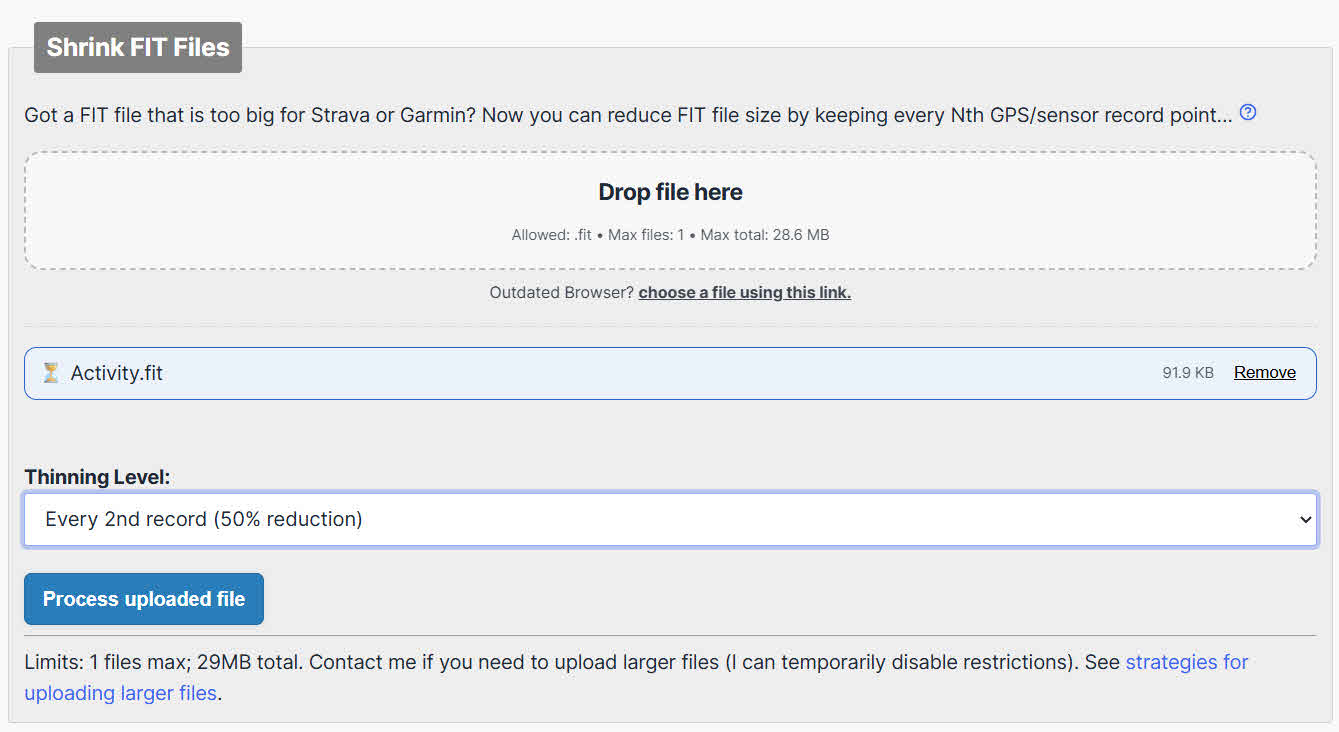
For an oversized file, use the GOTOES Shrink FIT Files to reduce its size:
- Click the Drop File here section and select your FIT file.
- Select the Thinning Level based on your file size and the platform limit.
- Click Process Uploaded File.
- Download the thinned file and attempt to upload it to your target platform.
- If the file is still too large, repeat the process with a higher interval value.
If thinning the file does not resolve the problem, the file may also have corruptions. Proceed to Category 2.
4. Category 2: File Corruption and Cannot Be Read
File corruption means some data in the file is damaged or lost so the platform cannot parse it at all. This is the most common type of FIT file problem. The tools below can automatically repair or convert the FIT file to fix the corruption. Try them in order, starting with the simplest, until one succeeds.
4.1 Popular Tools
- GOTOES Merge Tool (Free): Upload your FIT file and the tool automatically rebuilds the file structure from scratch. It can export the repaired file as GPX or TCX for free, or as FIT for donors. This is the recommended first step for file corruption.
- GOTOES FIT File Viewer Repair Button (Free): Provides a more aggressive repair pass than the Merge Tool. It removes non-standard fields to force the file into a valid structure, which means some non-critical data fields may be lost. Use this only if the Merge Tool fails.
- FIT File Viewer (Free / Donation): Upload your file and the tool automatically detects and repairs corruption. Download the fixed file with one click. The web app is free; a donation is appreciated.
- Strava (Free): Strava’s upload parser is more tolerant of corrupt files than Garmin Connect. Upload your FIT file. If Strava accepts the file and the activity appears correctly, navigate to the activity page, click the … menu, and select Export Original to download a structurally clean FIT file.
- FIT File Tools (Section Remover Tool) (Free): The Section Remover tool strips out corrupt data segments and rebuilds the remaining file structure. Upload your file, run the section remover without adjustments, download the result, and import it to Garmin Connect via the Import Data page.
- fit2tcx (Free): An online tool by Runalyze that converts FIT files to TCX format. It is primarily a format converter rather than a repair tool, but the conversion process can bypass certain types of corruption that prevent direct open.
- GoldenCheetah (Free): A free, open-source desktop application for Windows, Mac, and Linux. Import the corrupt FIT file, use the built-in editor to remove erroneous data points, then export the activity as TCX for upload to Garmin Connect or Strava.
- GOTOES Convert FIT to CSV (Free): A last-resort option that uses a different parsing mechanism to extract whatever data it can from a corrupt file into a CSV spreadsheet. The CSV can be edited in Excel or Google Sheets, then re-uploaded to GOTOES to convert back to GPX, TCX, or FIT. Some data fields will be lost in this process.
- FIT File Repair Tool (Paid): A Windows desktop application that supports batch repair of FIT, TCX, and HRM files. It offers advanced editing features including Google Maps activity display and the ability to combine GPX files with HRM data.
- DataNumen FIT Repair (Paid): A Windows desktop tool that repairs all versions of Garmin FIT files, including chained FIT files. It supports batch repair, integrates with Windows Explorer via the right-click context menu, and supports drag-and-drop.
4.2 Command-Line Tools
GPSBabel (Free) is an open-source command-line utility that converts between GPS file formats, including FIT to GPX and FIT to TCX. It can extract readable data from a partially corrupt file by skipping unreadable records:
- Install GPSBabel
- Then run:
gpsbabel -i garmin_fit -f input.fit -o gpx -F output.gpx. - The converted GPX file can be uploaded to Strava or Garmin Connect.
4.3 Special Tools
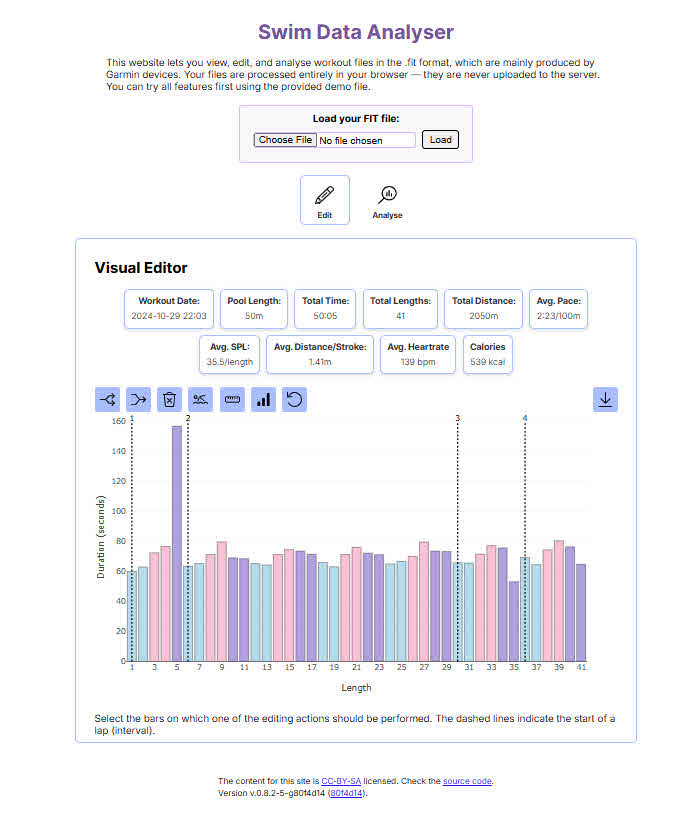
Swim Data Analyser (Free) is an online editor/analyser designed exclusively for swimming FIT files recorded by Garmin and TomTom Multisport devices. Supports deleting, merging, and splitting laps, correcting stroke type, and fixing pool size errors. It is not applicable to running, cycling, or other activity types.
Garmin FIT File Conversion and Repair (Free): Converts corrupt FIT files to GPX by reading the file sequentially and skipping any point where an error is found, continuing with the next valid data point. The tool has been used over 120,000 times. As of March 2025, it is temporarily unavailable due to a server migration. Check the site for restoration status.
5. Category 3: File Can Open but Contains Errant Points or Bad Timestamps
In this category, the file can open, but certain data points are incorrect — a GPS coordinate recorded in the middle of an ocean, a timestamp far in the future or past, or a heart rate spike of 300 bpm. These errant points corrupt the statistics without breaking the file itself. The tools below allow you to identify and manually delete the specific bad records:
- GOTOES Edit Points (Free): Load your FIT file and open the Edit Points tool. The tool flags incorrect data points and displays them on a live map. A corrupt GPS point typically appears as a long red line stretching across the globe. Click the flagged point and select Delete to remove it. Reload the tool to confirm no errors remain, then download the cleaned file.
- FIT File Tools (Free): Provides a Time Adjuster tool to correct erroneous timestamps, a Peak Remover to eliminate abnormal heart rate or power spikes, and a Section Remover to delete specific sections of the activity data. Each tool operates independently; apply only the one that addresses your specific problem.
- GoldenCheetah (Free): Import the file into GoldenCheetah, switch to the Editor tab, locate the errant data point in the table view, delete the row, and save the activity as TCX. The TCX file can then be imported into Garmin Connect.
6. Category 4: Missing GPS Data
This category is distinct from corruption. The file can open without errors, but GPS data is absent for part of the activity — typically the first few kilometers if the watch was started before acquiring a GPS signal, or a mid-activity gap if the GPS dropped out. Because the data was never recorded, it cannot be recovered; however, it can be reconstructed manually using a known route and the following tool:
- Garmin BaseCamp (Free): Open BaseCamp and create a new route that covers the missing GPS segment, tracing it manually over the map. Export the route as a GPX file. Then open the original FIT file in FIT File Repair Tool, use the Add position data from GPX file feature, and select the GPX route you created. The tool merges the reconstructed GPS track into the FIT file.
7. After Repair: Verifying the Fixed File
Once a file has been fixed, verify that it imports correctly and that the data is usable.
- Upload to Garmin Connect: Go to connect.garmin.com/app/import-data, click Browse, select your repaired file, and click Import Data. If the upload succeeds, open the activity and review the map, stats, and laps.
- Upload to Strava: Go to strava.com/upload/select, select the repaired file, and submit. Strava accepts FIT, GPX, and TCX files up to 25 MB.
- What data may be missing after repair: Depending on the extent of corruption and the repair method used, some data may be partially recovered or absent. Common losses include total distance (may be shorter than the actual activity), calorie counts (often recalculated incorrectly), and detailed lap splits. GPS track and heart rate data are usually preserved if the repair succeeds.
- Verify key data fields: After import, check the GPS track on the map for accuracy, confirm heart rate data is present and within realistic ranges, and review lap data if your activity recorded splits.
8. How to Prevent FIT File Corruption
Most FIT file corruption is preventable with a few routine practices.
- Monitor device storage and clean up regularly. After confirming that activities have synced to Garmin Connect, delete the files in the \GARMIN\ACTIVITY folder. A full or nearly full device is one of the most common causes of incomplete file writes. Make this a weekly habit.
- Avoid excessive pause and stop button presses. Each pause creates an additional write operation. Minimize manual pauses during recording to reduce the risk of write errors.
- Use Auto Pause instead of manual pause. Enable Auto Pause in your device settings so the watch handles pausing automatically, eliminating unnecessary button presses.
- Keep device firmware updated via Garmin Express. Install Garmin Express, connect your device, and apply any available firmware updates. Firmware updates frequently include fixes for file-writing bugs.
- Keep HRM accessory firmware updated. If you use an HRM-Pro or similar chest strap, update its firmware via the Garmin Connect app. Outdated HRM firmware is a documented cause of FIT file corruption, particularly with HR data download.
- Do not remove the device from USB while transferring. Wait for any file transfer to complete before unplugging the device. Ejecting the drive mid-transfer can corrupt the file being written.
- Perform a full master reset if corruption recurs frequently. If you experience repeated corruption despite following the above steps, back up the \GARMIN\ACTIVITY folder, then perform a Master Reset from the device settings. This clears accumulated file system errors that can cause ongoing problems.
9. FIT File Repair Tools: Comparison Table
| Tool | Free/Paid | Platform | Category | Best For | Limitation |
|---|---|---|---|---|---|
| GOTOES Shrink FIT Files | Free | Web | 1 | Oversized files | FIT files only |
| GOTOES Merge Tool | Free | Web | 2 | Auto-repair; rebuild from scratch | Exports FIT only for donors |
| GOTOES FIT File Viewer | Free | Web | 2 | Aggressive repair after Merge Tool fails | May lose non-critical fields; 14 MB limit |
| FIT File Viewer | Free / Donation | Web | 2 | Quickest auto-repair | Smaller files only |
| Strava | Free | Web | 2 | Accepting lightly corrupt files | Not a dedicated repair tool |
| FIT File Tools | Free | Web | 2, 3 | Section removal; timestamp/data editing | No cloud integration |
| fit2tcx | Free | Web | 2 | FIT to TCX conversion | Format conversion only, not repair |
| GoldenCheetah | Free | Desktop | 2, 3 | Manual point deletion; cross-platform | Steeper learning curve |
| GOTOES Convert FIT to CSV | Free | Web | 2 | Last-resort parsing with different mechanism | Partial data loss possible |
| FIT File Repair Tool | Paid | Web / Windows | 2 | Batch upload; FIT/TCX/HRM formats | Old UI; struggles with fragmented files |
| DataNumen FIT Repair | Paid | Windows | 2 | Batch repair; damaged storage media | Free version preview only; Windows only |
| GPS Babel | Free | Command-line | 2 | FIT to GPX/TCX conversion | Requires technical knowledge |
| Swimming Watch Data Editor | Free | Web | 2 | Swimming activity files only | Swimming use case only |
| Garmin FIT file conversion and repair | Free | Web | 2 | FIT to GPX conversion; skips corrupt points | Temporarily unavailable since March 2025 |
| GOTOES Edit Points | Free | Web | 3 | Manual deletion of errant GPS points/timestamps | Best for single-point issues only |
| Garmin BaseCamp | Free | Desktop | 4 | Rebuilding missing GPS segments | Requires pairing with FIT File Repair Tool |
10. Frequently Asked Questions
Q: Why does Garmin Connect say my FIT file “was not accepted”?
A: Garmin Connect displays this generic error for several reasons: the file is structurally corrupt, the file exceeds the 25 MB upload limit, the file type is not supported, or the activity data contains values outside acceptable ranges. The error message does not distinguish between these causes. Start by checking the file size, then attempt repair using the tools in Category 2.
Q: Can a severely corrupt FIT file ever be fully repaired?
A: It depends on the extent of the corruption. If the GPS track, heart rate, and timing data are partially intact, tools like the GOTOES Merge Tool or FIT File Viewer can usually recover the usable portion. If the file header itself is destroyed or the storage sector containing the file is physically damaged, full recovery is unlikely. In those cases, partial recovery — retrieving whatever data remains — is the realistic outcome.
Q: Will repaired FIT files show accurate statistics on Strava?
A: Statistics such as distance, pace, and elevation are recalculated from the GPS and sensor data in the repaired file. If the repair recovered all data points intact, the statistics will be accurate. If some points were removed during repair, the distance may be slightly shorter and pace figures may differ from what was shown on the watch.
Q: Where exactly are FIT files stored on my Garmin watch?
A: Connect your device via USB. It appears as a removable drive. Navigate to \GARMIN\ACTIVITY to find all recorded activity FIT files. Files are named by date and time of the activity.
Q: Is it safe to delete FIT files from the \GARMIN\ACTIVITY folder?
A: Yes, provided the activities have already synced to Garmin Connect. Once an activity is confirmed in your Garmin Connect account, the local FIT file on the device is no longer needed. Deleting synced files regularly is recommended to prevent storage-related corruption.
Q: Which FIT file repair tool has the highest success rate?
A: Based on community reports across Garmin forums and Reddit, the GOTOES Merge Tool and FIT File Viewer resolve the majority of common corruption cases at no cost. For files that resist free tools, FIT File Repair Tool has a strong track record for difficult repairs, including files with fragmented or partial data.
Q: Can I repair a FIT file on a Mac or Linux system?
A: Yes. All web-based tools (GOTOES, FIT File Viewer, FIT File Tools, Strava, fit2tcx) work on any operating system via a browser. GoldenCheetah provides native Mac and Linux desktop versions. GPSBabel is also available for Mac and Linux. The only tools limited to Windows are FIT File Repair Tool and DataNumen FIT Repair.
Q: What does “NaN:NaN” mean in a FIT file?
A: NaN stands for “Not a Number.” It appears when the platform cannot parse the time or distance values from the file — typically because the timing records are missing or corrupt. A file displaying NaN:NaN for duration is structurally corrupt and requires repair using the tools in Category 2.
Q: Does Garmin Support repair corrupt FIT files?
A: No. Garmin Support does not repair corrupt FIT files. Their standard response is that corrupted files cannot be recovered on their end. The community-maintained tools described in this guide are the primary available options.
Q: How do I fix errant GPS points that show a line crossing the globe?
A: This is a Category 3 problem. The file opens and uploads, but one or more GPS coordinates were recorded in the wrong location. Use the GOTOES Edit Points tool: load your file, open the Edit Points view, identify the flagged point shown as a long line on the map, and delete it. The map preview updates immediately so you can confirm the fix before downloading.
11. Conclusion
11.1 Summary of Recommended Repair Order
When you encounter a corrupt FIT file, work through the following sequence:
- Check file size first. If the file exceeds 10 MB, use GOTOES Shrink FIT Files before attempting any repair.
- For structural corruption (Category 2), start with the GOTOES Merge Tool. If it fails, try GOTOES FIT File Viewer, then FIT File Viewer, then Strava. For files that resist all free web tools, use FIT File Repair Tool or DataNumen FIT Repair.
- For errant points or bad timestamps (Category 3), use GOTOES Edit Points for isolated GPS errors, or FIT File Tools for timestamp and data spike corrections.
- For missing GPS data (Category 4), reconstruct the route in Garmin BaseCamp and merge it into the file using FIT File Repair Tool.
11.2 When to Contact Garmin Support
Contact Garmin Support if FIT file corruption occurs repeatedly on the same device after you have followed all prevention steps and updated the firmware. Recurring corruption on a specific device may indicate a hardware fault — a failing storage chip or a firmware bug specific to your device model — which Garmin Support can investigate. They will not repair individual corrupt files, but they can diagnose and address the underlying device issue.
About the Author
Qian Kun is a GPS data recovery specialist with over 10 years of hands-on experience diagnosing and repairing corrupt FIT files across consumer fitness devices, professional endurance sports, and field data collection environments.
Qian specializes in Garmin FIT file repair, GPS activity recovery, and fitness data format troubleshooting. His practical experience spans recovering damaged activity files from Garmin, Wahoo, and COROS devices, restoring corrupt recordings from multi-day ultra-endurance events, and resolving sync failures between fitness platforms including Garmin Connect, Strava, and TrainingPeaks. He has tested and evaluated every major FIT file repair tool available, from free web utilities to advanced desktop software.
Through his technical writing, Qian is committed to translating complex file recovery processes into clear, actionable guidance for athletes and coaches of all technical levels. He stays current with the latest developments in the FIT protocol, Garmin firmware updates, and third-party repair tooling, and regularly validates repair methods against real-world corruption scenarios.
Have questions about this guide or need additional help repairing your FIT file? Qian welcomes feedback and suggestions for improving these resources.