
Repair corrupt OST file with complete guide. Free recovery tips, advanced methods & professional tools. Fix OST file now!
1. Introduction
1.1 What is an OST File?
An OST file, or Offline Storage Table, is a data file used by Microsoft Outlook to store a local cache of your mailbox data. It enables you to access emails, contacts, calendars, and other mailbox items even without an Internet connection. When you’re online, Outlook automatically synchronizes the OST file with the Exchange Server or IMAP account, ensuring your data stays up-to-date across all devices.
OST files are created when you configure Outlook with Exchange, Office 365, IMAP, or Outlook.com accounts using Cached Exchange Mode. Any changes you make offline are saved to the OST file and synchronized with the server once your connection is restored.
The key difference between OST and PST files is that OST files work with server-based accounts and synchronize automatically, while PST files are standalone archive files that don’t sync with any server.
1.2 Signs Your OST File is Corrupted
Recognizing the symptoms of OST file corruption helps you take prompt action to repair the file before data loss occurs. Common signs include:
- Error messages stating “Unable to open your default e-mail folders” or “The file xxx.ost is in use and cannot be accessed”.
- Synchronization failures between Outlook and Exchange Server
- Missing emails, folders, or other mailbox items
- Outlook crashes, freezes, or hangs when accessing the OST file
- Slow performance or delayed response when working with emails
1.3 Common Causes of OST File Corruption
Understanding why OST files become corrupt helps you prevent future issues. The main causes include:
- Hardware-Related Issues: sudden power failure, hard drive failures and bad sectors, storage device problems, hardware compatibility issues
- Software-Related Issues: improper Outlook termination, Outlook software bugs or conflicts, outdated Outlook versions, incompatible add-ins, antivirus programs, etc.
- File Size Issues: oversized OST files, size limit problems
- External Factors: virus or malware attacks, network connectivity issues, synchronization failures, human error such as accidental deletion or file moving
2. Locate Your Outlook OST File
Before you can repair an OST file, you need to know where it’s stored on your computer. Outlook provides several methods to locate your OST file.
2.1 Using Outlook to Find OST Location
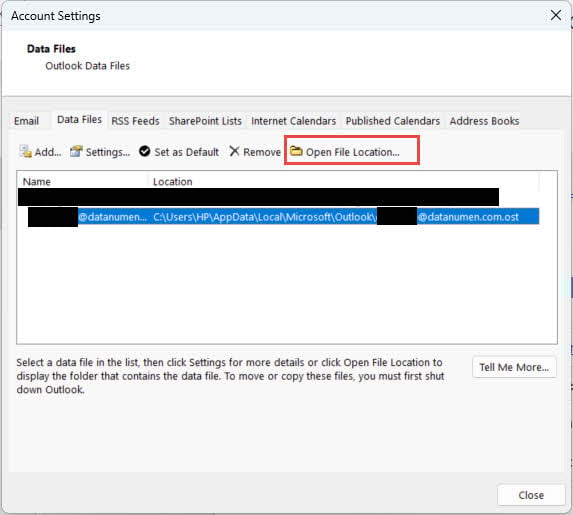
The easiest way to find your OST file location is through Outlook’s Account Settings:
- Open Microsoft Outlook
- Click File -> Account Settings -> Account Settings
- Select the Data Files tab
- Select the OST file you want to locate
- Click Open File Location to view the folder containing your OST file
2.2 Common OST File Locations
For Windows 7 and higher versions, OST files are typically stored in the following default location:
C:\Users\[Username]\AppData\Local\Microsoft\Outlook
Replace [Username] with your actual Windows username. The OST file is usually named after your email address, such as yourname@company.com.ost.
2.3 Finding OST Files Manually
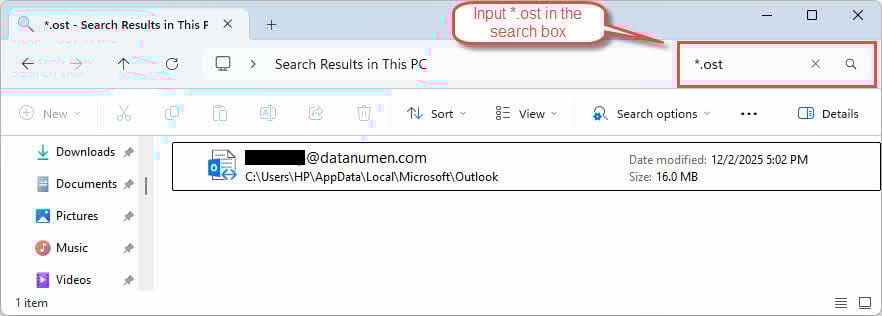
If you need to locate OST files manually, use Windows File Explorer:
- Press Windows + E to open File Explorer
- In the search box, type
*.ostto search for all OST files - Enable viewing hidden files by clicking View -> Hidden items
- Navigate to the AppData folder if the search doesn’t find your files
3. Method 1: Close Outlook and Reopen
Sometimes, OST file errors are temporary and can be resolved by simply closing and reopening Outlook:
- Go to File -> Exit to close Outlook properly

- Ensure no Outlook processes are running in Task Manager
- Wait 30 seconds before reopening Outlook
- Launch Outlook and check if the issue persists

4. Method 2: Disable and Re-enable Cached Exchange Mode
Cached Exchange Mode allows Outlook to work offline with a copy of your mailbox. Disabling and re-enabling this feature can fix OST file synchronization problems and sometimes resolve corruption issues.
Important Limitation: This method only works with Exchange accounts. It is not available for IMAP, POP3, or Outlook.com accounts.
- Open Outlook
- Go to File -> Account Settings -> Account Settings
- Select your account
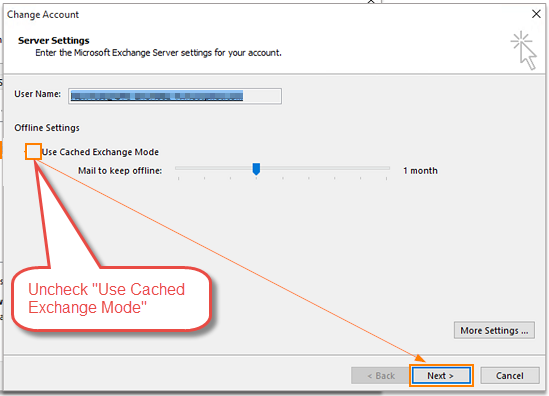
- Click Change
- Uncheck Use Cached Exchange Mode
- Click Next and then Finish

- Restart Outlook.
- Repeat steps 1-6 and re-enable Use Cached Exchange Mode
- Restart Outlook let it synchronize with the server
When you re-enable Cached Exchange Mode, Outlook creates a fresh OST file and downloads your mailbox data from the server. This process may take time, depending on your mailbox size.
5. Method 3: Clear Offline Items and Update Folder
If corruption affects specific folders rather than the entire OST file, you can clear those folders and then re-sync the items manually.
Important Limitation: This method only works with Exchange accounts. It is not available for IMAP, POP3, or Outlook.com accounts.
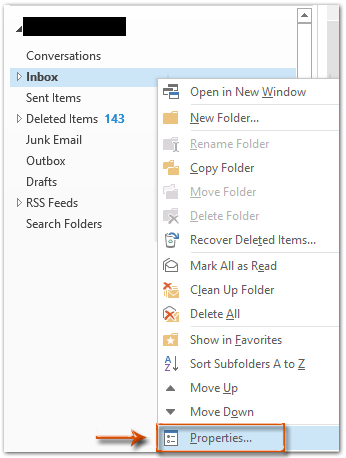
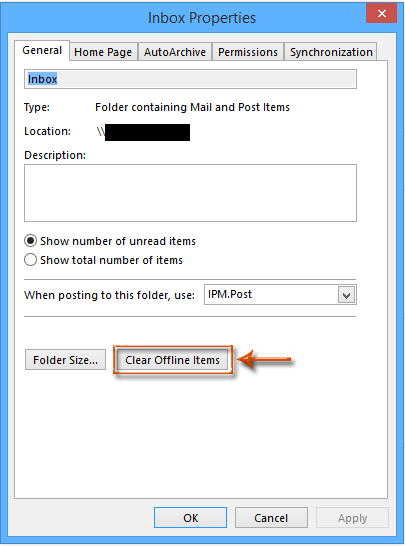
- Open Outlook and right-click the affected folder
- Click Properties

- In the Properties dialog box, click Clear Offline Items

- Click OK to confirm
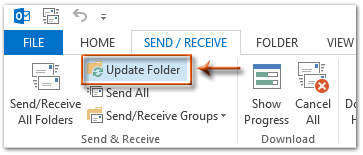
- Go to the Send/Receive tab
- Click Update Folder to synchronize the folder with the server

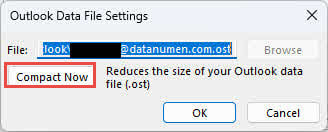
6. Method 4: Compact OST File
Sometimes compacting the OST file can fix corrupt OST file, especially when the corruption is caused by an oversized problem.
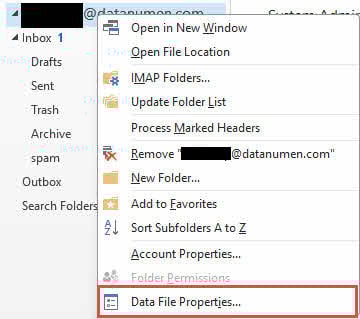
- Open Outlook and right-click the affected OST file.
- Click Data File Properties

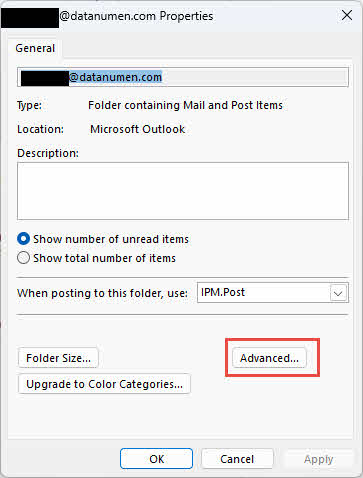
- In the Properties dialog box, click Advanced

- Click Compact Now to compact the OST file.

7. Method 5: Delete and Recreate OST File
When the OST file is severely corrupted, deleting it will allow Outlook to recreate and resync a fresh copy of the OST file from the server, which can resolve the issue.
- Find the OST file location.
- Close Outlook completely.
- Right-click the OST file and select Rename
- Add
.bakto the end of the filename (e.g., yourname@company.com.ost.bak) - Reopen Outlook
- Outlook will automatically create a new OST file and begin resynchronizing with the server
Limitations:
- Requires an active connection to the Exchange Server
- Any changes not synchronized with the server will be lost
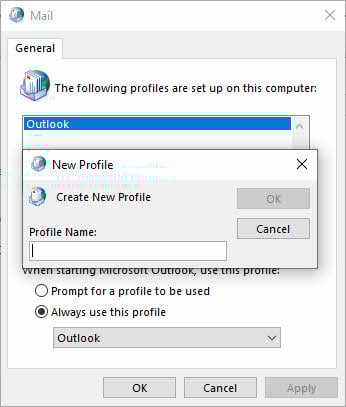
8. Method 6: Recreate a New Outlook Profile and Re-sync OST File
If the Outlook profile itself is corrupted, creating a new profile can resolve both profile and OST file issues.
- Close Outlook and ensure no Outlook processes are running
- Go to Control Panel -> Mail
- Click Show Profiles
- Click Add to create a new profile
- Enter a name for the new profile and click OK

- Follow the prompts to configure your email account
- Enter your email address and password when prompted
- Click Next and wait for Outlook to configure the account
- Select the new profile as your default profile
- Click OK to close the Mail Setup dialog box
- Open Outlook with the new profile
- Outlook will create a new OST file and synchronize your mailbox data
This method has the same limitations as Method 4: it requires an Exchange Server connection, and any changes not synced to the server will be lost.
9. Method 7: Use the Inbox Repair Tool (ScanPST.exe)
The Inbox Repair Tool, also known as ScanPST.exe, is Microsoft’s built-in utility for diagnosing and repairing errors in Outlook data files. While primarily designed for PST files, it can also scan and fix certain types of OST file corruption.
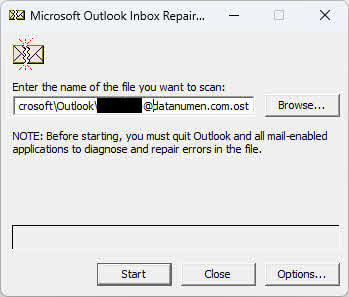
You can refer to our comprehensive guide on how to use ScanPST.exe.
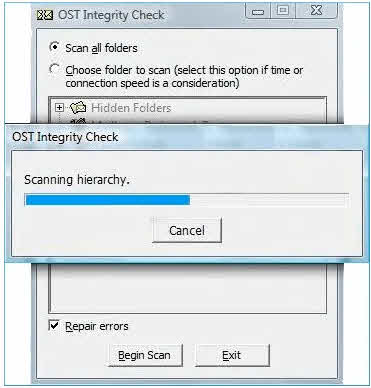
10. Method 8: Use OST Integrity Check Tool (ScanOST.exe)
ScanOST.exe is the OST Integrity Check Tool designed specifically for OST files in older Outlook versions. It scans for inconsistencies between the local OST file and the Exchange Server, then repairs synchronization errors.
Important Note: ScanOST.exe is only available in Outlook 2007 and earlier versions. For Outlook 2010 and later, use ScanPST.exe instead.
- Close Outlook completely
- Navigate to
C:\Program Files\Microsoft Office\Office[version] - Double-click
SCANOST.EXEto launch the tool - Select the Outlook profile that contains the corrupt OST file
- Choose either Scan all folders or Choose folder to scan
- Make sure Repair errors is selected
- Click Begin Scan to start the process
- Wait for the scan and repair to complete
- Open Outlook and verify the OST file is accessible
11. Method 9: Check Disk Errors
Hard drive errors or bad sectors can cause OST file corruption. Running Windows Disk Check utility can identify and fix these storage device issues, potentially resolving OST file problems.
- Close all programs including Outlook
- Press Windows + E to open File Explorer
- Right-click on the drive containing your OST file (usually C:)
- Select Properties
- Click the Tools tab
- Under Error checking, click Check

- Click Scan drive to begin the disk scan

- If errors are found, follow the prompts to repair them
- Restart your computer if prompted
- After the scan completes, open Outlook and test the OST file
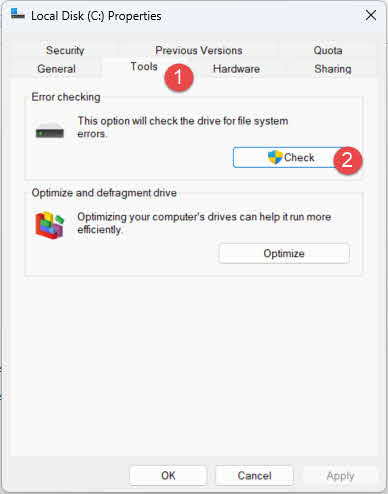
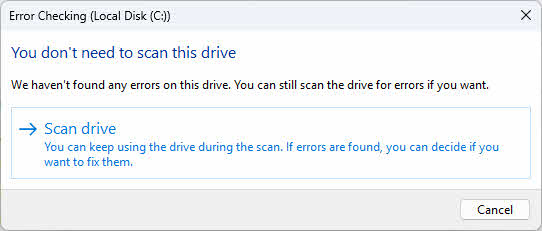
You can also run the Check Disk utility from Command Prompt for more advanced options:
- Press Windows + X and select Terminal (Admin)
- Type
chkdsk C: /f /rand press Enter - If prompted to schedule the check on next restart, type Y and press Enter
- Restart your computer to run the disk check
12. Method 10: Use Windows System Restore
If OST file corruption occurred after a recent system change, software installation, or Windows update, System Restore can revert your computer to a previous state when the OST file was functioning correctly.
- Close all programs, including Outlook
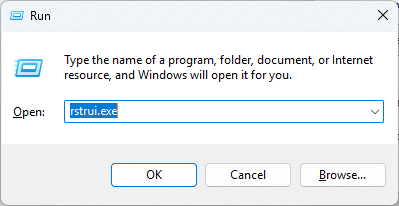
- Press Windows + R to open the Run dialog
- Type
rstrui.exeand press Enter

- Click Next in the System Restore window

- Select a restore point from before the OST corruption began
- Click Next to continue
- Review the restore point details and click Finish
- Click Yes to confirm the system restore
- Wait for the restore process to complete (your computer will restart)
- After restart, open Outlook and check if the OST file issue is resolved
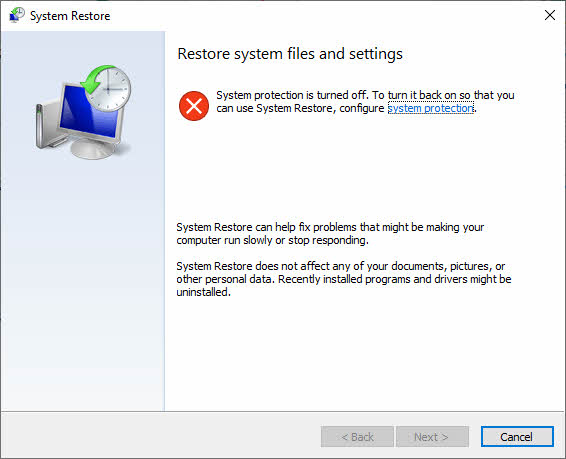
13. Method 11: Third-Party OST Repair Tools
When manual methods fail or the OST file corruption is too severe, third-party OST repair tools offer advanced recovery capabilities. These specialized tools can handle extensive corruption, recover data from orphaned OST files, and convert OST files to PST format for easy import into Outlook.
13.1 Use DataNumen Exchange Recovery to recover OST file
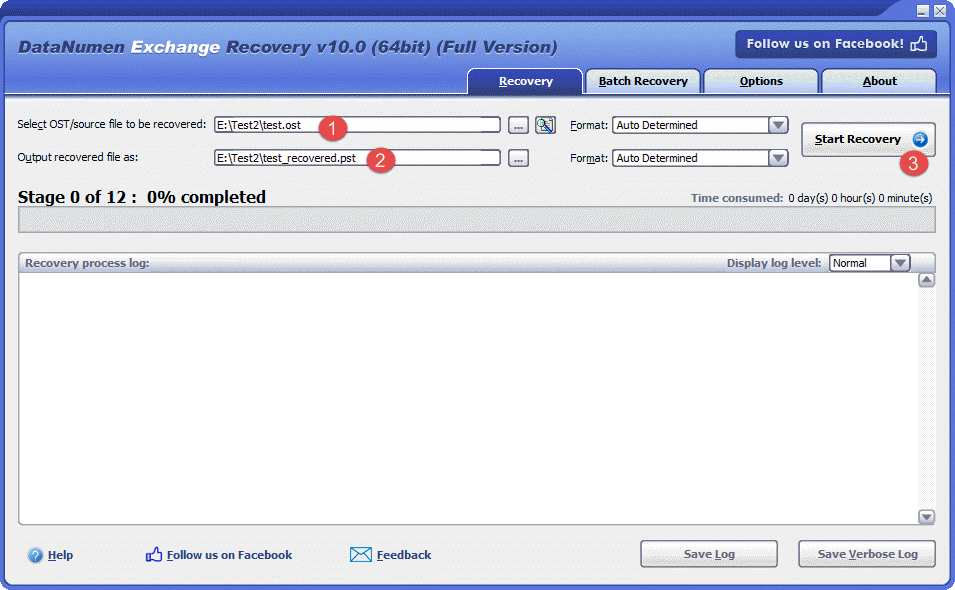
Below are the steps to use one of such tools, DataNumen Exchange Recovery, to recover OST file:
- Start DataNumen Exchange Recovery.
- Select the OST file to be recovered.
- Set the output PST file name.
- Click Start Recovery
- After the recovery process, open the output PST file in Outlook, which contains all the data in the corrupt OST file.
13.2 Recover OST Data from Hard Drive, Disk Image, or Backup Files
OST data can be recovered directly from hard drives, disk images, or backup files if you do not have the original OST files any more, for example:
- You delete the OST file permanently.
- You format the hard drive.
- Hard drive failure.
- The virtual disk in VMWare or Virtual PC is corrupt or damaged.
- The backup file on the backup media is corrupt or damaged and you cannot restore the OST file from it.
- The disk image file is corrupt or damaged and you cannot recover your OST file from it.
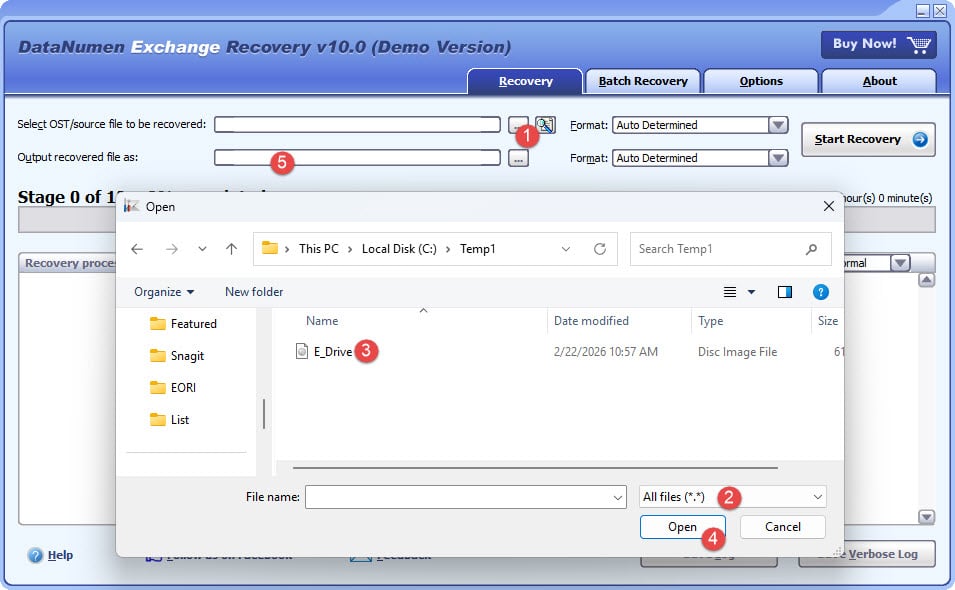
If you have the disk image or backup files on hand, then you can do as follows:
- Click “…” button to select the source file.
- In the “Open File” dialog, select “All Files (*.*)” as the filter.
- Select the disk image or backup file as the source file to be recovered.
- Set the output fixed PST file name, and make sure its extension is .pst, for example, E_Drive_fixed.pst.
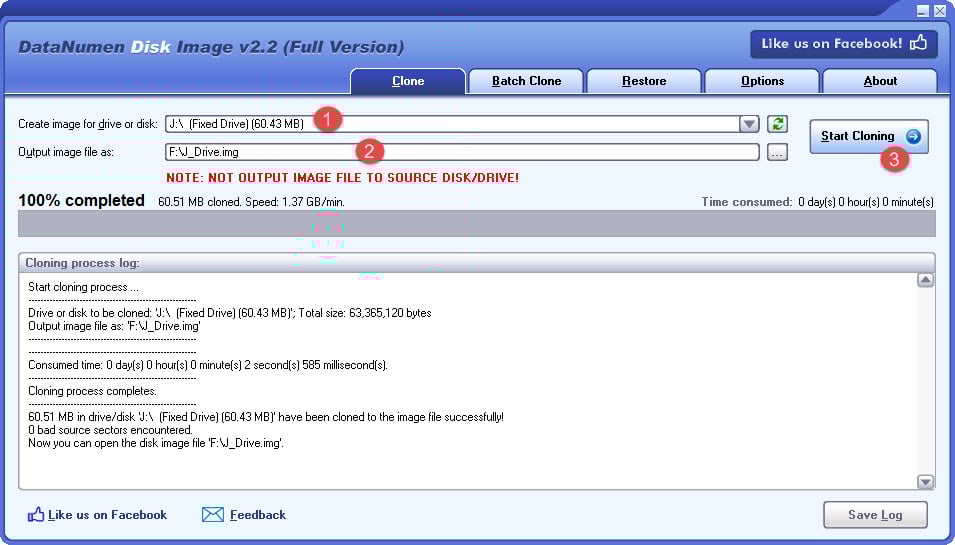
If you want to recover from hard drive directly, you need to use DataNumen Disk Image to create a disk image file for the hard drive:
- Select the hard drive or disk.
- Set the output image file name.
- Click “Start Cloning” button to create the disk image file from the hard drive/disk.
14. Fixes for Persistent OST File Corruption
If OST file corruption persists after you recreate it, the corruption may be caused by underlying Outlook or system problems. You can try the following solutions.
14.1 Update Outlook
Outdated Outlook versions may contain bugs that cause OST file corruption. Installing the latest updates ensures you have all bug fixes and performance improvements.
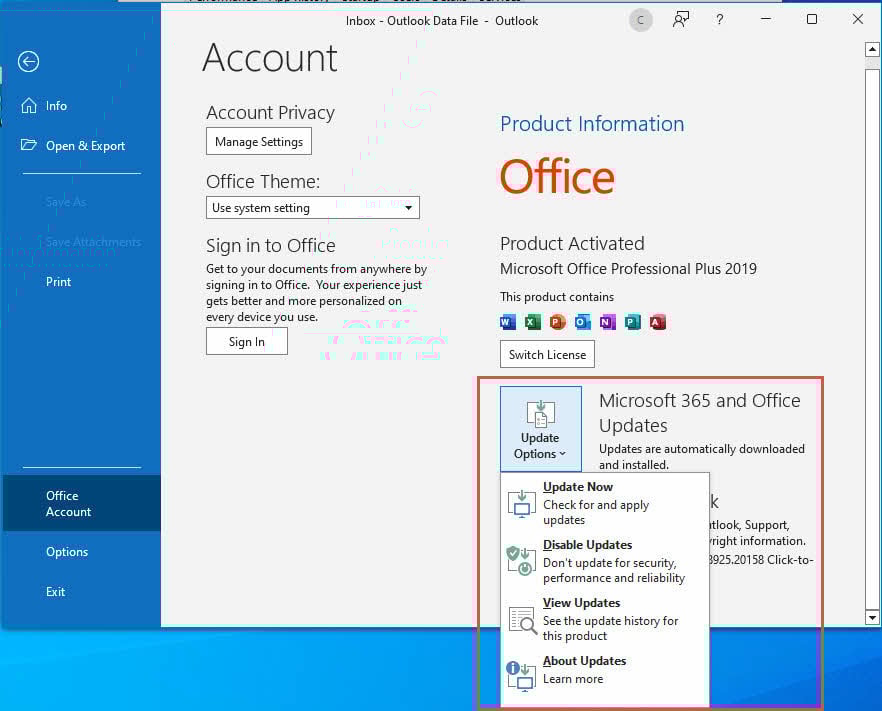
- Open Outlook
- Click File -> Office Account
- Click Update Options
- Select Update Now

- Wait for the updates to download and install
- Restart Outlook when prompted
- Verify the OST file functions properly after updating
14.2 Disable Incompatible Add-ins
Faulty or incompatible Outlook add-ins can interfere with OST file operations and cause corruption. Disabling add-ins helps identify and remove problematic extensions.
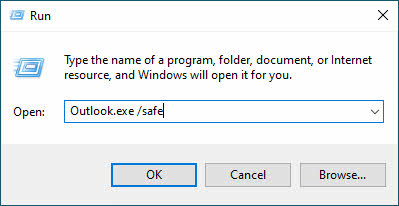
- Start Outlook in safe mode by pressing Windows + R, typing
Outlook.exe /safe, and pressing Enter
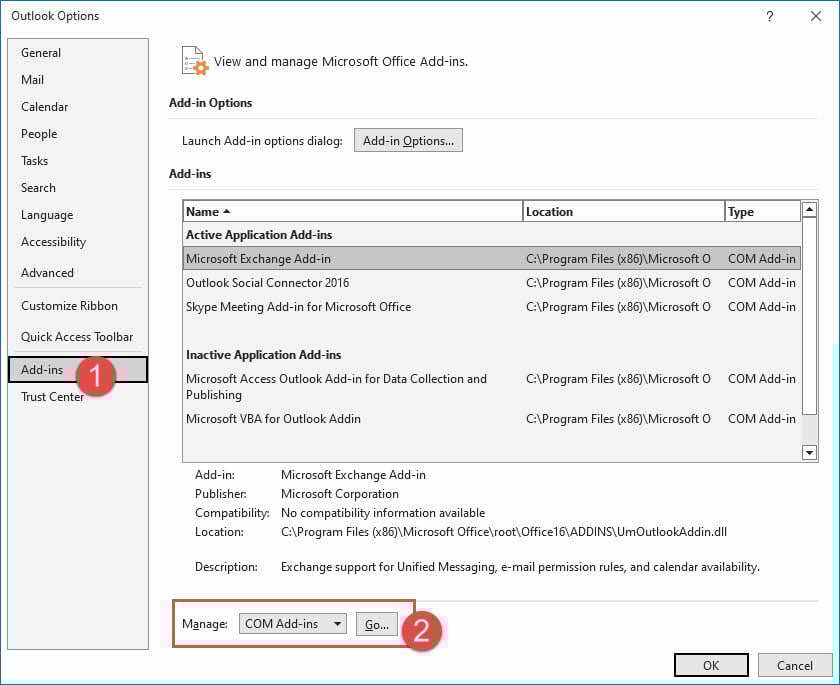
- Go to File -> Options
- Click Add-ins in the left panel
- At the bottom, select COM Add-ins from the Manage dropdown
- Click Go

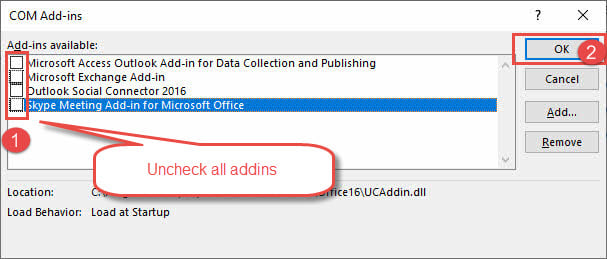
- Uncheck all add-ins to disable them

- Click OK
- Restart Outlook normally and test the OST file
- If the issue is resolved, enable add-ins one by one to identify the problematic one
- Remove or update the incompatible add-in
14.3 Repair Office Installation
Corrupted Office installation files can cause persistent Outlook and OST file problems. Repairing your Office installation can fix these underlying issues.
- Close all Office applications including Outlook
- Open Control Panel -> Programs -> Programs and Features
- Find Microsoft Office or your specific Office version
- Right-click the application and select Change
- Choose Quick Repair first and click Repair
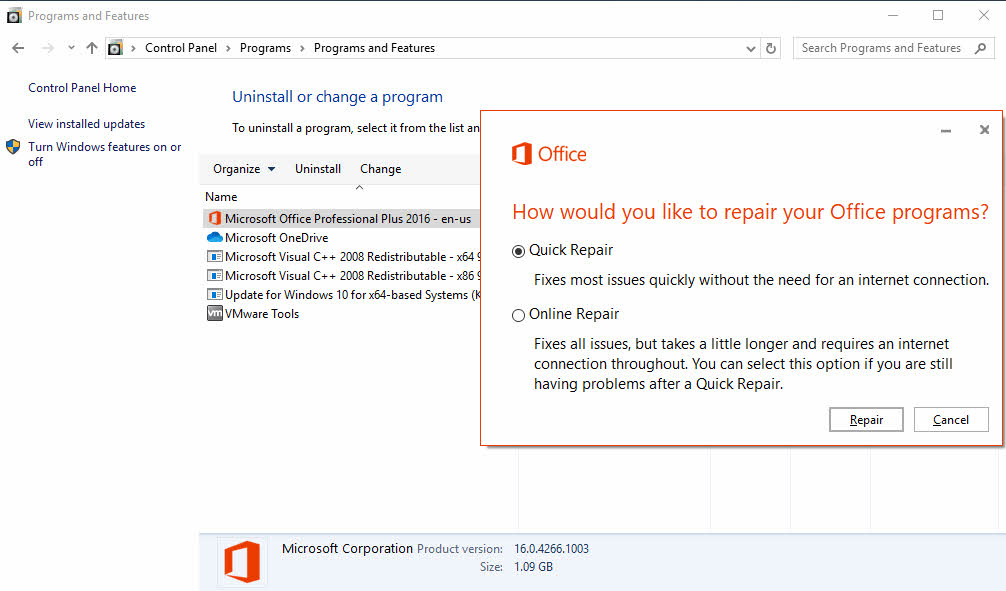
- If Quick Repair doesn’t work, repeat the process and choose Online Repair
- Follow the prompts and restart your computer when prompted
- Open Outlook and verify OST file functionality
14.4 Use System File Checker
Corrupted system files can affect Outlook’s ability to access and manage OST files properly. The System File Checker (SFC) tool automatically repairs any corrupted system files it finds, which may resolve persistent OST file corruption issues caused by system-level problems.
15. Best Practices to Prevent OST File Corruption
Preventing OST file corruption is more effective than repairing it. Following these best practices helps maintain OST file integrity and reduces the risk of data loss.
15.1 Regular Maintenance
- Keep Outlook updated with the latest patches and updates
- Monitor OST file size to prevent exceeding limits
- Regularly archive old items to separate PST files
- Split large OST files when approaching size limits
15.2 Proper Outlook Usage
- Always close Outlook properly using the Exit command
- Avoid forcing Outlook to close through Task Manager
- Exit Outlook before shutting down your computer
15.3 System Security
- Maintain up-to-date antivirus protection
- Enable real-time malware prevention
- Perform regular security scans on your system
15.4 Network Considerations
- Ensure stable internet connection during synchronization
- Use reliable network connections when syncing large mailboxes
- Maintain stable VPN connections if required for Exchange access
15.5 Hardware Maintenance
- Perform regular hard drive health checks
- Use an uninterruptible power supply (UPS) to protect against power failures
- Run disk maintenance utilities periodically
15.6 Backup Strategies
- Create regular backups of OST files
- Convert important OST data to PST format for archiving
- Store backup copies in multiple locations
- Implement automated backup solutions
See our comprehensive guide on how to backup Outlook emails.
15.7 Add-in Management
- Only use compatible and trusted add-ins
- Regularly review installed add-ins and remove unused ones
- Disable unnecessary add-ins to improve stability
16. Frequently Asked Questions (FAQs)
Q: What is the difference between OST and PST files?
A: OST files are Offline Storage Table files that work with server-based accounts like Exchange and Office 365. They synchronize automatically with the server, allowing offline access to your mailbox. PST files are Personal Storage Table files that serve as standalone archives and do not sync with any server. OST files require an active account connection to function, while PST files can be used independently.
Q: Can I open an OST file without Outlook?
A: OST files cannot be opened directly without Outlook because they are designed specifically for use with Outlook’s Cached Exchange Mode. However, you can use third-party OST to PST converter tools to extract the data and convert it to PST format, which can then be imported into Outlook or viewed with other email clients that support PST files.
Q: How do I know if my OST file is corrupted?
A: Signs of a corrupt OST file include error messages when opening Outlook, synchronization failures with the Exchange Server, missing emails or folders, frequent Outlook crashes or freezes, slow performance when accessing emails, and error messages stating the OST file cannot be opened. If you experience any of these symptoms, your OST file may be corrupted.
Q: Can ScanPST.exe repair all OST file corruption?
A: No, ScanPST.exe has limitations. It works well for minor to moderate corruption but cannot repair severely damaged files, files larger than 2GB in older Outlook versions, encrypted or password-protected files, or orphaned OST files without server access. For extensive corruption, third-party OST repair tools are more effective.
Q: Will I lose data when repairing OST files?
A: The risk of data loss depends on the repair method used. Manual methods like recreating the OST file or creating a new profile will only preserve data that has been synchronized with the Exchange Server. Any offline changes not yet synced will be lost. ScanPST.exe creates a backup before repair, minimizing data loss risk. Third-party tools generally offer the safest recovery with minimal data loss.
Q: How long does it take to repair a corrupt OST file?
A: Repair time varies based on the file size, corruption severity, and method used. ScanPST.exe typically takes 5-30 minutes for moderate-sized files. Recreating an OST file by syncing with the server can take several hours for large mailboxes. Third-party tools usually complete repairs in 10-60 minutes depending on file size and corruption level.
Q: Can I recover deleted emails from a corrupt OST file?
A: Recovery of deleted emails depends on whether they still exist on the Exchange Server. If deleted items are still in the server’s Deleted Items folder or recoverable items, recreating the OST file will restore them. Manual methods generally cannot recover permanently deleted items. Third-party OST repair tools offer the best chance of recovering deleted items that remain in the corrupt OST file.
Q: What is the maximum size limit for OST files?
A: OST file size limits vary by Outlook version. Outlook 2010 and later support OST files up to 50GB by default, though this can be increased via registry settings. Older Outlook versions (2007 and earlier) had a 2GB limit for ANSI files and 20GB for Unicode files. Exceeding these limits can cause performance issues and corruption.
Q: Can OST files become oversized and affect performance?
A: Yes, oversized OST files significantly impact Outlook performance. Large files cause slow startup, delayed email loading, sluggish search, and increased risk of corruption. To maintain performance, regularly archive old items, delete unnecessary emails, and keep your OST file size manageable. Consider splitting large mailboxes into multiple PST archives.
Q: Is it safe to delete OST files?
A: Yes, it is generally safe to delete an OST file because it contains a synchronized copy of data stored on the Exchange Server. When you delete and recreate the OST file, Outlook downloads all mailbox data from the server. However, any offline changes not yet synchronized will be lost. Always ensure synchronization is complete before deleting an OST file.
Q: Can I transfer OST files to another computer?
A: You can physically transfer OST files to another computer, but they cannot be used directly. OST files are tied to the specific Outlook profile and computer where they were created. To access your mailbox on another computer, configure Outlook with your email account, and it will create a new OST file and sync with the server. Alternatively, convert the OST to PST format for portability.
Q: Are there free OST repair tools available?
A: Microsoft provides ScanPST.exe and ScanOST.exe as free built-in repair tools. However, they have limitations with severely corrupted files. Most third-party OST repair tools offer free trial versions that allow you to scan and preview recoverable data, but full recovery requires purchasing the software. The trials help evaluate whether the tool can recover your specific data before investing.
Q: Can I repair OST files on Mac?
A: Most OST repair tools are designed for Windows systems. To repair OST files on Mac, you can transfer the OST file to a Windows computer or virtual machine, use a Windows-compatible repair tool, then transfer the repaired or converted PST file back to Mac. Some third-party tools may offer Mac-compatible versions, but these are less common than Windows solutions.
Q: What should I do if the Inbox Repair Tool is not responding?
A: If ScanPST.exe stops responding, it usually indicates an oversized or severely corrupted file. Try closing the tool and running it again. If the problem persists, consider splitting the repair process by converting the OST to PST first using a third-party tool, or use an alternative OST repair utility designed to handle complex corruption. Ensure no other programs are accessing the OST file during repair.
Q: How can I prevent OST file corruption in the future?
A: Prevent corruption by keeping Outlook updated, closing it properly before shutdown, maintaining stable network connections during sync, using antivirus protection, avoiding oversized OST files through regular archiving, disabling incompatible add-ins, ensuring hard drive health, and creating regular backups. Following these practices significantly reduces corruption risk and protects your mailbox data.
17. Conclusion
17.1 Summary of Repair Methods
Repairing corrupt OST files requires understanding both the symptoms and the appropriate solutions. This guide covered multiple approaches, from simple fixes like reopening Outlook to advanced methods using professional repair tools. Manual methods work well for minor corruption and synchronization issues, while third-party tools excel at recovering severely damaged files and orphaned OST data.
The best approach depends on your specific situation. Start with simple methods like disabling Cached Exchange Mode or using ScanPST.exe. If these fail, consider recreating the OST file or creating a new Outlook profile. For severe corruption or orphaned files without server access, professional OST repair tools offer the most reliable recovery solution.
17.2 Key Takeaways
Regular backups are essential for protecting against data loss from OST file corruption. Prevention through proper maintenance, timely updates, and careful Outlook usage is more effective than repairing corruption after it occurs. Understanding the different repair methods helps you choose the right solution based on corruption severity and your specific needs.
When manual methods fail, don’t hesitate to use professional OST repair tools. These specialized solutions can recover data that built-in utilities cannot, preserving your critical emails and mailbox items. Always verify that your data is synchronized with the Exchange Server before attempting repairs that involve deleting or recreating OST files.
17.3 Final Recommendations
Implement regular maintenance practices to keep your OST files healthy. Archive old emails periodically, monitor file size, keep Outlook updated, and ensure stable network connections during synchronization. Use antivirus software to prevent malware-related corruption, and always close Outlook properly before shutting down your computer.
Create a backup strategy that includes regular OST file backups and conversion to PST format for long-term storage. Consider using automated backup solutions to ensure consistent data protection. By following these proactive measures and knowing how to repair OST files when corruption occurs, you can maintain reliable access to your Outlook data and minimize the impact of file corruption on your productivity.
References
- Microsoft Support: Repair Outlook Data Files (.pst and .ost)
- Microsoft Tech Community: Outlook
- Microsoft Tech Community: Exchange
- Third-Party OST Repair Tool: DataNumen Exchange Recovery
About the Author
Xiu Xing is a seasoned IT professional with over 8 years of experience in enterprise email systems and Microsoft Office troubleshooting. He has helped thousands of users resolve complex Outlook issues across diverse corporate environments.
Xiu specializes in email system migrations, data recovery, and productivity software optimization. His hands-on experience includes managing Exchange Server deployments, troubleshooting MAPI connectivity issues, and implementing robust backup strategies for mission-critical email systems.
Through his technical writing, Xiu is committed to making complex IT solutions accessible to everyday users. He continuously stays current with the latest Office 365 and Exchange Online developments and emerging email technologies. When not solving email mysteries, Xiu enjoys sharing practical tech tips that help people work more efficiently.
Have questions about this guide or need additional help with Outlook issues? Xiu welcomes feedback and suggestions for improving these troubleshooting resources.