
1. Introduction
1.1 What Is AutoCAD File Recovery?
AutoCAD file recovery is the process of recovering AutoCAD files that are unsaved, overwritten, corrupted, inaccessible, deleted, or lost, due to various reasons. Whether you’re dealing with a crashed program, overwritten mistake, corrupted DWG files, or accidentally deleted drawings, recovery methods can help you retrieve your work and minimize data loss.
1.2 Common Scenarios Requiring Recovery
- Unsaved Files: You do not save your drawing before closing AutoCAD, due to various reasons, such as program crashes, power outages, system failures, simply forgetting, etc.
- Files are Overwritten: Critical drawing data may be lost when newer versions accidentally overwrite previous work.
- File Corruption: Files can become corrupted due to various reasons, such as unsuccessful saving, abnormal shutdowns, system crashes, unexpected system updates, virus infections, ransomware attacks, hard drive failures, software defects, outdated software, third-party software compatibility problems, and excess objects (such as RegApps, scale lists, linetypes, etc.).
- Delete File by Mistake: Accidental deletion can often be reversed through various recovery methods.
- File Lost: Files may be lost through accidental disk formatting, hard drive mis-partitioning, or hard drive failures.
2. Re-download/Resend the AutoCAD File
Before attempting complex recovery procedures, check if you can simply re-download the file from its original source or ask a colleague to resend it. This is the quickest solution when the file was received via email, cloud storage, or file transfer services.
3. Recover Unsaved or Overwritten AutoCAD File
3.1 Recover AutoCAD File from Backup (BAK) File
AutoCAD Backup (BAK) files are automatic backup copies created whenever you manually save a drawing. The BAK file contains the previous version of your DWG file and is stored in the same folder as the original drawing. AutoCAD creates BAK files by renaming the previous DWG file with a .bak extension during each save operation.
Steps to Recover from BAK File:
- Show hidden file extensions
 .
. - Navigate to the folder containing your AutoCAD drawing
- Locate the file with the .bak extension
- Right-click the BAK file and select Rename
- Change the file extension from .bak to .dwg
- Open the renamed file in AutoCAD
- If AutoCAD fails to open the file, use a professional tool to recover the file.
3.2 Recover AutoCAD File from Autosave (SV$) File
AutoCAD Autosave (SV$) files are temporary backup files created automatically at specified intervals, controlled by the SAVETIME system variable.
The default Autosave location is:
- Windows: C:\Users\[username]\AppData\Local\Temp
- Mac: /Users/[username]/Documents/Autodesk/Autosave
And you can use the SAVEFILEPATH system variable to get and set the current Autosave location:
Autosave files are typically deleted after a successful save, but remain if AutoCAD crashes unexpectedly.
Steps to Recover from Autosave File:
- Show hidden file extensions .
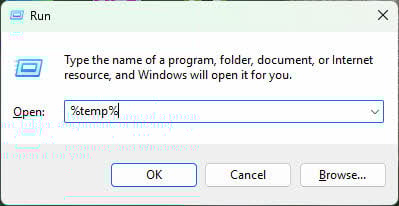
- Press Windows Key + R to open the Run dialog
- Type %tmp% or the actual Autosave location and press Enter

- Look for files with the .sv$ extension
- Identify your file by timestamp or filename
- Copy the file to a safe location
- Rename the file extension from .sv$ to .dwg
- Open the file in AutoCAD
- If AutoCAD fails to open the file, use a professional tool to recover the file.
Sample Autosave file:
3.3 Recover AutoCAD File from Temporary File
AutoCAD stores various temporary files during operation, including DWG, BAK, and SV$ files in the system’s temporary folder, as well as .AC$ files which are temporary drawing files created during the editing session.
Steps to Recover from Temporary Files:
- Show hidden file extensions .
- Navigate to the temporary folder (Windows: %tmp%, Mac: /tmp)
- Search for files with .dwg, .bak, .sv$, or .ac$ extensions
- For .AC$ files, copy (do not move) the file to a safe location first to avoid corrupting the temporary directory
- Rename the file to have a .dwg extension
- Open a new blank drawing in AutoCAD
- Use the INSERT (AutoCAD 2019 and earlier) or CLASSICINSERT (AutoCAD 2020+) command to insert the recovered file
- Run EXPLODE on the inserted block
- Execute AUDIT to fix any errors
- Run PURGE to remove unnecessary data
- Save the file
- If INSERT fails to open and insert the file, use a professional tool to recover the file.
3.4 Using AutoCAD Drawing Recovery Manager
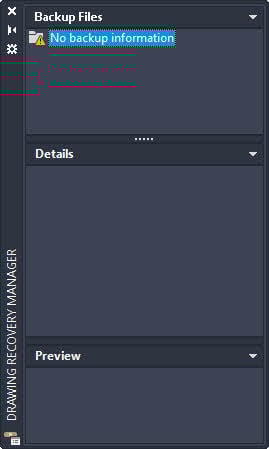
The Drawing Recovery Manager is similar to the Document Recovery pane in Microsoft Excel and Word. This tool automatically displays available original drawing files, recovered drawing files, backup files (BAK), and autosave files (SV$) when AutoCAD detects that a drawing was not closed properly.
The Drawing Recovery Manager appears automatically after unexpected closures such as crashes or power failures. You can also access it manually by typing the DRAWINGRECOVERY command.
Steps to Recover Using Drawing Recovery Manager:
- Open AutoCAD after an unexpected closure, or type DRAWINGRECOVERY
- The Drawing Recovery Manager palette will appear showing available backup files
- Review the file tree showing backup files and autosave files
- Preview each file by clicking on it
- Double-click the file you want to recover
- Save the recovered file to your desired location
3.5 Restore to Previous File Version
This method is particularly useful for recovering overwritten AutoCAD files by restoring earlier versions saved by your operating system or cloud storage service.
3.5.1 Windows File Restore
Windows File History and Previous Versions feature can restore earlier versions of files saved on your computer or network drive.
Steps:
- Navigate to the folder containing your AutoCAD file
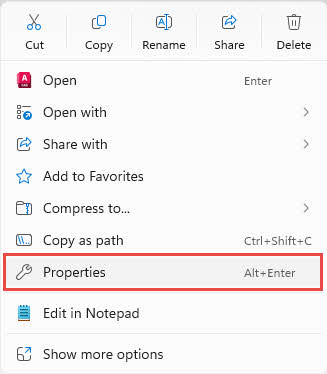
- Right-click the DWG file and select Properties

- Click the Previous Versions tab

- Review the list of available file versions with timestamps
- Select the version you want to restore
- Click Restore to replace the current file, or click Open to view it first
- Alternatively, click Copy to save the previous version to a different location
- Click OK to confirm
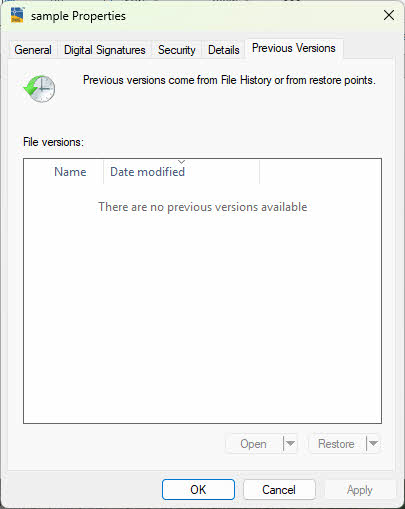
Note: This feature requires Windows File History or System Protection to be enabled beforehand.
3.5.2 Mac File Restore
Mac users can use Time Machine to restore previous versions of AutoCAD files from automatic backups.
Steps:
- Ensure your Time Machine backup drive is connected
- Navigate to the folder containing your AutoCAD file in Finder
- Click the Time Machine icon in the menu bar and select Enter Time Machine
- Alternatively, open Time Machine from Applications
- Use the timeline on the right side of the screen to browse through backup dates
- Click the arrows or timeline to navigate to the date when your file was correct
- Select the AutoCAD file you want to restore
- Click Restore to replace the current file
- Hold Option and click Restore to keep both versions
Note: Time Machine must be configured and running regular backups for this method to work.
3.5.3 Cloud Storage Version History
Most cloud storage services maintain version history for files, allowing you to restore previous versions of AutoCAD drawings.
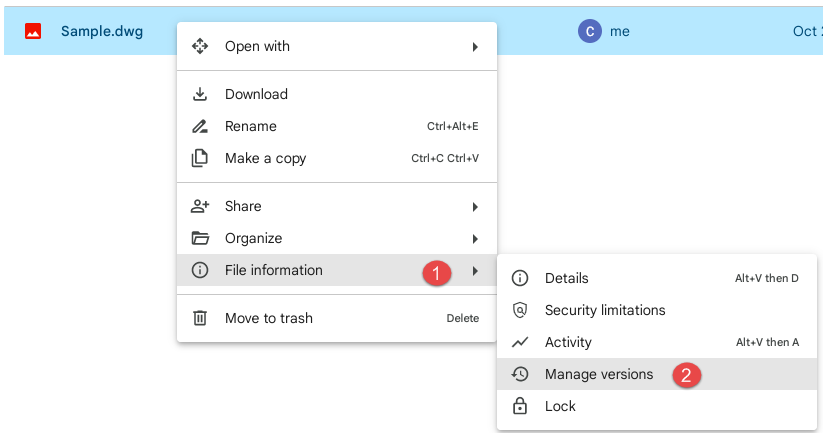
Google Drive version recovery:
- Open Google Drive in your web browser
- Right-click your AutoCAD file and select Manage versions

- View the list of previous versions with upload dates
- Click Download next to the version you want to restore
- The previous version will download to your computer
- Rename and replace your current file if needed
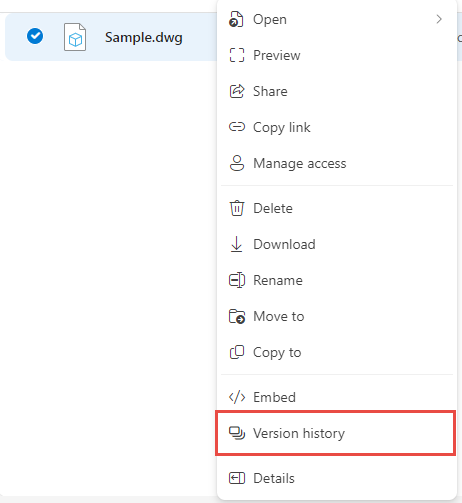
OneDrive version history:
- Open OneDrive in your web browser
- Right-click your AutoCAD file and select Version history

- Review the list of versions with timestamps and file sizes
- Click the three dots next to the version you want
- Select Restore to replace the current file
- Or select Download to save the previous version separately
Dropbox file recovery:
- Open Dropbox in your web browser
- Navigate to your AutoCAD file
- Click the file name to open the file details
- Click the three dots icon and select Version history

- Browse through available versions (Dropbox keeps versions for 30 days for free accounts, 180 days for paid)
- Click Restore next to the version you want to recover
- The selected version will replace the current file

4. Recover Corrupted AutoCAD DWG File
4.1 Common errors when AutoCAD files are corrupted
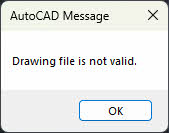
Corrupted AutoCAD files typically display these error messages:
- “Drawing file is not valid” error and cannot open file

- “The drawing file requires recovery” error
- “Errors were detected in the drawing” error
- “The file cannot be opened without being recovered” error
- Warning on RegApps referencing corruption
- AutoCAD does not respond when opening the file
- AutoCAD crashes or hangs when opening the file
- Very slow or not responding after opening
- Sudden increase in file size
- Parts of the drawing are missing or are misrepresented in a DWG file.
Note: The following methods (4.2 through 4.8) work with drawings that cannot open.
4.2 Recover a Drawing
The RECOVER command attempts to open and recover a corrupted AutoCAD drawing file.
Steps:
- Open AutoCAD and create a new drawing.
- Type RECOVER in the command line and press Enter
- In the Select File dialog, browse to the corrupted drawing
- Select the file and click Open
- AutoCAD will attempt to recover the file and display a recovery report
- Review the audit report in the command line
- If successful, save the file with a new name using SAVEAS
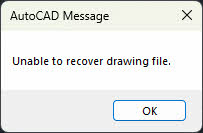
- If it fails, you will see the following message:

4.3 Recover with Xrefs
Use the RECOVERALL command when you need to recover an AutoCAD drawing file that contains external references (Xrefs).
Steps:
- Open AutoCAD and create a new drawing.
- Type RECOVERALL in the command line and press Enter
- Select the corrupted drawing file
- AutoCAD will recover both the main drawing and all attached Xrefs
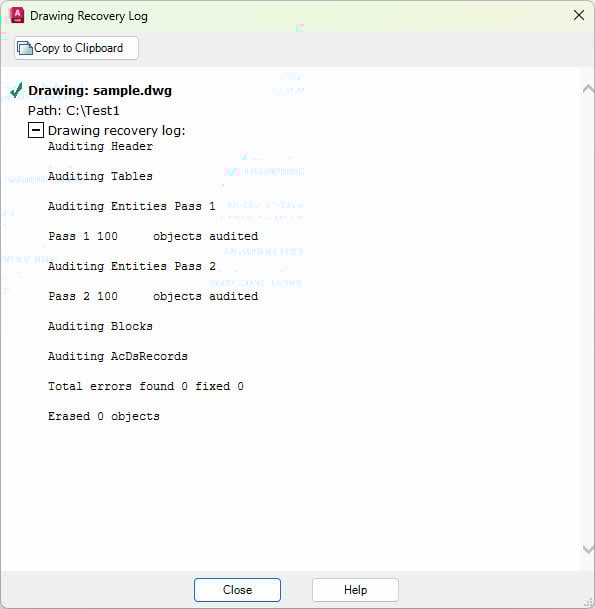
- AutoCAD will generate a drawing recovery log during the recovery process:

- Save the recovered file
4.4 Insert the Damaged DWG File in a Blank Drawing
This method treats the corrupted file as a block, which can isolate corruption issues and recover the AutoCAD file.
Steps:
- Open AutoCAD and create a new blank drawing
- Type INSERT (AutoCAD 2019 and earlier) or CLASSICINSERT (AutoCAD 2020+) in the command line and press Enter

- Click Browse and select the problematic file
- Click OK to insert the file
- If it inserts successfully, type EXPLODE and press Enter
- Select the inserted block and press Enter
- Type AUDIT and press Enter
- When prompted “Fix any errors detected?”, enter Y
- Type PURGE and press Enter
- Select all items and click Purge All
- Save the drawing with SAVEAS

4.5 Delete DWL or DWL2 Files
DWL and DWL2 files are lock files that prevent multiple users from editing the same drawing simultaneously. Sometimes these files prevent opening drawings even when no one else is using them.
Steps:
- Close AutoCAD completely
- Show hidden file extensions .
- Navigate to the folder containing the drawing file
- Look for files with the same name but .dwl or .dwl2 extensions
- Delete these lock files
- Reopen AutoCAD and try opening the drawing again
4.6 Use PDFIMPORT to Recreate the Drawing
If you have a PDF version of the drawing, you can import it to recreate the drawing geometry and recover the AutoCAD file.
Steps:
- Open AutoCAD and create a new drawing
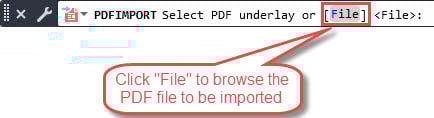
- Type PDFIMPORT in the command line and press Enter
- It will show the following prompt:

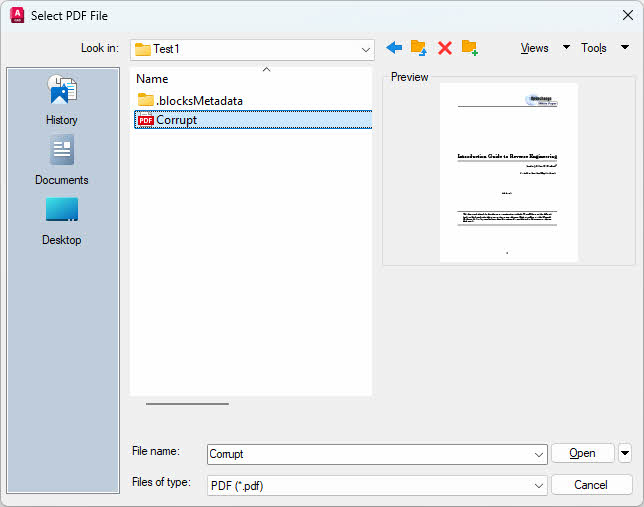
- Click File and select your PDF file

- Click Open
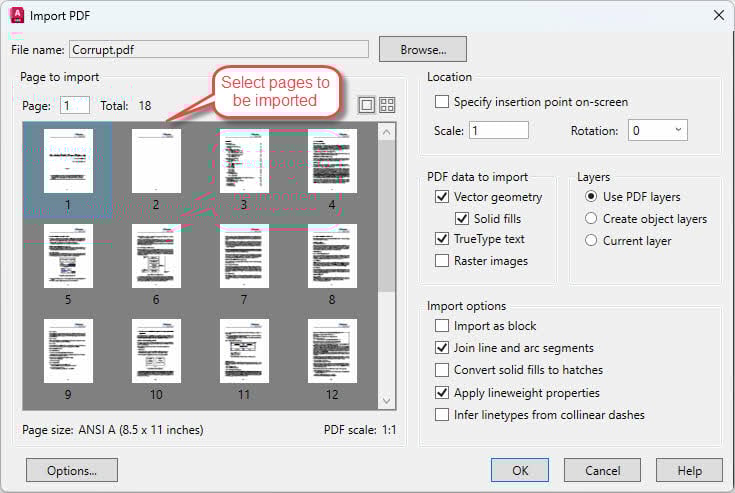
- In the Import PDF dialog, select the pages to be imported:

- Click OK to import
- Review the imported geometry and make necessary adjustments
- Save the file
4.7 Use DWGCONVERT utility
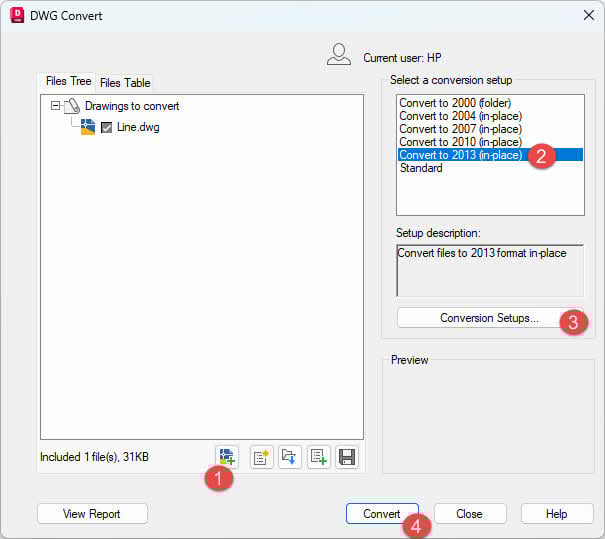
DWGCONVERT is a batch conversion utility included with AutoCAD and Autodesk DWG TrueView that can process multiple files. Sometimes converting the drawing file to a different format can recover the AutoCAD file.
Steps:
- Open AutoCAD and create a new drawing
- Type DWGCONVERT in the command line and press Enter.
- Launch the DWG Convert utility
- Click + to select and add drawings to convert
- Choose a previous DWG version format (e.g., AutoCAD 2013 format)
- Click Conversion Setups if you want to customize the conversion.
- Click Convert

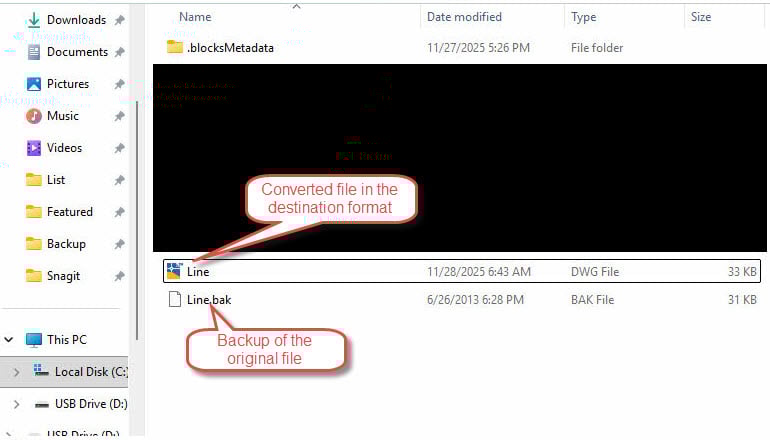
- By default, the DWG Convert will create a backup of the original with the name xxx.bak, then convert the drawing to the destination format:

- Open the converted files in AutoCAD
4.8 Use DWG Trueview
DWG TrueView is a free Autodesk utility that also includes the DWGConvert Tool, so you can also use it to recover AutoCAD file.
Steps:
- Download and install Autodesk DWG TrueView from the Autodesk website
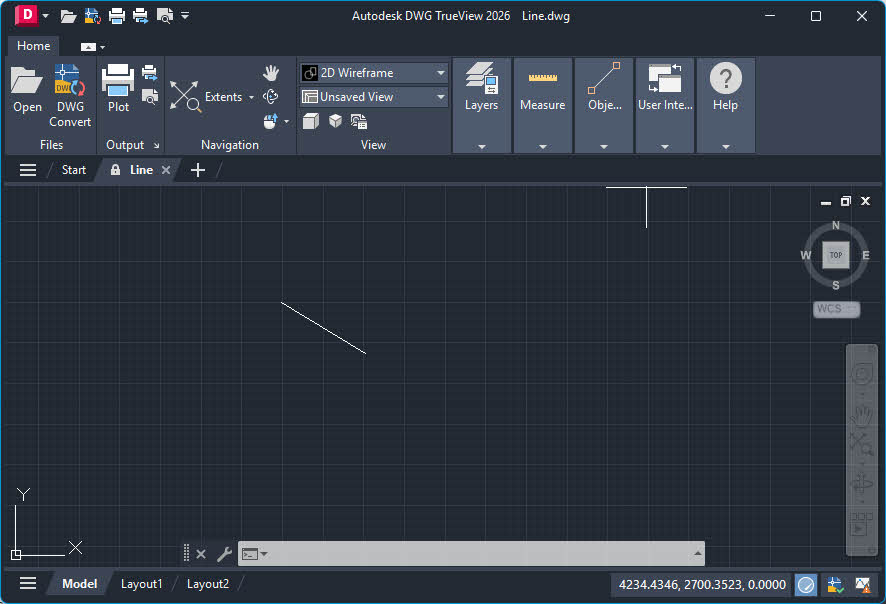
- Start DWG TrueView. TrueView does not support the command line, so you need to open the DWGConvert tool via the GUI.
- Open any valid drawing file or create a new drawing to enable the conversion tool.

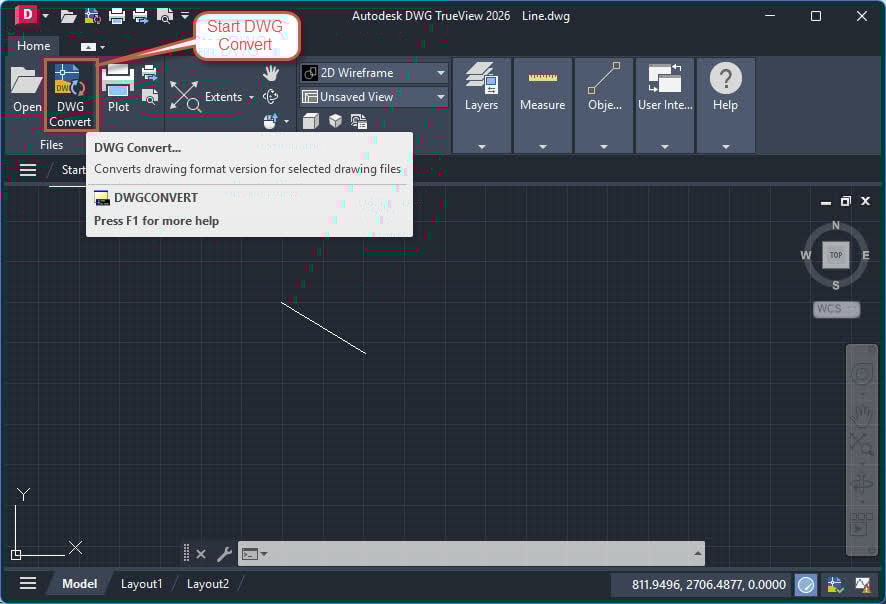
- Click DWG Convert in the tool bar
- The DWG Convert dialog will appear. Follow the same steps as using the DWGConvert command to convert the DWG file:
Note: The following methods (4.9 through 4.34) work with drawings that can be opened but have problems such as slow performance, unresponsiveness, or a sudden increase in file size.
4.9 Convert DWG File to a Previous Format
Converting the file to an older AutoCAD format can sometimes resolve corruption issues caused by version-specific problems and recover AutoCAD file.
Steps:
- Open the drawing in AutoCAD
- Type SAVEAS and press Enter
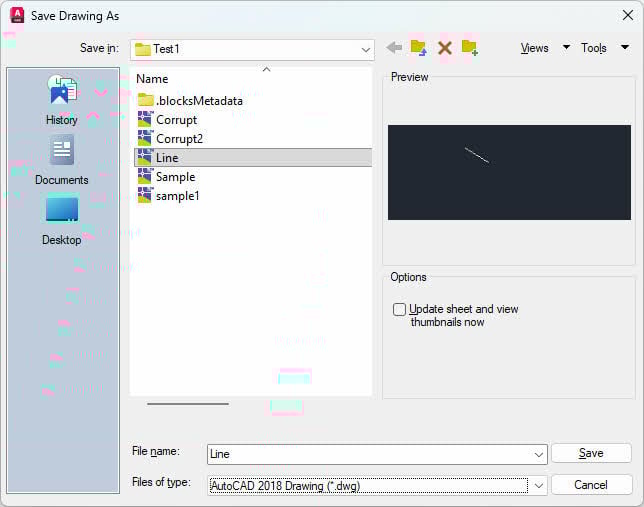
- The Save Drawing As dialog will pop up.
- In the Files of type dropdown, select an older DWG format
- Choose a location and filename
- Click Save
- Close and reopen the newly saved file
4.10 Audit and Repair an Open Drawing
If the drawing opens but is slow or unresponsive, use this method to purge unnecessary data before auditing.
There are two purge commands, as below:
| Command | User Interface | Purge Regapps (Registered Applications) | Purge Nested Items |
|---|---|---|---|
| PURGE | Dialog box with visual tree view and checkboxes | No – Cannot remove Regapps | Yes – Checkbox option “Purge nested items” |
| -PURGE | Command line with text prompts | Yes – Type “R” to purge Regapps | No – Must run multiple times to purge nested items |
Below, we will use both commands.
Steps:
- Open the problematic drawing
- Type -PURGE (with the hyphen) and press Enter
- You will see the following prompt:

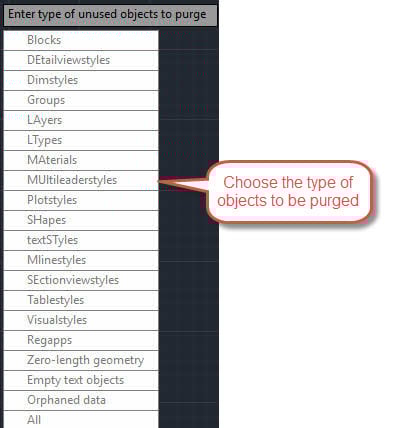
- If you move the mouse out of the prompt, you will also see a pop-up menu:

- You can select the type of the objects to be purged by one of the following methods:
- Click the gray block of the type in the prompt area.
- Input the first blue character of the type in the prompt and press Enter, for example, B for Blocks type.
- Select the type in the pop-up menu.
- Enter R to purge registered applications(Regapps).
- Then enter * to purge all.
- Then enter N to not verify each object.
- In the purge process, you will see the purged object log, like below:

- Repeat the above process by entering A to purge all unused objects.
- Thereafter, type PURGE (without hyphen) and press Enter
- In the Purge dialog, check all boxes
- Click Purge All

- Type AUDIT and press Enter
- Enter Y when asked to fix errors
- In the audit process, you will see the audit log, like below:

- Save the file




4.11 Copy and Paste to Fix an Open Drawing
Creating a new drawing and copying all content can help eliminate corruption while preserving the geometry, so as to recover AutoCAD file.
Steps:
- Open the problematic drawing
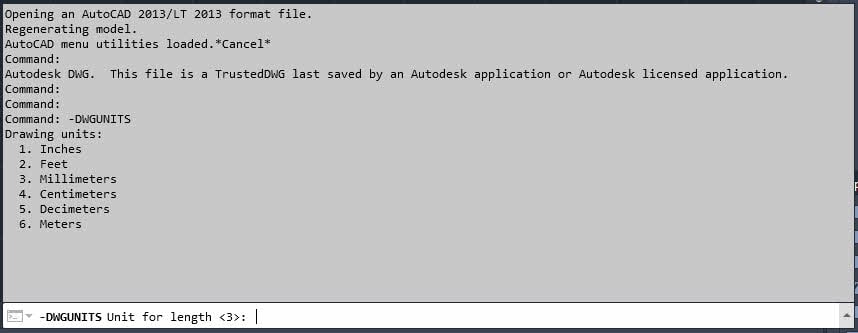
- Type -DWGUNITS and press Enter to check the drawing units, like below:

- Note the units (e.g., Inches, Millimeters)
- Press Ctrl + A to select all objects
- Press Ctrl + C to copy
- Create a new drawing: QNEW
- Set the same units using -DWGUNITS
- Type PASTECLIP or press Ctrl + V
- Specify insertion point or press Enter for 0,0,0
- Save the new drawing
4.12 Use Wblock Purge to Optimize the Drawing
The WBLOCK command exports selected objects to a new file, automatically removing unused data, to recover AutoCAD file.
Steps:
- Open the drawing
- Type WBLOCK and press Enter
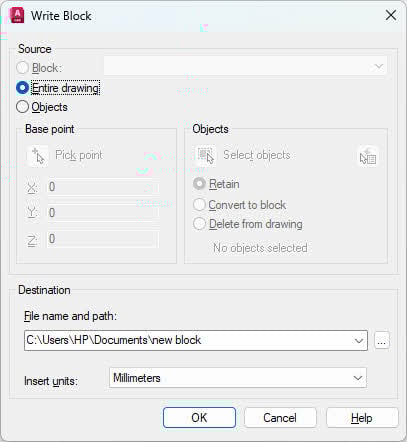
- In the Write Block dialog, select Entire drawing
- Specify the destination file name and path
- Click OK

- Open the newly created file
- Run AUDIT and PURGE if needed
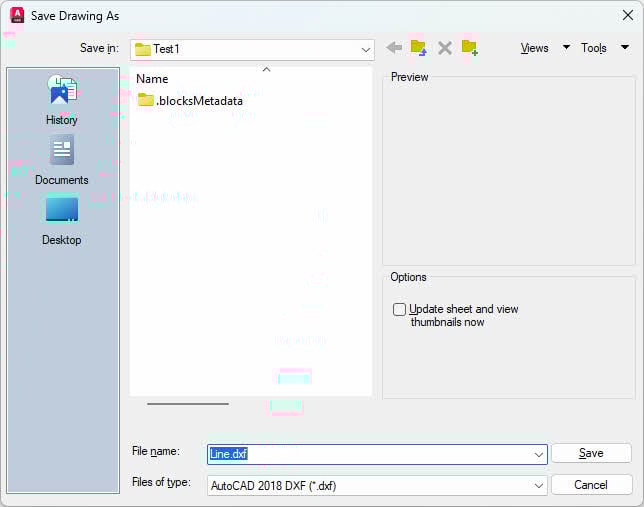
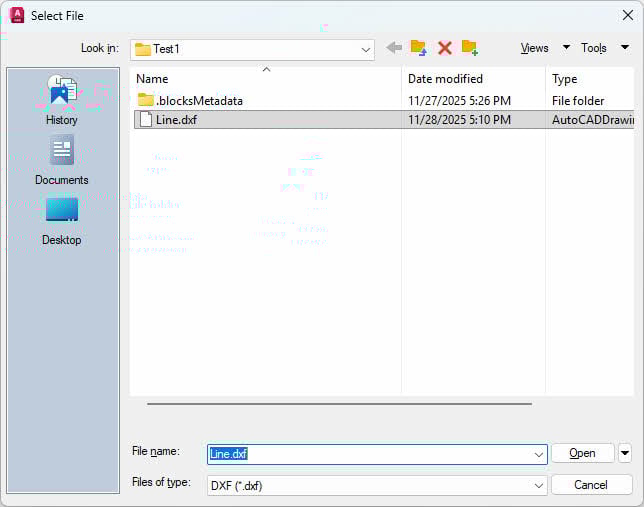
4.13 Convert the drawing to DXF, then back to DWG
Converting to DXF format and back can help resolve certain corruption issues and recover AutoCAD file since DXF is a text-based format.
Steps:
- Open the drawing
- Type DXFOUT and press Enter
- Specify a filename and location
- Click Save
- Close the drawing
- Open a new blank drawing
- Type DXFIN and press Enter
- Select the DXF file you just created
- Click Open
- Save the drawing as DWG format
4.14 Use OVERKILL to remove duplicate or overlapping objects
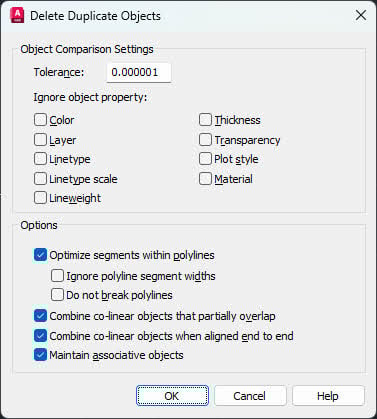
The OVERKILL command removes duplicate and overlapping objects that can slow down performance, so as to recover AutoCAD file.
Steps:
- Open the drawing
- Press Ctrl + A to select all objects.
- Type OVERKILL and press Enter
- In the Delete Duplicate Objects dialog, review settings
- Click OK to remove duplicates

- Review the command line log for the number of objects removed:

- Save the file

4.15 Use DELCONSTRAINT to remove excessive constraints
Too many geometric constraints can cause performance issues and corruption. Use DELCONSTRAINT can remove excessive constraints and recover AutoCAD file.
Steps:
- Open the drawing
- Type DELCONSTRAINT and press Enter
- Type All and press Enter to select all objects
- Press Enter again to confirm
- All constraints will be removed, below is the log:

- Save the file

4.16 Use the FILTERS command to remove excessive layer filters
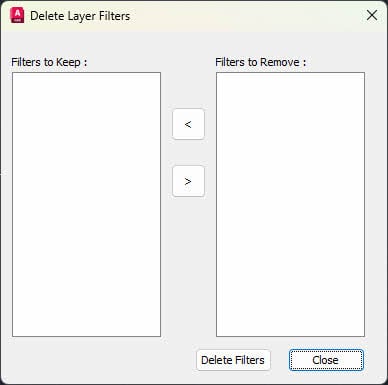
Excessive layer filters can bloat the drawing file and cause performance issues. Use FILTERS command can remove excessive layer filters and recover AutoCAD file.
Steps:
- Open the drawing
- Type FILTERS and press Enter
- In the Delete Layer Filters dialog, use < and > to choose the filters to keep and remove.
- Click Delete Filters to delete the filters

- Close the Delete Layer Filters dialog
- Save the file
4.17 Use the BREP command to remove 3D and composite history
3D solids retain construction history that can increase file size and cause issues.
Steps:
- Open the drawing
- Type BREP and press Enter
- Select all 3D solid objects
- Press Enter to confirm
- The objects will be converted to BREP with history removed
- Save the file
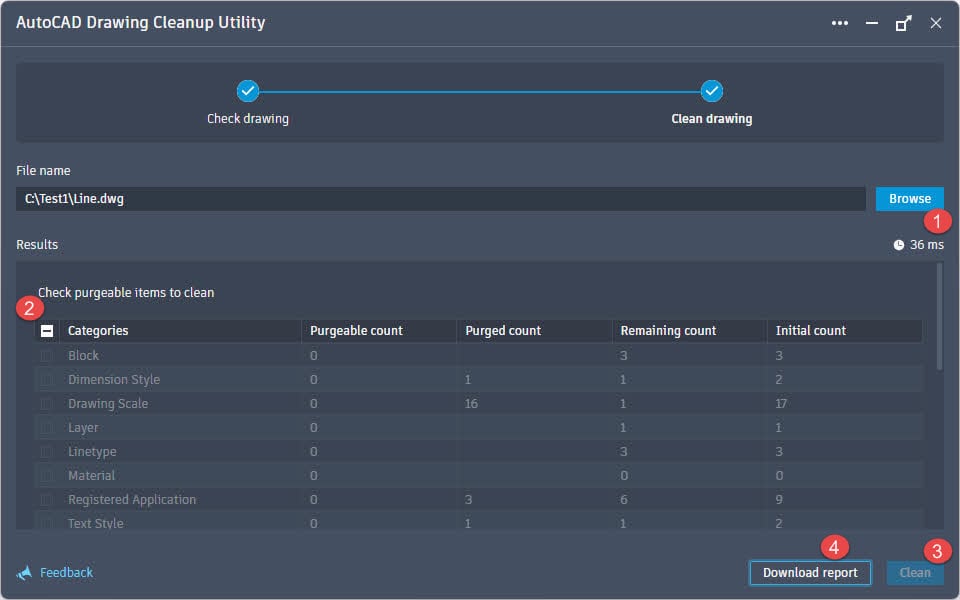
4.18 Use Autodesk Drawing Cleanup Utility to Clean the AutoCAD drawing
The Autodesk Drawing Cleanup Utility is a specialized tool for removing problematic data from drawings, so as to recover AutoCAD files.
Steps:
- Download the Drawing Cleanup Utility from the Autodesk website .
- Install the utility
- Launch the utility from the Windows Start menu
- Click Browse and select your drawing
- The objects in the drawing will be displayed in categories.
- Check purgeable items to clean.
- Click Clean to initiate the clean process.
- The utility will create a backup file xxx-backup.dwg before the process.
- After the clean process, click Download report to download the clean report as an Excel file.
- Open the cleaned file in AutoCAD
4.19 Use PURGEAECDATA to Purge the AEC Object Data
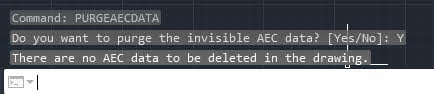
If your drawing only needs standard AutoCAD geometry without AEC-specific data, this command removes architectural/engineering/construction objects.
Steps:
- Open the drawing
- Type PURGEAECDATA and press Enter
- When prompted to proceed, enter Y
- The command will remove all AEC object data. Below is the log:

- Save the file
4.20 Use EXPORTTOAUTOCAD to export to AutoCAD
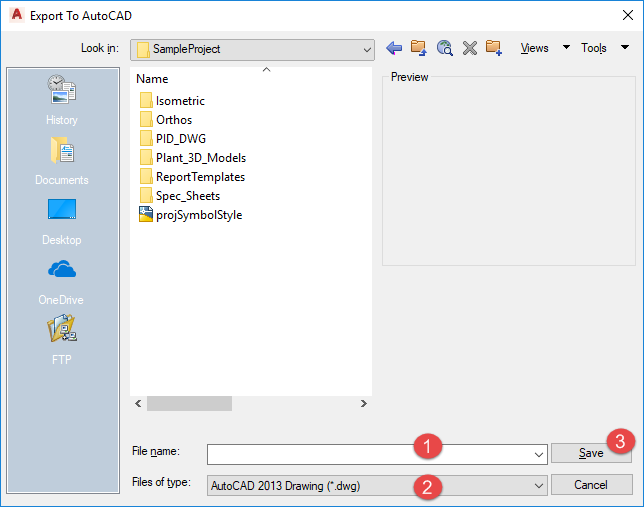
If you’re using an AutoCAD vertical product (like Civil 3D or Architecture), you can export to plain AutoCAD format.
Steps:
- Open the drawing in your AutoCAD vertical application
- Type EXPORTTOAUTOCAD and press Enter
- In the Export to AutoCAD dialog, review settings
- Specify a filename and location
- Select the destination file format
- Click Save
- Open the exported file in standard AutoCAD
4.21 Use SCALELISTEDIT to reduce the number of annotation scales
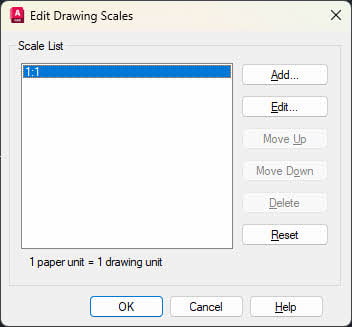
Excessive annotation scales can significantly increase file size and impact performance.
Steps:
- Open the drawing
- Type -SCALELISTEDIT (with hyphen) and press Enter
- Enter R for reset and press Enter.
- Enter Y to confirm and press Enter.
- This resets the scale list to default values. Below are the log:

- Alternatively, use SCALELISTEDIT (without hyphen) to manually delete individual scales

- Save the file

4.22 Use Scale List Cleanup Utility
The Scale List Cleanup Utility can remove annotation scales from multiple files in batch.
Steps:
- Download the Scale List Cleanup Utility from Autodesk website .
- Extract the contents of the Zip archive to a folder.
- Navigate to the folder for your vesion of AutoCAD, for example:
- For AutoCAD 2021 to 2024, go to the folder “Scale_List_Cleanup_Utility_for_AutoCAD_2021-2024”
- For AutoCAD 2025 and 2026, go to the folder “Scale_List_Cleanup_Utility_for_AutoCAD_2025”
- Copy CleanupScales.exe and CleanupScalesRes.dll to the installation directory of your AutoCAD-based product
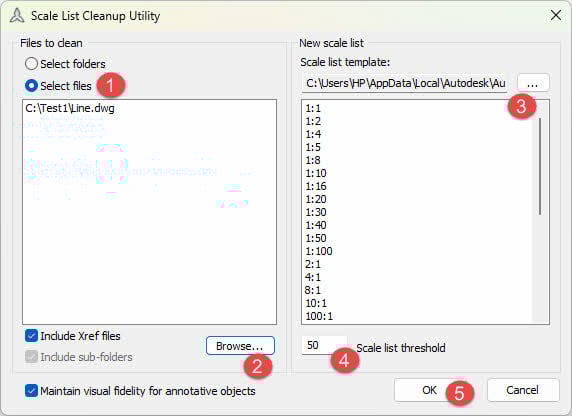
- Launch CleanupScales.exe
- Click Select Folders if you want to clean all files in specific folders recursively. This is useful to clean a huge batch of files.
- Click Select Files if you want to just clean files.
- Click Browse … to add one or multiple files to be cleaned.
- Under the New scale list, select a Scale list template file.
Note: This utility will remove unused scales from the drawing files and apply the scale list from the template. - Set the Scale list threshold if needed.
- Click OK

- The utility will clean up the selected files, and then show a result message like below:

- Open the .csv file to see the details log of the cleanup, like below:
File name, DWG version, Initial scales count, Final scales count, Status

C:\Test1\Line.dwg,2013,17, 17, Skipped. Scale count less than threshold - Open the cleaned files in AutoCAD

4.23 Use the RegApp Cleanup utility
Registered applications (RegApps) are markers left by third-party software that can accumulate and bloat files. The RegApp Cleanup utility can remove RegApps in batch. It works very similarly to the Scale List Cleanup Utility.
Steps:
- Download the RegApp Cleanup utility from the Autodesk website .
- Extract the contents of the Zip archive to a folder.
- Navigate to the folder for your vesion of AutoCAD, for example:
- For AutoCAD 2021 to 2024, go to the folder “Regapp_ID_Cleanup_Utility_for_AutoCAD_2021-2024”
- For AutoCAD 2025 and 2026, go to the folder “Regapp_ID_Cleanup_Utility_for_AutoCAD_2025”
- Copy CleanupRegapp.exe and CleanupRegappRes.dll to the installation directory of your AutoCAD-based product
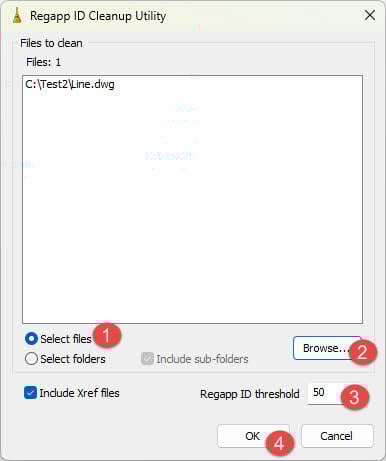
- Launch CleanupRegapp.exe
- Click Select Files if you want to just clean files.
- Click Select Folders if you want to clean all files in specific folders recursively. This is useful to clean a huge batch of files.
- Click Browse … to add one or multiple files to be cleaned.
- Set the Regapp ID threshold if needed.
- Click OK

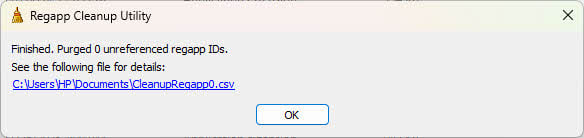
- The utility will clean up the selected files, and then show a result message like below:

- Open the .csv file to see the details log of the cleanup, like below:
File name, DWG version, Initial regapp count, Final regapp count, Status

C:\Test2\Line.dwg,2013,9, 9, Skipped. Regapp ID count less than threshold. - Open the cleaned files in AutoCAD
4.24 Reduce the number of Viewbase Drawing views
Excessive Viewbase drawing views can cause performance issues and file bloat.
Steps:
- Open the drawing
- Review all layouts containing Viewbase views
- Delete unnecessary views
- Consider attaching some views as external references instead
- Keep only essential views in the main drawing
- Save the file
4.25 Use DGNEXPORT and DGNIMPORT to Export then reimport the file
Converting to MicroStation DGN format and back can resolve certain AutoCAD corruption issues.
Steps:
- Open the drawing
- Type DGNEXPORT and press Enter
- In the Export DGN File dialog, specify the filename and location.
- Make sure to select V8 DGN (*.dgn) format.
- Click Save
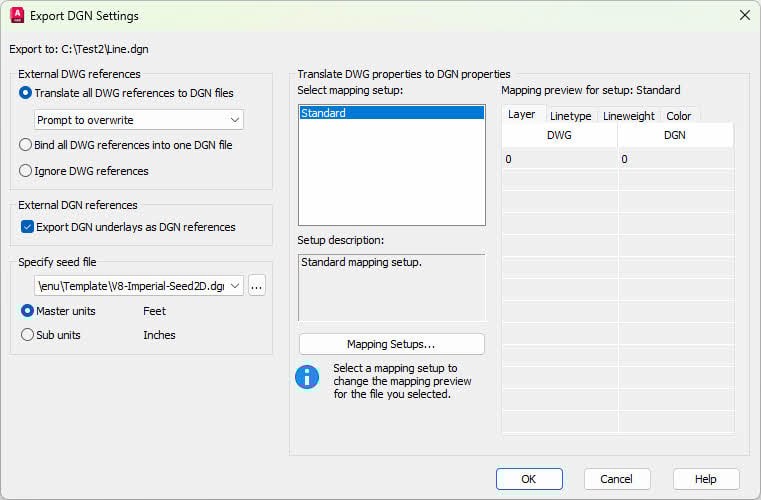
- In the Export DGN Settings dialog, change the settings if necessary, then click OK

- The drawing will be converted to a DGN file.
- Now let’s convert the DGN file back to DWG format.
- Type DGNIMPORT and press Enter
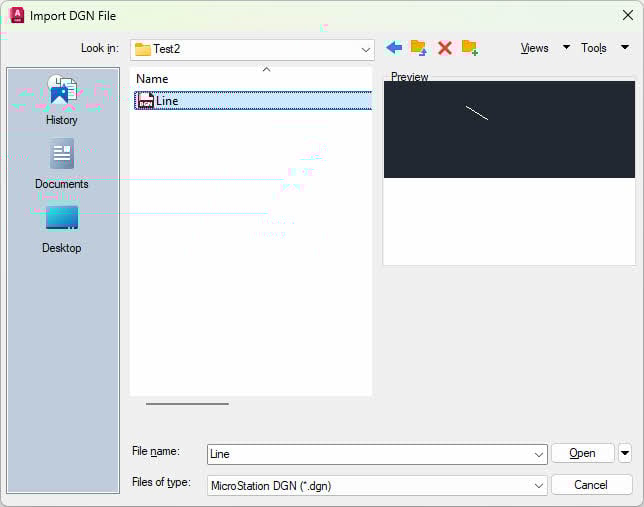
- In the Import DGN File dialog, select the DGN file
- Make sure the Files of type is set to MicroStation DGN (*.dgn)
- Click Open
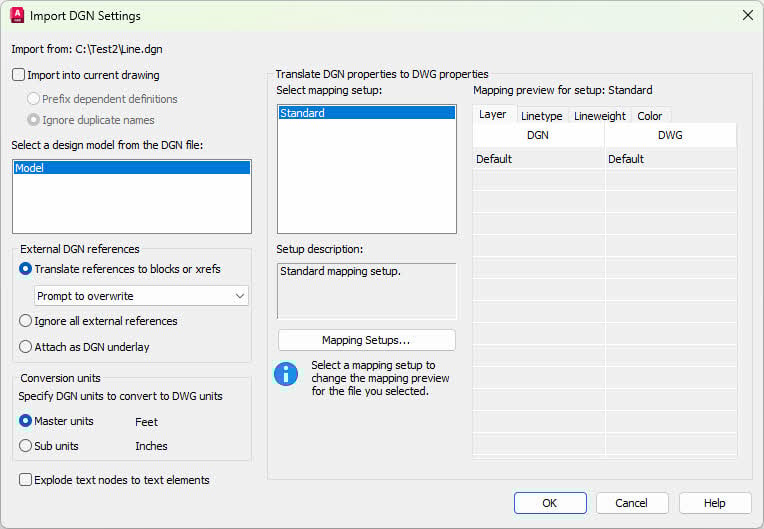
- The Import DGN Settings dialog will show. Change the settings if necessary, then click OK.

- The DNG file will be imported into a new drawing
- Save the new drawing as a DWG file.

4.26 Clean DGN linetypes
Extra DGN linetypes imported from MicroStation files can increase file size unnecessarily.
Steps:
- Open the drawing
- Type LINETYPE and press Enter
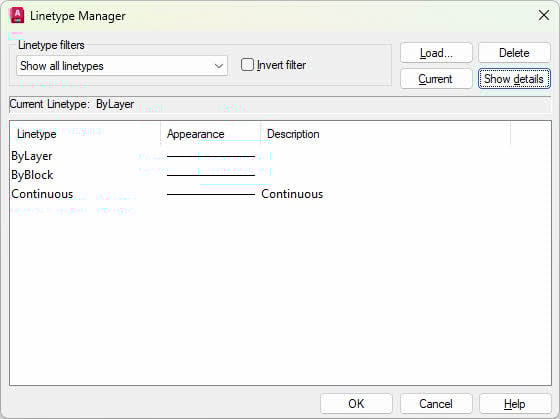
- In the Linetype Manager dialog, locate DGN linetypes
- Select unnecessary DGN linetypes
- Click Delete

- Close the Linetype Manager dialog
- Run PURGE to remove references
- Save the file
4.27 Clean a large number of empty voltage definitions
If the drawing contains many empty voltage definitions (common in electrical drawings), it can significantly impact file size and performance.
Steps:
- Open the affected drawing in AutoCAD or an AutoCAD vertical
- Press Ctrl + A to select all objects
- Press Ctrl + C to copy
- Press Ctrl + V to paste back into the same drawing
- Wait for the process to complete (this may take several hours for large files)
- This triggers the cleanup logic in AecbElecBase.dbx
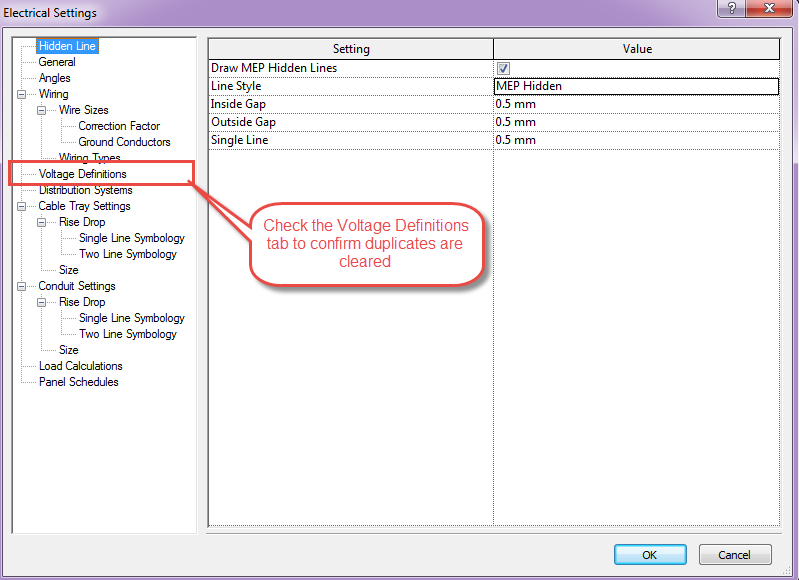
- To verify cleanup (optional), open AutoCAD MEP and run ELECTRICALPREFERENCES to open the Electrical Settings dialog.
- Check the Voltage Definitions tab to confirm duplicates are cleared

- Save the file
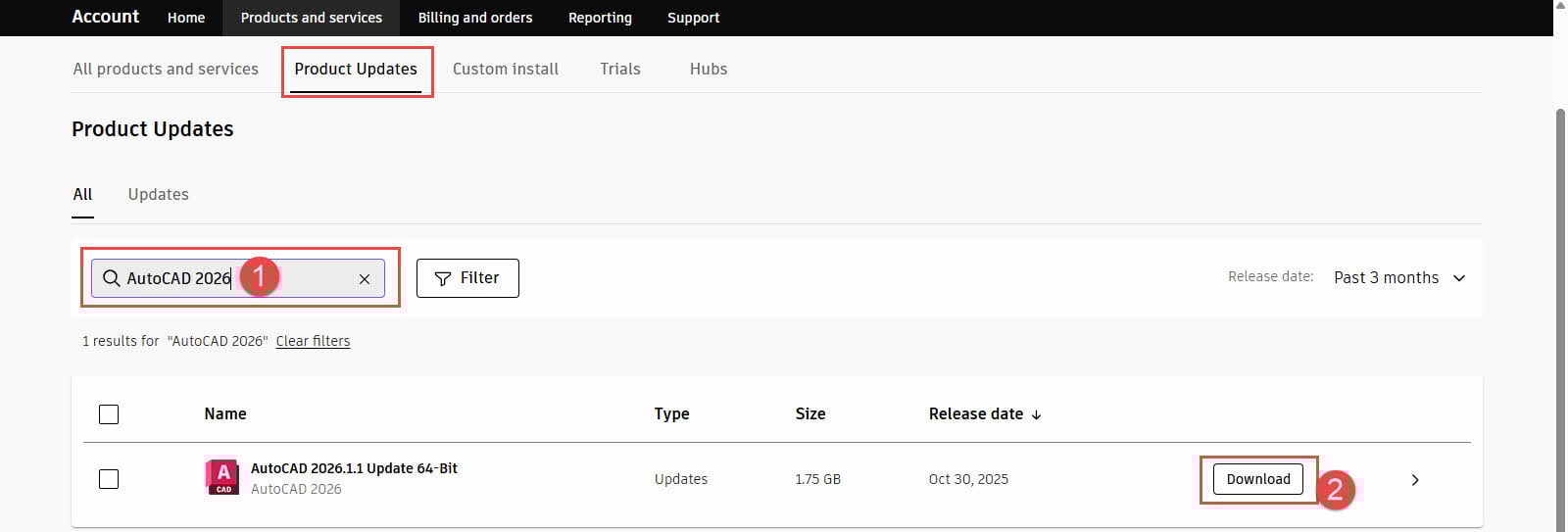
4.28 Install the latest AutoCAD updates
Many corruption issues and file problems are resolved in AutoCAD updates and service packs.
Steps:
- Sign in to your account at manage.autodesk.com/products/updates.
- Search for an update of your AutoCAD product.
- Click Download to download the update.

- Install the update.
- Restart AutoCAD after installation
- Try opening your drawing again
4.29 Run the command AECCPURGEACANODOBJECTS (Autodesk Civil 3D)
This command is specifically for Civil 3D drawings to remove corrupted AEC/ACA node objects.
Steps:
- Open the drawing in AutoCAD Civil 3D
- Type AECCPURGEACANODOBJECTS and press Enter
- Follow the command prompts
- Save the file
4.30 Run the “defaultClean” script (Autodesk Civil 3D)
The defaultClean script in the Autodesk Batch Save Utility performs comprehensive cleanup of Civil 3D drawings.
Steps:
- Launch Autodesk Batch Save Utility
- Click Add Drawings to select Civil 3D files
- Select the defaultClean script from the script list
- Choose an output folder
- Click Run
- Open the processed files in Civil 3D
4.31 Autodesk Civil 3D specific Purge commands
Civil 3D includes specialized purge commands for cleaning project data.
Commands to use:
- PurgeStyles – Removes unused styles
- ClearPhantomParcels – Removes phantom parcel data
- PurgeHiddenAlignsFromSites – Cleans hidden alignments
- FindSiteOverlaps – Identifies and resolves overlapping sites
- AeccPurgeACANODObjects – Removes corrupted AEC objects
Type each command in the Civil 3D command line and follow the prompts. For more information, visit the official Autodesk webpage  .
.
Note: The following methods (4.32 through 4.34) work with drawings that cannot open, or drawings that can be opened but have problems such as slow performance, unresponsiveness, or a sudden increase in file size.
4.32 Files Created Using Non-Autodesk or Non-RealDWG Software
If the corrupt file you are trying to access was not created using standard drawing software such as AutoCAD or RealDWG, try to do as following:
- Open it using the software that was used to create it.
- Once the file is opened, use the export function to save it to a format that is compatible with AutoCAD, such as DXF format.
- Open the DXF file in AutoCAD.
Note: This only works if the creator software has the export function.
4.33 Recover with Professional Tool
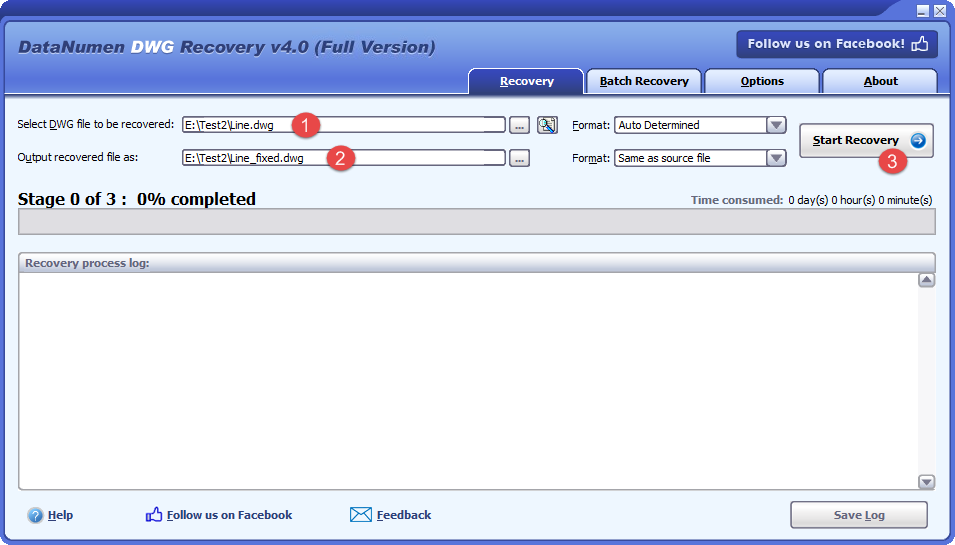
When standard methods fail, professional AutoCAD recovery software like DataNumen DWG Recovery can recover severely corrupted DWG files. These tools use advanced algorithms to extract and reconstruct drawing data from damaged files. While professional recovery tools typically require a purchase, they offer higher success rates for critical file recovery situations.
To recover a corrupt drawing file with DataNumen DWG Recovery:
- Select the source corrupt DWG drawing file.
- Set the output recovered drawing file.
- Click Start Recovery
- After the recovery process, open the recovered drawing file.
4.34 Recover with Online Tools
Several online services offer AutoCAD file recovery:
- Online File Repair Service
- Recovery Toolbox for AutoCAD
- OfficeRecovery Online
Upload your corrupted file to these services for cloud-based recovery attempts. Note that upload speeds and file size limits may vary.
5. Recover Corrupted AutoCAD DXF Files
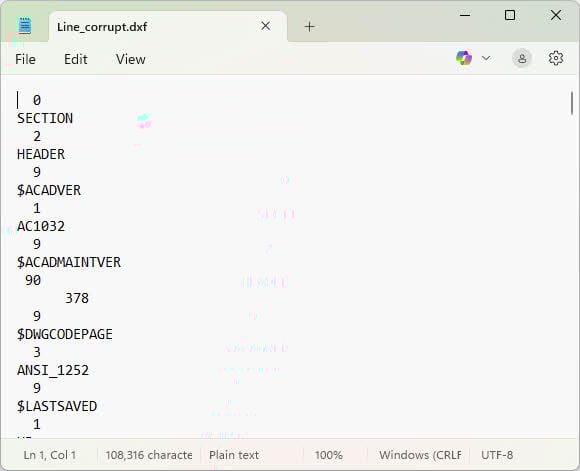
DXF files are text-based and can be manually edited to fix corruption. This method requires careful text editing but can be effective when other methods fail.
Steps:
- Open a blank drawing in AutoCAD
- Ensure the Command line is visible (press Ctrl + 9 if needed)
- Attempt to open the corrupt DXF file using OPEN
- Note any error messages showing line numbers in the Command line
- Press Esc to terminate the opening process
- Right-click the DXF file and select Open with -> Notepad or Notepad++
- Navigate to the line numbers mentioned in the error message (use Ctrl + G in Notepad++)
- Compare the problematic lines with the lines above and below
- Look for patterns in the geometry code to identify what might be missing or merged
- Refer to the AutoCAD DXF Reference documentation for proper formatting
- Make necessary corrections

- Save the file (keeping the .dxf extension)
- Attempt to open the file in AutoCAD again
- If it still fails, repeat the process
6. Recover Deleted or Lost AutoCAD File
6.1 Recover AutoCAD File from Recycle Bin
The Windows Recycle Bin is the first place to check for recently deleted files.
Steps:
- Double-click the Recycle Bin icon on your desktop

- Look for your AutoCAD file by name or extension (.dwg)
- Use the search box to find specific files
- Right-click the file and select Restore

- The file will return to its original location


6.2 Recover AutoCAD File from Cloud storage services
Some cloud storage services will move deleted files to the recycle or trash bin. This happens when the feature is turned on for specific folders, such as My Documents or a working folder. Consult your cloud storage provider documentation or support for more details.
6.3 Using Professional Data Recovery Tool
When neither the Recycle Bin nor Cloud storage services can help, professional data recovery software like DataNumen Data Recovery can scan your hard drive to locate and restore AutoCAD files. The success rates depend on whether the data has been overwritten.
To recover AutoCAD files:
- Start DataNumen Data Recovery
- Select the disk or drive where you have stored the AutoCAD files in the past.

- DataNumen Data Recovery will scan the disk or drive, and show the recoverable files
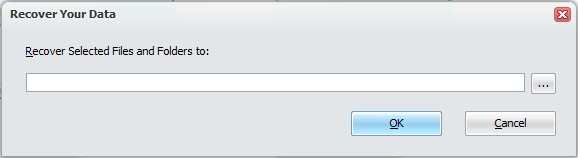
- Check the files you want, and click Recover

- Set the output directory and click OK to recover the files.



7. Troubleshooting Common Recovery Issues
7.1 Recovery Process Not Completing Correctly
7.1.1 When RECOVER doesn’t work on all files
If RECOVER fails on multiple files, try the RECOVERALL command instead, which handles Xrefs better. Additionally, ensure you have sufficient disk space and that your AutoCAD installation is up to date.
7.1.2 Scaling tool usage for complex files
For large or complex drawings, recovery may take considerable time. Be patient and avoid interrupting the process. If AutoCAD appears frozen, check Task Manager to confirm the process is still active before force-closing.
7.2 File Opens Blank After Recovery
7.2.1 Checking if file actually has content
Type ZOOM then E (for Extents) to zoom to all objects. Objects may exist but be located far from the origin. Also check all layers are turned on by opening the Layer Properties Manager.
7.2.2 Using alertme.lsp method
Load the alertme.lsp utility (if available) which displays a message box showing the actual drawing extents and object count, helping determine if the file truly contains data.
7.3 Cannot Find Autosave or Backup Files
7.3.1 Verifying autosave settings
Type OPTIONS and go to the Open and Save tab. Ensure Automatic save is checked and note the Minutes between saves value. Also verify the autosave file location is accessible.
7.3.2 Checking SAVETIME variable
Type SAVETIME in the command line to check the interval. If it’s set to 0, autosave is disabled. Set it to 10 (minutes) or your preferred interval.
7.4 “File Not Compatible” Errors
7.4.1 Version compatibility issues
Files created in newer AutoCAD versions cannot be opened directly in older versions. Use SAVEAS to save in an older DWG format, or open the file in the newer version and save down.
7.4.2 Using DWGCONVERT command
Use the DWGCONVERT utility to batch convert files to compatible formats for your AutoCAD version.
7.5 Data Corruption Issues
7.5.1 Network anomalies and transmission errors
Always save files to local drives before editing. Network interruptions during saves can cause corruption. Copy files locally, edit, then copy back to network storage.
7.5.2 File locking problems
Delete .dwl and .dwl2 lock files if files won’t open. Ensure no other users have the file open on the network.
7.5.3 Operating system issues
Run disk error checking tools and ensure your operating system is updated. File system errors can cause drawing corruption.
7.5.4 Third-party software conflicts
Disable antivirus software temporarily when working with large files. Some security software can interfere with AutoCAD’s file operations.
8. Best Practices for Preventing Data Loss
8.1 Configuring Autosave and Backup Settings
- In AutoCAD, open a new drawing.
- Type OPTIONS in the command line and press Enter.
- In the Options dialog, click the Open and Save tab, and make sure the following options are enabled:
-
- Automatic save
- Create backup copy with each save
-

You can also adjust the following Autosave and backup settings:
- Autosave intervals: Set Minutes between saves in the above dialog to 10 or less for critical work. This ensures regular backup without excessive interruption. You can also use the SAVETIME system variable to set the interval:

- Autosave path: You can specify the location of all Autosave files by using the SAVEFILEPATH system variable:
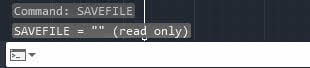
- Autosave file name: You can use the system variable SAVEFILE (read-only) to check the name of the Autosave file. But it is read-only:


8.2 Regular Saving Habits
8.2.1 Using QSAVE command frequently
Press Ctrl + S or type QSAVE regularly during work sessions. Develop a habit of saving after completing major drawing tasks or before testing new features.
8.2.2 Incremental save strategies
Use SAVEAS to create versioned copies of important drawings (e.g., Project_v1, Project_v2). This provides rollback points if recent changes cause problems.
8.3 Backup Strategies
8.3.1 Multiple backup locations
Maintain copies of critical drawings in at least three locations: local drive, external drive, and cloud storage following the 3-2-1 backup rule.
8.3.2 Cloud storage integration
Use Autodesk Drive , OneDrive, Dropbox, or Google Drive to automatically sync AutoCAD files to the cloud. Enable version history features in your cloud provider.
8.3.3 Version control practices
Consider using version control systems like Autodesk Vault or ProjectWise for team environments. These systems track all changes and allow rollback to any previous version.
8.4 System Maintenance
8.4.1 Keeping AutoCAD updated
Regularly install AutoCAD updates and service packs. Updates often include fixes for file corruption issues and improved stability.
8.4.2 Regular system checks
Run Windows disk error checking monthly using chkdsk. Monitor hard drive health using tools like CrystalDiskInfo to detect failing drives early.
8.4.3 Avoiding network storage issues
Save files to local drives during editing to avoid network interruptions. Copy files to network storage only after completing work sessions.
8.4.4 Antivirus and anti-malware software
Make sure your system has the antivirus and anti-malware software installed with the latest updated database.
8.5 File Management Best Practices
8.5.1 Proper file naming conventions
Use clear, descriptive names with dates or version numbers. Avoid special characters that can cause file system issues.
8.5.2 Organizing project folders
Create logical folder structures for projects. Keep all related drawings, xrefs, and resources in organized hierarchies for easy backup and recovery.
8.5.3 Proper access control
Use proper access control in a corporate environment. Make sure the important AutoCAD files are only accessible to those with the privileges.
8.5.3 Regular file cleanup
Run PURGE and AUDIT regularly on active drawings. Remove unused blocks, layers, and styles to prevent file bloat and corruption.
9. FAQ: AutoCAD File Recovery
Q: Can I recover an AutoCAD file without backup?
A: Yes, you can recover AutoCAD files without backups using several methods. Check the temporary folder (%tmp%) for autosave files with .sv$ extensions, use the RECOVER command to repair corrupted files, or try the Drawing Recovery Manager which appears after crashes. Professional recovery software can also restore severely damaged files when other methods fail.
Q: Where are AutoCAD autosave files located?
A: In Windows, AutoCAD autosave files are stored in C:\Users\[username]\AppData\Local\Temp by default. On Mac, they’re located in /Users/[username]/Documents/Autodesk/Autosave. You can check the exact location by typing OPTIONS, going to the Open and Save tab, and looking at the Automatic save file location field.
Q: How do I change a BAK file to DWG?
A: Navigate to the folder containing the BAK file, right-click it and select Rename, then change the file extension from .bak to .dwg. If file extensions aren’t visible, open File Explorer, click the View tab, and check File name extensions. After renaming, you can open the file directly in AutoCAD.
Q: What is the difference between BAK and SV$ files?
A: BAK files are backup copies created during manual saves, containing the previous version of your drawing and stored in the same folder as the DWG file. SV$ files are autosave files created automatically at timed intervals (default 10 minutes), stored in the temp folder, and deleted after successful saves but retained after crashes.
Q: How often does AutoCAD autosave?
A: AutoCAD autosaves every 10 minutes by default. You can change this interval by typing OPTIONS, going to the Open and Save tab, and adjusting the Minutes between saves value. Alternatively, use the SAVETIME command and enter your preferred interval in minutes. Setting it to 0 disables autosave.
Q: Can I recover an AutoCAD file after a crash?
A: Yes, AutoCAD’s Drawing Recovery Manager automatically appears after crashes, displaying available autosave and backup files. You can also check the temp folder for .sv$ files or look for .bak files in your drawing’s folder. The RECOVER command can also repair drawings that were corrupted during a crash.
Q: Why does my drawing file require recovery?
A: Drawing files require recovery when they weren’t closed properly due to crashes, power outages, or system failures. This can also happen if the file became corrupted during saving, transmission over networks, or due to hard drive errors. AutoCAD detects these issues and prompts for recovery to restore the file to a usable state.
Q: What does the RECOVER command do?
A: The RECOVER command attempts to open and repair corrupted drawing files. It scans the file structure, identifies errors, attempts to fix them, and displays an audit report showing what was repaired. Use RECOVERALL when the drawing contains external references (Xrefs) as it recovers both the main file and attached references.
Q: How do I prevent AutoCAD file corruption?
A: Prevent corruption by saving files regularly using Ctrl + S, enabling autosave with a 10-minute interval, keeping AutoCAD updated, saving to local drives instead of network locations during editing, running AUDIT and PURGE regularly, avoiding sudden shutdowns, and maintaining reliable power with a UPS. Create backup copies in multiple locations including cloud storage.
Q: Can I recover deleted AutoCAD files?
A: Yes, first check the Windows Recycle Bin and restore files if found there. Check cloud storage trash bins if you use services like OneDrive or Google Drive. For permanently deleted files, use professional data recovery software like Recuva or EaseUS Data Recovery Wizard to scan your hard drive and recover deleted DWG files.
Q: How long are autosave files kept?
A: Autosave files are automatically deleted after a successful save operation, meaning they’re only retained when AutoCAD crashes or closes unexpectedly. However, files in the temp folder may persist until you manually delete them or Windows clears the temp folder during maintenance. Check your temp folder regularly and back up important autosave files.
Q: What should I do if RECOVER doesn’t work?
A: If RECOVER fails, try RECOVERALL for drawings with Xrefs, insert the file into a blank drawing using Use INSERT (AutoCAD 2019 and earlier) or CLASSICINSERT (AutoCAD 2020+) command, then EXPLODE it, convert the file to an older DWG format using DWG TrueView, try the DXF conversion method by exporting and reimporting, or use professional recovery software. Also check for .bak and .sv$ backup files as alternatives.
10. Conclusion
10.1 Summary of Recovery Methods
This guide has covered comprehensive methods to recover AutoCAD files across different scenarios. For unsaved files, rely on autosave and backup files through the Drawing Recovery Manager. For corrupted files, use progressive repair methods starting with RECOVER and escalating to file format conversions or professional tools. For deleted files, check Recycle Bin and cloud storage before using data recovery software.
10.2 Importance of Preventive Measures
Prevention is more effective than recovery. Implementing proper backup strategies, configuring appropriate autosave intervals, maintaining system health, and developing good saving habits will protect your work from most data loss scenarios. Regular file maintenance with AUDIT and PURGE prevents corruption from accumulating over time.
10.3 Final Recommendations
Always maintain the 3-2-1 backup rule for critical projects: three copies of data, on two different media types, with one copy offsite. Enable AutoCAD’s automatic backup features, save work frequently, keep software updated, and avoid working directly on network drives. When recovery becomes necessary, start with simple methods before progressing to more complex solutions. Document successful recovery procedures for your specific workflow to expedite future recoveries.
References
AutoCAD Commands
- RECOVER – Repairs and opens corrupted drawing files
- RECOVERALL – Repairs drawings with external references
- DRAWINGRECOVERY – Opens the Drawing Recovery Manager
- INSERT – Inserts a block or drawing into the current drawing
- CLASSICINSERT – Opens the classic Insert dialog
- EXPLODE – Breaks a compound object into component objects
- AUDIT – Evaluates the integrity of a drawing and corrects errors
- PURGE – Removes unused items from the drawing database
- -PURGE – Command line version of PURGE
- SAVEAS – Saves a copy of the current drawing with a new name
- QSAVE – Saves the current drawing
- QNEW – Creates a new drawing
- PDFIMPORT – Imports geometry from a PDF file
- DXFOUT – Saves a drawing to a DXF file
- DXFIN – Imports a DXF file
- DWGCONVERT – Batch converts drawing file formats
- WBLOCK – Writes objects or a block to a new drawing file
- OVERKILL – Removes duplicate or overlapping objects
- DELCONSTRAINT – Removes geometric constraints from objects
- FILTERS – Opens the Layer Properties Manager to manage layer filters
- BREP – Removes construction history from 3D solids
- PURGEAECDATA – Purges AEC object data from drawings
- EXPORTTOAUTOCAD – Exports vertical product drawings to AutoCAD format
- SCALELISTEDIT – Manages annotation scales
- -SCALELISTEDIT – Command line version of SCALELISTEDIT
- DGNEXPORT – Exports to MicroStation DGN format
- DGNIMPORT – Imports MicroStation DGN files
- LINETYPE – Manages linetypes in the drawing
- PASTECLIP – Pastes objects from the Clipboard
- -DWGUNITS – Sets and displays drawing units (command line)
- SAVETIME – Sets automatic save interval in minutes
- OPTIONS – Opens the Options dialog
- ZOOM – Changes the magnification of the viewport
- OPEN – Opens an existing drawing file
Official Autodesk Documentation
- How to recover lost work due to a crash in AutoCAD
- Recover Drawing Files in AutoCAD
- Drawing always prompts to recover when opened
- Restore from Backup
- Recovering drawing files which fail to open
- Drawing Recovery Manager
- AutoCAD File Corruption
- AutoCAD DWG files unexpectedly increase in file size
- AutoCAD File Corruption (Knowledge Base)
- How to repair corrupt DXF AutoCAD files
- Optimizing the AutoCAD drawing file: Purge, Audit, Recover
- Optimizing the AutoCAD drawing file: Windows Clipboard Copy and Paste
- How to fix Civil 3D Drawings
- AutoCAD DXF Reference documentation
Useful 3rd Party Tools
- DataNumen DWG Recovery – Recover corrupt or damaged AutoCAD files.
- DataNumen Data Recovery – Recover deleted or lost AutoCAD files.
About the Author
Tai Yi is an image and CAD file recovery specialist with over 12 years of experience. His hands-on experience encompasses working with native recovery functions, file structure analysis tools, and developing systematic approaches for repairing complex images and drawings.
Through his technical knowledge and practical approach, Tai creates comprehensive guides that help both novice users and experienced designers solve file corruption issues effectively. He regularly tests recovery methods across different versions, stays current with the latest file formats and repair utilities, and ensures his recommendations reflect proven techniques with documented success rates in real-world scenarios.
Have questions about image and CAD file recovery or need help with other image and CAD file challenges? Tai welcomes feedback and suggestions for improving these technical resources.