
A corrupt DBF file can bring accounting systems, inventory databases, and CRM applications to a halt. This guide covers every practical method to repair a DBF file, from simple associated-file checks to hex-level reconstruction, ordered from least to most invasive.
1. Introduction
1.1 What Is a DBF File?
A DBF file is a structured tabular database file format originally developed for dBASE and later adopted by FoxPro, Clipper, Visual FoxPro, and many legacy business applications, commonly used for accounting records, inventory tables, and customer data.
A DBF database typically includes several companion files:
- .cdx / .idx: Compound and single index files that accelerate record lookups.
- .fpt / .dbt: Memo field files that store variable-length text or binary data referenced by the main table.
- .dbc: Database container file used by Visual FoxPro to link related tables, views, and stored procedures.
1.2 Signs Your DBF File Is Corrupted
The following symptoms indicate that a DBF file may be corrupt and needs to be repaired:
- “Not a table” error: The application does not recognize the first byte of the file header as a valid DBF version marker.
- “File is not a database” error: The file header structure is unreadable or has been overwritten.
- Application crash on open: The host program freezes or terminates when attempting to load the file.
- Garbled or missing records: Rows display incorrect characters, truncated values, or are absent entirely.
- Incorrect record count: The number of records reported by the application does not match the actual row count in the file.
- Index errors: The application reports index inconsistencies or fails to locate records that should exist.
- Zero-byte or abnormally small file size: The file has lost its content due to an interrupted write operation.
1.3 Common Causes of DBF File Corruption
- Improper shutdown and power failure: A power outage or forced reboot while the file is open interrupts a write operation, leaving the file in an inconsistent state.
- Multi-user access conflicts: Multiple users opening and writing to the same DBF file simultaneously over a network can corrupt both data records and index files.
- Index file damage: Missing or damaged .cdx / .idx files make the database appear broken even when the core data records are intact.
- Deleted record accumulation and fragmentation: Records flagged for deletion but never physically removed accumulate over time and can cause structural inconsistencies.
- Software crashes and virus attacks: An application crash during a write operation, or malware that overwrites file bytes, can corrupt the header, field descriptors, or data records.
2. Before You Repair: Essential First Steps
Take these two steps before attempting any repair method to prevent making the corruption worse or losing data permanently.
2.1 Stop Opening the File Repeatedly
Every time an application attempts to load a corrupt DBF file, it may write additional data to the file or update the header, potentially worsening the corruption. Stop opening the file as soon as you suspect it is damaged.
2.2 Create a Backup Copy
Before doing anything else, copy the corrupt file and rename it (for example, filename_backup.dbf). Perform every repair attempt on the copy, never on the original. If a repair method makes the problem worse, you can start over from the untouched original.
Also, back up all companion files (.cdx, .idx, .fpt, .dbt) together with the main .dbf file.
3. Method 1: Check and Restore Associated Files
Many apparent DBF corruptions are actually caused by missing or mismatched companion files. Check these before attempting any file-level repair.
3.1 Identify Missing Index Files (.cdx / .idx)
Open the folder containing the .dbf file and verify that all expected index files are present. A Visual FoxPro table named orders.dbf, for example, typically has a companion orders.cdx. If the index file is absent, the application will report errors even though the data itself is intact.
3.2 Identify Missing Memo Files (.dbt / .fpt)
If the table contains memo fields, its memo file (.fpt for Visual FoxPro, .dbt for dBASE III/IV) must be present in the same folder. A missing memo file causes read errors for any record that references a memo value, even if the rest of the record is undamaged.
3.3 Rebuild Missing Files
If index files are missing, rebuild them using the REINDEX command. If memo files are missing and no backup exists, the memo field data for those records is unrecoverable, but the non-memo fields can still be accessed by opening the table after removing the memo file reference from the header using a hex editor.
4. Method 2: Use Database Utility Commands (FoxPro / dBASE)
If you have access to Visual FoxPro or dBASE, they have built-in commands that can fix a wide range of common corruptions.
4.1 Open the File in Exclusive Mode
Opening the file in exclusive mode grants full read/write control and is required before running any repair command. In the Visual FoxPro Command Window, type:
USE yourfile.dbf EXCLUSIVEIf the file opens successfully, you can recover the data by copying the record data to a new database immediately.
4.2 Validate Table Integrity with SET TABLEVALIDATE
Before applying fixes, use SET TABLEVALIDATE to surface corruption errors:
SET TABLEVALIDATE 11
USE yourfile.dbf EXCLUSIVE
This command instructs Visual FoxPro to perform strict validation when opening the table. Any error message returned at this step identifies the nature and location of the corruption.
4.3 Rebuild Indexes with REINDEX
With the file open in exclusive mode, run:
REINDEXREINDEX rebuilds all index files associated with the open DBF. It resolves index-related failures that cause records to appear missing or cause the application to report that the file cannot be read.
4.4 Compact the Table with PACK
With the file open in exclusive mode, run:
PACKPACK physically removes all records flagged for deletion and compacts the file. This resolves issues caused by excessive deleted record accumulation.
Warning: PACK permanently and irreversibly deletes flagged records. Run it only on the backup copy.
4.5 Repair Memo Fields with PACK MEMO
If the table contains memo fields, run the following command after PACK:
PACK MEMOPACK MEMO compacts the memo file (.fpt / .dbt), removing unused memo blocks and correcting size inconsistencies between the memo file and the main table.
Warning: PACK MEMO permanently discards the memo data of deleted records and overwritten memo values with no undo option. Run it only on the backup copy.
5. Method 3: Open in an Alternative Application
Sometimes, opening the file in a more tolerant application can recover the data even when the primary application refuses to open it.
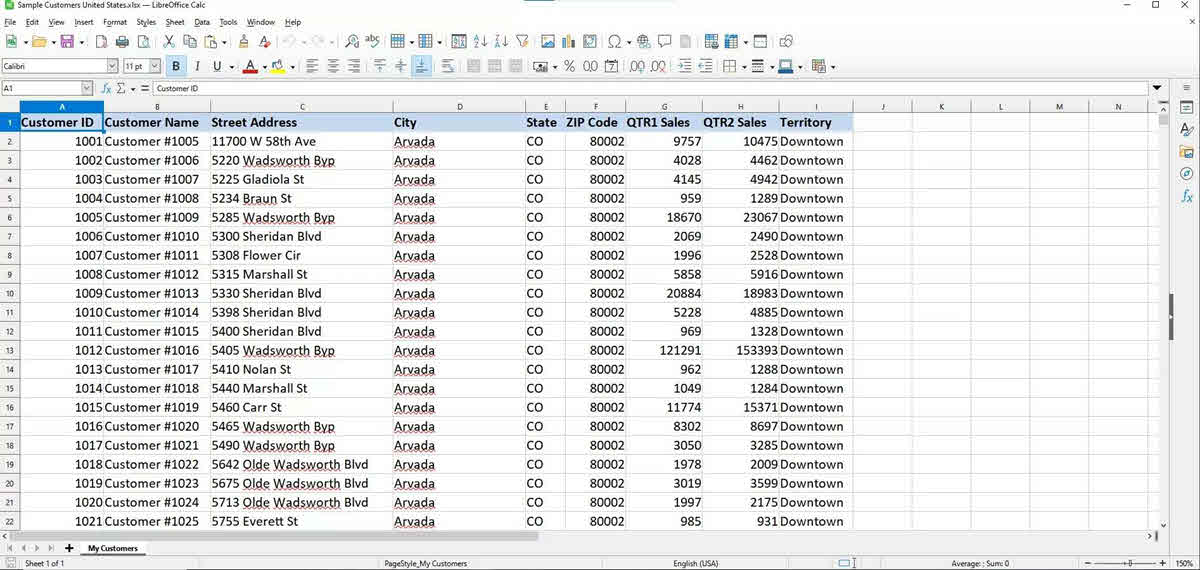
5.1 LibreOffice Calc
LibreOffice Calc has a built-in dBASE import filter and can read raw data from many partially corrupt DBF files:
- Go to File -> Open and select the .dbf file. LibreOffice will display an import dialog where you can select the character encoding.
- If the file loads, the data appears as a spreadsheet. Even partially corrupt files often load with readable records.
- Export the recovered data via File -> Save As and choose Text CSV or Microsoft Excel format, then recreate the DBF from the exported data if needed.
Note: When opening DBF files created by Visual FoxPro, use the 32-bit version of LibreOffice. Visual FoxPro’s file format does not support 64-bit architecture and may fail to load correctly in the 64-bit build.
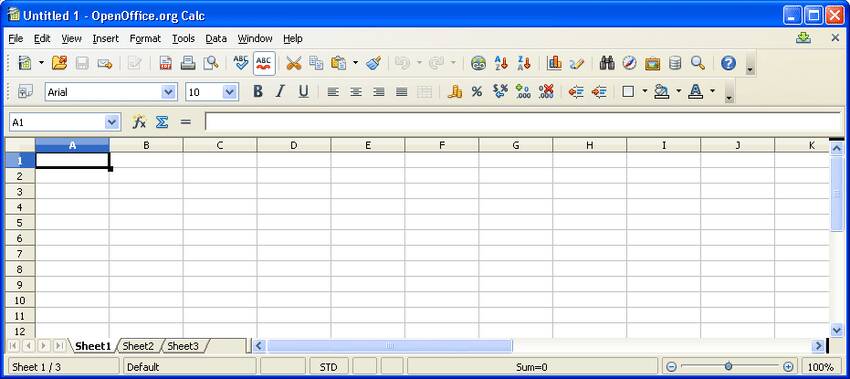
5.2 OpenOffice Calc
OpenOffice is similar to LibreOffice, but has several security vulnerabilities. Use it only if LibreOffice fails.
5.3 DBF Commander
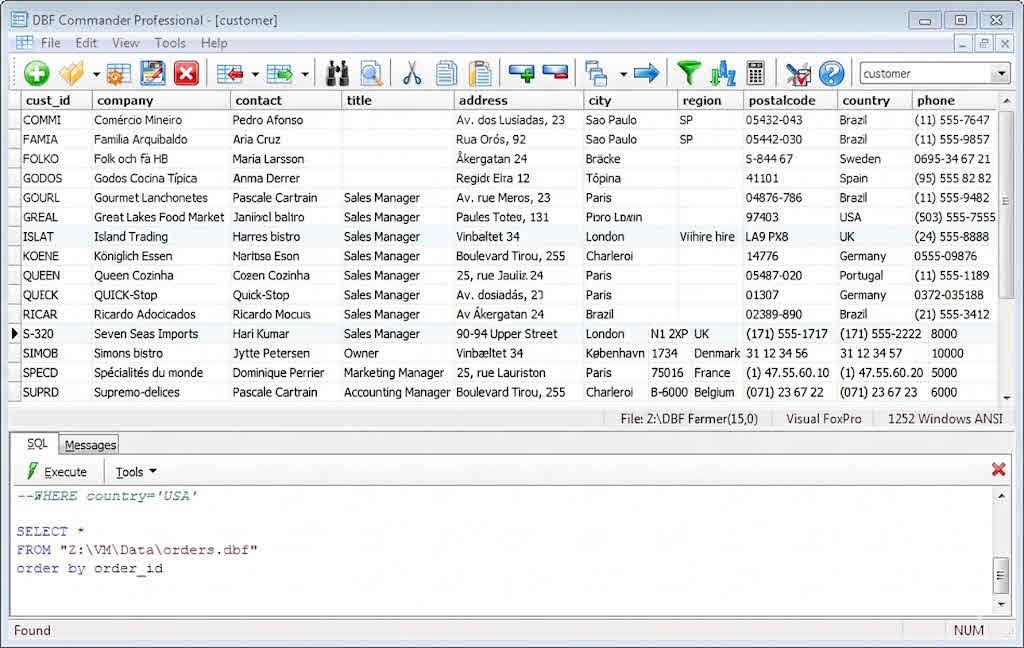
DBF Commander is a dedicated DBF viewer and editor that handles a wider range of DBF sub-versions than general-purpose applications:
- Download and install DBF Commander, then launch it.
- Go to File -> Open and load the corrupted .dbf file. DBF Commander automatically analyzes the file structure and attempts to fix minor corruptions on load.
- If the data is readable, go to File -> Save As and save under a new filename to preserve the original backup.
5.4 Xbase++
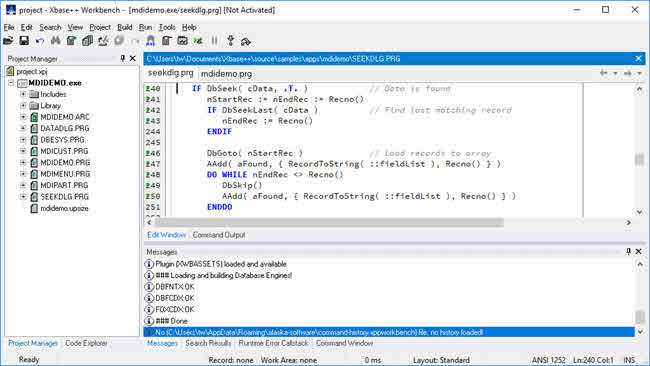
Xbase++ is a development environment with advanced DBF compatibility that can handle corruption types that crash older FoxPro or dBASE environments:
- Load the corrupted DBF file using Xbase++ file management functions.
- Run the built-in diagnostic and repair routines, which can address damaged indexes and data entry errors that other tools cannot handle.
6. Method 4: Manual Repair with Text/Hex Editors
When the above methods fail, manual inspection using text or hex editors allows you to examine the raw file content, copy intact data, and reconstruct a working database. This method requires care and a basic understanding of the DBF file structure.
6.1 DBF Basic Structure Overview
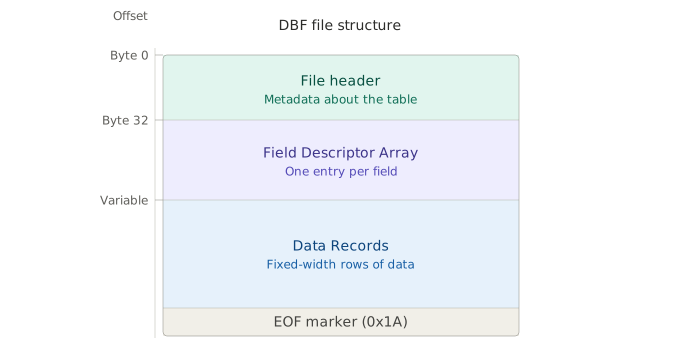
A DBF file consists of four sequential sections:
- File Header (32 bytes): The first byte identifies the DBF version (for example,
0x03for dBASE III without memo,0x30for Visual FoxPro). Bytes 1–3 store the last update date (YY/MM/DD). Bytes 4–7 store the total record count as a 32-bit integer. Bytes 8–9 store the header size in bytes, and bytes 10–11 store the fixed record size in bytes. - Field Descriptor Array: A sequence of 32-byte entries, one per field, immediately following the header. Each entry stores the field name (bytes 0–10, null-padded), field type (byte 11: C=Character, N=Numeric, D=Date, L=Logical, M=Memo), field length (byte 16), and decimal count (byte 17). The array is terminated by a
0x0Dbyte. - Data Records: Fixed-length records, each exactly as wide as the record size stored in the header. The first byte of each record is a deletion flag (
0x20= active record,0x2A= deleted record). - EOF Marker: One byte (
0x1A) indicating the end of file.
6.2 Use Text Editors to Get Readable Data
Because DBF is a binary format, text editors should NOT be used to edit the file directly. However, they can display readable portions — field names and character data records — that you can use to copy and reconstruct a new database.
Below are some popular text editors that can be used:
- Notepad++ (Windows): Open the corrupted DBF file in Notepad++. Field names from the field descriptor Array and character field values from data records will be visible as readable ASCII text, other than the binary content. Identify and note the field names, types, and any recoverable data rows.
- Vim (Linux): Open the DBF file with
vim -b yourfile.dbfto enter binary mode. Use / to search for known field names or data strings. Vim’s search and replace can also be used to locate all occurrences of a consistently incorrect value across records.
Once you have identified readable field descriptors and data records, use that information to recreate the table structure in dBASE or Visual FoxPro and manually re-enter or paste the salvaged records into the new file. Do not attempt to fix the original binary file from a text editor — doing so will almost certainly corrupt it further.
6.3 Use Hex Editor to Manually Repair or Reconstruct Data
A hex editor is a more professional tool that can provide byte-level access to the DBF file, enabling both direct repairs and reliable data extraction.
6.3.1 Common Hex Editors
The following hex editors are suitable for DBF repair work:
- VFP built-in HexEdit: Available inside Visual FoxPro. In the Command Window, execute
DO HOME() + "Tools\HexEdit\HexEdit.app", then select the DBF file when prompted. No separate installation required. - WinHex: A professional-grade hex editor for Windows with template support, allowing you to map the DBF header fields visually.
- UltraEdit: A cross-platform editor with a hex mode that handles large files and supports column selection, useful for copying blocks of data records.
6.3.2 Manual Analysis and Repair
Open the backup copy of the DBF file in a hex editor and perform the following inspection sequence:
- Inspect the first several bytes of the header: verify the file type byte (byte 0), last update date (bytes 1–3), record count (bytes 4–7), header size (bytes 8–9), and record size (bytes 10–11). Cross-check the record count and record size against the actual file size to detect header corruption.
- Inspect the field descriptor array starting at byte 32: confirm that each 32-byte entry contains a valid field name, a recognized type character, a non-zero field length, and that the array terminates with a
0x0Dbyte. - Inspect the data records starting at the offset indicated by the header size: verify that each record begins with a deletion flag (
0x20or0x2A) and that the record length matches the value in the header. - Determine whether the corruption is in the header, the field descriptor array, or the data records. This determines which reconstruction strategy to apply.
- For minor corruptions such as an incorrect record count or a single corrupted byte, correct the value directly in the hex editor and save the file.
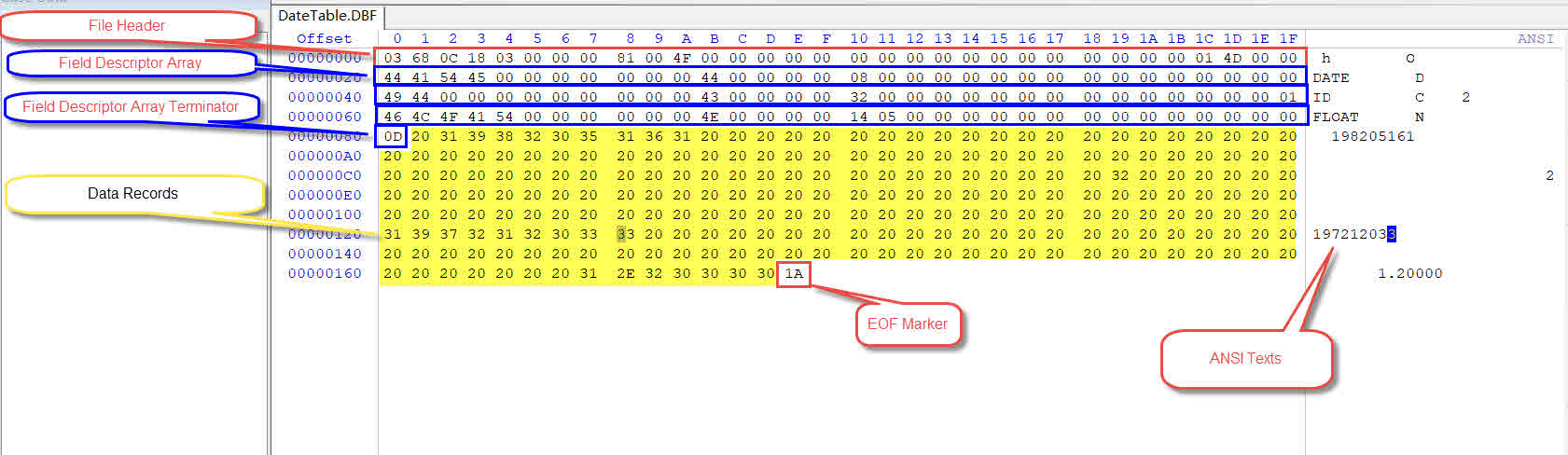
Below is a sample DBF file opened in a hex editor:
6.3.3 Manually Reconstruct the DBF File
When corruption is too severe to repair in place, reconstruct the database by transferring intact data records to a newly created file:
- Open dBASE or Visual FoxPro and create a new DBF file.
- Create the fields with the same names and data types as the original database, using the field descriptors identified during hex inspection, or other sources such as the DBA who created the original.
- In the hex editor, select and copy the intact data records from the old DBF file.
- Paste the copied data records into the corresponding offset of the new DBF file.
- Manually fix any corruptions visible within the pasted data records, such as incorrect deletion flags or truncated field values.
- Manually re-enter any data records that could not be recovered from the hex copy.
- Save the new DBF file and open it in Visual FoxPro or dBASE to validate that all records load correctly.
7. Method 5: Repair with Programming Languages
Programming libraries give you precise control over how a corrupt DBF file is read, allowing you to handle exceptions gracefully and export recoverable data to a new and clean database.
7.1 Python (pandas / dbfread)
Python’s pandas and dbfread libraries can read many partially corrupt DBF files that native database applications refuse to open:
- Install the required libraries:
pip install pandas dbfread simpledbf. - Read the corrupted DBF file using
dbfread:from dbfread import DBF; table = DBF('yourfile.dbf', ignore_missing_memofile=True). Theignore_missing_memofileflag allows the table to load even if the memo file is absent. - Load the records into a DataFrame:
import pandas as pd; df = pd.DataFrame(iter(table)). pandas handles minor data-type inconsistencies gracefully and allows you to inspect and clean the data. - Perform data cleaning as needed: fill missing values with
df.fillna(), correct incorrect data types withdf.astype(), and remove duplicate rows withdf.drop_duplicates(). - Export the cleaned DataFrame to CSV with
df.to_csv('recovered.csv', index=False), then recreate the DBF from the clean data.
7.2 Java (UCanAccess)
The UCanAccess JDBC driver supports DBF files and allows programmatic repair through standard Java I/O:
- Add the UCanAccess library to your project’s dependencies via Maven or by downloading the JAR directly.
- Open a JDBC connection to the folder containing the DBF file:
Connection conn = DriverManager.getConnection("jdbc:ucanaccess:///path/to/folder"); - Execute a
SELECT *query within a try-catch block. CatchSQLExceptionexceptions on individual rows to skip unreadable records rather than aborting the entire read. - Write the recovered rows to a new DBF or export them to CSV for reimport.
8. Method 6: Use Professional DBF Repair Tools
When manual methods are too complex, time-consuming, or the corruption is too severe, a dedicated DBF repair tool offers the fastest path to recovering your data.
8.1 Use DataNumen DBF Repair to Repair Corrupt DBF Files
DataNumen DBF Repair is a professional tool designed specifically to recover data from corrupt and inaccessible DBF files.
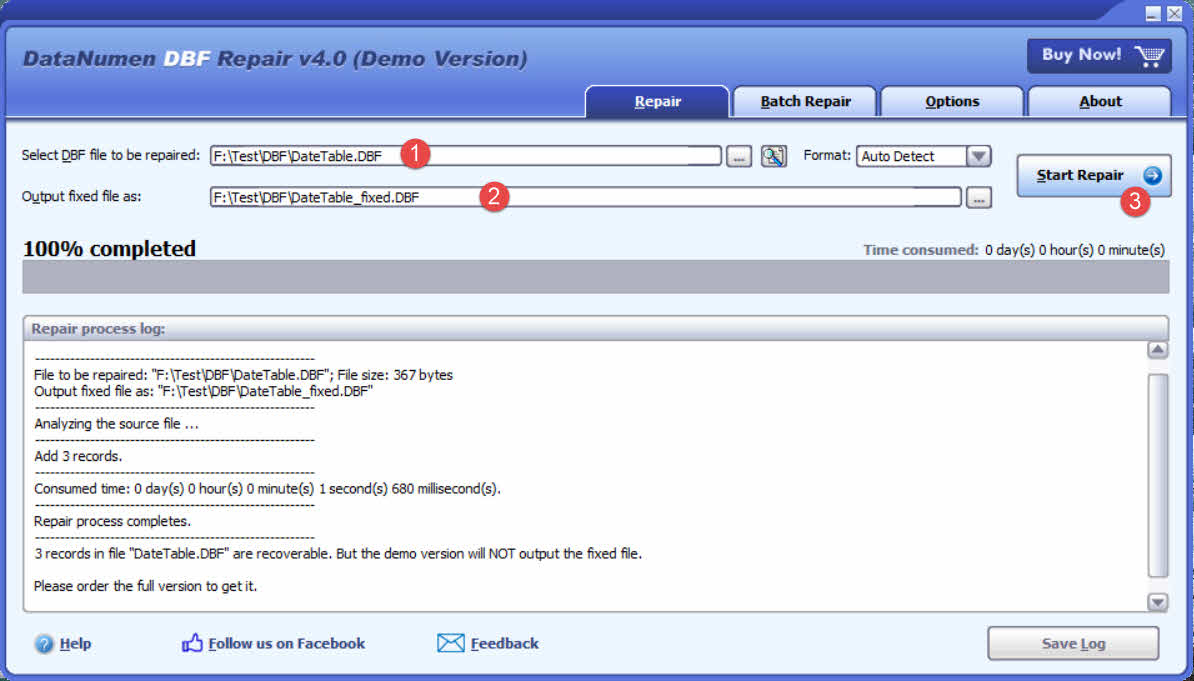
- Start DataNumen DBF Repair
- Select the corrupt DBF file to be repaired.
- Set the output file name.
- Click Start Repair. The tool will start to scan and repair the file.
- After the repair process, open the fixed file in dBase or FoxPro.
8.2 Use Online DBF Repair Tools
Online repair services are convenient for one-off repairs. Only use them with files that do not contain sensitive or confidential data.
- Recovery Toolbox for DBF Online: A browser-based service that supports dBASE and FoxPro DBF formats.
- OnlineFile.Repair: A multi-format online repair service that includes DBF support.
Common steps for online DBF repair tools:
- Go to the online repair tool’s website.
- Click Upload File or Browse and select the corrupt .dbf file.
- Click Repair or Analyze to begin the repair process.
- Preview the recovered records when prompted to confirm the data is usable.
- Click Download to download the repaired file to your computer.
9. Preventing DBF File Corruption
Most DBF corruption is preventable. Following these practices significantly reduces the risk of data loss:
- Proper shutdown practices: Always close the database application before shutting down the computer. Never terminate the application with Task Manager while a file is open.
- Avoid network file access: Do not open DBF files directly from a network share unless the application explicitly supports network record locking. Never allow multiple users to write to the same DBF file simultaneously without a locking mechanism in place.
- Regular backups: Schedule daily backups and store copies in a separate physical location or cloud storage. Periodically export critical data to CSV or another modern format as an additional safety net.
- Index maintenance: Run
REINDEXperiodically — especially after any abnormal shutdown — to keep index files consistent with the data records and prevent index-related corruption errors from escalating.
10. FAQ
Q: Can a completely corrupted DBF file be recovered?
A: Partial recovery is almost always possible. Full recovery depends on whether the data record area of the file is still intact. Header and index corruption is generally repairable; overwritten data records are not.
Q: What does the “Not a table” error mean in Visual FoxPro?
A: The first byte of the file header is not a recognized DBF version marker. Visual FoxPro strictly validates this byte on open, so even a single-byte header corruption produces this error.
Q: Is it safe to use free online tools to repair a DBF file?
A: Only if the file contains no sensitive data. Always read the tool’s privacy policy before uploading, and prefer a desktop tool when working with confidential records.
Q: Will PACK permanently delete my records?
A: Yes. PACK permanently removes all records flagged for deletion with no undo option. Always run it on a backup copy, never the original file.
Q: Can Python recover a DBF file without commercial software?
A: Yes, for data-level errors. The dbfread library with the ignore_missing_memofile flag can read many partially corrupt files that native applications refuse to open, and pandas can clean and export the recovered data.
Q: What is the difference between PACK and REINDEX in FoxPro / dBASE?
A: PACK permanently removes records flagged for deletion and compacts the data file. REINDEX rebuilds the index files from the existing data records without modifying the data itself. They solve different problems and can be run independently.
Q: Can I open a DBF file without FoxPro or dBASE installed?
A: Yes. LibreOffice Calc, DBF Commander, and Xbase++ can all open DBF files without requiring a FoxPro or dBASE installation.
Q: Why does my DBF file open in LibreOffice but not in Visual FoxPro?
A: LibreOffice is more tolerant of minor header inconsistencies. Visual FoxPro performs strict header validation and refuses to open files that fail any check. If the file opens in LibreOffice, export the data to CSV and recreate the DBF to obtain a clean, FoxPro-compatible file.
Q: What causes index files (.cdx / .idx) to go missing?
A: The most common causes are accidental deletion, a failed application installation or uninstallation that removed companion files, a crash during an index rebuild operation, or copying the .dbf file to a new location without copying the associated index files.
Q: Can a DBF file with memo fields (.fpt / .dbt) still be repaired?
A: Yes, but it requires additional steps. Use PACK MEMO in FoxPro to compact and repair the memo file. If the memo file itself is corrupt, non-memo field data is usually still recoverable by opening the table with the memo file reference removed from the header.
Q: How do I decide which repair method to try first?
A: Start with the least invasive approach and escalate only if it fails: (1) check for missing associated files, (2) run REINDEX, (3) open in an alternative application such as LibreOffice Calc, (4) run PACK and PACK MEMO, (5) use a hex editor for manual repair, (6) use a professional repair tool such as DataNumen DBF Repair.
Q: Can a corrupt DBF file corrupt other tables in the same database?
A: A corrupt .dbf table does not directly corrupt sibling tables. However, a corrupt .dbc database container file in Visual FoxPro can prevent all tables linked to that container from opening, effectively making the entire database inaccessible until the container is repaired or the tables are detached from it.
11. Conclusion
Repairing a corrupt DBF file is rarely hopeless. Start with the least invasive steps: verify that associated index and memo files are present, run REINDEX to rebuild damaged indexes, and try opening the file in a tolerant alternative application such as LibreOffice Calc or DBF Commander. If those approaches do not recover the data, escalate to the PACK and PACK MEMO commands, then to manual hex-level inspection and reconstruction, or to programmatic recovery using Python or Java. Throughout every step, work exclusively on a backup copy — never the original file.
For severe or complex corruption where manual methods have been exhausted, a professional DBF repair tool provides the most reliable automated recovery. Once you have recovered your data, put the prevention practices in Section 9 in place — regular backups, proper shutdown procedures, and periodic REINDEX runs — to avoid repeating the experience.
About the Author
Yuan Sheng is a senior database administrator (DBA) with over 10 years of experience in SQL Server environments and enterprise database management. He has successfully resolved hundreds of database recovery scenarios across financial services, healthcare, and manufacturing organizations.
Yuan specializes in SQL Server and DBF database recovery, high availability solutions, and performance optimization. His extensive hands-on experience includes managing multi-terabyte databases, implementing Always On Availability Groups, and developing automated backup and recovery strategies for mission-critical business systems.
Through his technical expertise and practical approach, Yuan focuses on creating comprehensive guides that help database administrators and IT professionals solve complex SQL Server challenges efficiently. He stays current with the latest SQL Server releases and Microsoft’s evolving database technologies, regularly testing recovery scenarios to ensure his recommendations reflect real-world best practices.
Have questions about SQL Server and DBF database recovery or need additional database troubleshooting guidance? Yuan welcomes feedback and suggestions for improving these technical resources.