
A BKF file stores backup data created by NTBackup, VERITAS Backup Exec, or other compatible software. When the file becomes corrupt or inaccessible, recovering the data inside requires the right tools and methods. This guide explains what causes BKF file corruption, its symptoms, and four proven methods to repair BKF files and restore your data.
1. What Is a BKF File?
1.1 BKF File Format and Origins
A BKF (Backup File) is an archive designed by Microsoft to store copies of files, folder structures, and metadata for later restoration. The following backup utilities support creating BKF files:
- NTBackup: The built-in backup application bundled with Windows NT, 2000, XP, and Server 2003.
- Veritas Backup Exec: A widely used enterprise backup solution that can produce BKF files.
- BackupAssist: A Windows-based backup solution for small and medium-sized businesses that supports creating BKF files.
- Veeam Backup & Replication: An enterprise-grade data protection platform that can write backup data in BKF format.
- Other BKF Tools: Some other tools can also create BKF files.
Since all these tools use the same BKF format, we can use the same recovery utilities and methods to repair BKF files created by them.
1.2 End of Life: Windows Stopped Supporting BKF
Starting with Windows Vista and Windows Server 2008, Microsoft replaced NTBackup with the Backup and Restore Centre. The new utility did not support the BKF format, making it impossible to restore BKF archives on modern Windows systems using built-in tools. Users who had accumulated years of BKF backups on Windows XP, Server 2003, or earlier versions found themselves unable to access that data after upgrading, driving demand for third-party BKF restoration and recovery solutions.
2. BKF File Corruption
BKF file corruption occurs when the data within the BKF archive becomes damaged or unreadable, preventing the backup software from accessing or restoring its contents. Even a partial corruption in a BKF file can render the entire backup unusable.
2.1 Common Causes of BKF File Corruption
Below are the most frequent causes of a corrupt BKF file:
- Backup Interruption and Incomplete Writes: A power failure, system crash, or forced shutdown during the backup process leaves the BKF file in an incomplete state, making it corrupt.
- Backup Software Defects: Bugs or errors in the backup application itself can produce a malformed BKF file that cannot be read back correctly.
- CRC Errors: Cyclic redundancy check failures during read or write operations indicate that data blocks within the archive have been altered or damaged.
- Hardware Failures: Physical damage to the storage medium — such as a dropped hard drive or a failed NAS device — can corrupt the sectors where the BKF file resides, making it unreadable.
- Virus and Malware Attacks: Malicious software may overwrite or modify BKF file contents, corrupting the archive structure and data.
2.2 Symptoms of a Corrupt BKF File
The following symptoms indicate that a BKF file is damaged and needs to be repaired:
- “The backup file contains unrecognized data and cannot be used.” error: This is the most common error message when NTBackup encounters a corrupt BKF file. It appears both when the corruption is severe and when only a portion of the file is damaged.
- Corrupted Directory Structure and Erratic File Offsets: When examining a BKF file with a low-level tool such as ntbkup in verbose mode, corrupted files show DIR Tree warnings and the file offsets jump erratically.
3. Method 1: Use Microsoft NTBackup to Restore BKF Files
NTBackup is Microsoft’s built-in tool for creating BKF files. In some cases, it can recover a portion of data from a corrupt BKF file. Windows XP / Server 2003 and earlier versions include NTBackup by default, while newer versions of Windows require a manual installation. Below, we will demonstrate how to use NTBackup to restore BKF data on modern Windows systems.
3.1 Modern Windows Systems (Windows Vista+ / Windows Server 2008+)
Modern Windows systems do not include NTBackup. Two options are available to use it on these systems.
3.1.1 Install NTBackup to Restore BKF File
- Download nt5backup.cab. The archive contains 4 files: ntbackup.exe, ntmsapi.dll, vssapi.dll, and Query.dll.
- Use 7-Zip to extract the contents of nt5backup.cab to a single folder on your local drive.
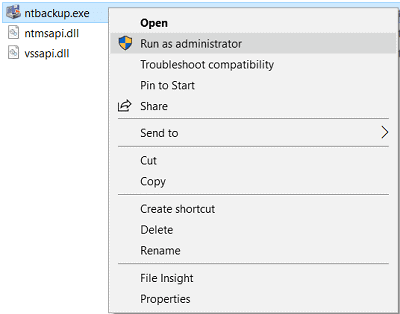
- Right-click ntbackup.exe and select Run as administrator.

- When the Removable Storage Not Running prompt appears, click OK to dismiss it.
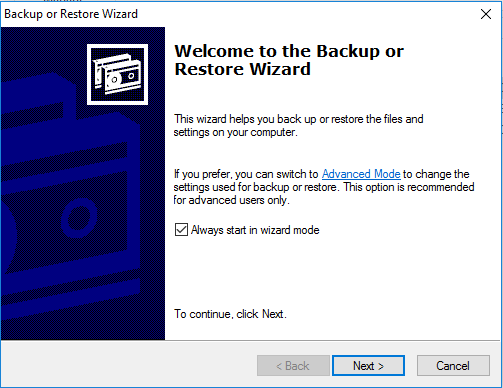
- On the Welcome page of the Backup or Restore Wizard, click Next.

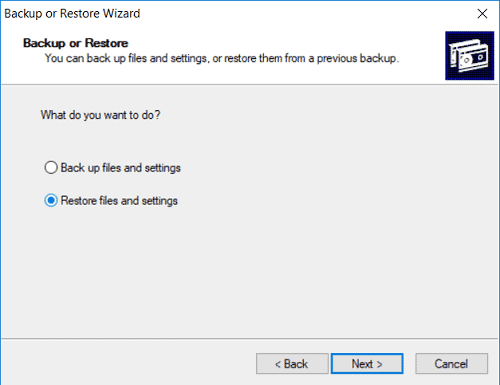
- Select Restore files and settings, then click Next.

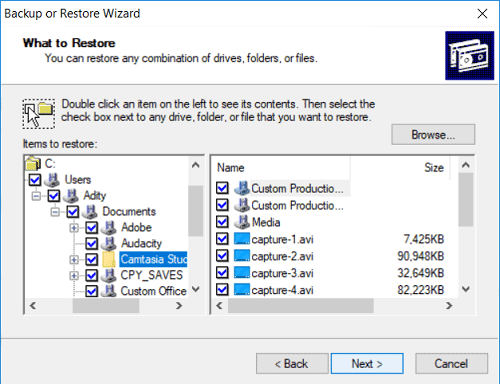
- On the What to Restore screen, click Browse and locate your BKF file.
- Expand the tree in the left pane, check the files or folders you want to restore, then click Next.

- Click the Advanced button
- In the Where to Restore screen, select the Alternate location in the Restore files to drop-down list.
- Enter the destination path in the Alternate location field and click Next.
- In the How to Restore screen, select Leave existing files (Recommended) and click Next.

- Review the restore options and click Finish to begin the restoration.
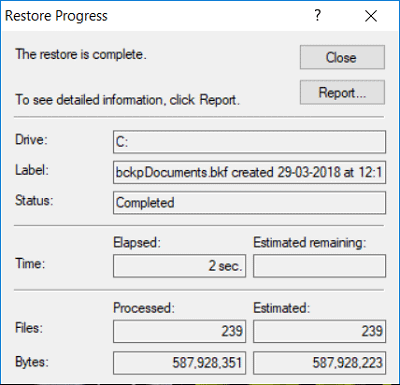
- The restore progress will show the progress of the restoration:

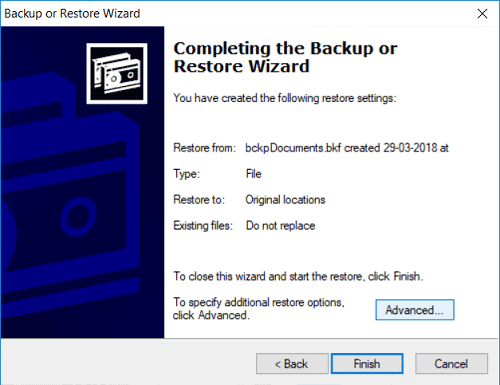
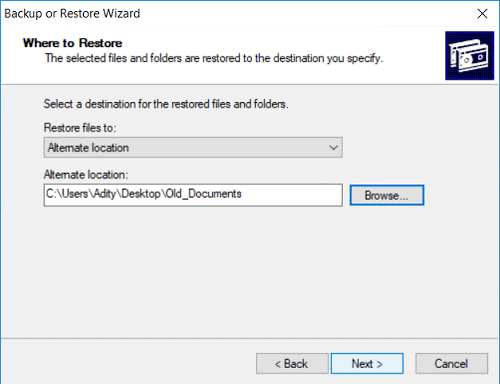
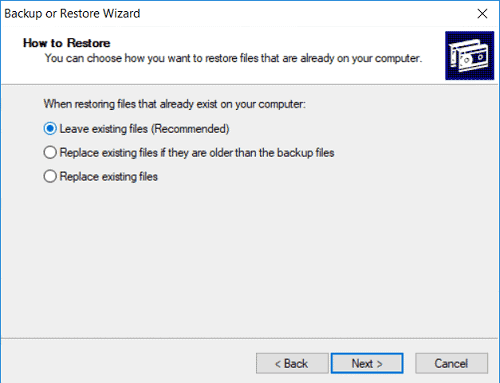
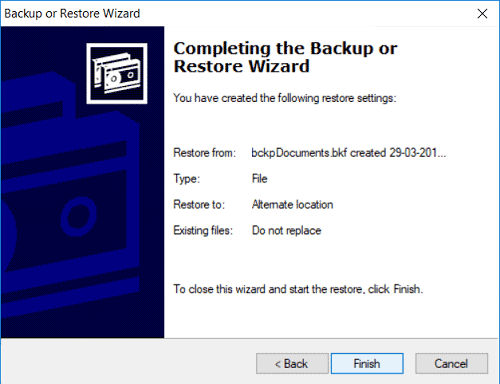
3.1.2 Create a Virtual Machine and Install Windows XP / Server 2003 or Earlier Versions
Alternatively, you can install VirtualBox or VMWare on your current machine, create a virtual machine running Windows XP or Windows Server 2003, and use the built-in NTBackup to perform the same restoration procedure above. Save the recovered files to a shared folder or network drive accessible from the host machine.
3.2 Windows XP / Server 2003 or Earlier Versions
NTBackup is included in Windows XP, Server 2003, and all earlier NT-based versions. If you still have access to a machine running one of these operating systems, you can open and restore BKF files directly using Start -> All Programs -> Accessories -> System Tools -> Backup. and follow the same steps above.
4. Method 2: Use Free NTBkup Tool to Repair BKF Files
NTBkup (ntbkup.exe) is a free, open-source command-line utility distributed under the GNU General Public License. It can read and extract files from BKF archives — including corrupt ones that NTBackup cannot open — making it a practical option to recover BKF files without purchasing commercial software. Use the following steps to extract data from a BKF file:
- Download ntbkup.exe from its GitHub repository at https://github.com/TonyLeeVT/ntbkup.
- Open a Command Prompt and navigate to the folder containing ntbkup.exe and your BKF file.
- Run a basic extraction with the -x flag:
ntbkup sample.bkf -x -pc:\dump
This extracts all files into the specified output directory. Note that ntbkup will overwrite existing files without prompting.
- If the BKF file has a corrupted directory structure, first generate a verbose listing to map the file offsets:
ntbkup sample.bkf -v > sample.txt
Open sample.txt and locate entries beginning with DIRB (directory blocks) and FILE. Each entry shows the hex offset of the data block and the directory path.
- Use the -j flag to extract data within a specific byte range, preserving the directory structure:
ntbkup sample.bkf -x -jh0:hc5d58
Replace the hex values with the start and end offsets for each directory block identified in the verbose listing.
- For large BKF files with complex directory trees, create a batch script that loops through all DIRB entries — creating each directory, changing into it, and extracting only the files belonging to that block — to avoid dumping everything into a single flat folder.
5. Method 3: Use Free MTFTar Tool to Repair BKF Files
MTFTar is a free, open-source utility that can convert a BKF file into a standard TAR archive, which can then be opened and extracted with any common archive program such as 7-Zip, WinRAR, or WinZip. This method is useful when NTBackup and ntbkup both fail to process the file. Use the following steps to recover BKF files with MTFTar:
- Download MTFTar from http://www.layton-graphics.com/mtf/mtf-0.2.1.tgz.
- Open a Command Prompt and run the conversion command, replacing the paths with your actual file names:
mtftar input.bkf output.tar
MTFTar reads the MTF stream in the BKF file and writes the contents as a standard TAR archive.
- Once the TAR file is created, open it with 7-Zip, WinRAR, or WinZip and extract the files to your chosen destination.
Note that MTFTar may produce incomplete output or crash on severely corrupt BKF files, as it is built on the “mtf” parsing library which is known to be unstable with heavily damaged archives. Always keep a copy of the original BKF file before running any conversion.
6. Method 4: Use a Professional BKF Repair Tool
When free tools fail, a professional BKF repair tool offers the most reliable path to recovering your data. These tools use advanced scanning algorithms to recover data from severely damaged BKF files.
6.1 Use DataNumen BKF Repair to Repair BKF Files
DataNumen BKF Repair is a professional tool designed specifically to repair BKF files:
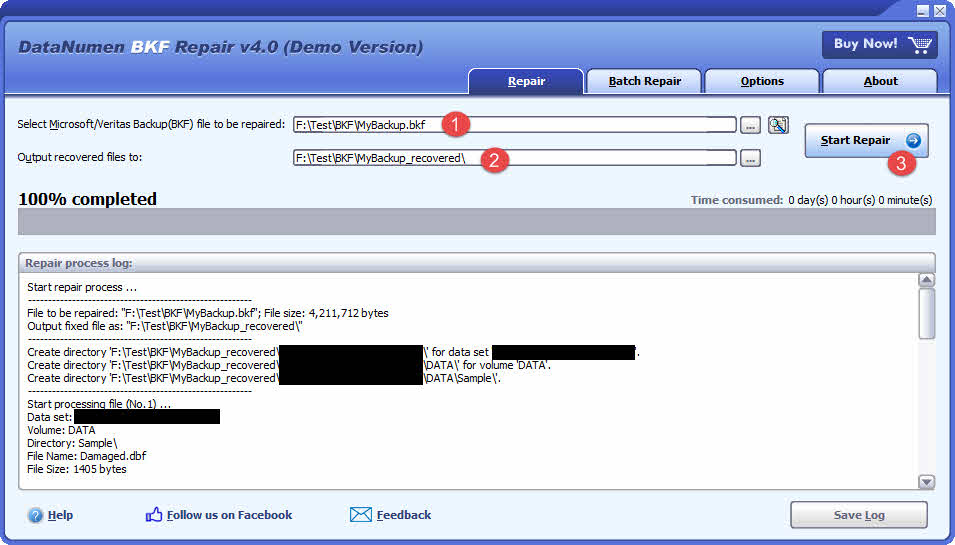
- Launch DataNumen BKF Repair
- Select the corrupt BKF file to be repaired.
- Set the output directory.
- Click Start Repair. The tool will start to scan and repair the file.
- Once the repair is complete, open the output directory to review the recovered data.
6.2 Recover BKF Data from Hard Drive, Disk Image, or Backup Files
BKF data can be recovered directly from hard drives, disk images, or backup files if you do not have the original BKF files any more, for example:
- You delete the BKF file permanently.
- You format the hard drive.
- Hard drive failure.
- The virtual disk in VMWare or Virtual PC is corrupt or damaged.
- The backup file on the backup media is corrupt or damaged and you cannot restore the BKF file from it.
- The disk image file is corrupt or damaged and you cannot recover your BKF file from it.
If you have the disk image or backup files on hand, then you can do as follows:
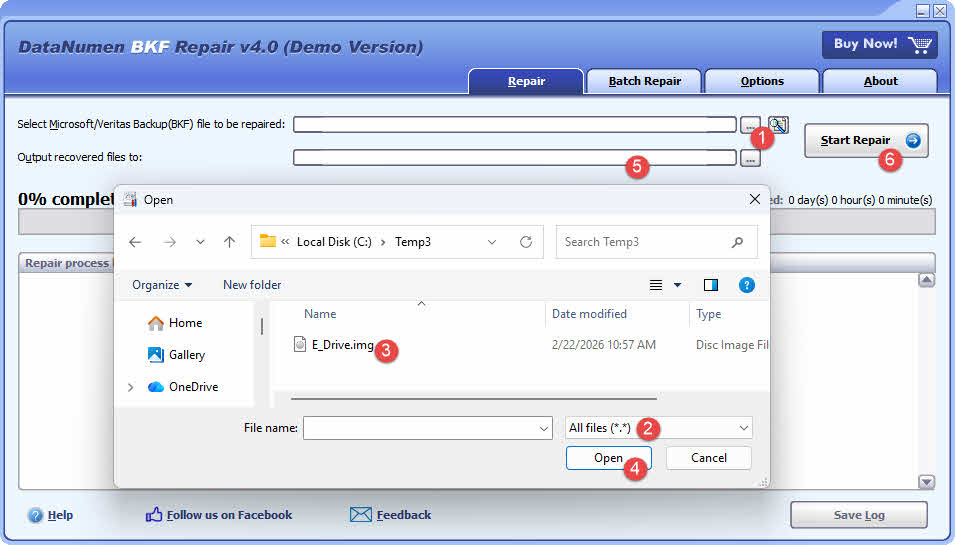
- Click “…” button to select the source file.
- In the “Open File” dialog, select “All Files (*.*)” as the filter.
- Select the disk image or backup file as the source file to be repaired.
- Set the output directory.
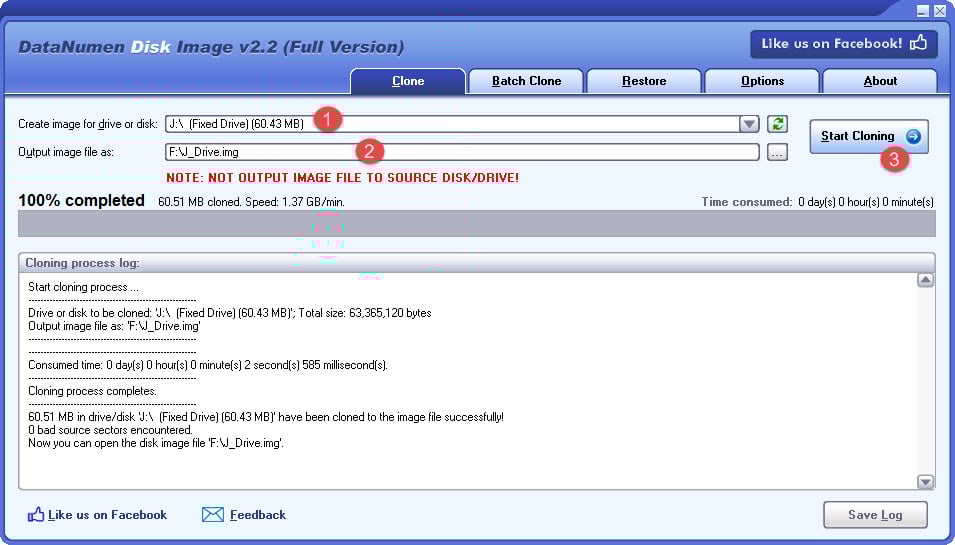
If you want to recover from hard drive directly, you need to use DataNumen Disk Image to create a disk image file for the hard drive:
- Select the hard drive or disk.
- Set the output image file name.
- Click “Start Cloning” button to create the disk image file from the hard drive/disk.
7. How to Prevent BKF File Corruption
7.1 Always Work on a Copy, Never the Original BKF
Before attempting any recovery or repair operation, make a full copy of the BKF file and store it on a separate drive. All repair attempts — whether with ntbkup, MTFTar, or a professional tool — should be performed on the copy. If a recovery attempt fails or produces unexpected results, the original remains intact and can be used for another attempt.
7.2 Run NTBackup and Restore Utilities as Administrator
Always launch NTBackup and any BKF recovery tool with administrator privileges. Running without elevated permissions causes many files to fail restoration silently, because the utility lacks the rights to write to protected directories or access files owned by system accounts. Right-click the executable and select Run as administrator before starting any restore operation.
7.3 Verify MD5 Checksums After Backup Creation
After creating a BKF file, generate and record its MD5 checksum. Store the checksum alongside the backup file. Before any restore operation, recompute the checksum and compare it against the recorded value. A mismatch indicates that the file has been altered or corrupted since it was created, allowing you to detect problems before you need the data.
7.4 Migrate from BKF to Modern Backup Formats
BKF is a legacy format tied to an end-of-life utility. For new backups, migrate to modern solutions such as Windows Backup (built into Windows 10 and 11), Veeam, or cloud-based backup services. These tools produce formats that are natively supported on current operating systems, eliminating the compatibility and accessibility problems associated with BKF files.
8. Frequently Asked Questions (FAQ)
Q: Can I repair a BKF file for free?
A: Partially. The free tools ntbkup.exe and MTFTar can extract data from some corrupt BKF files at no cost. However, neither tool guarantees full recovery, and both require command-line experience. For severe corruption or large files, a professional BKF repair tool provides a more reliable result.
Q: Does Windows 10 support BKF files natively?
A: No. Windows 10 does not include NTBackup and has no built-in support for opening or restoring BKF files. You must use a third-party tool, install the NTBackup binaries manually from nt5backup.cab, or run NTBackup inside a Windows XP virtual machine.
Q: What causes “The Backup File Contains Unrecognized Data and Cannot Be Used”?
A: This error appears when NTBackup detects that the BKF file’s internal structure does not conform to the expected MTF format. Common triggers include partial writes caused by backup interruptions, virus damage, CRC errors, and hardware failures during the original backup. The error can also occur on very large BKF files that were saved to tape and later copied to a NAS, if any data was lost during the transfer.
Q: Can I recover individual files from a BKF without restoring everything?
A: Yes. NTBackup’s restore wizard lets you expand the archive tree and select specific files or folders. The ntbkup tool supports targeted extraction using the -j offset flag to extract a single directory block. For a specific file such as Outlook.pst, you can use grep and dd on the raw BKF file to locate the file’s STAN marker and extract only that file’s byte range.
Q: What is the difference between repairing and restoring a BKF file?
A: Restoring a BKF file means extracting its contents to a destination folder using backup software, assuming the file is intact. Repairing a BKF file means reconstructing a damaged or unreadable archive so that its contents become accessible again. Repair is a prerequisite when the file is corrupt and cannot be opened by standard restore tools.
Q: How large can a BKF file be?
A: BKF files can be very large. Files of 20 GB are common in enterprise environments, and files exceeding 100 GB have been reported. Large BKF files take significantly longer to scan and repair. Tools such as DataNumen BKF Repair allow you to save the scan state so you do not have to restart a scan from the beginning if the process is interrupted.
Q: Can I restore a BKF file created on Windows XP to Windows 11?
A: Not directly. Windows 11 does not include NTBackup. You can use the nt5backup.cab method or a virtual machine running Windows XP to perform the restore, or use a professional BKF repair tool such as DataNumen BKF Repair, which supports BKF files regardless of the Windows version on which they were created.
Q: Is ntbkup.exe safe to use?
A: Yes. ntbkup.exe is a free, open-source program released under the GNU General Public License. The source code is publicly available on GitHub. It does not modify the original BKF file — it only reads it — so it is safe to use as long as you obtain the binary from the official repository or compile it from source.
Q: Can VERITAS Backup Exec BKF files be repaired the same way?
A: Yes. VERITAS Backup Exec also uses the MTF-based BKF format, so the same methods — nt5backup.cab, ntbkup, MTFTar, and professional repair tools — apply to BKF files created by Backup Exec. The recovery process is identical to that for NTBackup BKF files.
Q: Why does ntbkup.exe overwrite existing files without warning?
A: ntbkup.exe is designed for extraction speed and does not implement overwrite prompts. If a file with the same name already exists in the destination directory, it will be silently replaced. To avoid data loss, always extract to an empty folder, or use the -j offset option combined with a batch script that creates a separate directory for each DIRB block before extracting.
Q: How do I extract a single Outlook PST file from a corrupt BKF?
A: Use grep to scan the raw BKF file for the STAN marker that precedes the PST file’s data stream, then use dd to extract the exact byte range. First, identify the file’s offset:
grep -a -o -P '0\x00u\x00t\x00l\x00o\x00o\x00k\x00\.\x00p\x00s\x00t' corrupt.bkf >offsets.txt
Inspect offsets.txt to find the offset followed by the NACL, CSUM, and STAN markers. The byte count for the file is stored as an 8-byte little-endian value beginning 4 bytes after STAN, and the file data starts 22 bytes after the beginning of STAN. Use dd with the calculated offset and byte count to extract the PST file.
References
- Microsoft Official Document: How to restore Windows XP NTBackup files in Windows Vista, Windows 7, Windows 8 and Windows 10
About the Author
Jing Hua is a data recovery specialist and technical writer with over 10 years of experience in archive and backup file repair. He has helped thousands of users recover critical data from corrupted ZIP files, damaged archives, and failed backups across various industries including IT, finance, manufacturing and education.
Jing specializes in archive and backup format recovery, including ZIP, RAR, BKF, TAR and CAB formats, with deep expertise in file structure analysis and corruption diagnosis. His hands-on experience encompasses working with hex editors, command-line repair utilities, and developing automated recovery tools and scripts for batch file restoration. He has successfully recovered data from archives ranging from small personal files to multi-gigabyte enterprise backups.
Through his technical knowledge and user-focused approach, Jing creates practical guides that help both novice users and IT professionals solve file corruption issues effectively. He regularly tests new compression tools and recovery methods across Windows, Mac, and Linux platforms, ensuring his recommendations reflect current best practices and real-world success rates.
Have questions about BKF file repair or need help with other archive recovery challenges? Jing welcomes feedback and suggestions for improving these technical resources.